View a team member's profile
Esta página aún no está disponible en tu idioma.
As a manager you see more on the profiles of the people in your org than their colleagues do: their personal details and, for your direct reports, their review scores and documents. You can’t change anything on someone else’s profile. Your HR team keeps it up to date.
Open the profile
Section titled “Open the profile”Open it in one of these ways, so that it shows everything you’re allowed to see:
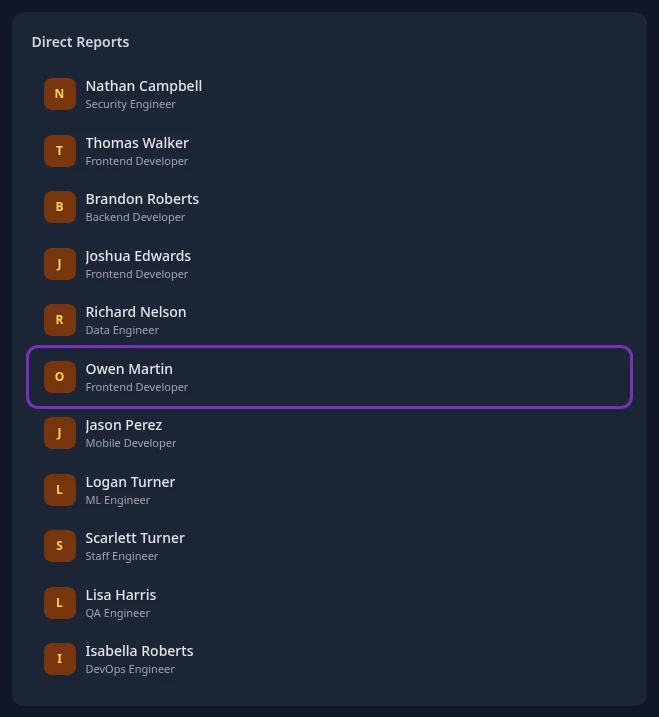
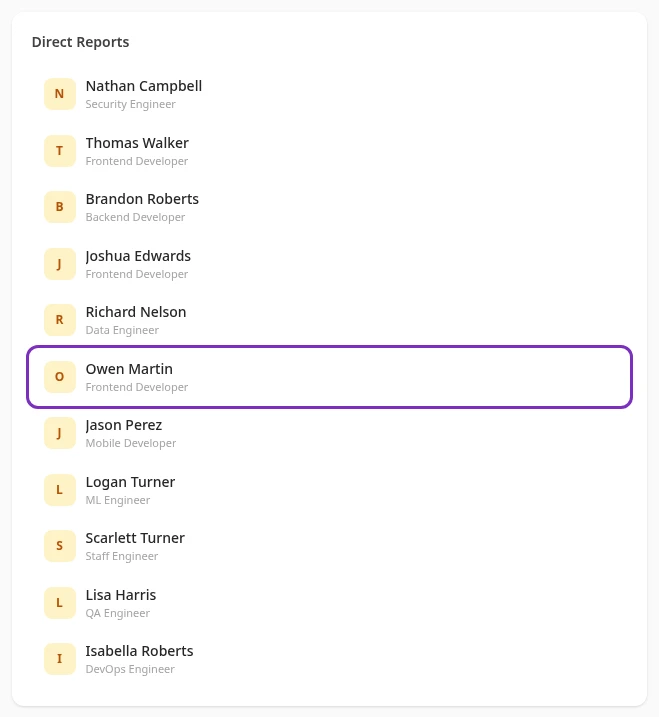
- On the Team Dashboard, select a name under Direct Reports.
- On the People page, select Org Chart, select the person’s card to move the chart to them, then select their highlighted card. See Browse the org chart.
- On the 👥 Team tab of the Feedback page, select a name.
- On any profile, select a name in the Organization card.
What you see
Section titled “What you see”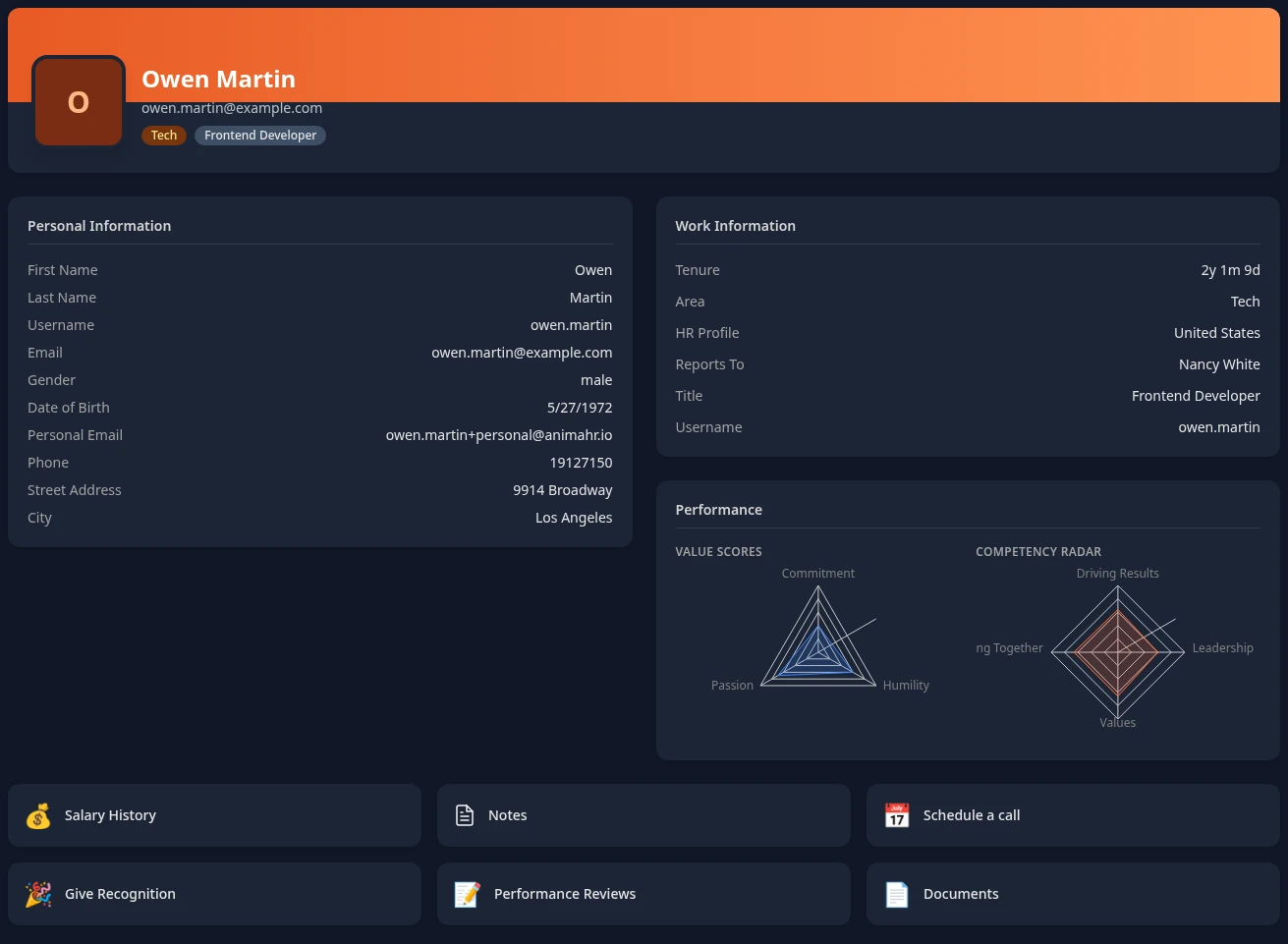
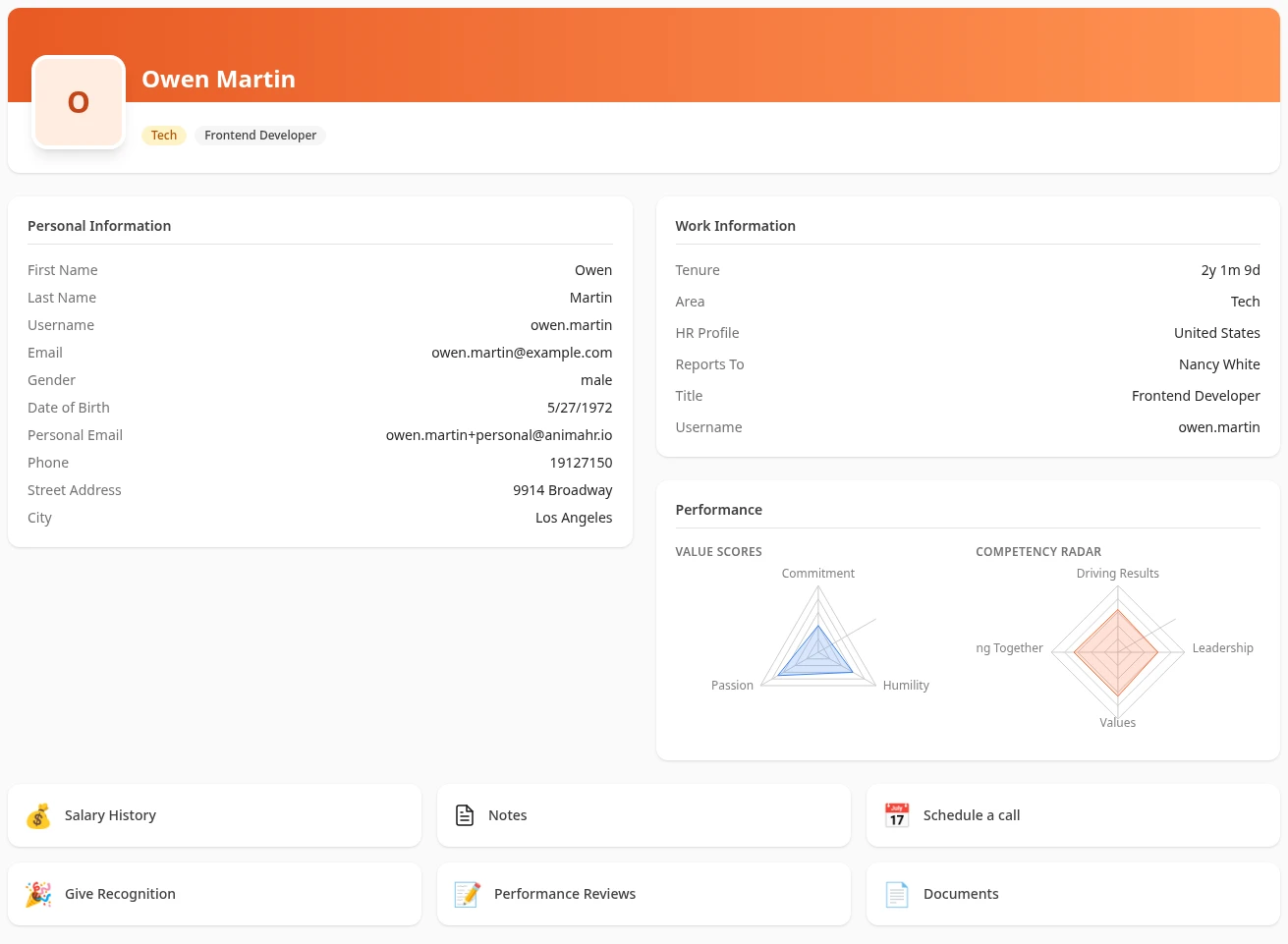
| Part | What you see |
|---|---|
| Header | The first letter of their name, then their name, area and title. Their photo only shows to them and to HR. |
| Personal Information | Their name, username and work email, then the personal details that are filled in, such as gender, date of birth, personal email, phone and address. The fields depend on the country or region their profile uses. |
| Work Information | Tenure, Area, HR Profile (if your company uses several), Team (if they have one), Reports To, Title and Username. |
| Performance | The Value Scores and Competency Radar charts from their latest closed review cycle. Direct reports only. |
| Links | Salary History, Notes, Schedule a call, Give Recognition, Performance Reviews and Documents, for the modules your company uses. Salary History, Performance Reviews and Documents only show for your direct reports. |
| Organization | Their managers up to the top of the company, then the people who report to them or, if nobody does, the colleagues who share their manager. |
| Recognition | The badges they’ve earned from kudos (Earned) and their work anniversaries (Milestones). |
You don’t see:
- Their ID, tax and social security numbers, visa details, employment and benefits details, pay fields, or anything about leaving the company. Those are for HR. See Who can see what on your profile.
- Their Employee History (promotions and transfers), their Certifications, their roles and their assets.
- Edit Profile: to correct someone’s title, team, manager or other details, ask your HR team.
What you can do from the profile
Section titled “What you can do from the profile”| Link | What it does |
|---|---|
| Notes | Opens a new 1:1 note with them, with their name already filled in. See Keep 1:1 notes about your reports. |
| Give Recognition | Opens the Recognition page with the form open and their name filled in. See Recognize a colleague. |
| Performance Reviews | Opens the Performance tab of the Feedback page with their review cycles. Select a cycle marked Finalized to see their results. See Read your team’s review results. |
| Documents | Lists the files they’ve shared with Me, my managers and HR or All employees, and lets you download them. Files they keep for Only me and HR, and HR’s files about them, aren’t listed. Only they and HR can upload files there. |
| Schedule a call | Opens the Schedule tab of your own Calendar. It doesn’t book a meeting with them: ask them for their booking link. See Set your availability and booking pages. |
| Salary History | See below. |
Use Give Recognition rather than the + next to Recognition, which opens the Feedback page instead.
On a direct report’s profile, Salary History shows their salary changes. + Request Salary Change sends a change for approval; who approves it is set in your company’s approval flows. See Check the approval flows.
People further down your org
Section titled “People further down your org”Your manager tools cover your whole org, so you also see the personal details of the people who report to your direct reports. On their profiles, you don’t get the Performance card or the Salary History, Performance Reviews and Documents links, which only show for your direct reports. Notes, Schedule a call and Give Recognition are there for everyone.
Can’t see this?
Section titled “Can’t see this?”- The Performance card is empty, or there are no Earned badges. They don’t have any review scores or kudos yet.
- There’s no Performance card, or no Salary History, Performance Reviews or Documents link. The person isn’t your direct report, or your company doesn’t use that module. Your admin can hide the salary and documents links for everyone, and you may have hidden Documents link yourself: see Hide sections on some pages.
- Personal Information only shows their name and email. Their personal details aren’t filled in yet, or the person isn’t in your org.
- There’s no Schedule a call link. Your company doesn’t use Scheduling.