View your attendance
Esta página aún no está disponible en tu idioma.
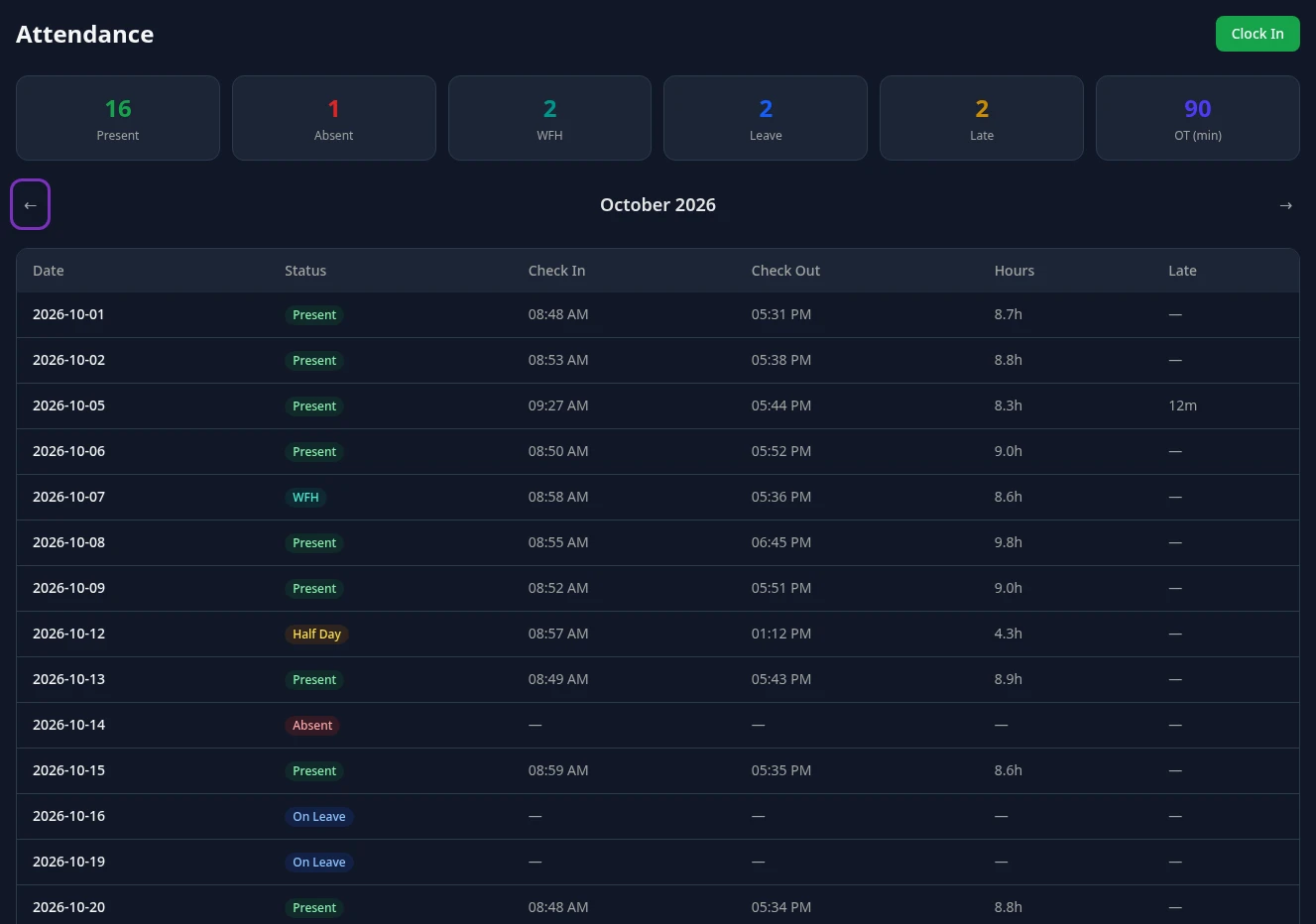
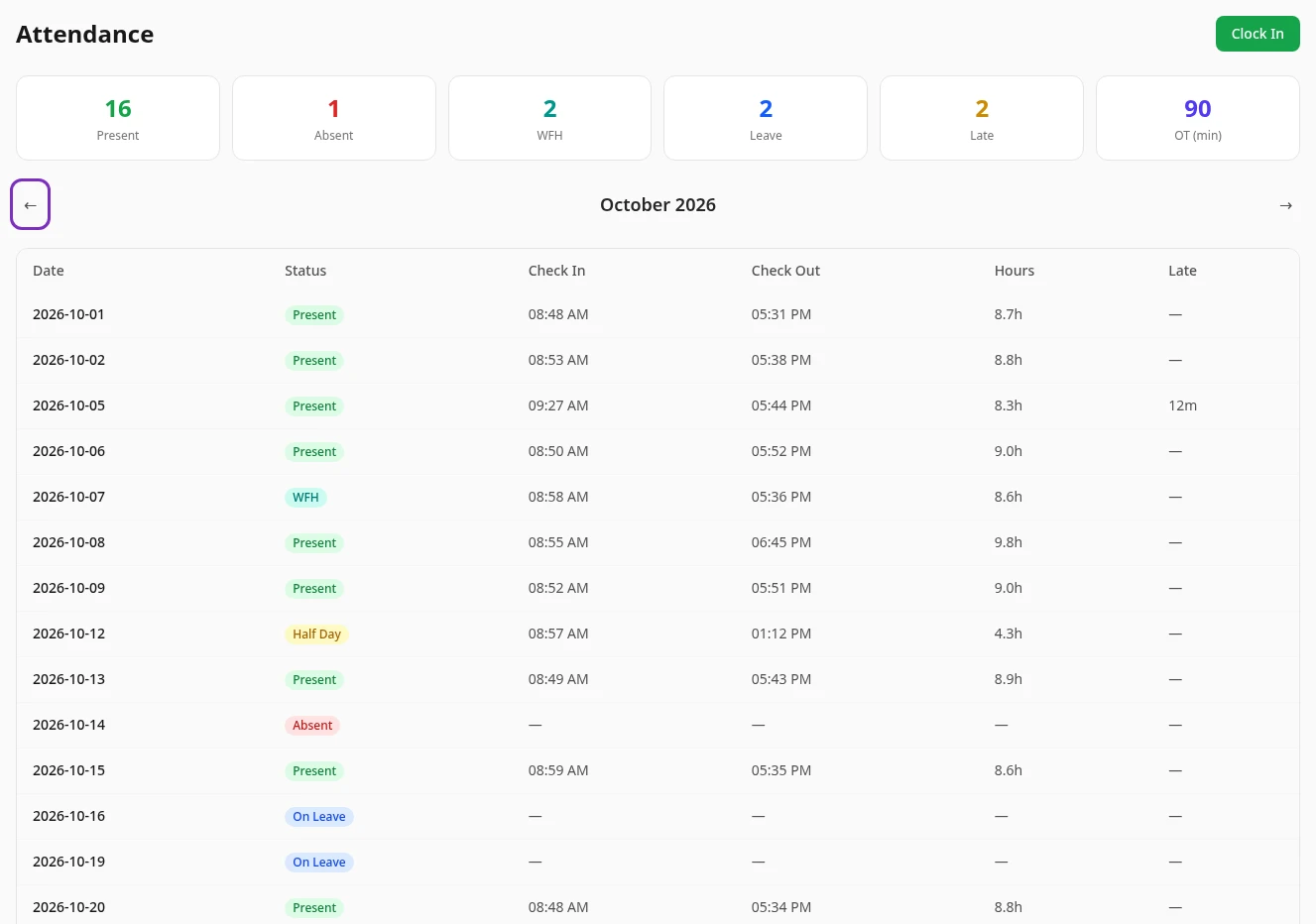
The Attendance tab on the Time & Attendance page shows your attendance one month at a time: a summary of the month, then one row for each day with a record.
Open your attendance
Section titled “Open your attendance”-
Select Time Off in the menu bar, then the Attendance tab.
-
The current month opens first. Use ← and → on either side of the month’s name to see other months.
The month summary
Section titled “The month summary”| Card | What it counts |
|---|---|
| Present | Days marked Present or Training. |
| Absent | Days marked Absent. |
| WFH | Days marked WFH, working from home. |
| Leave | Days marked On Leave. |
| Late | The number of days you clocked in late, not the minutes. |
| OT (min) | Your overtime for the month, in minutes. |
Half days and holidays aren’t counted in any of the cards.
The daily table
Section titled “The daily table”Each row is one day:
- Date and Status.
- Check In and Check Out: when you clocked in and out, shown in your own time zone.
- Hours: the time between the two, such as 8.5h.
- Late: how many minutes late you were after the grace period, such as 12m. See Late arrivals and overtime for how they’re counted.
A dash (—) means nothing was recorded. A day you clocked in but didn’t clock out has no Check Out and no Hours.
Only days with a record are listed. A day you didn’t clock in isn’t in the table, and it isn’t counted as absent. When a month has no records, the tab shows No attendance records.
What the statuses mean
Section titled “What the statuses mean”| Status | Meaning |
|---|---|
| Present | You clocked in. |
| WFH | You worked from home. |
| Half Day | You worked half a day. |
| On Leave | You were on time off. |
| Holiday | A company holiday. |
| Absent | You were absent. |
| Training | You were at a training session. |
Clocking in always records Present. The other statuses only appear on days HR has recorded for you. Anima HR doesn’t fill in days by itself, so your approved time off and company holidays don’t appear here unless HR records them.
Your attendance and your pay
Section titled “Your attendance and your pay”Your attendance doesn’t change your pay. Payroll in Anima HR doesn’t use attendance records, so absences, late arrivals and overtime don’t change your payslips.
If something’s wrong
Section titled “If something’s wrong”You can’t change your attendance records yourself. If a day is wrong, for example because you forgot to clock out, tell your HR team.
Can’t see this?
Section titled “Can’t see this?”- There’s no Attendance tab. The Attendance module is turned off for your company. An admin can turn it on.
- Every month shows No attendance records. You haven’t clocked in yet, or your attendance isn’t tracked. See If your attendance isn’t tracked.