Welcome to Anima HR
Esta página aún no está disponible en tu idioma.
Anima HR is where your company keeps its people records and runs everyday HR work: time off, pay, reviews, hiring, learning and more. Your company has its own workspace with its own web address, such as yourcompany.animahr.io. Its admins set it up in Settings, without any code.
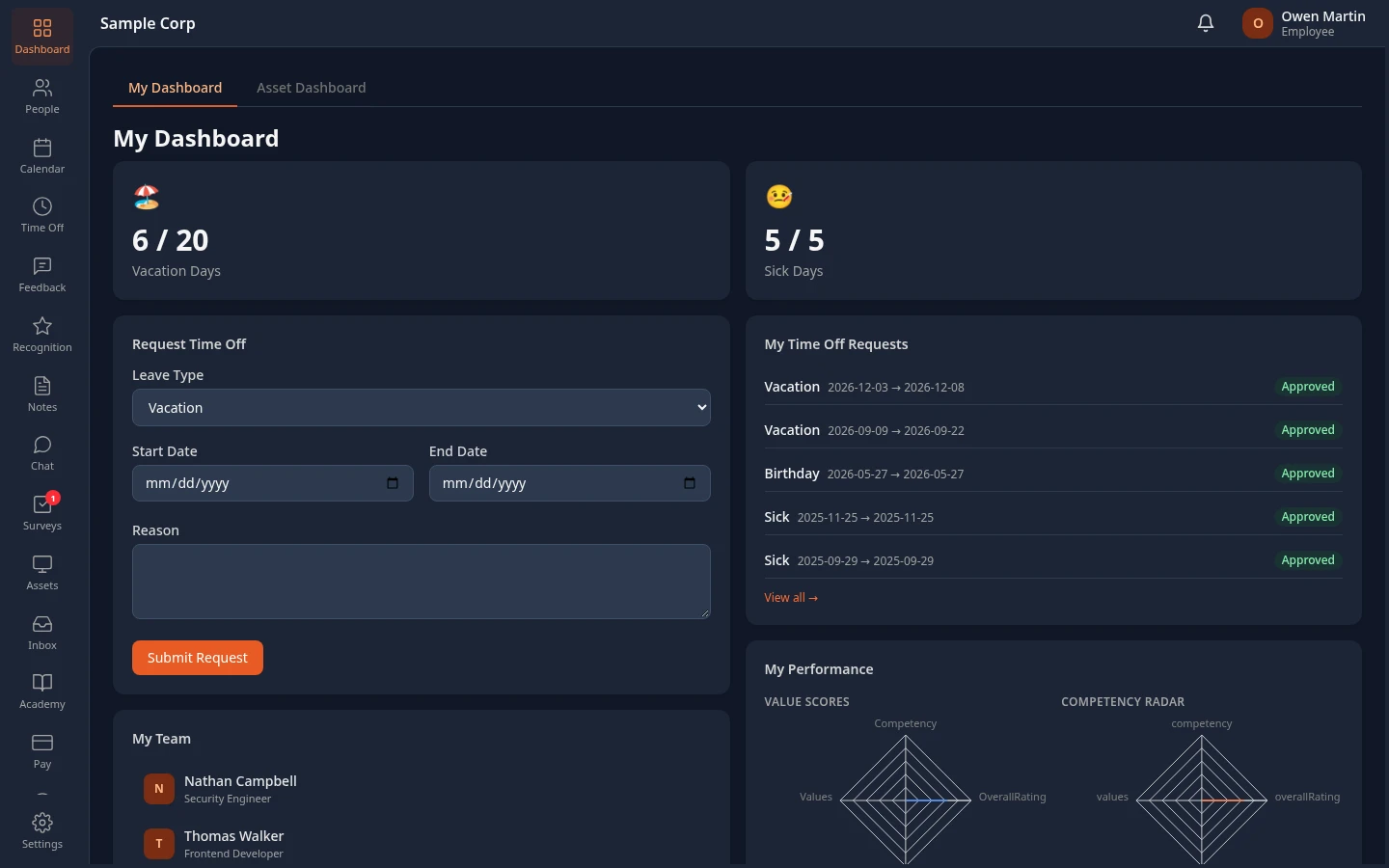
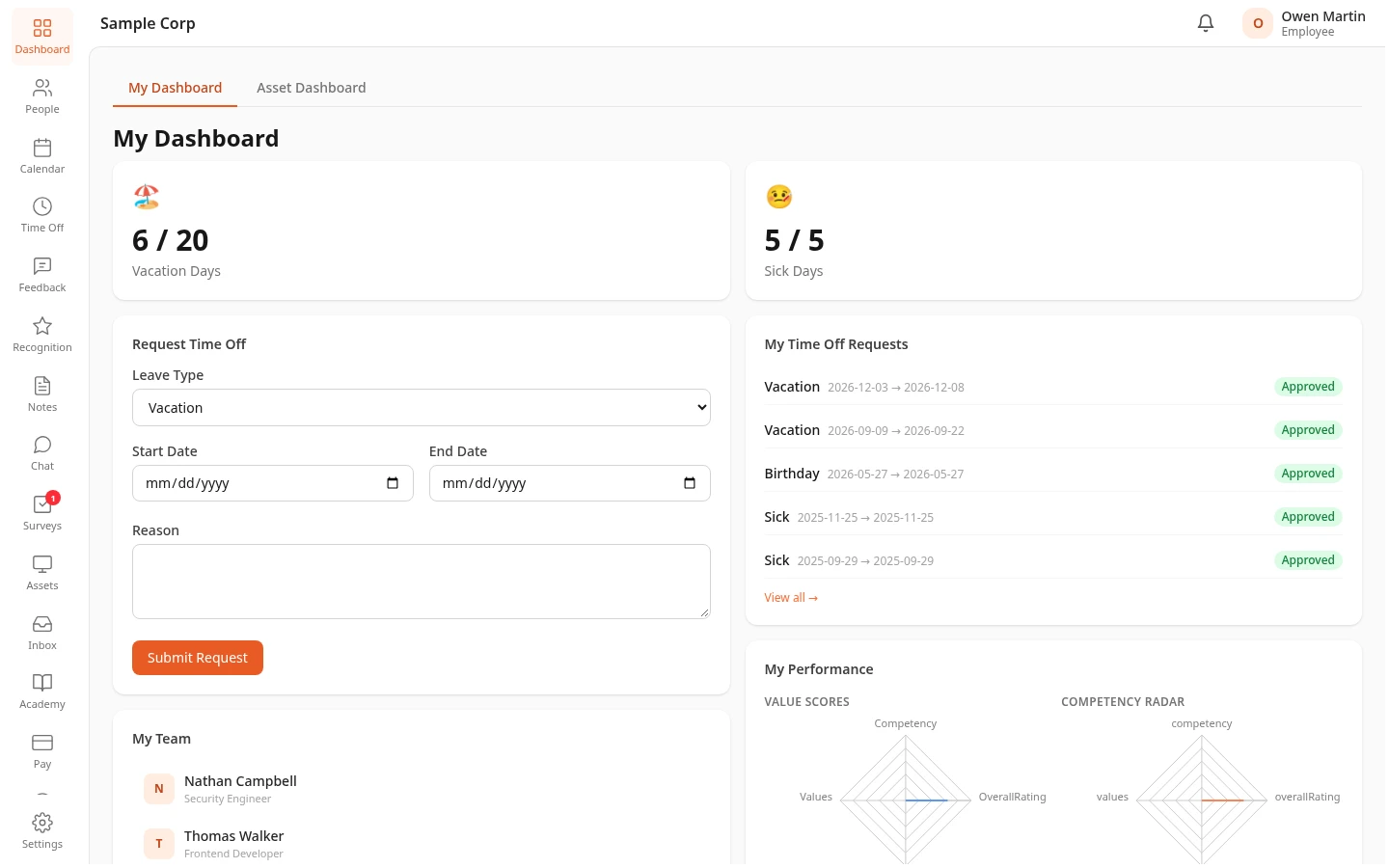
What Anima HR covers
Section titled “What Anima HR covers”Anima HR is made of modules. Admins turn each module on or off for the whole company, so your workspace may not use all of them.
| Area | Modules |
|---|---|
| Core HR | People & Profiles (directory, profiles, org chart, documents), Approvals, Onboarding Tasks, Lifecycle (promotions and transfers), Separation, Assets |
| Time & attendance | Time Off, Attendance, Shifts, Calendar, Scheduling (booking pages) |
| Pay & finance | Payroll, Reimbursements, Loans, salary history and raise requests |
| Talent & performance | Hiring, Performance (reviews), Feedback, Recognition, 1:1 Notes, People Analyzer, Surveys |
| Learning | Academy (courses and certificates), Training |
| CRM & support | CRM, Support |
| AI, on the Pro AI plan | AI Chat (the AI assistant), AI connectors (other apps the assistant can use), AI connections (MCP), for connecting your own AI client |
Everyone also has an Inbox, where notifications and requests waiting for a decision arrive.
Every module is included on every plan. The Pro AI plan adds the AI features. See Plans and features.
How roles work
Section titled “How roles work”What you can see and do comes from your roles. You can hold more than one role, and you then get everything each of them allows. Admins assign roles in Settings › Access, and a change takes effect within about a minute.
- Employee is the role people get when they’re added, unless whoever adds them picks another one. It covers your own records: your profile, time off, pay, reviews, documents, assets and courses. It also opens the company directory, where you see everyone’s work details, such as title, team and manager.
- Manager applies automatically to anyone who has at least one active person reporting to them on the org chart. Nobody assigns it by hand, and it goes away when nobody reports to you. It adds team tools that cover your whole org, meaning your direct reports and the people who report to them: you approve their time off and expenses, see their reviews, feedback and attendance, keep 1:1 notes and follow their learning progress.
- HR Admin gives full access to HR data and HR work: profiles, time off and leave policies, reviews, surveys, hiring, onboarding and offboarding, documents, and most settings. It doesn’t include managing roles, sign-in, billing or email settings.
- Admin gives every permission, but only in admin mode. Until an Admin selects Elevate to Admin in the menu under their name, they only have the access of their other roles: usually Employee, plus Manager if people report to them. While admin mode is on, an orange bar at the top of every page says that actions are being logged. See Admin mode.
- Recruiter gives full access to hiring: jobs, candidates, offers, hire decisions, referrals and hiring reports. You can also help with a single job without this role: being on that job’s interview panel gives you access to that job only.
- Finance gives access to salaries and compensation across the company, and to payroll, reimbursements, loans and asset reports. It doesn’t include editing HR data.
- Sales gives access to the CRM: contacts, deals (your own, unless an admin widens it), closing deals and CRM reports.
- Custom roles are roles your admins create in Settings › Access › Roles & Permissions, up to 50 of them. For each permission about people’s records, they choose whose records it covers: Self, Team or All. Other permissions are on or off. See Create or change a custom role.
The label under your name in the top bar only shows Employee, Manager or, in admin mode, Admin ⚡. Your other roles aren’t shown there.
Why your menu looks different from a colleague’s
Section titled “Why your menu looks different from a colleague’s”Two people in the same company can see different menus and pages. Four things decide what you see:
- Modules. A module your company turned off is hidden from everyone.
- Roles. A menu item only shows if your roles let you use its page. For example, CRM shows for people with the Sales role, and Hiring for recruiters and interview panel members.
- Display choices. Admins can hide menu items for everyone, and you can hide items from your own menu bar. See Set your language, theme and menu bar.
- Admin mode. Admins see admin screens only while admin mode is on.
The same goes for what’s on a page. A manager’s Time Off page has a Team Requests tab that other employees don’t have, and private fields on someone’s profile are hidden from people who aren’t allowed to see them.
Where to go next
Section titled “Where to go next”- Sign in to your workspace.
- Find your way around: the menu bar, the top bar, the Dashboard and the Inbox.
- Follow the quick start for your role: employees, managers or admins.
- Setting up Anima HR for your company? Start with the admin quick start, then work through the go-live checklist.