View the app as someone else
Esta página aún no está disponible en tu idioma.
View as this user shows you Anima HR as one person sees it: their menu bar, their pages, and only the data their roles let them see. Use it to check what a role gives someone, or to see the problem they’re describing. You can look but not change anything. Only Admins in admin mode can do it.
Start viewing as someone
Section titled “Start viewing as someone”-
Turn on admin mode: select your name in the top bar, then Elevate to Admin.
-
Select People in the menu bar, then open the person’s profile.
-
Select View as this user, next to Edit Profile.


The page loads again, as the person would see it.
While you view as someone
Section titled “While you view as someone”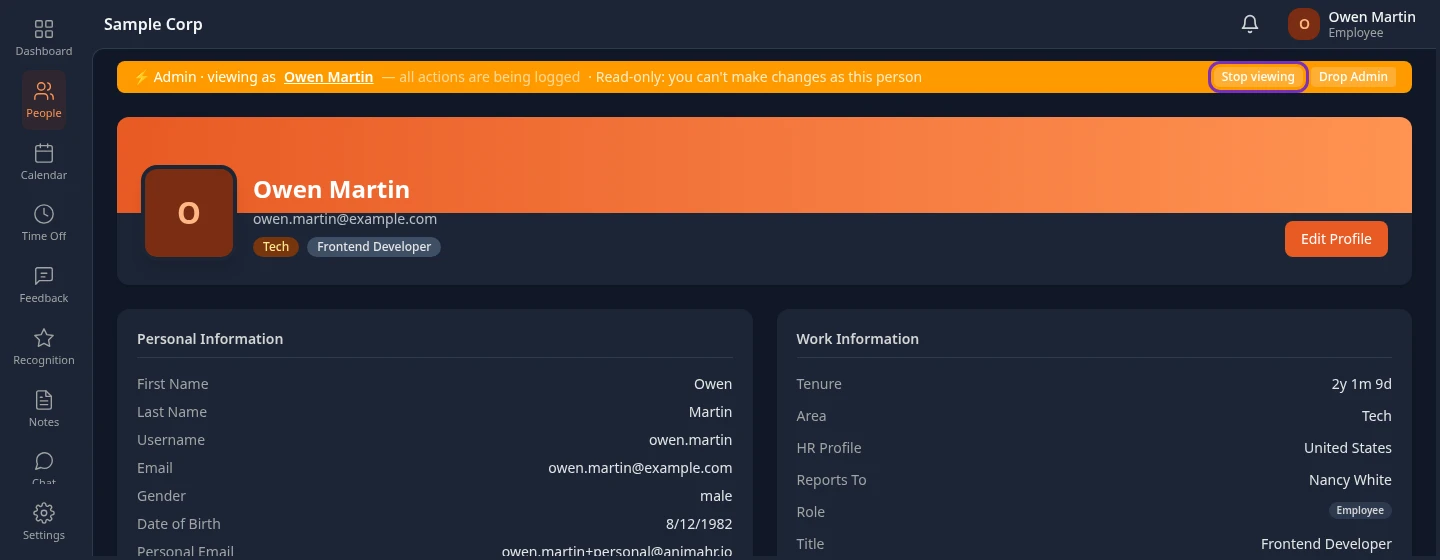
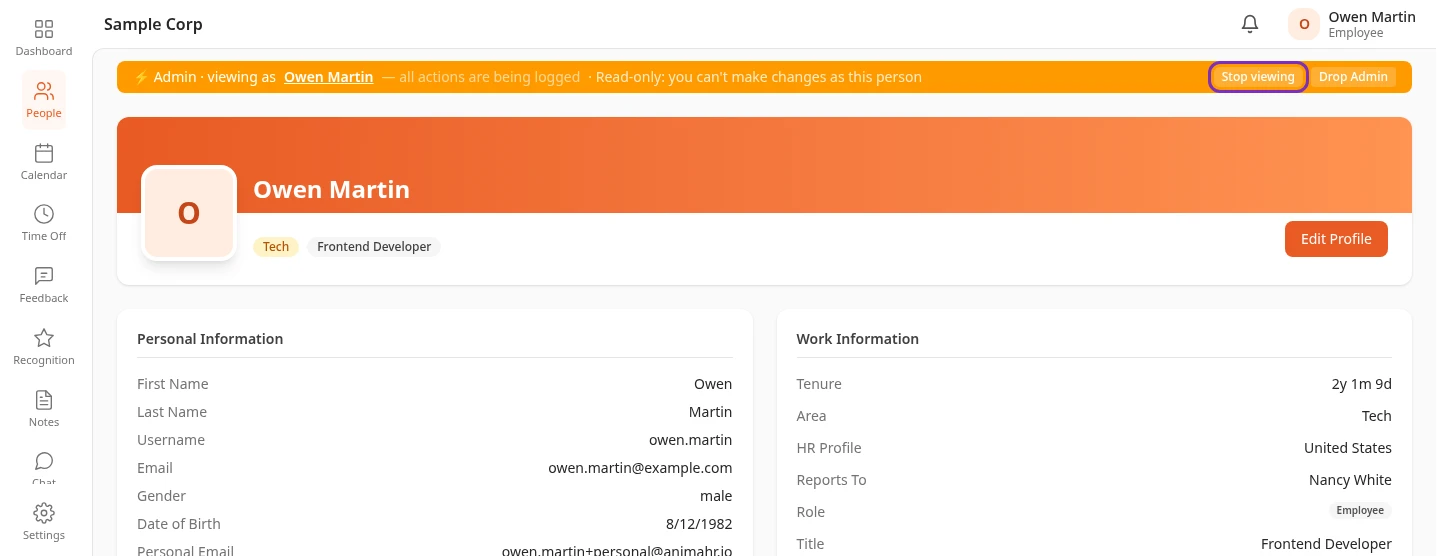
- The orange bar at the top reads ⚡ Admin · viewing as, the person’s name, all actions are being logged and Read-only: you can’t make changes as this person. Select their name to open their profile.
- The top bar shows their name, with Employee or Manager under it.
- The menu bar, the dashboard, the Inbox and every page show what they’d see.
- Your admin access is off: you have the person’s permissions and nothing more. If they’re an Admin, you see what they see outside admin mode.
- The menu under their name has no Sign-in security or Connected apps.
Viewing as someone is read-only
Section titled “Viewing as someone is read-only”You can open every page the person can, but you can’t change anything as them. Saving, sending, approving, rejecting, deleting or uploading is refused with Viewing as another user is read-only. Stop viewing to make changes. Nothing is saved under their name.
This keeps the records honest: a time-off request, an approval, kudos or a profile change always comes from the person who made it. It also means you can’t use their access to approve your own requests, for example your own raise while viewing as your manager.
To make a change, select Stop viewing and make it as yourself, or ask the person to make it.
A few screens still work because they only work something out and save nothing: the audience count in the survey builder, the preview of who a survey or Academy rule would reach, and the mileage and per-diem amounts on a new expense. Signing out also works.
Some things are hidden or refused on top of that:
| What | What happens |
|---|---|
| Two-step verification | Their authenticators can’t be seen or changed. |
| Connected AI apps | Their Connected apps page is read-only: You’re viewing this page as someone else, so their apps and tokens can’t be changed here. |
| Approving an AI app | Refused. |
| The assistant | Asking it a question is refused, because it saves the conversation under their name. Their accounts in other apps can’t be connected or disconnected. |
| Resetting someone’s two-step verification on Users & Groups | Refused. |
| Anything that needs admin mode | Not available: you only see the settings the person can change. |
Stop viewing
Section titled “Stop viewing”Select Stop viewing in the orange bar. You’re back to your own view, still in admin mode.
Viewing as someone only lasts in the browser tab where you started it, while it stays open. It also ends when you:
- select Drop Admin, which ends admin mode too;
- reload the page;
- sign out.
Opening Anima HR in another tab shows your own view there.
What’s logged
Section titled “What’s logged”Every page you open while viewing as someone, and every change you try to make, is recorded with your name and theirs. These records are kept in Anima HR’s server logs: there’s no screen in the app to look at them.
Can’t see View as this user?
Section titled “Can’t see View as this user?”- Turn on admin mode. Only Admins can view the app as someone else: HR Admins can’t.
- It isn’t on your own profile.
- It’s hidden while you’re editing the profile, while you’re already viewing as someone (select Stop viewing first), and on a phone-sized screen.