Approve or reject time off
Esta página aún no está disponible en tu idioma.
When someone who reports to you directly requests time off, you get a notification and the request waits for you in two places: the Team Requests tab on the Time Off page, and the Approvals tab of your Inbox. Deciding in either place is the same decision. Time off from the people who report to your managers shows on Team Requests too, but it waits for their own manager: see Who you can approve for.
Approve from the Time Off page
Section titled “Approve from the Time Off page”-
Select Time Off in the menu bar, then the Team Requests tab. The number in brackets is how many requests are waiting.
-
Check the dates and the reason, then select Approve, or Reject to turn the request down.


-
If you selected Reject, enter the Reason (required) in the dialog, then select Reject. Reject stays unavailable until you enter a reason, up to 1,000 characters. The employee sees this reason in My History and in their notification.
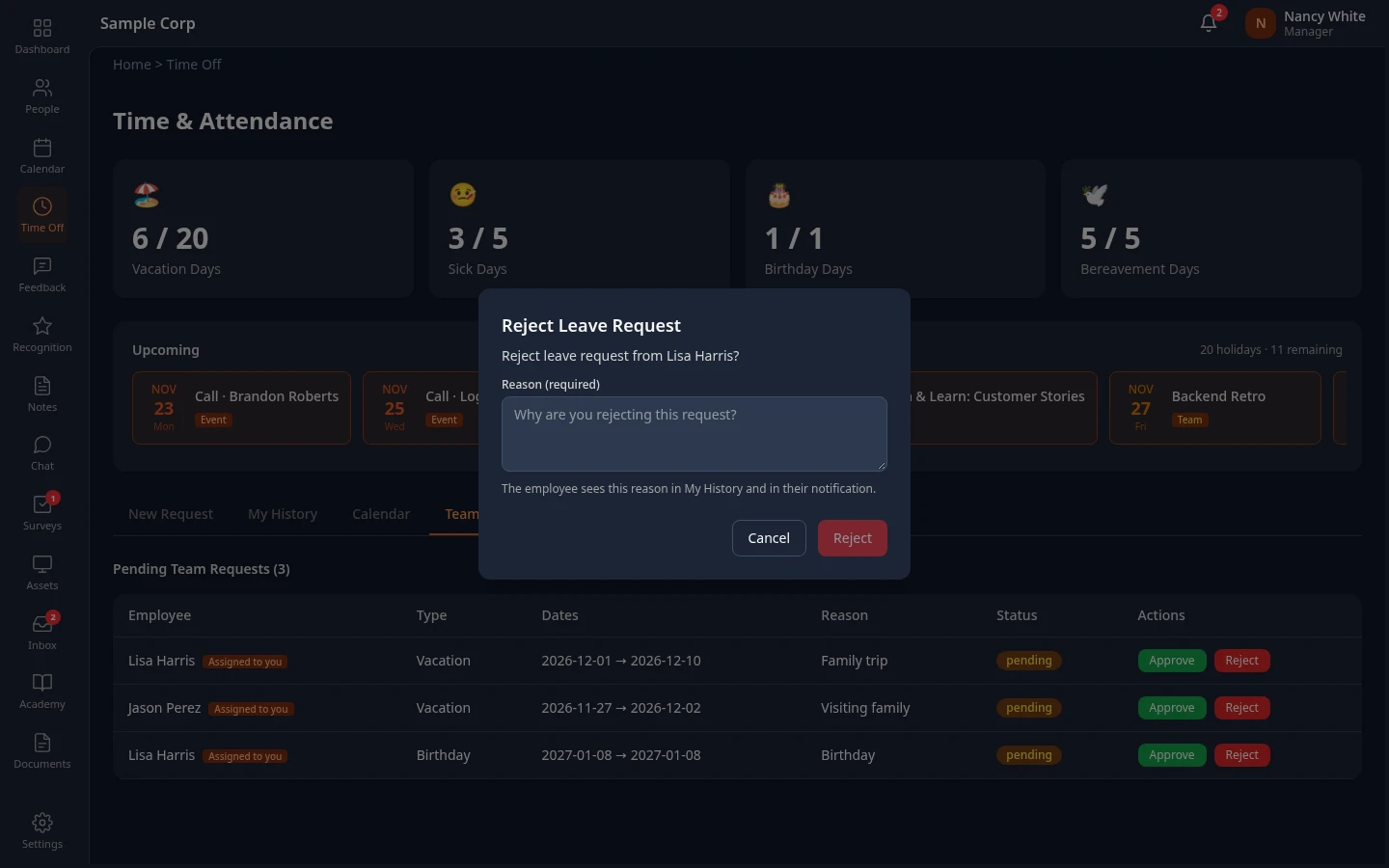
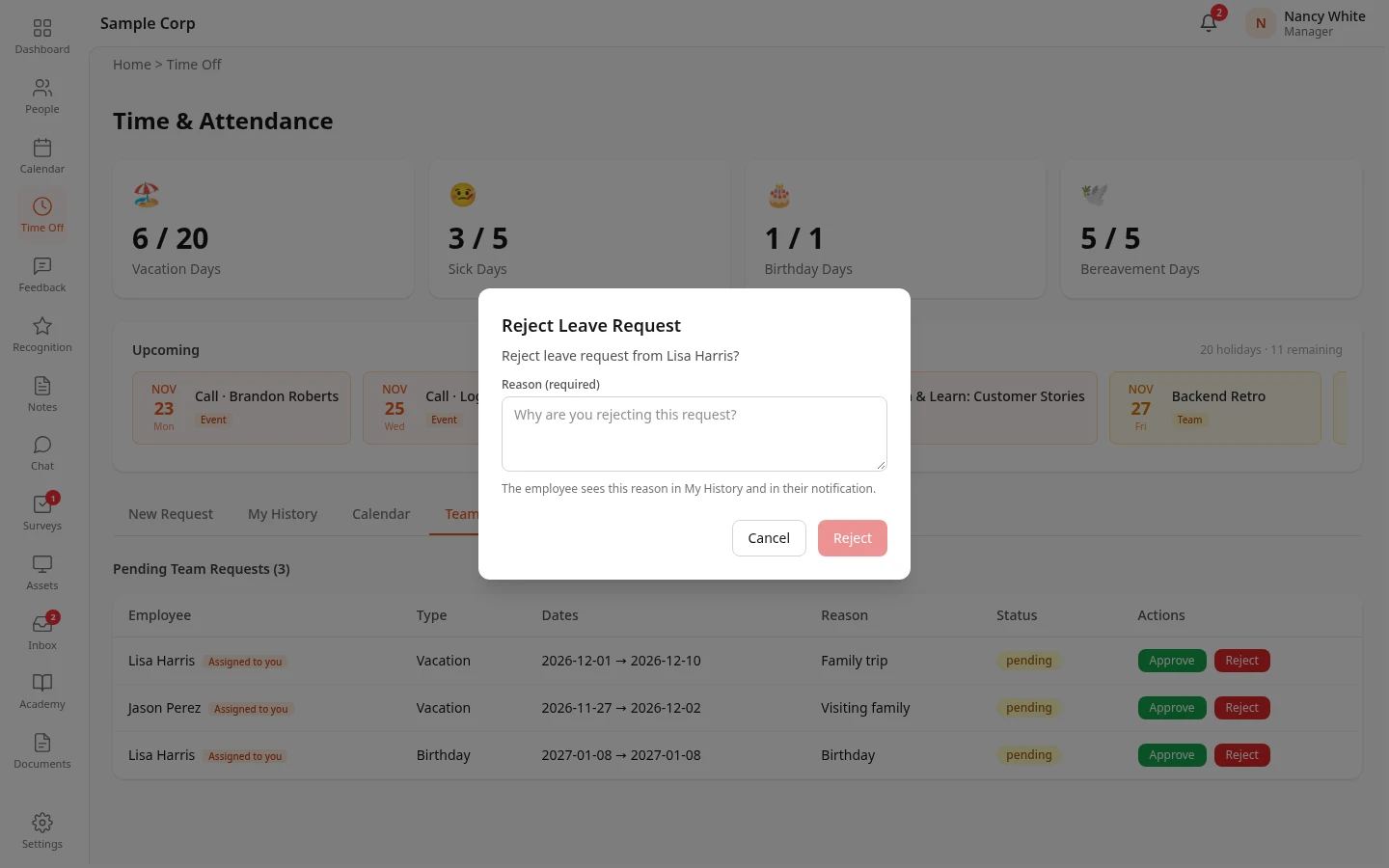
Leave approved or Leave rejected appears. The request leaves the list and the employee gets a notification, except when you approve a request longer than 5 days: it then waits for HR. See Long requests need HR too.
Approve from your Inbox, with a note
Section titled “Approve from your Inbox, with a note”The Inbox lets you add a note when you approve, or a reason when you reject. Both are saved in the request’s history.
-
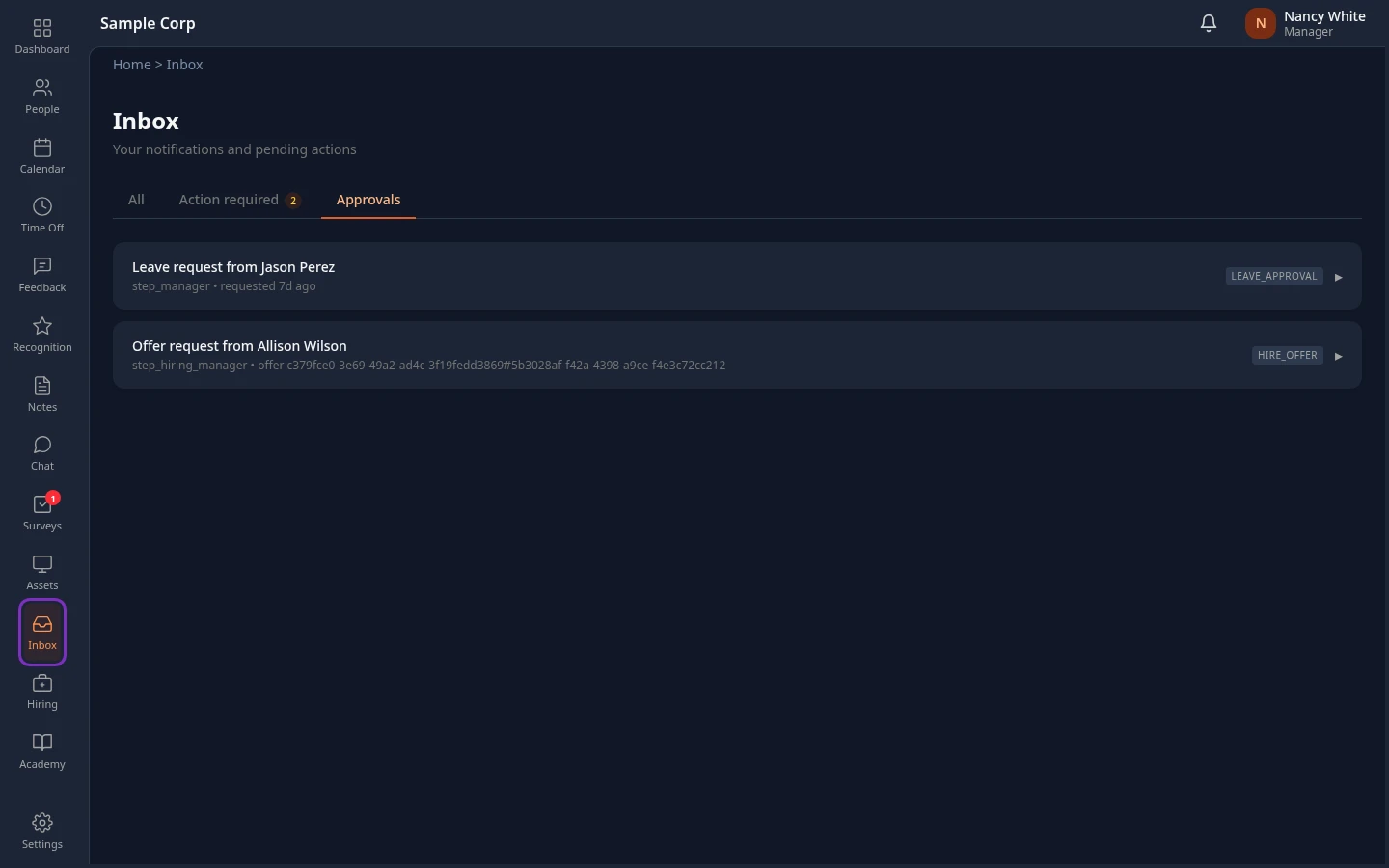
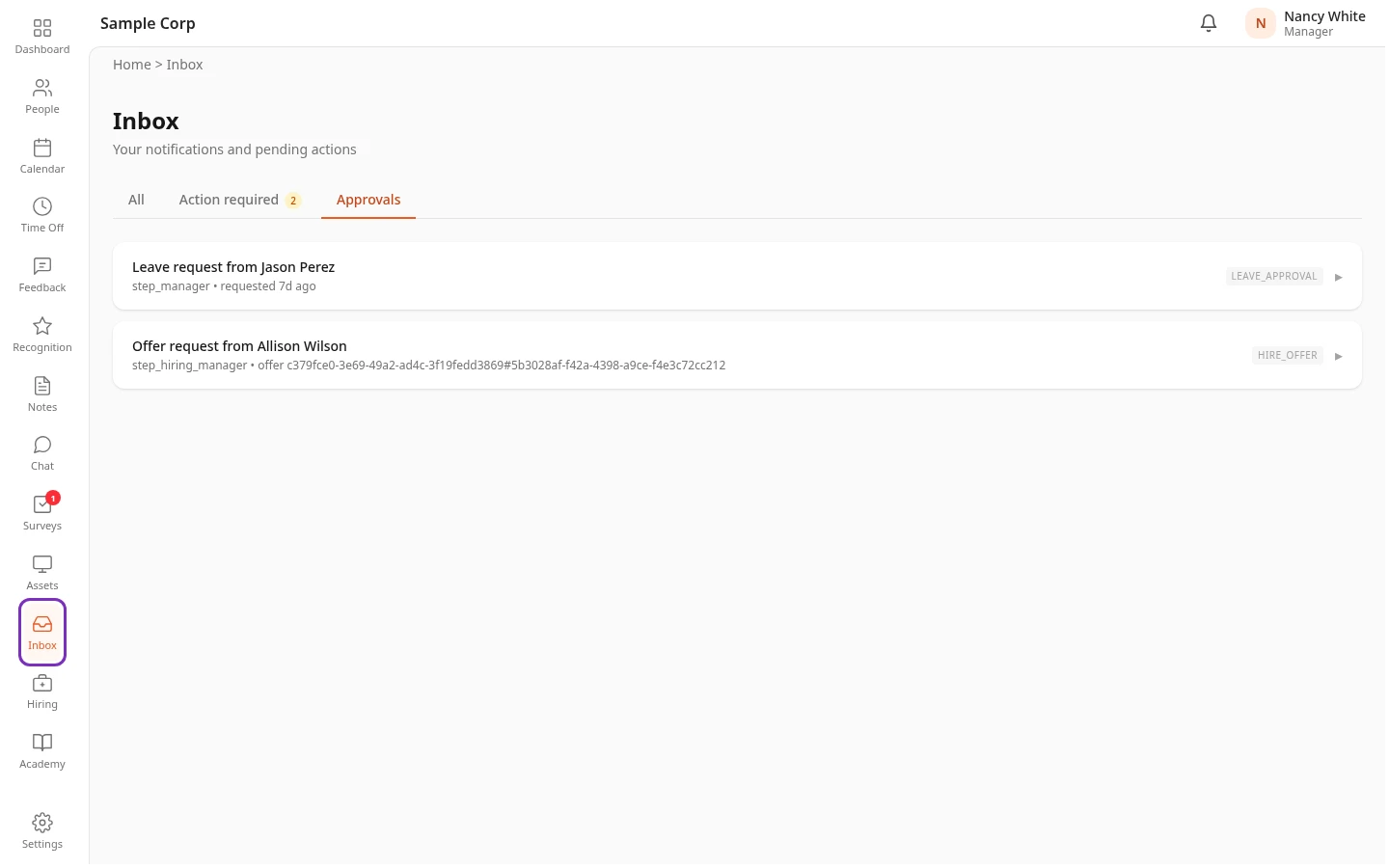
Select Inbox in the menu bar, then the Approvals tab.
-
Select a request to open it. You see its history: when it was requested and who has acted on it.
-
Select Approve, add a note if you want, then Confirm Approve. Or select Reject, enter the reason, which is required, then Confirm Reject.


Other requests that need your decision, such as offers for a job you’re the hiring manager of, arrive on the same tab. See Approve or reject requests in your Inbox.
Who you can approve for
Section titled “Who you can approve for”- Everyone in your org: your direct reports and the people who report to them. Labels next to a name, such as Assigned to you, mean the approval flow sent that step to you.
- You can’t approve your own requests. Your own manager decides those.
- If your role lets you approve for the whole company, the tab is called Org Requests instead of Team Requests.
- If you don’t manage anyone but an approval step was sent to you, you see an Assigned to you tab instead.
Only rows marked Assigned to you are waiting for your decision. A row without the label is waiting for someone else:
- The employee’s own manager. You can still decide in their place, for example while they’re away. Your decision counts as theirs: it leaves their Inbox, and a request longer than 5 days still goes to HR afterwards.
- HR, for a long request. You can’t decide for HR. Approve and Reject show This request is waiting on another approver, such as HR. It moves on once they decide.
A request that has been decided stays decided. Approving or rejecting it again, from Time Off or from an Inbox item, shows This item changed since you opened it. Refresh to see its current status.
Override the approval flow
Section titled “Override the approval flow”HR Admins, and Admins in admin mode, can decide a request at once, without waiting for the steps still ahead of it. Use this when a request can’t wait, for example when the approver is away and the time off starts tomorrow.
- On Time Off › Org Requests, select Override on the request.
- Choose Approve or Reject, and enter a Reason. The reason is required and is kept in the request’s history.
- Select Confirm override.
Request approved by override or Request rejected by override appears. The request leaves every Inbox it was waiting in, and the employee is notified. Managers don’t see Override: it needs Approve in Time Off at All. Nobody can override their own request.
Long requests need HR too
Section titled “Long requests need HR too”With the standard approval flow, a request longer than 5 days goes to HR after you approve it. Days are counted the same way as for the balance: with the default count method, weekends and company holidays don’t count, so Monday to Friday over a holiday (4 days) doesn’t need HR. It stays pending until HR decides, and the employee is told when the final decision is made. Until then it also stays on your Team Requests tab, without the Assigned to you label. Your admin can change these steps in Settings › Approvals.
Related
Section titled “Related”- See your team’s time off
- Approve or reject requests in your Inbox
- Request time off (what your team sees)
- Leave policies (for admins)