Set your availability and booking pages
With Scheduling, anyone you send a link to can book a meeting with you, without an Anima HR account. You set your weekly hours, create a booking type for each kind of meeting, and share its link. It all happens on the Calendar page, on the Availability, Booking Types and Schedule tabs.
Set your weekly hours
Section titled “Set your weekly hours”-
Select Calendar in the menu bar, then the Availability tab.
-
Under Weekly hours, select + Add next to each day you take meetings. Each + Add gives that day the hours 09:00–17:00.
-
Select Save. Saved successfully appears.
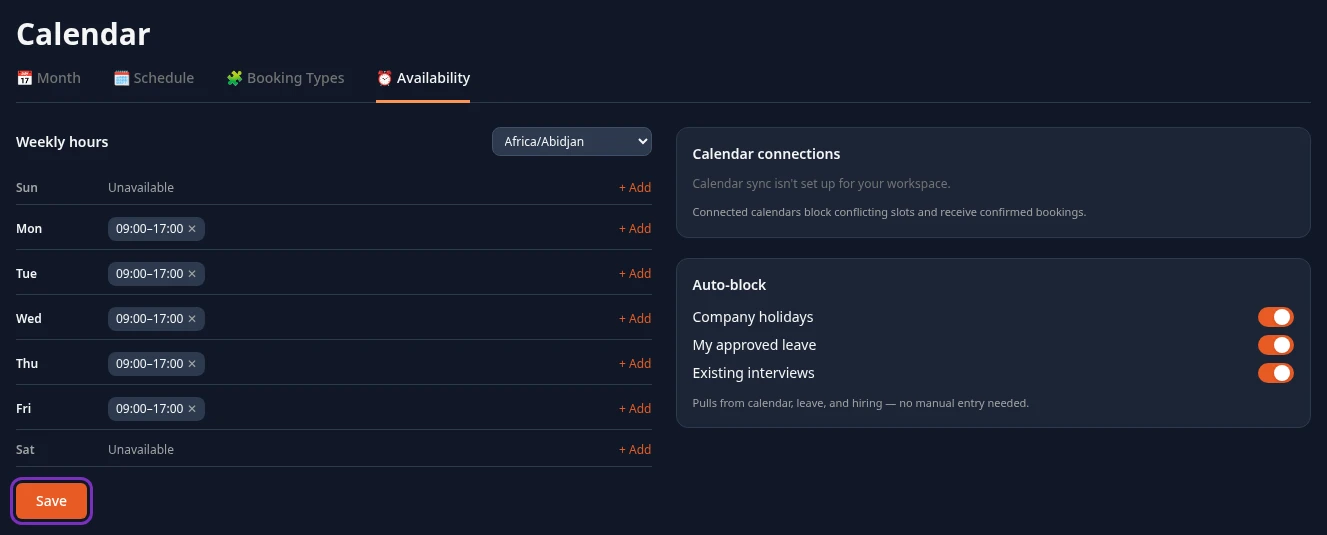
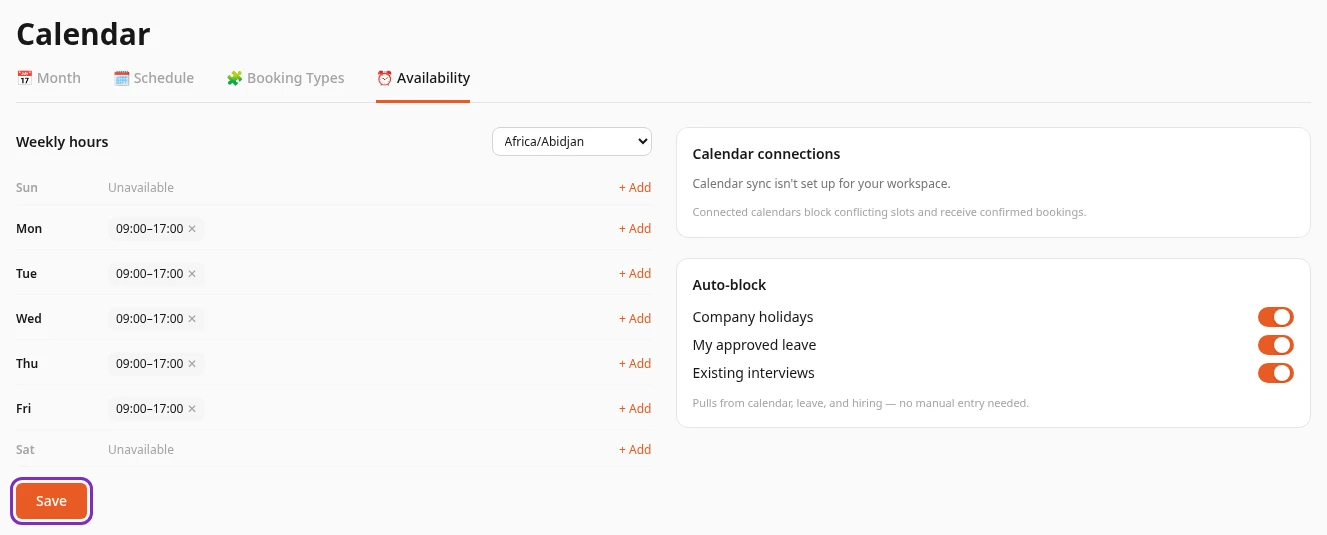
- You can’t change the hours: every block is 09:00–17:00. To take a day off your booking pages, select ✕ next to its hours, then Save.
- Days without hours show Unavailable. Nobody can book you on those days.
- Leave the time zone list next to Weekly hours as it is. It only offers African time zones and often shows one that isn’t yours, such as Africa/Abidjan. Your hours are saved in your computer’s time zone the first time you save, and later saves keep that time zone, unless you change the list.
Create a booking type
Section titled “Create a booking type”A booking type is one kind of meeting people can book with you, such as a 30-minute intro call. Each one has its own link.
-
Select the Booking Types tab.
-
Under My templates, select + New template.
-
Enter a Title, such as Coffee chat. Your guests see it, and it makes the end of the link: Coffee chat becomes
coffee-chat. -
Set the Duration (min): how long the meeting lasts.
-
Choose the Visibility. Public and Private link both give the booking type a link that anyone can use. Internal only gives it no link, and Anima HR has no screen to book it.
-
Choose the Location: Video, Phone or In person. Your guests see it on the booking page.
-
Set the Slot step (min): how far apart the start times are. With 30, people can start at 09:00, 09:30, 10:00 and so on.
-
Leave Routing on Individual (just me), then select Create.
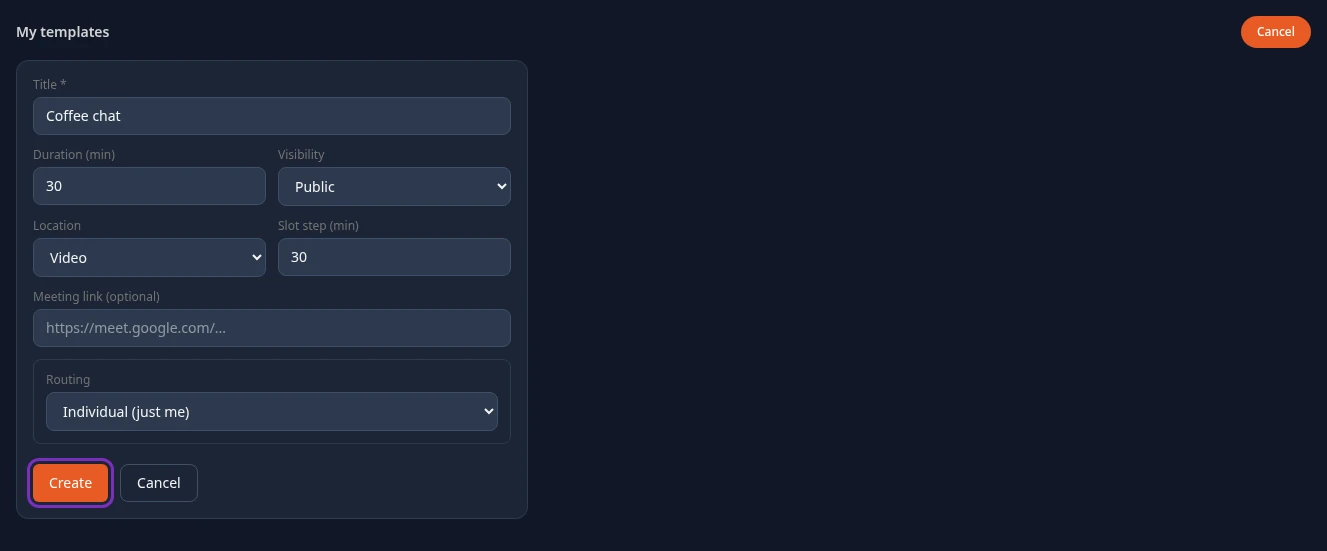
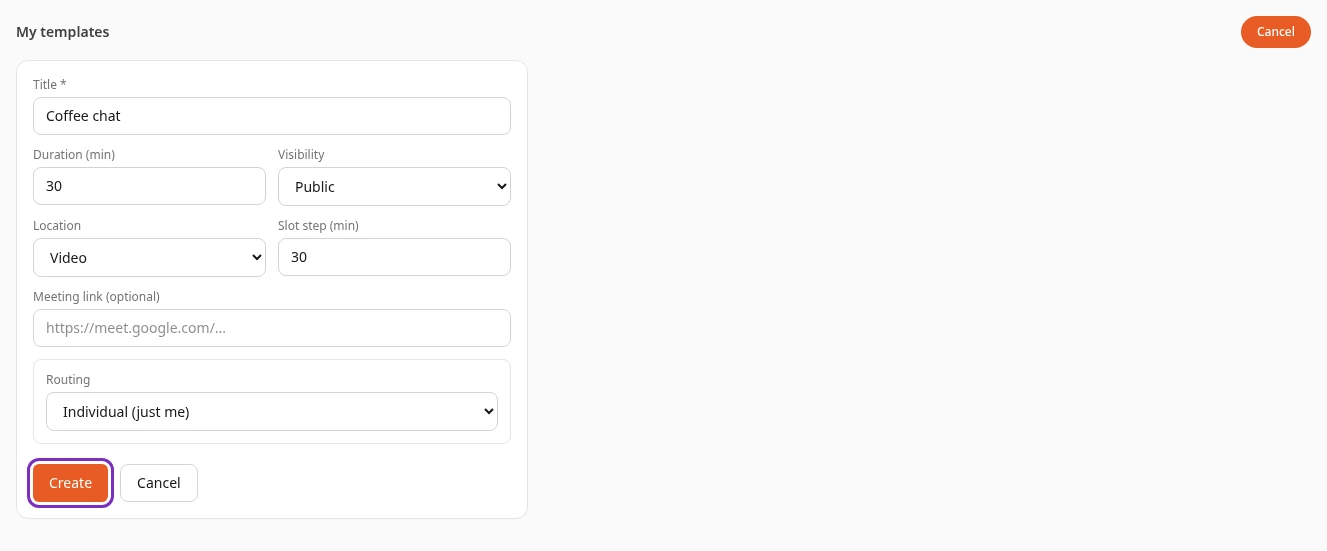
Created successfully appears, and the booking type is listed under My templates with its visibility, length and location.
- Meeting link (optional) is saved, but it isn’t added to bookings: your guests’ confirmations don’t include it. Send your meeting link to your guests yourself.
- People can book a time at least 4 hours ahead, within the next 14 days.
- If another booking type in your company already has the same link, a number is added to yours, such as
coffee-chat-2. - You can’t edit a booking type. To change one, delete it and create a new one. Delete on its card deletes it straight away, without asking. The bookings you already have stay on your Schedule tab.
Share your link
Section titled “Share your link”The card of a Public or Private link booking type shows its link, such as acme.animahr.io/book/coffee-chat. Select the link to copy it: Copy changes to ✓. Then send it to the people you want to meet, inside or outside your company.
What your guests see
Section titled “What your guests see”Your guests open the link without signing in.
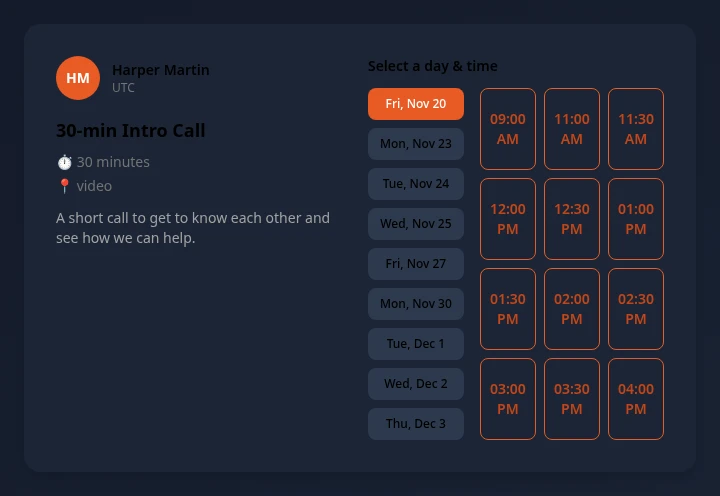
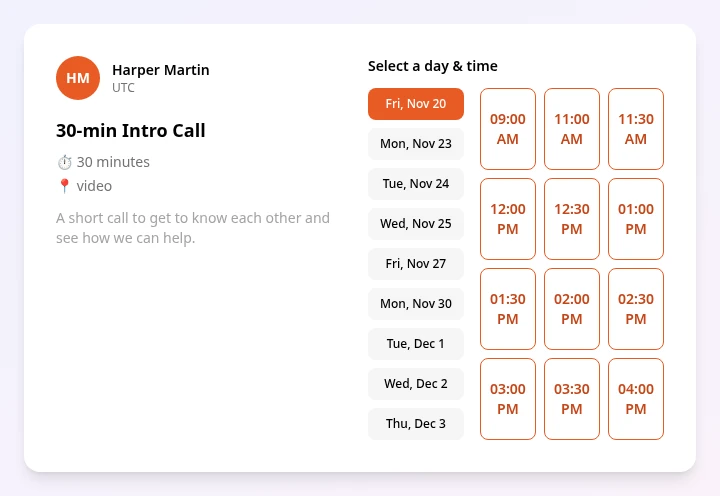
- They see your name, the meeting’s title, length, location and description. They pick a day, then a start time, shown in their own time zone.
- They enter Your name and Email, and optionally Notes (optional), then select Confirm booking.
- You’re booked! confirms it. Its Manage your booking link lets them pick a new time or cancel. The confirmation email doesn’t include that link.
Your guests get a confirmation email with a calendar invite, and reminder emails 24 hours and 1 hour before the meeting, unless your admin changed the reminders. You get an email when someone books you, and when a guest cancels or moves a booking.
See and cancel your bookings
Section titled “See and cancel your bookings”The Schedule tab lists your bookings for the next 90 days.
- Upcoming shows each confirmed booking: your guest’s name, the date and start time, and the length. Join opens the meeting link, when the booking has one.
- Cancel cancels a booking straight away, without asking first. Booking cancelled appears, and your guest gets a cancellation email.
- Past lists the bookings in the next 90 days that were cancelled or moved to another time, with their status. Meetings that have already taken place aren’t listed.
- With no bookings at all, the tab shows No upcoming bookings.
You can’t move a booking from this tab. Your guest can, from their Manage your booking link, or you can cancel it and send them your link again. Your bookings don’t show on the Month tab of the calendar.
What people can’t book
Section titled “What people can’t book”Your booking pages never offer these times:
- Times outside your weekly hours, or less than 4 hours from now.
- Company holidays: the Holiday events on the company Calendar, except observances.
- Times when you already have a booking, or an interview you’re on in Hiring.
- Times your connected Google or Outlook calendar shows you as busy.
Your approved time off doesn’t block anything, so people can book you on days you’re away. Before you go, remove your weekly hours, and add them back when you return. The Auto-block switches (Company holidays, My approved leave and Existing interviews) don’t change any of this.
Connect your Google or Outlook calendar
Section titled “Connect your Google or Outlook calendar”Calendar connections, on the Availability tab, links your work calendar to Anima HR. Your admin has to set up calendar sync first. Until then, it says Calendar sync isn’t set up for your workspace., or Not set up yet. Ask an admin. next to Google Calendar or Outlook.
-
On the Availability tab, select Connect next to Google Calendar or Outlook.
-
Sign in to your Google or Microsoft account and allow access to your calendar.
-
Back on the Availability tab, Google Calendar connected or Outlook connected appears, and your account’s email shows next to the calendar’s name.
Once it’s connected, times you’re busy in that calendar can’t be booked, and new bookings are added to it.
- With Two-way sync on, deleting a booked meeting in that calendar cancels the booking and emails your guest. Moving the meeting there doesn’t move the booking.
- Two-way sync stops after a few days (about 3 for Outlook, up to a week for Google), even though its box stays ticked. To restart it, clear the box and tick it again.
- Disconnect removes the connection, and Disconnected appears.
Book time with a colleague
Section titled “Book time with a colleague”To meet a colleague, ask them for their booking link. Schedule a call on a colleague’s profile only opens your own Schedule tab: it doesn’t book a meeting with them.
Can’t see this?
Section titled “Can’t see this?”- The Calendar page has no Schedule, Booking Types or Availability tab. The Scheduling module is turned off for your company, or your role doesn’t include Scheduling. Ask an admin.
- Your guest sees This booking page is not available. The link is wrong, the booking type was deleted or is Internal only, or your admin turned off Allow public booking in Settings › Calendar & Scheduling › Scheduling.
- Your guest sees No available times in the next 14 days. You haven’t saved weekly hours, or every time in the next 14 days is booked, busy or less than 4 hours away.