Request time off
Esta página aún no está disponible en tu idioma.
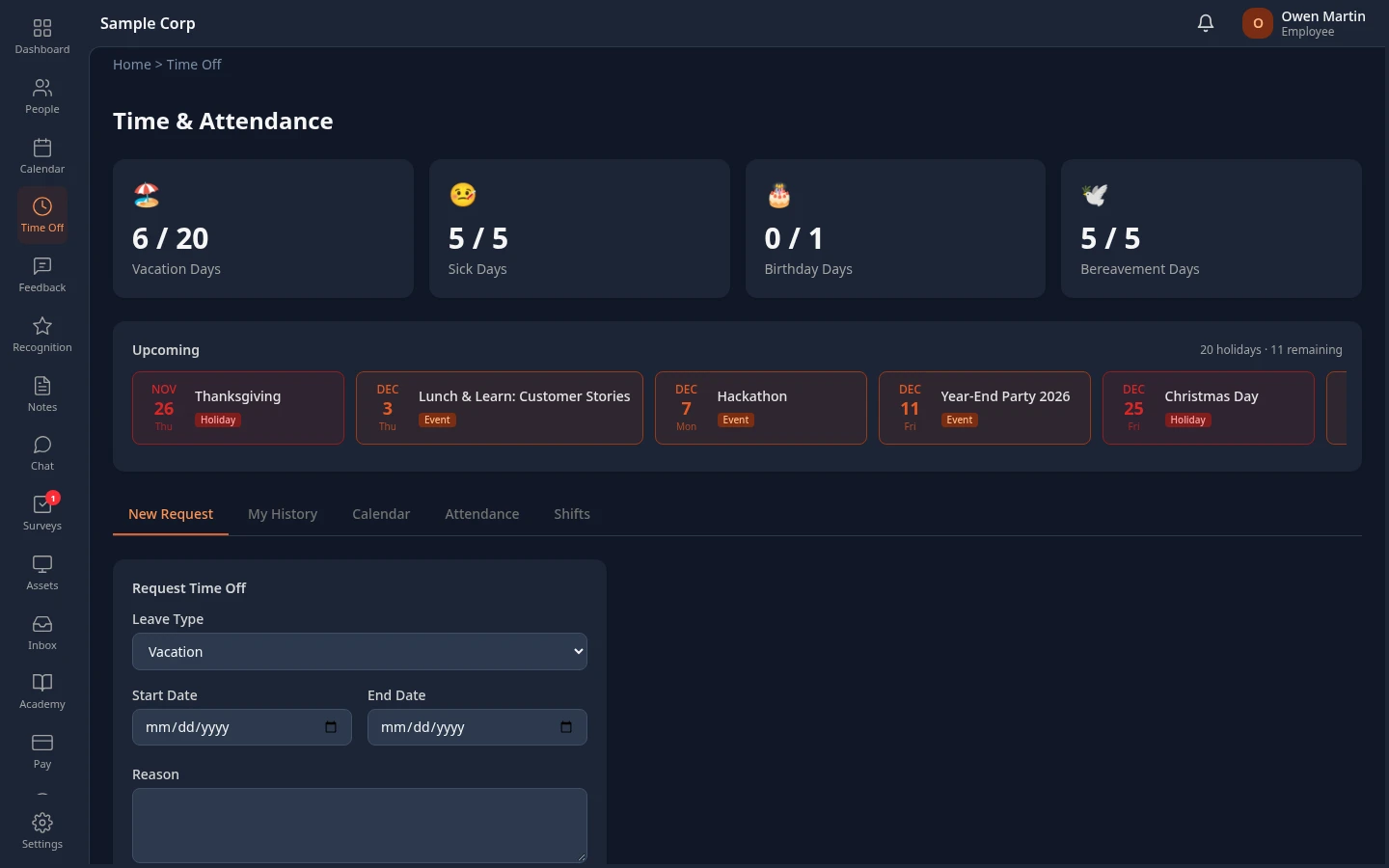
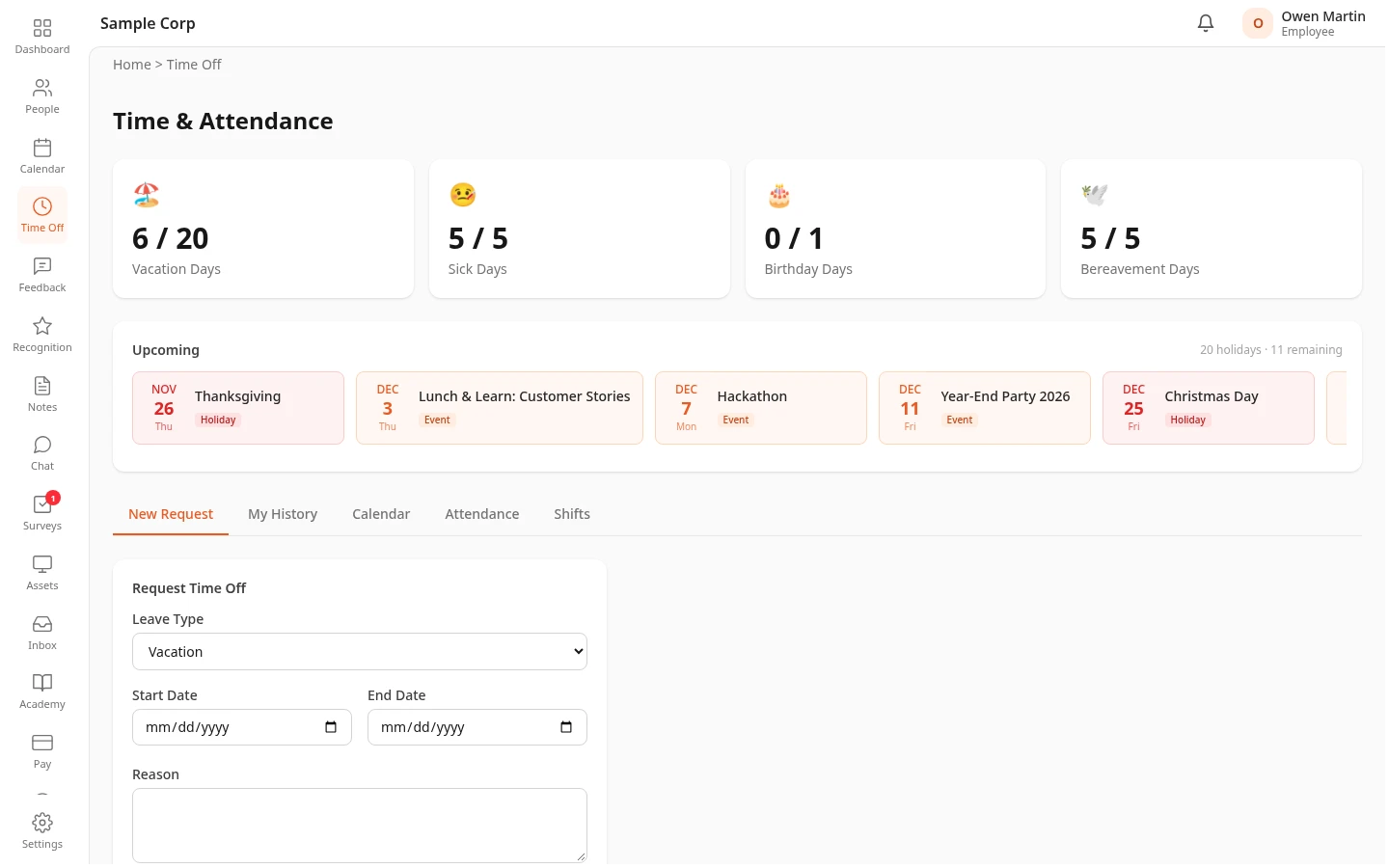
Send a time-off request from the Time Off page. Your balance is shown at the top of the page so you can check it before you submit, and you get a notification when your request is approved or rejected.
Request a full day or more
Section titled “Request a full day or more”-
Select Time Off in the menu bar.
If your company also uses Attendance or Shifts, the page title is Time & Attendance.
-
On the New Request tab, choose a Leave Type, such as Vacation or Sick.
-
Choose the Start Date and End Date. For a single day, choose the same date for both.
-
Enter a Reason. Your manager sees it when they review your request.
-
Select Submit Request.
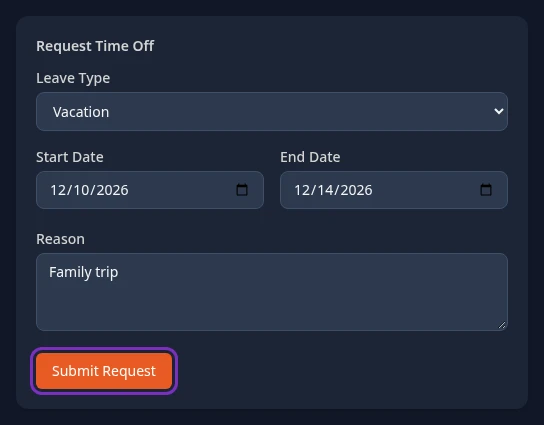
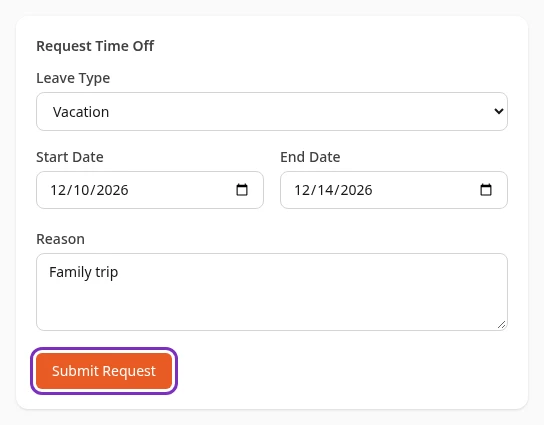
A Saved successfully message appears, and the request shows on the My History tab with the status pending.
Request part of a day
Section titled “Request part of a day”The Partial day option appears when the start and end date are the same.
-
On the New Request tab, choose the same date as Start Date and End Date.
-
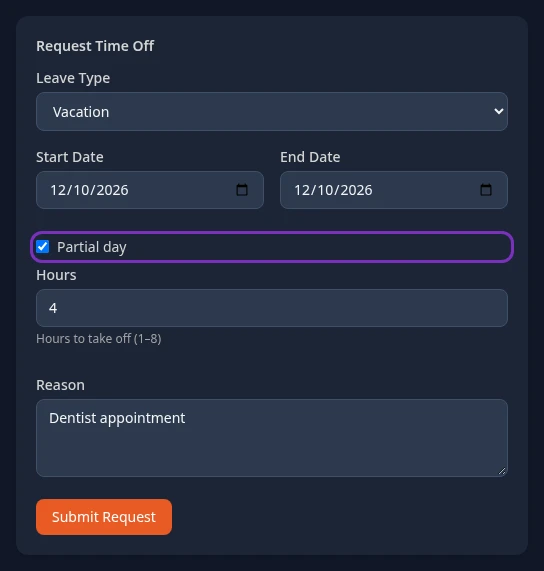
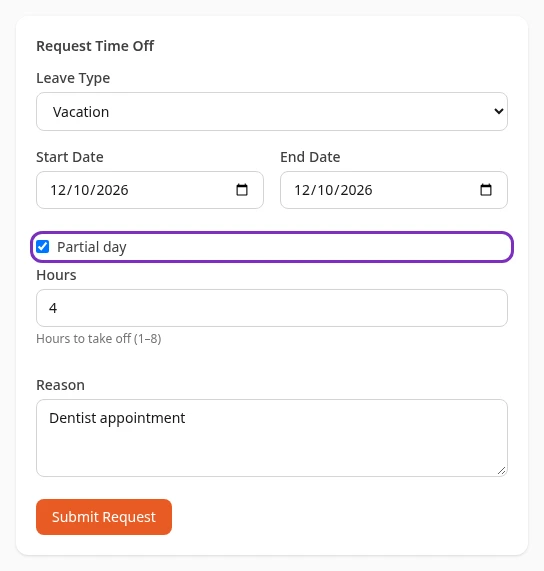
Turn on Partial day.
-
In Hours, enter how long you’ll be away: from 1 hour up to a full workday (8 hours unless your admin set a different length).
-
Enter a Reason and select Submit Request.
How days are counted
Section titled “How days are counted”Unless your admin chose otherwise, weekends and company holidays in the middle of a request aren’t deducted from your balance: a request from Friday to the following Tuesday uses 3 days, and Monday to Friday in a week with a company holiday uses 4. You can send one request across a holiday; you don’t need to split it.
The holidays are the ones on the company Calendar. An observance shows there but is a working day, so it’s counted. If a holiday is added or removed after you send a request, your balance updates to match.
What happens next
Section titled “What happens next”- Your manager gets a notification and approves or rejects the request.
- With the standard approval flow, requests longer than 5 days also need HR’s approval after your manager’s. Your admin may have set up a different flow.
- Pending requests already count against your balance, so you can’t book the same days twice.
- When a decision is made you get a notification (the bell at the top of the page, and your Inbox), and the status on My History changes to approved or rejected. A rejected request shows your manager’s Reason on My History, and the notification includes it too.
If your request isn’t accepted
Section titled “If your request isn’t accepted”| Message | What it means |
|---|---|
| You already have leave requested for some of these dates. | Another of your requests, pending or approved, covers some of the same days. Check My History. To change the dates of a pending request, cancel it and send a new one. |
| The selected dates don’t include any working days. | Every day you picked is a weekend or a company holiday, so there’s nothing to take off. |
| End date must be on or after start date | The end date is before the start date. |
Can’t see this?
Section titled “Can’t see this?”- There’s no Time Off in your menu bar. The Time Off module is turned off for your company. An admin can turn it on.
- The leave type you need isn’t in the list. Ask your HR team. Leave types are set up in the leave policies.