Let people connect their own AI apps
Esta página aún no está disponible en tu idioma.
Many AI apps, such as AI assistants on a computer or in a code editor, can connect to other services over MCP (Model Context Protocol). With the MCP server on, people can connect such an app to their Anima HR account. The app can then read their HR data for them, for example to answer “how many vacation days do I have left?”. Settings › AI connections (MCP) › Server Settings decides who may connect, which apps, which kinds of data they may read and for how long.
An app only ever reads, and only:
- after the person signs in to Anima HR and approves it, choosing the kinds of data it may read;
- the kinds of data you allow here, out of those the person approved;
- records the person can already see in Anima HR. Admin mode never counts for an app.
To see and revoke the apps people have connected, see Manage connected AI apps.
Open Server Settings and turn the server on
Section titled “Open Server Settings and turn the server on”The MCP server is off in a new workspace, and with the sample data.
-
Turn on admin mode: select your name in the top bar, then Elevate to Admin.
-
Select Settings in the menu bar, then the AI connections (MCP) card. While both of its modules are off, the card is under Disabled, at the bottom of the page.
-
On the Server Settings tab, select Enable AI connections (MCP). The tab now reads AI connections (MCP) is on, with the settings below.
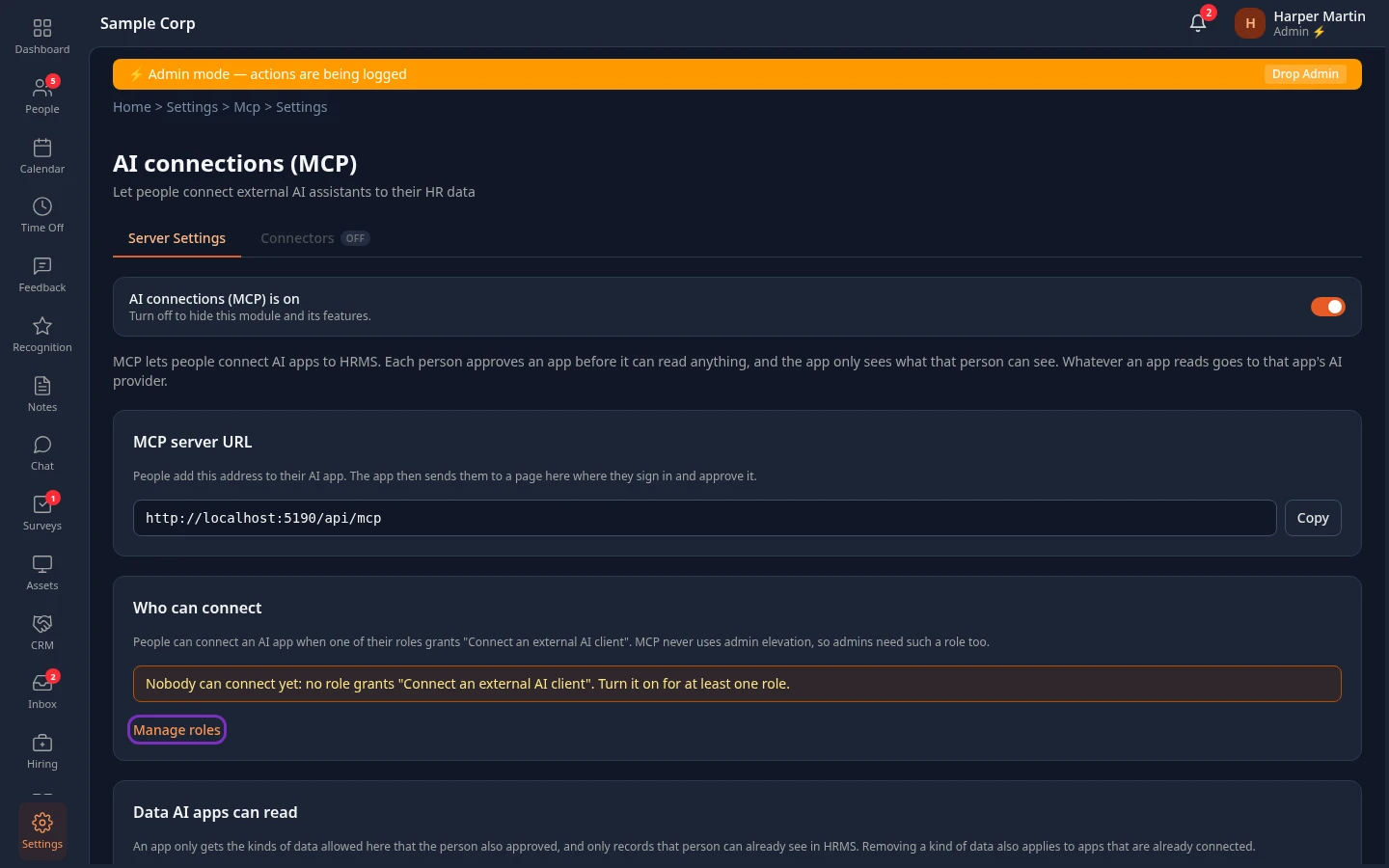
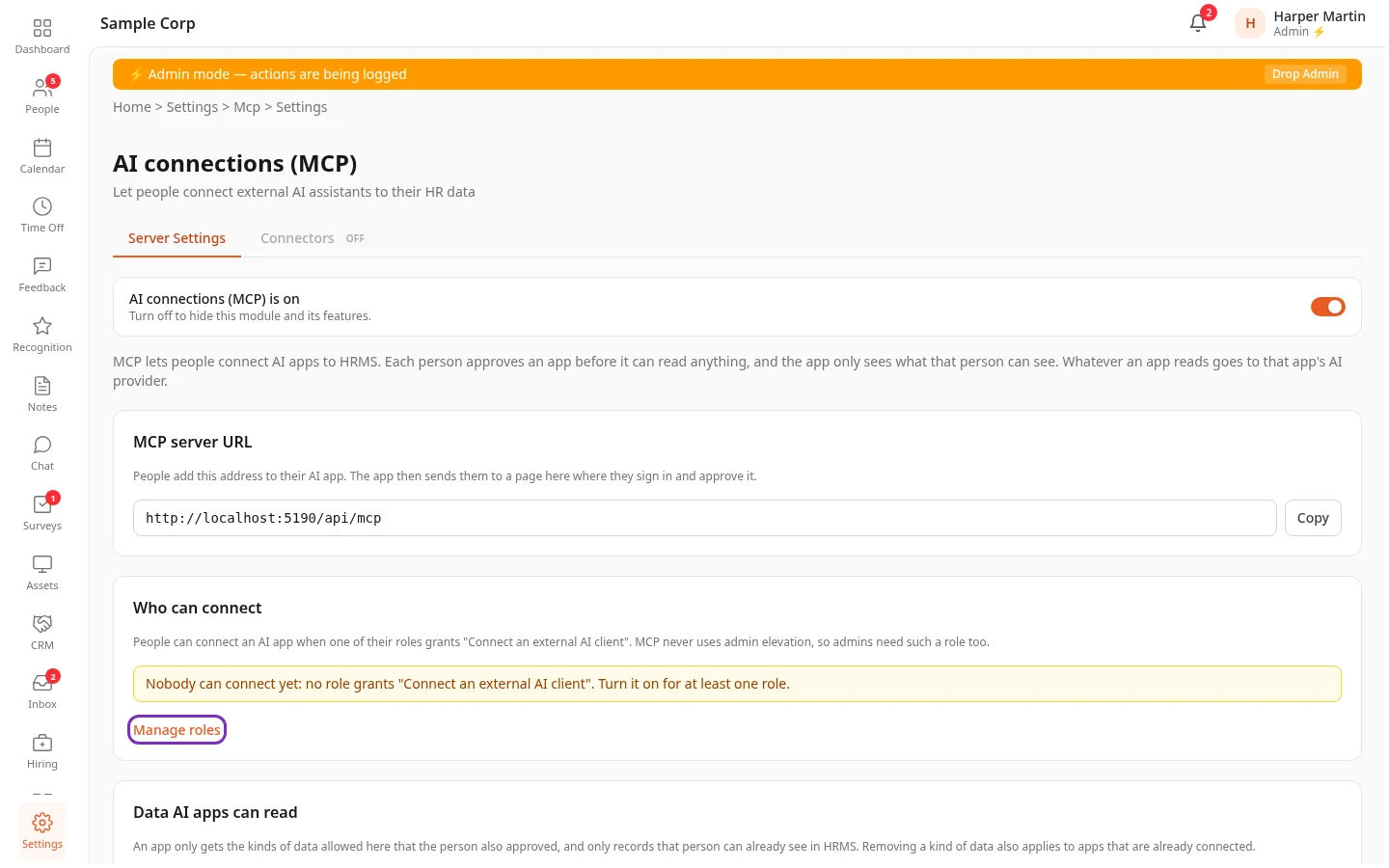
Only Admins can open this card: it needs Manage AI connections (MCP), which only the Admin role has. HR Admins don’t see it.
Turning the server off later pauses every connected app without revoking it; see Turn modules on and off.
When you change a setting, a bar with Unsaved changes appears at the bottom. Select Save changes to apply your changes, or Discard. Changes apply at once, also to apps that are already connected.
Give people the address
Section titled “Give people the address”MCP server URL is the address people add to their AI app: select Copy. The app then sends them to an Anima HR page where they sign in and approve it. People also find the address on their own Connected apps page.
Who can connect
Section titled “Who can connect”Nobody can connect until you choose who may: a person needs a role with Connect an external AI client in Chat. No built-in role has it. Admins need it too, because admin mode doesn’t count for apps.
-
Under Who can connect, select Manage roles.
-
On the Roles & Permissions tab, give Connect an external AI client to the roles whose people may connect, such as Employee for everyone. Then select Save changes. See Create and change custom roles.
Who can connect then lists those roles. Giving a role this permission doesn’t make it admin-level, so Users & Groups can hand that role out as usual.
Data AI apps can read
Section titled “Data AI apps can read”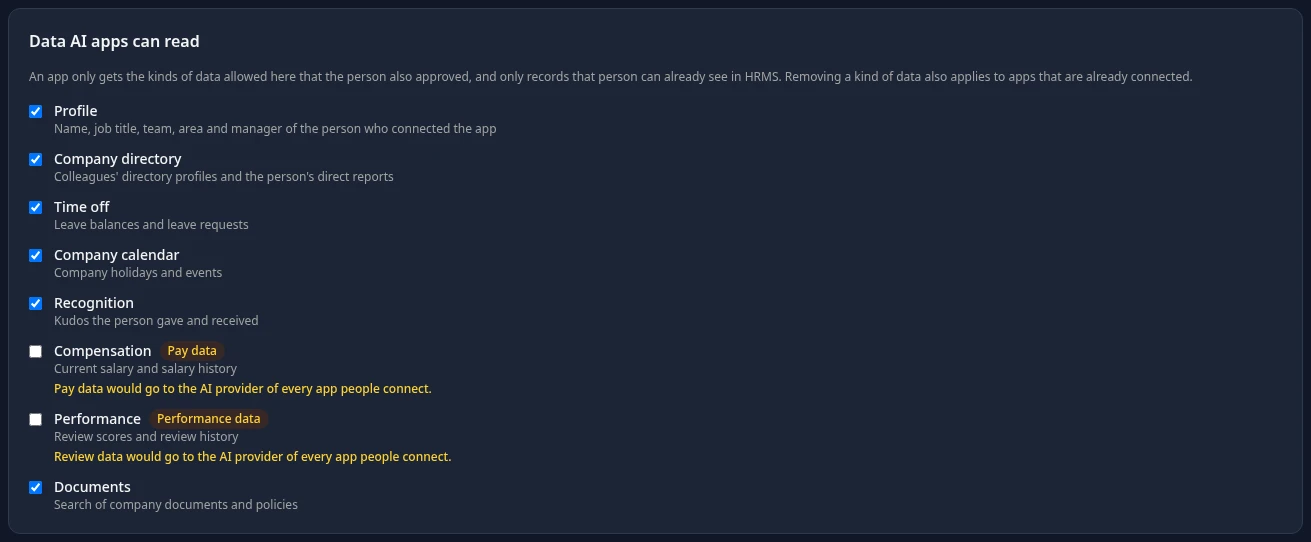
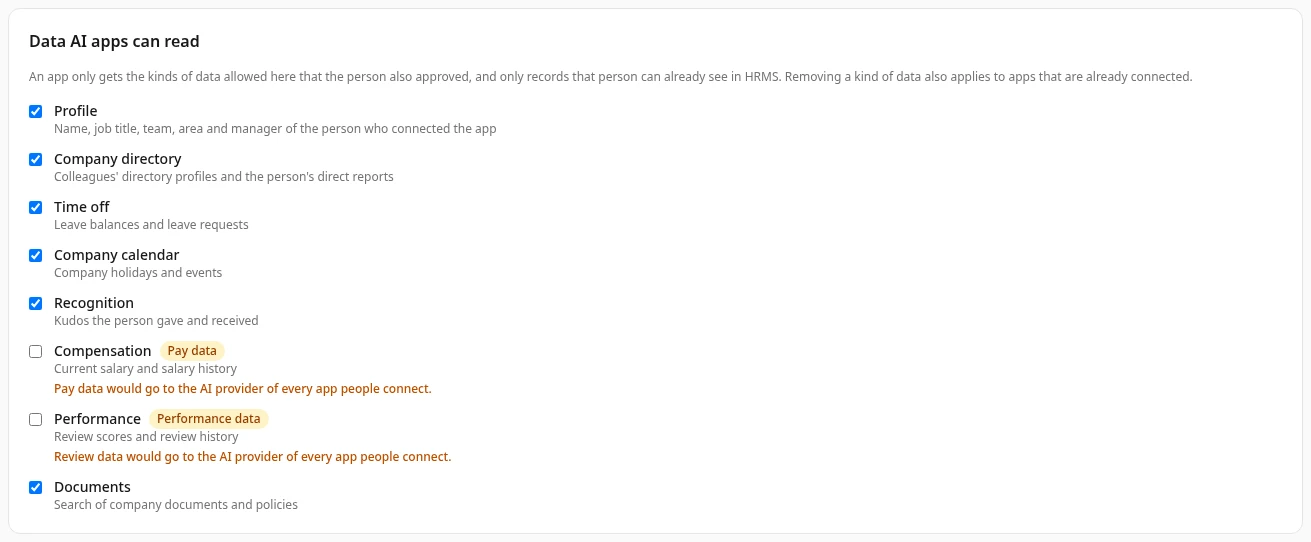
Each kind of data you tick can be offered to people when they approve an app. Unticking one takes it away from apps that already have it.
| Kind of data | What an app can read | Default |
|---|---|---|
| Profile | Name, job title, team, area and manager of the person who connected the app | On |
| Company directory | Colleagues’ directory profiles and the person’s direct reports | On |
| Time off | Leave balances and leave requests | On |
| Company calendar | Company holidays and events | On |
| Recognition | Kudos the person gave and received | On |
| Compensation | Current salary and salary history | Off |
| Performance | Review scores and review history | Off |
| Documents | Search of company documents and policies | On |
Compensation and Performance are off because pay and review data would leave Anima HR for the provider of every app people connect. Even when you turn them on, an app only gets the salary or reviews the person could see themselves.
Which apps can connect
Section titled “Which apps can connect”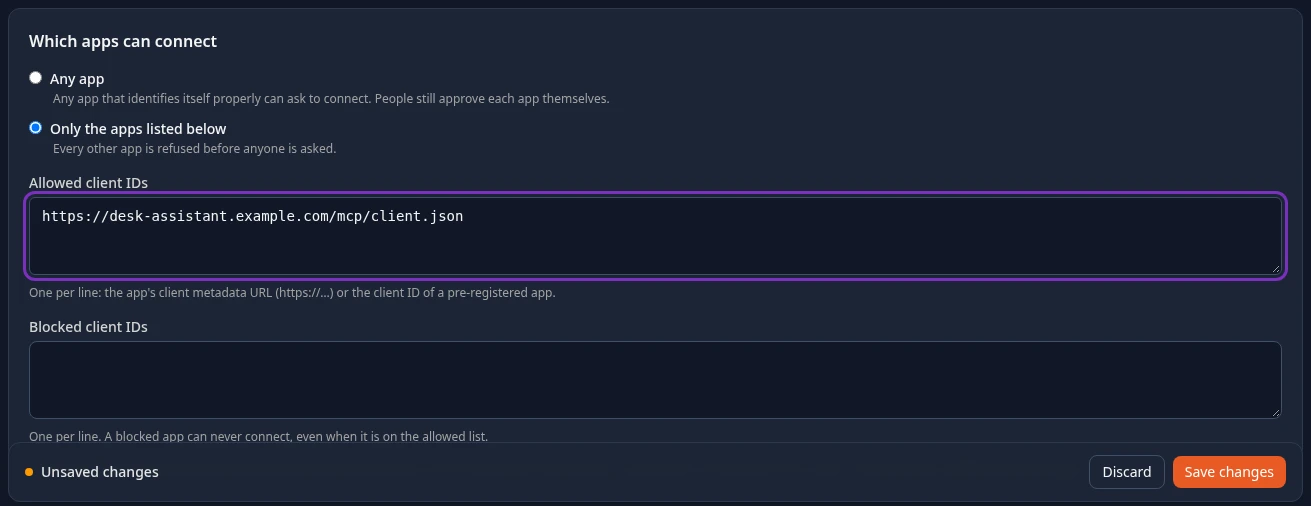
| Setting | What it does | Default |
|---|---|---|
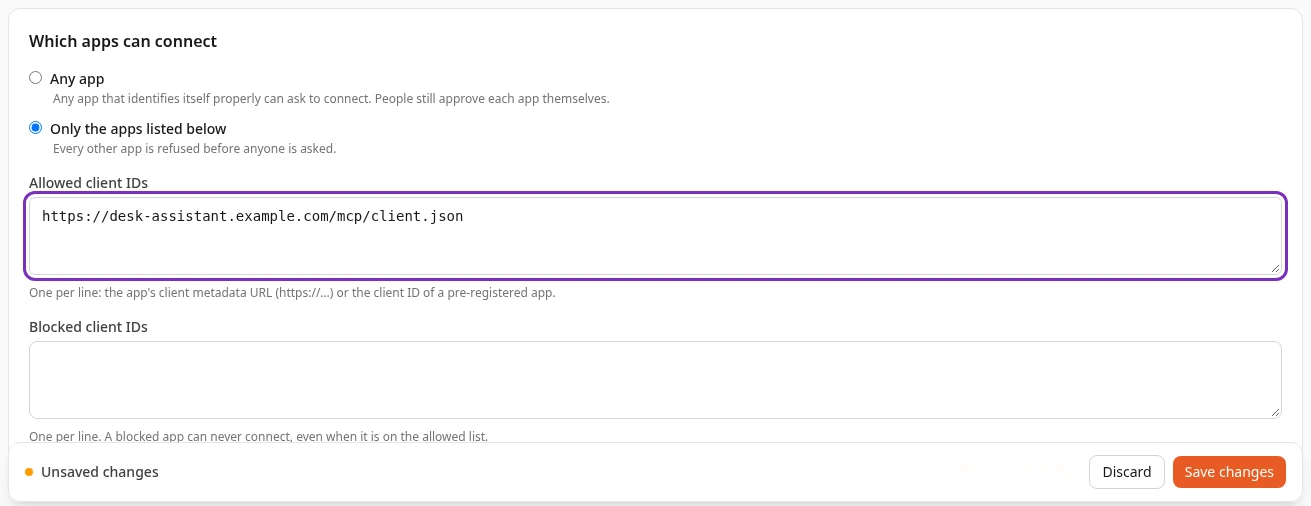
| Any app or Only the apps listed below | With Any app, any app that identifies itself properly can ask to connect; people still approve each app. With Only the apps listed below, every other app is refused before anyone is asked. | Any app |
| Allowed client IDs | Shown with Only the apps listed below. One per line: the app’s client metadata URL (https://…), which its documentation gives, or the client ID of an app under Pre-registered apps. |
Empty |
| Blocked client IDs | Apps that can never connect, one per line, even if they’re on the allowed list. | Empty |
A change here also applies to apps already connected: an app you block or leave off the list loses access on its next request. It stays on people’s Connected apps page until you revoke it with Review connected apps.
Pre-registered apps
Section titled “Pre-registered apps”Some apps don’t publish a client metadata URL. Their setup instructions give a client ID and redirect URIs instead. Select + Add app and enter its Client ID, App name and Redirect URIs (one per line: https:// addresses, or http:// on 127.0.0.1, localhost or [::1] for apps that run on the person’s computer), and optionally a Logo URL and Website. You can pre-register up to 20 apps. Remove deletes one.
Allow dynamic client registration lets older apps register themselves, without an admin. It’s off by default; leave it off unless an app you need asks for it.
Approval and sign-in rules
Section titled “Approval and sign-in rules”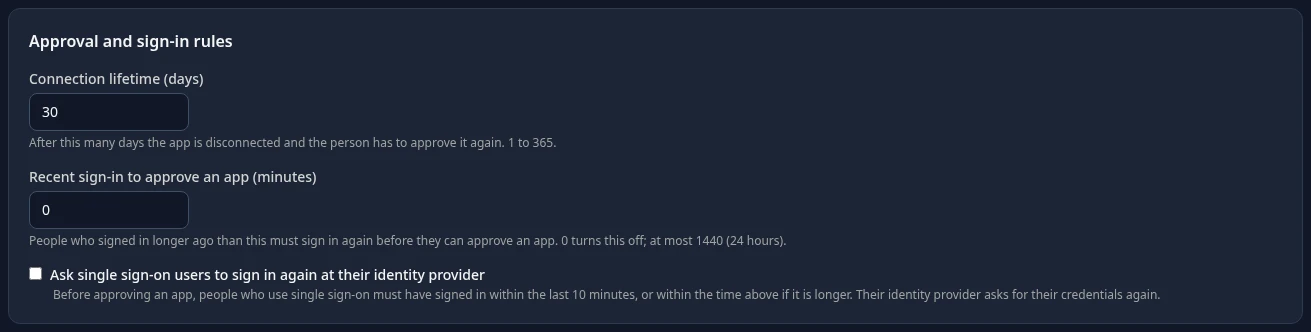
| Setting | What it does | Default |
|---|---|---|
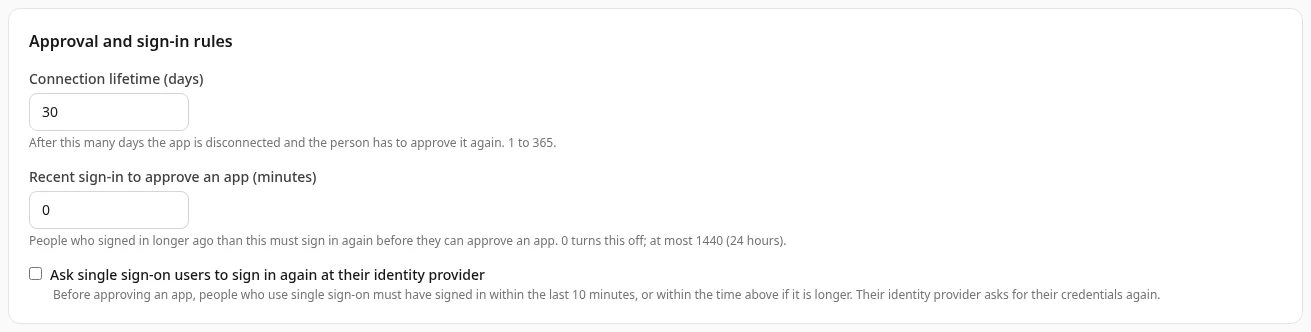
| Connection lifetime (days) | How long an approval lasts, from 1 to 365 days. The app is then disconnected and the person approves it again. | 30 |
| Recent sign-in to approve an app (minutes) | People who signed in longer ago than this must sign in again before they can approve an app. 0 turns this off; at most 1440 (24 hours). | 0 |
| Ask single sign-on users to sign in again at their identity provider | People who sign in with single sign-on must have signed in within the last 10 minutes, or within the time above if it’s longer, before they approve an app. Their identity provider asks for their credentials again. | Off |
Personal access tokens
Section titled “Personal access tokens”Some apps and scripts can’t sign in through a browser. A personal access token lets them connect anyway: the person creates it on their Connected apps page, chooses the kinds of data and when it expires, and pastes it into the app. The token acts as that person.


| Setting | What it does | Default |
|---|---|---|
| Allow personal access tokens | Lets people with Connect an external AI client create tokens. | Off |
| Longest token lifetime (days) | The latest expiry date people can choose, from 1 to 365 days after they create the token. | 90 |
Can’t see this?
Section titled “Can’t see this?”- There’s no AI connections (MCP) card. Turn on admin mode. HR Admins can’t open it.
- The tab only shows Enable AI connections (MCP). The server is off: select it to turn it on.
- People can’t connect. Check that one of their roles has Connect an external AI client, that the app isn’t blocked or missing from the allowed list, and that the server is on.
- People don’t see Personal access tokens. Tick Allow personal access tokens and save.