Work on a job's interview panel
Esta página aún no está disponible en tu idioma.
Recruiters and HR run hiring in Anima HR. When they need you for a job, as its hiring manager or as one of the interviewers, they add you to that job’s interview panel with an interview role. You can then follow that job and its candidates in Hiring, and your role decides what you can do with them.
How you get on a panel
Section titled “How you get on a panel”- A recruiter, an HR Admin or an Admin in admin mode adds you on the job’s Panel tab and picks your interview role, such as Hiring Manager or Technical Assessor. You hold one role on each job, and you can be on the panels of several jobs.
- Being on a panel doesn’t let you change it, even as Hiring Manager. Ask the recruiter to add or remove people.
- You don’t get a notification when you’re added. Hiring appears in your menu bar; reload the page if you don’t see it yet.
- A panel only opens its own job. People with the Recruiter or HR Admin role see every job. See How roles work.
- When you’re taken off your last panel, Hiring leaves your menu bar.
Open your jobs
Section titled “Open your jobs”-
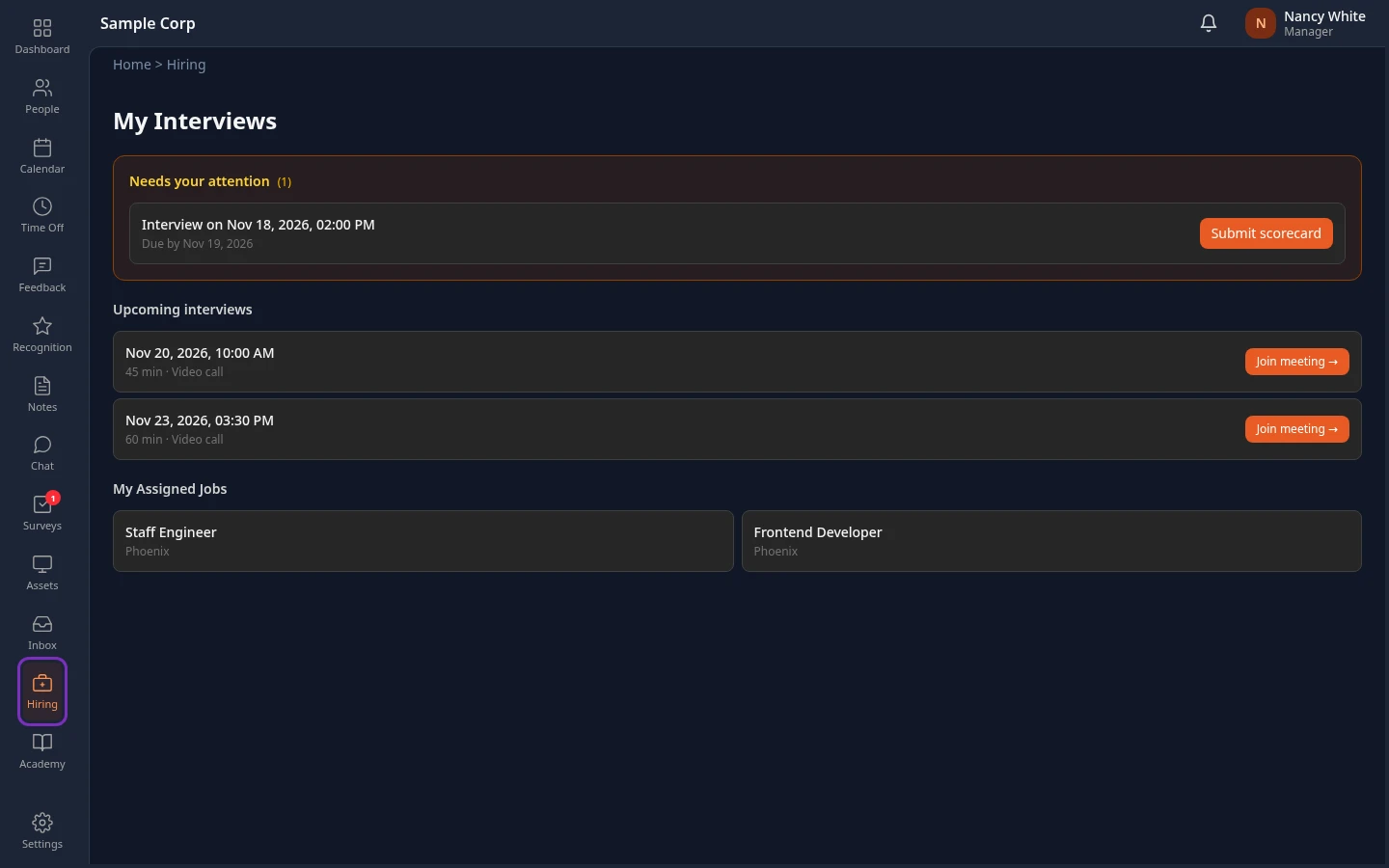
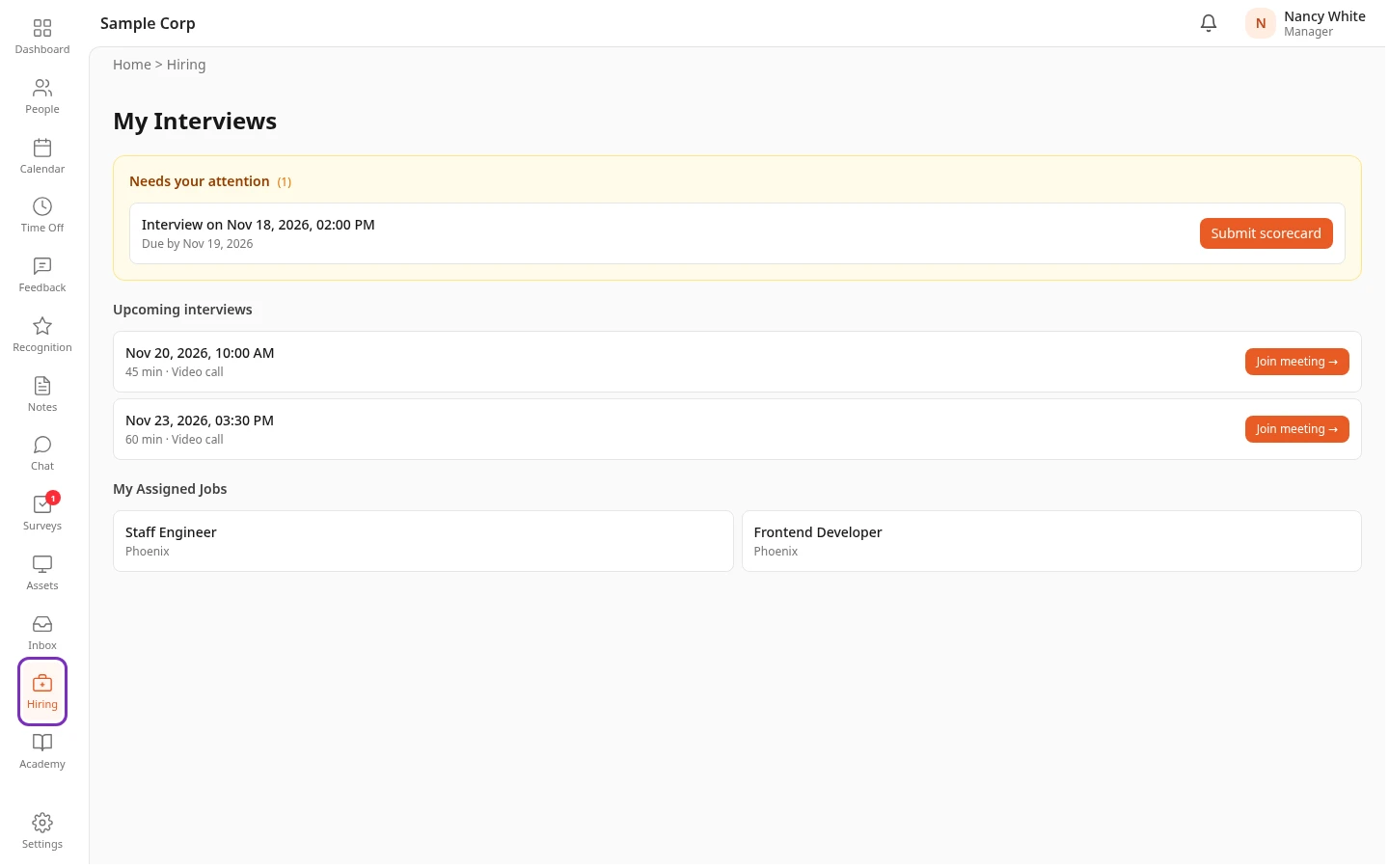
Select Hiring in the menu bar. The page is called My Interviews. It shows the scorecards you still have to submit under Needs your attention, your Upcoming interviews, and the jobs whose panel you’re on under My Assigned Jobs.
-
Select a job under My Assigned Jobs to open it.
From a job, ← Back to jobs opens the Jobs page. It lists the same jobs with their status, under Showing only jobs where you’re on the interview panel. The buttons above the list, such as Open and Closed, show one status at a time. You stay on a job’s panel after it’s closed or filled.
What’s on a job’s page
Section titled “What’s on a job’s page”Under the job’s title you see its location, its type, such as Full-time, where people work, such as Onsite, and how many of its openings are filled, for example 0 of 1 hired. The page has three tabs.
| Tab | What it shows |
|---|---|
| Pipeline | A column for each stage, such as Applied, Screening, Interview and Offer, with Hired and Rejected at the end. Scroll sideways to see them all. Each card shows a candidate, where they came from, such as LinkedIn or Career page, and how many days they’ve been in that stage. Cards in Rejected also show the reason. |
| Panel | The people on the job’s panel and their roles, but only for recruiters, HR Admins and Admins. See the note below. |
| Details | The job’s description and requirements, its salary range (Salary min and Salary max), and when it was created and published. |
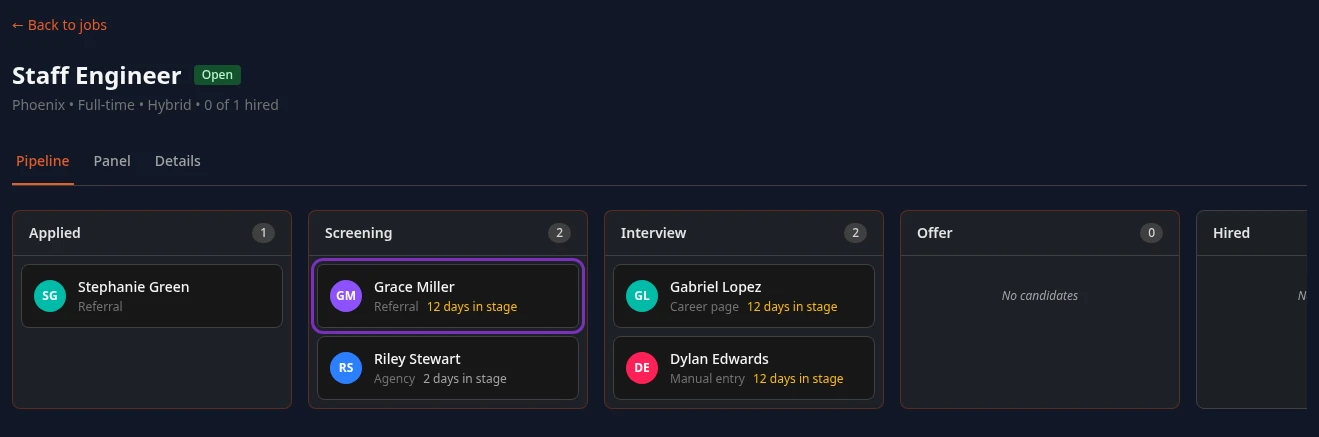
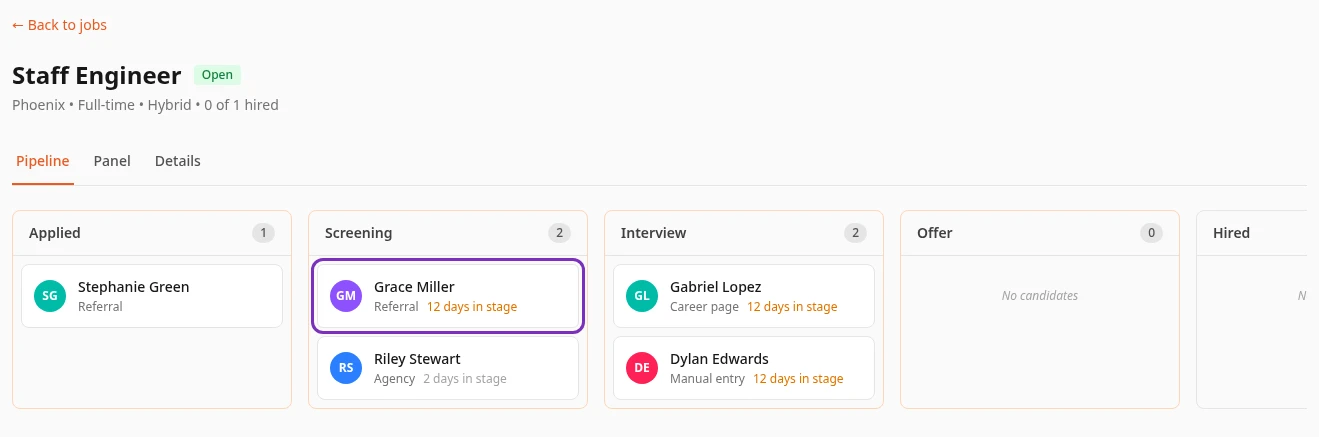
New applicants appear in the first column. You aren’t notified when someone applies.
Open a candidate
Section titled “Open a candidate”Select a candidate’s card. Their details open in a panel on the right:
- Their email, phone, LinkedIn profile and source.
- Current stage, and for a rejected candidate the Rejection reason.
- Advance to next stage and Reject candidate, if your interview role allows them. See Move a candidate forward or reject them.
- Stage history: when they applied, every move from stage to stage with who made it, and their interviews.
- Scorecards: what the panel wrote after their interviews.
- 📝 Submit scorecard, or 📝 Edit scorecard once you’ve written one, to give your own feedback. If you interviewed the candidate, it opens your interview page. See Interview a candidate and submit your scorecard.
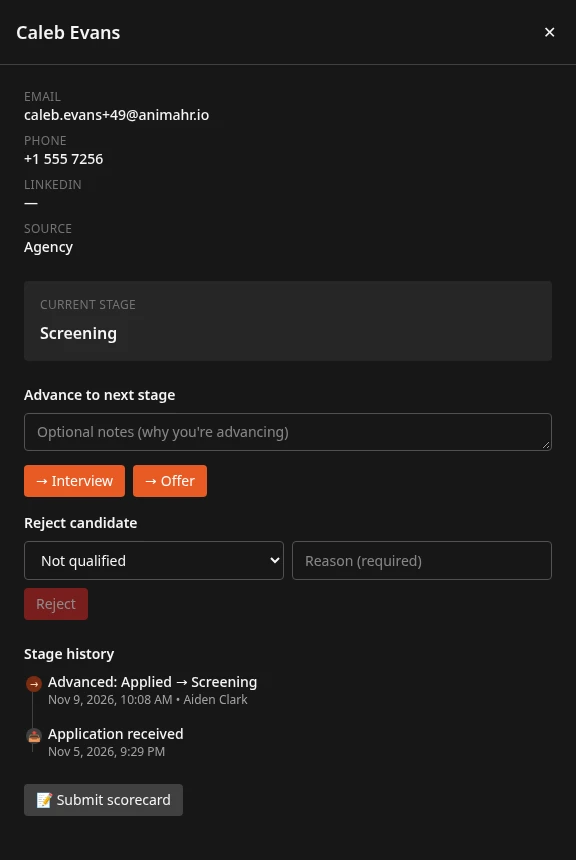
Anima HR doesn’t show a resume or CV. The recruiter’s notes about the candidate are on the interview page, under Recruiter notes. Close the panel with ✕.
What your interview role lets you do
Section titled “What your interview role lets you do”Everyone on a panel, whatever their role, can open the job and all its candidates, read their stage history and the panel’s scorecards, and submit their own scorecard. What else you can do depends on your interview role on that job. These are the roles a new workspace starts with:
| Interview role | Advance | Reject | Make offers |
|---|---|---|---|
| Hiring Manager | Yes | Yes | No |
| Recruiter | Yes | Yes | Yes |
| Technical Assessor | No | No | No |
| Bar Raiser | Yes | Yes | No |
| Culture Interviewer | No | No | No |
| Panel Member | No | No | No |
- Advance moves a candidate to a later stage, and Reject takes them out of the running with a reason.
- Make offers lets you create and send the candidate’s offer and hire them.
- A job has at most one Hiring Manager and one Bar Raiser.
- Your admin can rename these roles, add others and change what each can do in Settings › Hiring, under Interview Roles. The questions for each role are set there too.
- Your role on a job isn’t shown on its page. The buttons in the candidate panel follow it: if you don’t see Advance to next stage, your role can’t advance candidates.
What the recruiter does
Section titled “What the recruiter does”Nobody on a panel can create or publish a job, add candidates, schedule interviews or change the panel, unless they also have the Recruiter or HR Admin role. Recruiters do all of that. They also make the offers and hire the candidates.
To suggest someone for a job, for example a person you know, send their details to the recruiter, who can add them as a candidate. Anima HR has no menu entry for referring someone yet.
Can’t see this?
Section titled “Can’t see this?”- There’s no Hiring in your menu bar. You aren’t on any job’s interview panel yet, or your company has turned Hiring off. Ask the recruiter or your HR team to add you to the panel.
- A job is missing from My Assigned Jobs. You aren’t on that job’s panel. A job for your own team doesn’t add you by itself: ask the recruiter to add you.
- A candidate has no Advance to next stage or Reject candidate. Your interview role on that job can’t do it, or the candidate is already Hired or Rejected.