Submit an expense report
Esta página aún no está disponible en tu idioma.
An expense report groups the expenses you want your company to pay back, such as the flight, hotel and taxis of a business trip. You start it on the Reimbursements tab of the Pay page, add each expense with its receipt, and send the report for approval.
Start a report
Section titled “Start a report”-
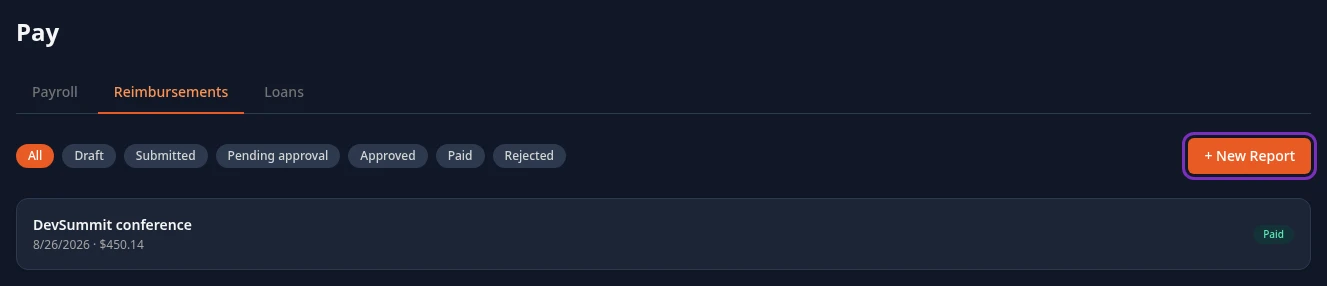
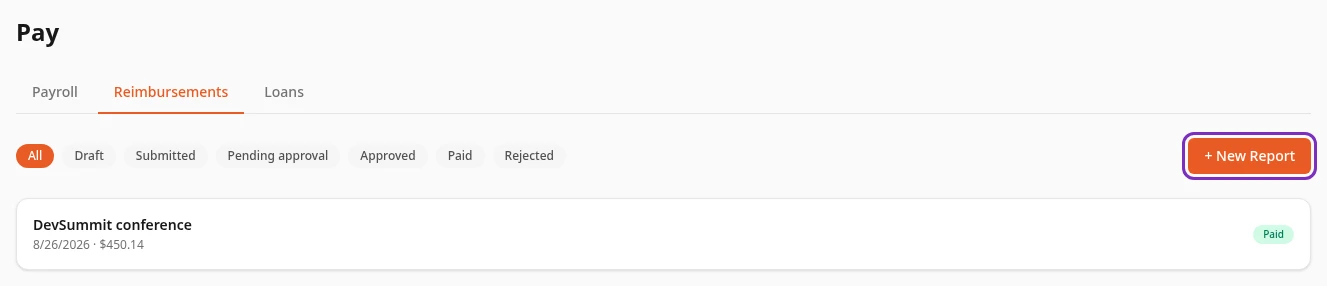
Select Pay in the menu bar, then the Reimbursements tab.
-
Select + New Report.
-
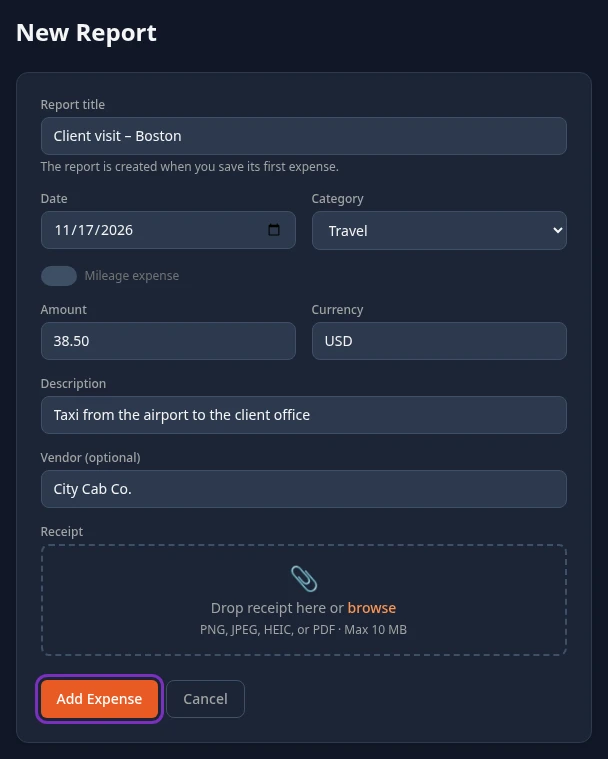
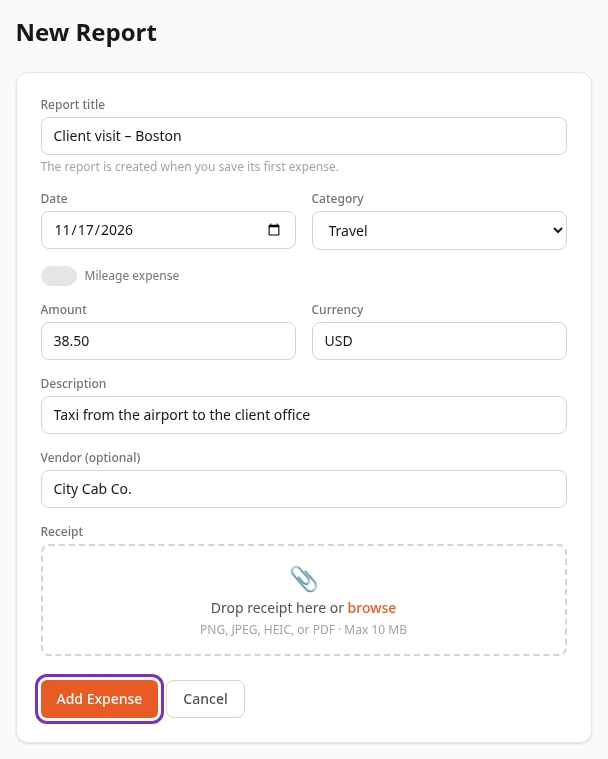
Enter a Report title, such as the trip or the month the expenses are for.
-
Fill in your first expense:
- Date: the day you paid. Today’s date is filled in.
- Category: Travel, Meals, Supplies, Transport, Accommodation or Other.
- Amount, and the Currency you paid in, as a three-letter code. Currency is filled in with USD.
- Description: what the expense was for.
- Vendor (optional): who you paid.
-
Under Receipt, drag your receipt onto the box, or select the box to choose the file. PNG, JPEG, HEIC and PDF files up to 10 MB are accepted.
-
Select Add Expense.
Saved successfully appears and your report opens, with the status Draft. The report is only created when you save its first expense, so if you select Cancel instead, nothing is saved.
If you attached a receipt, check that the expense shows ✓ in the Receipt column. When the upload fails, the expense is saved without its receipt and the column shows —.
Claim mileage
Section titled “Claim mileage”To claim the distance you drove your own car for work, turn on Mileage expense in the expense form instead of entering an amount.
-
Turn on Mileage expense. The Category changes to Transport.
-
Enter where you drove From and To, and the Distance in mi or km. Select Round trip if you drove there and back.
-
Select Calculate Amount →. Anima HR fills in Amount from the distance and your company’s mileage rate, and shows the calculation, such as 12 mi × $0.67/mi = $8.04.
-
Select Add Expense.
If you don’t calculate the amount, Add Expense does nothing. A mileage expense’s description is its route, such as “Mileage: Office → Client site”. Anything you type in Description isn’t saved.
Add, change or delete expenses
Section titled “Add, change or delete expenses”You can change a report while it’s a Draft. Open it from the Reimbursements tab, then:
- To add an expense, select + Add Expense, fill in the expense and its receipt, and select Add Expense.
- To change an expense, select ✏️ (Edit) in its row, change the date, category, description or amount, and select Save. ✕ closes the row without saving.
- To delete an expense, select 🗑️ (Delete) in its row and confirm with OK.
You can’t add or replace the receipt of a saved expense. To fix a receipt, delete the expense and add it again with the right file.
Submit the report
Section titled “Submit the report”-
Open the report from the Reimbursements tab.
-
Check the expenses, the Receipt column and the Total.
-
Select Submit for Approval.
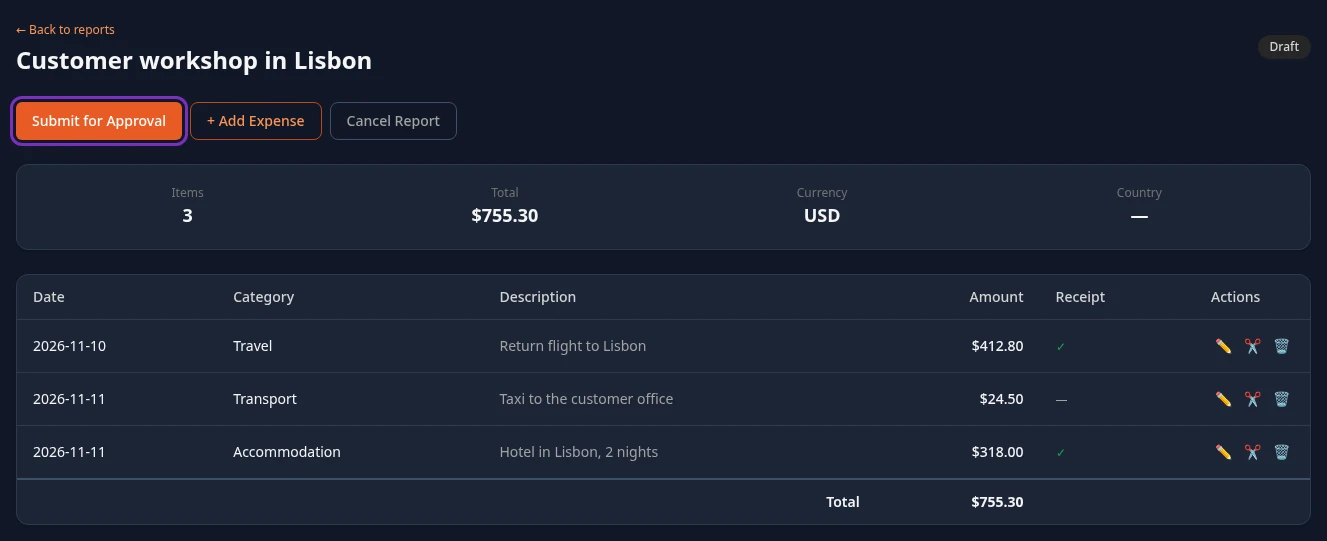
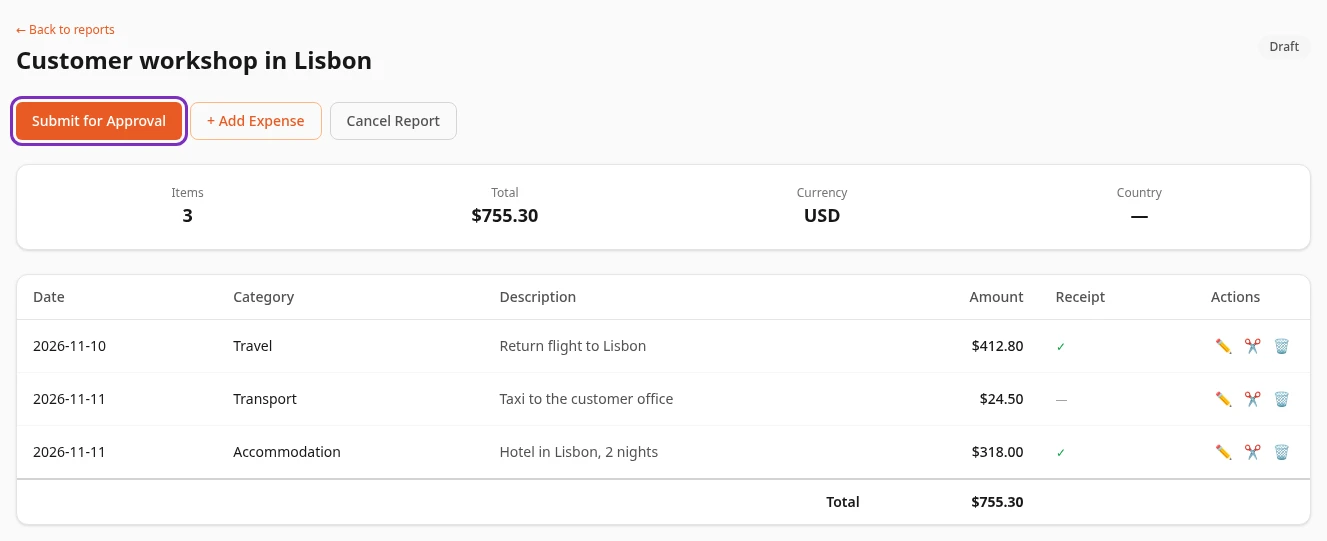
Report submitted appears and the status changes to Submitted. From then on, you can’t change the report’s expenses.
Rules checked when you submit
Section titled “Rules checked when you submit”When you submit, Anima HR checks your expenses against your company’s expense policy. Your company can set different values for the country you work in.
| Rule | What happens | Default |
|---|---|---|
| Receipt limit | An expense above the limit without a receipt stops the report. | Expenses over 50, in the currency you entered, need a receipt |
| Claim window | An expense older than this is out of policy. | 90 days |
| Category maximum | An expense above its category’s maximum is out of policy. | No maximum |
| Out-of-policy expenses | Whether a report with an out-of-policy expense can still be submitted. If your company doesn’t accept them, the report is stopped. | Accepted |
| Categories your company doesn’t reimburse | An expense in one of them stops the report. | None |
When a rule stops the report, Policy violations appears and the report stays a Draft. The message doesn’t say which expense is the problem, so check first that every expense over the receipt limit has ✓ in the Receipt column. Fix or delete the expense, then submit again.
What happens next
Section titled “What happens next”A submitted report is approved in two steps: the first approval changes its status to Pending approval, the second to Approved. Your manager and Finance are allowed to approve it, but at the moment there’s no page in the menu bar for approving reports, and only Admins see Approve and Reject on a report. If your report stays Submitted, ask your finance team. Nobody can approve their own report.
| Status | What it means |
|---|---|
| Draft | You’re still preparing it. Only drafts can be changed. |
| Submitted | Sent for approval, waiting for its first approval. |
| Pending approval | Approved once, waiting for its final approval. |
| Approved | Approved. Your company pays you back. |
| Paid | Your company has paid you back. |
| Rejected | Not approved. |
| Cancelled | You cancelled it. |
Anima HR doesn’t pay you itself or add the money to your payslip. Your company pays you back its own way, then marks the report Paid.
A rejected report can’t be changed or submitted again, and Anima HR doesn’t show you the reason. Ask your manager why, then start a new report with the corrected expenses.
Cancel a report
Section titled “Cancel a report”You can cancel a report while it’s a Draft, Submitted or Pending approval.
-
Open the report from the Reimbursements tab.
-
Select Cancel Report and confirm with OK.
Report cancelled appears and the status changes to Cancelled. A cancelled report can’t be reopened, and it’s only listed under All.
Can’t see this?
Section titled “Can’t see this?”- There’s no Pay in your menu bar, or no Reimbursements tab. Reimbursements is turned off for your company, or your role doesn’t include expense reports. Ask your admin.
- There’s no Submit for Approval button. The report has no expenses yet, or it isn’t a Draft anymore.
- There’s no + Add Expense button, and no ✏️ or 🗑️ in the rows. The report isn’t a Draft anymore, so it can’t be changed.