View and edit your profile
Your profile holds your work details, such as your title and who you report to, and your personal details, such as your phone number and address. You keep your personal details up to date yourself. HR looks after your work details.
Open your profile
Section titled “Open your profile”Select your name in the top bar, then View Profile. On a phone, open the menu and select your name.
You can also open it from your card in the People directory.
What’s on your profile
Section titled “What’s on your profile”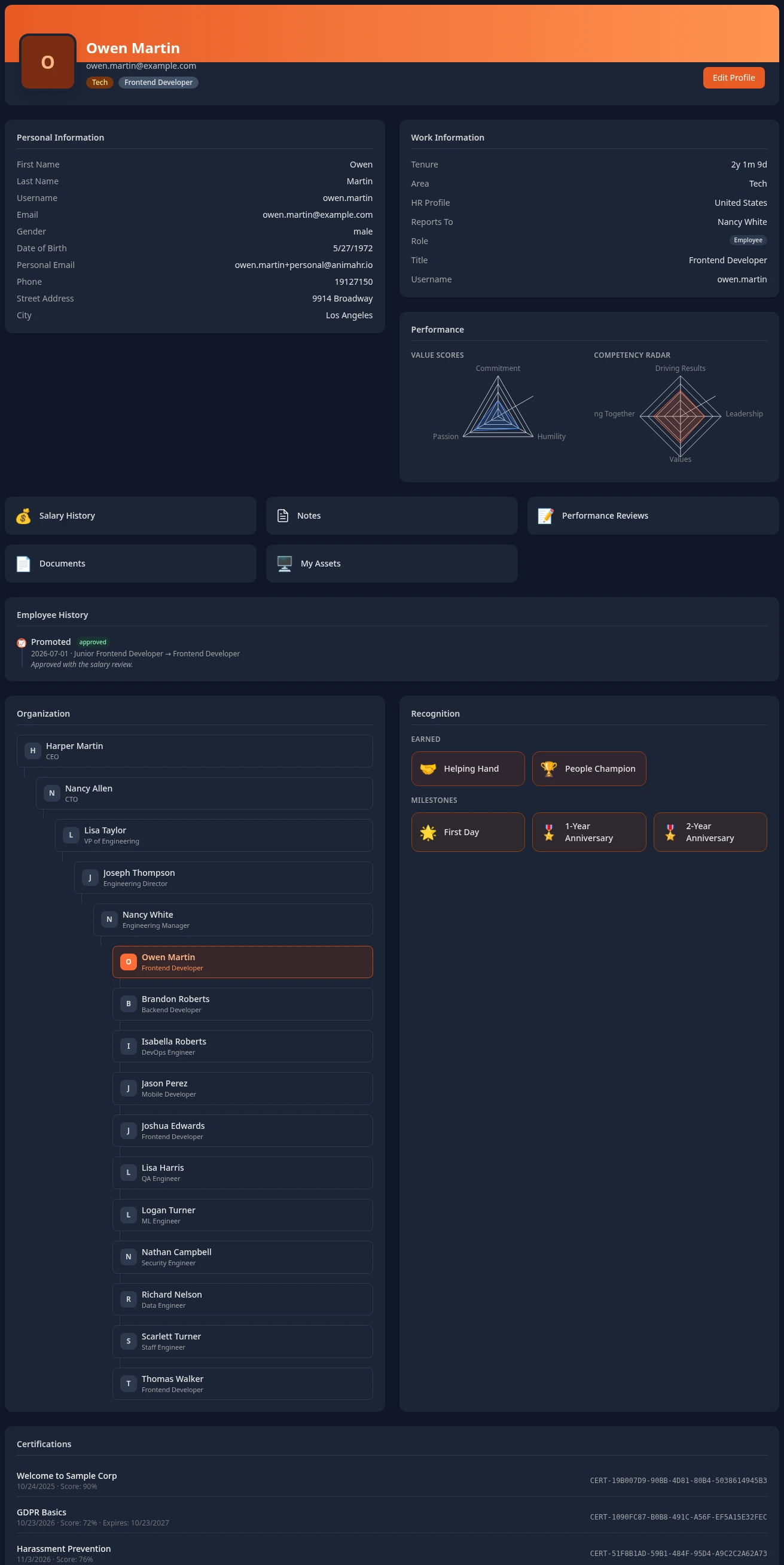
| Part | What it shows |
|---|---|
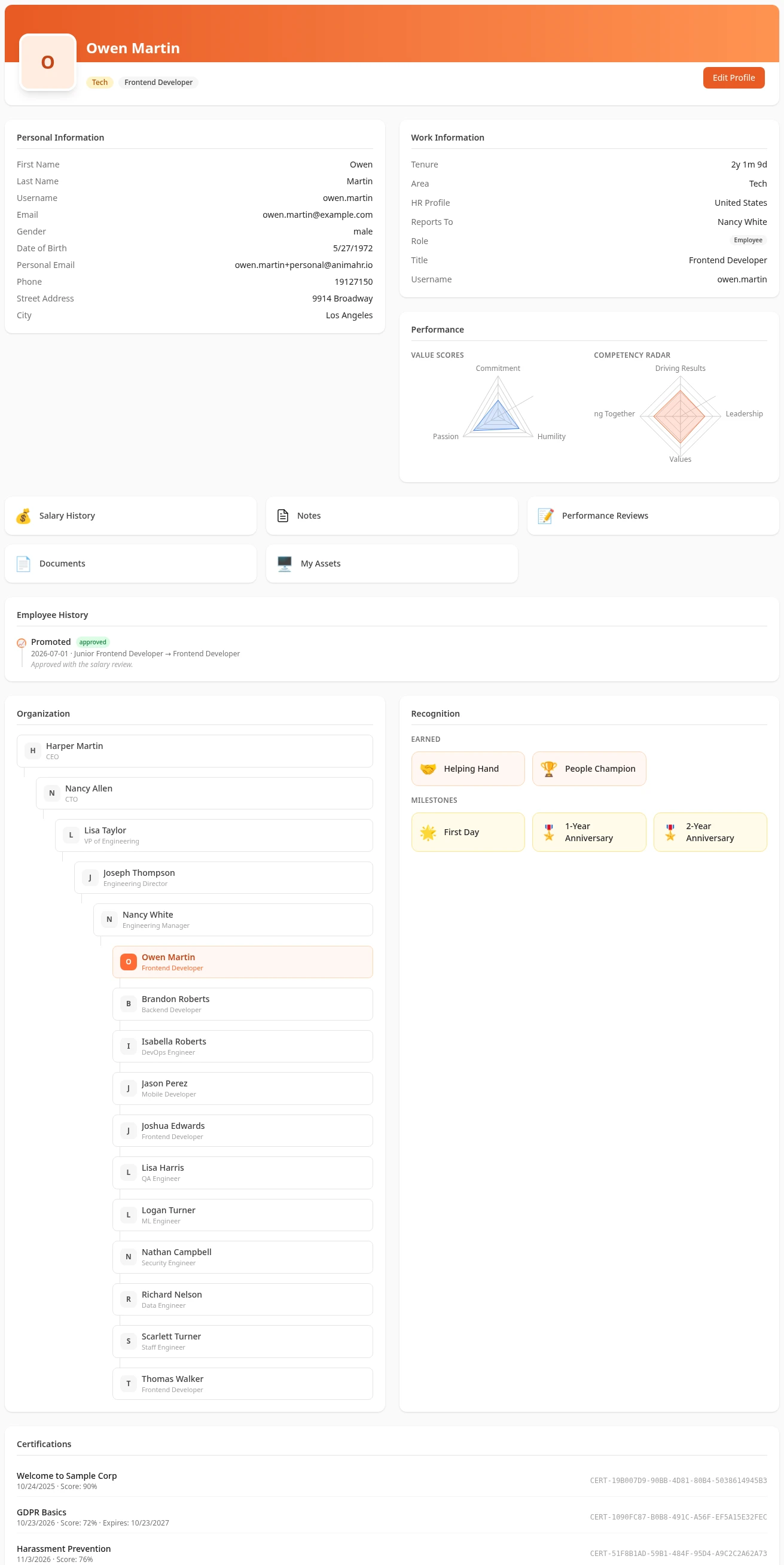
| Header | Your photo, or the first letter of your name, then your name, your area and title, and any role you hold besides Employee, such as Manager. |
| Personal Information | Your name, username and work email, then your personal details, such as your phone number, address and date of birth, and, depending on your country, your ID details. The fields depend on the country or region your profile uses. Empty fields aren’t shown. |
| Work Information | Tenure (how long you’ve worked at the company), Area, HR Profile (the country or region your HR fields follow, if your company uses several), Team, Reports To, Role (your roles, such as Employee), Title and Username. |
| Performance | Your scores from reviews and the People Analyzer, if your company uses them. |
| Links | Salary History, Notes, Performance Reviews, Documents and My Assets, for the modules your company uses. |
| Employee History | Promotions, transfers and other changes to your job, if your company uses Promotions & Transfers. See Your job and salary history. |
| Organization | Your managers up to the top of the company, and the colleagues who share your manager or the people who report to you. See Browse the org chart. |
| Recognition | The badges you’ve earned from kudos and work anniversaries. |
| Certifications | Certificates for the Academy courses you’ve completed, once you have some. |
Edit your details
Section titled “Edit your details”-
Open your profile from your name in the top bar, then select Edit Profile.
The profile turns into a form: Basics first, then a section for each group of fields, such as Personal Information and Contact & Address. Work Information stays as it is, because only HR can edit it.
-
Change the fields you need.
-
Select Save.
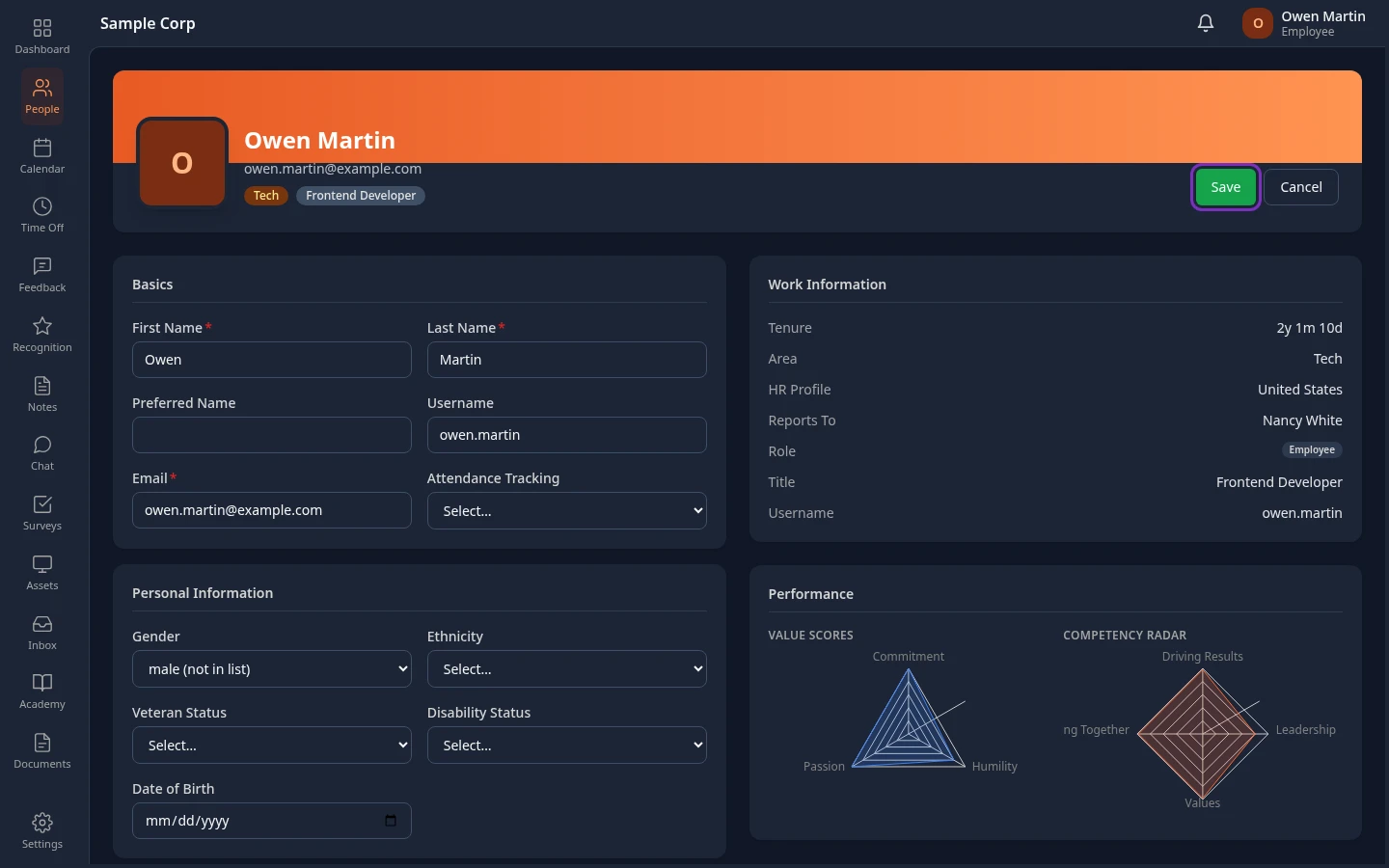
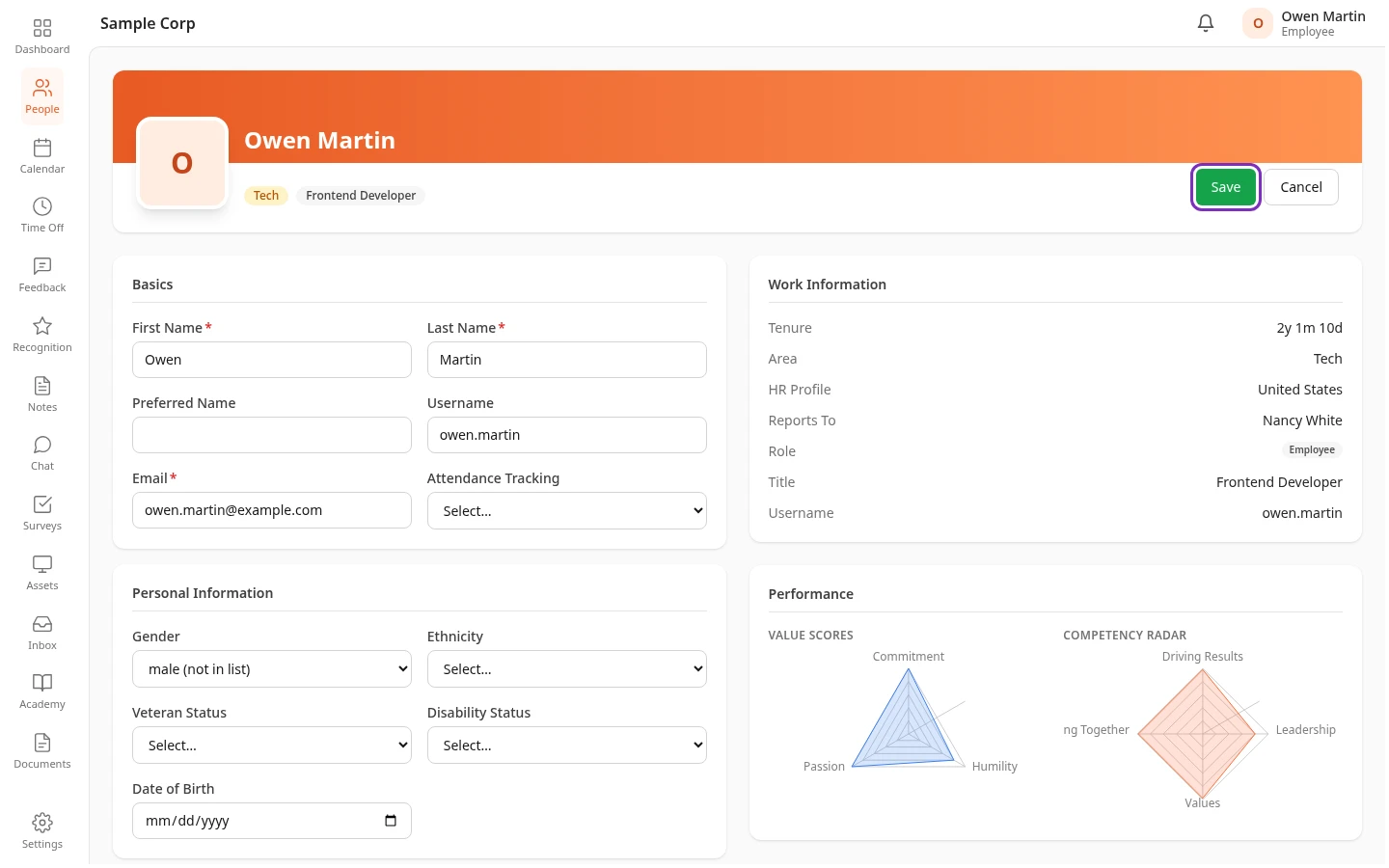
Profile updated appears and your profile shows the new details. To leave without saving, select Cancel. On a phone, Save and Cancel are in a bar at the bottom of the screen.
What you can change
Section titled “What you can change”The form shows every field on your profile, but you can only save changes to some of them.
| You can change | Only HR or an admin can change |
|---|---|
| First Name, Last Name and Preferred Name | Email and Username |
| Personal details, such as gender, date of birth and, in some countries, nationality and marital status | Everything in Work Information: title, team, area, manager and start date |
| Contact details, such as phone number, personal email, address, city, state or province, postal code and emergency contacts | ID documents, tax and social security numbers, such as PAN |
| Employment and benefits details, such as employer, employment type and health insurance, and Attendance Tracking |
If you change a field you’re not allowed to change, Save shows You can’t edit followed by the field’s name, or Only admins can change usernames for your username, and none of your changes are saved. Put that field back as it was and select Save again. If a value doesn’t fit its field, such as a date in the wrong format, Couldn’t save: appears with the field’s name and what to fix, and nothing is saved until you fix it. If a required field is empty, Required fields: appears, followed by the field’s name.
Fields you can’t see on your own profile, such as your employer or benefits, show as empty boxes in the form. To change them, ask your HR team.
If you change your first or last name, your profile shows the new name straight away. Other places, such as the People directory, the org chart and the top bar, keep showing your old name.
Change your photo
Section titled “Change your photo”-
Open your profile from your name in the top bar, then select Edit Profile.
-
Point at your photo, or at the letter that stands in for it, and select the camera that appears. On a touch screen, tap your photo.


-
Choose a JPEG, PNG or WebP image.
-
Drag the image and use Zoom until your face fits the circle, then select Save.
Your photo is saved straight away, without the profile’s Save. You can replace it with another one, but you can’t remove it.
At the moment your photo only shows on your own profile pages, to you and to HR. Everywhere else, including the People directory, the org chart, the top bar and your profile as colleagues see it, the first letter of your name shows instead.
Who can see what on your profile
Section titled “Who can see what on your profile”Each field on your profile has a type, and your company’s roles decide who can see each type. With the standard roles:
| Type | Examples | Who can see it |
|---|---|---|
| Work | Name, work email, username, title, team, area, manager, start date | Everyone in the company |
| Personal | Phone, personal email, address, gender, date of birth, emergency contacts | You, your managers and HR |
| Private | ID document numbers, tax and social security numbers, visa details | You and HR |
| Admin | Employer, employment type, health insurance, pension | HR only |
| Termination | The date and reason someone left the company | HR only |
- “Your managers” means your manager and every manager above them.
- “HR” means people with the HR Admin role, and Admins while they’re in admin mode.
- You don’t see your own admin or termination fields. Ask HR if you need them.
- Your pay isn’t on your profile. Your salary history is in Salary.
- Your company can change these rules: admins choose each field’s type and what each role can see.
Hiding a section of your profile in your display settings only changes what you see. It doesn’t hide anything from anyone else. See Hide sections on some pages.
Can’t see this?
Section titled “Can’t see this?”- A card or link is missing. Its module is off: Performance needs the People Analyzer, Employee History needs Promotions & Transfers, Certifications needs the Academy and My Assets needs Assets. Or you or your admin hid that section: see Hide sections on some pages.
- Your title, team or manager is wrong. Ask your HR team to correct it.