Set your company's branding
Esta página aún no está disponible en tu idioma.
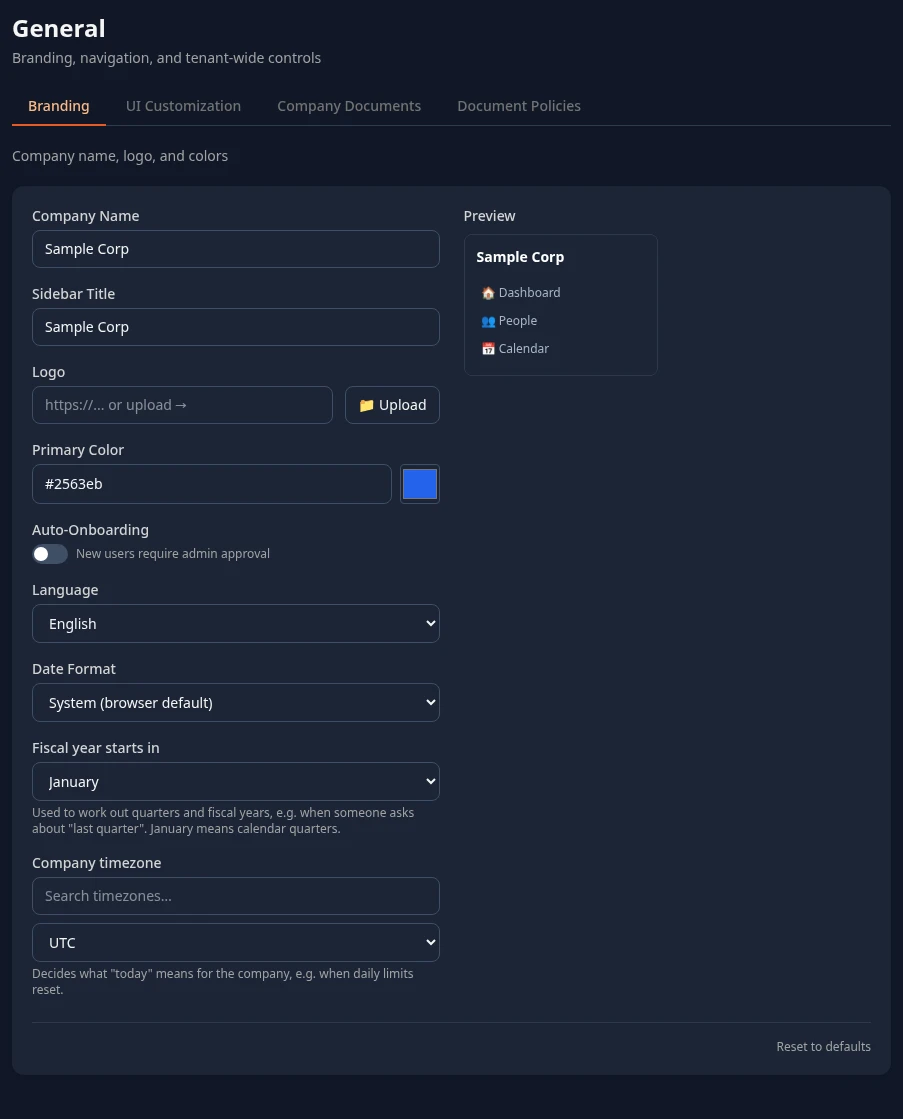
Settings › General › Branding holds your company’s name and the title or logo at the top of every page. It also sets the language people start with, how a few dates are written, and the fiscal year and time zone that the AI assistant uses. The setup wizard asks for some of these; this page explains each setting and where it shows.
Change your branding
Section titled “Change your branding”-
Select Settings in the menu bar. If you’re an Admin, turn on admin mode first: select your name at the top right, then Elevate to Admin.
-
Open General. It opens on the Branding tab.
-
Change what you need, then select Save changes in the bar at the bottom of the page.
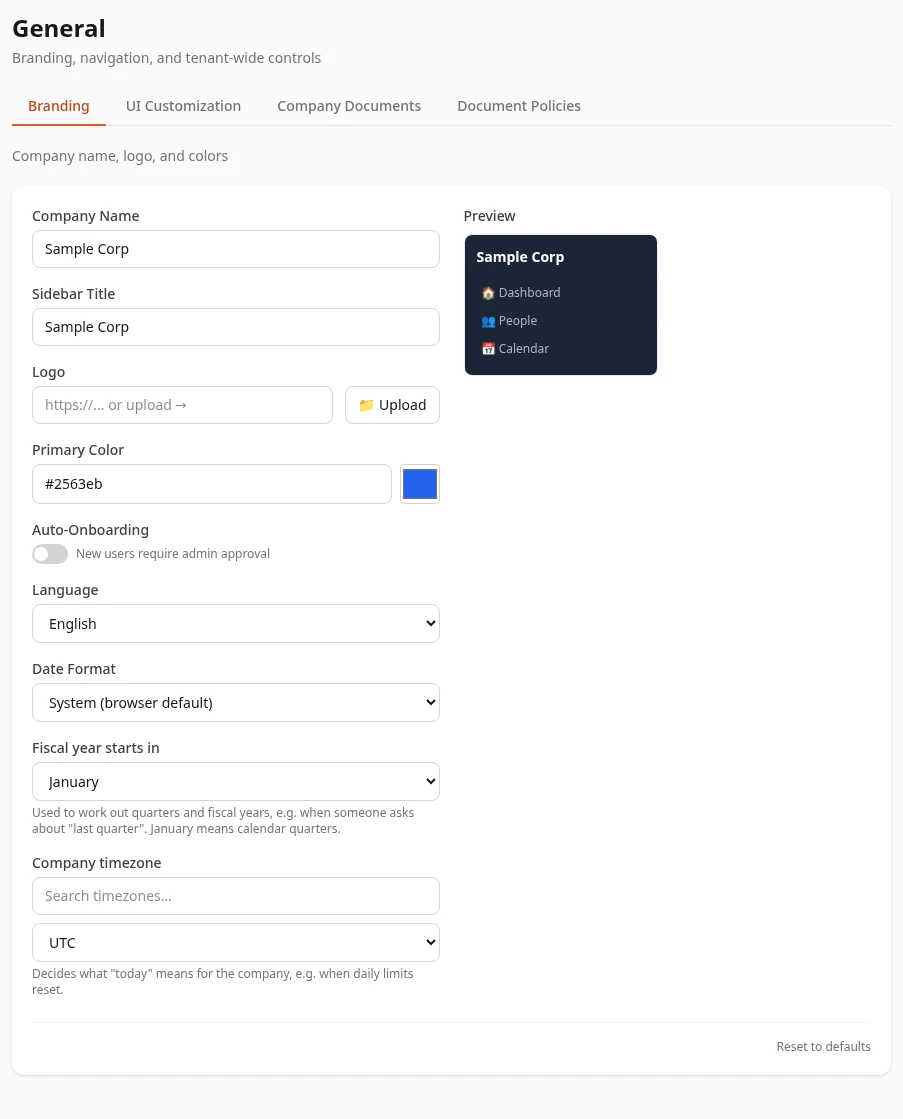
People see your changes within a few minutes. Preview, on the right, shows your Sidebar Title above a few menu items. It doesn’t show your logo or your color.
Name and logo
Section titled “Name and logo”| Setting | What it does | Default |
|---|---|---|
| Company Name | Your company’s name in emails and on a few pages: see where it shows. Up to 100 characters. | HRMS |
| Sidebar Title | The name at the top left of every page, unless you add a logo. On a phone, it’s in the middle of the top bar and at the top of the menu. Up to 50 characters. | HRMS |
| Logo | An image shown instead of the Sidebar Title, at the top left of every page and on phones. Paste the address of an image, starting with https://, or select Upload to choose a JPEG, PNG, WebP or SVG file. |
None |
Where your company name shows
Section titled “Where your company name shows”- Invitation emails, such as “You’re invited to join Acme on AnimaHR”.
- The welcome form new people fill in, which starts Welcome to and your company name.
- Emails about job applications and about bookings.
- Course certificates from Academy.
- Your careers site, if you use it.
- Authenticator apps, next to the account people add when they set up two-step verification.
- The page where people approve an AI app, and the name other apps see when you connect them to the AI assistant.
The top bar shows the Sidebar Title, not the company name. The sign-in pages don’t use either of them yet: they show HRMS. So does the browser tab, except on your careers page.
Add a logo
Section titled “Add a logo”- After an upload, Asset: and a code appear under the field. Select Save changes to use the logo.
- An uploaded logo takes the place of any address in the field.
- The logo is shown small, about the height of a line of text, so a wide logo with little empty space around it works best.
- If the image can’t be loaded, the Sidebar Title shows instead.
- The logo doesn’t show on the sign-in pages or on your careers site.
| Setting | What it does | Default |
|---|---|---|
| Primary Color | A color code such as #2563eb, typed in or picked with the color box. The app doesn’t use it: buttons, switches and highlights keep their standard colors. Only your careers site uses it, for your company name at the top of the page and the line under it. |
None |
Auto-Onboarding
Section titled “Auto-Onboarding”Auto-Onboarding is off by default, and reads New users require admin approval. It’s the same choice as the Onboarding step of the setup wizard, and it doesn’t change how people join yet: whether it’s on or off, people you add on the People page can sign in once they’ve set a password, and people who sign in with single sign-on for the first time wait in Pending HR Review. See Add your people.
Language and dates
Section titled “Language and dates”| Setting | What it does | Default |
|---|---|---|
| Language | The language people see until they choose their own, in Settings › Display, Theme & Language. The AI assistant answers in it too. | English |
| Date Format | How dates are written in recognition posts and on the AI connection pages. Everywhere else, dates follow each person’s browser, whatever you choose. The choices are System (browser default), MM/DD/YYYY, DD/MM/YYYY, YYYY-MM-DD, DD MMM YYYY and MMM DD, YYYY. | System (browser default) |
About Language:
- Only English, Español and Português work. The others in the list, Français, Deutsch, Italiano, 日本語, 한국어 and 中文, don’t change the app’s language, and the AI assistant answers in English.
- Hindi and Arabic, which people can choose for themselves, aren’t in this list.
- Once someone chooses a language for themselves, this setting no longer applies to them. See Set your language, theme and menu bar.
- Emails from Anima HR are always in English, and most menu bar items, such as People and Time Off, stay in English in every language for now.
Fiscal year and time zone
Section titled “Fiscal year and time zone”| Setting | What it does | Default |
|---|---|---|
| Fiscal year starts in | The month your fiscal year starts. When someone asks the AI assistant about a quarter or a fiscal year, such as “last quarter”, it uses your quarters, and names each fiscal year after the year it ends in: with April, April 2026 to March 2027 is FY2027. January means calendar quarters. | January |
| Company timezone | The time zone the AI assistant works out today’s date in, and the day each person’s daily message limit starts over. Type part of a place name, such as bogota, in Search timezones… to shorten the list. |
UTC |
Who can change branding
Section titled “Who can change branding”HR Admins, and Admins in admin mode. Saving needs Manage branding in System, and uploading a logo also needs Manage assets in System. HR Admins have both.
Can’t see this?
Section titled “Can’t see this?”- There’s no General card in Settings. If you’re an Admin, turn on admin mode. Other people need a role that can save one of its tabs: see Who sees what.
- There’s no Branding tab. Your roles don’t include Manage branding: the tab only shows to people who can save it.
- Save rejected – fix these issues: appears at the top of the tab. One of the values can’t be saved: see the table below.
- Logo upload failed. Your roles don’t include Manage assets in System, or the upload didn’t finish: try again. A file of another type shows Only JPEG, PNG, WebP, or SVG images are allowed.
- People still see the old name or logo. It can take a few minutes. Ask them to reload the page.
When a save is rejected, the list names each setting by its code, followed by the problem:
| Code | Setting | What’s wrong |
|---|---|---|
companyName |
Company Name | It’s empty, or too long. |
sidebarTitle |
Sidebar Title | It’s empty, or too long. |
logoUrl |
Logo | The address doesn’t start with http:// or https://. |
primaryColor |
Primary Color | It isn’t a color code such as #2563eb. |
Related
Section titled “Related”- Go-live checklist: brand your workspace
- Admin quick start, for the setup wizard’s Branding step
- Find your way around Settings and use admin mode
- Set your language, theme and menu bar