Leave policies
Esta página aún no está disponible en tu idioma.
Leave policies decide which types of time off people can request, how many days they get each year, and how requests are counted. Changes apply to everyone within a few minutes of saving. Balances aren’t stored: they’re worked out from the current rules whenever someone opens Time Off.
Open leave policies
Section titled “Open leave policies”- Select Settings in the menu bar. If you’re an Admin, turn on admin mode first: select your name at the top right, then Elevate to Admin.
- Open Time & Attendance, then the Leave Policies tab.
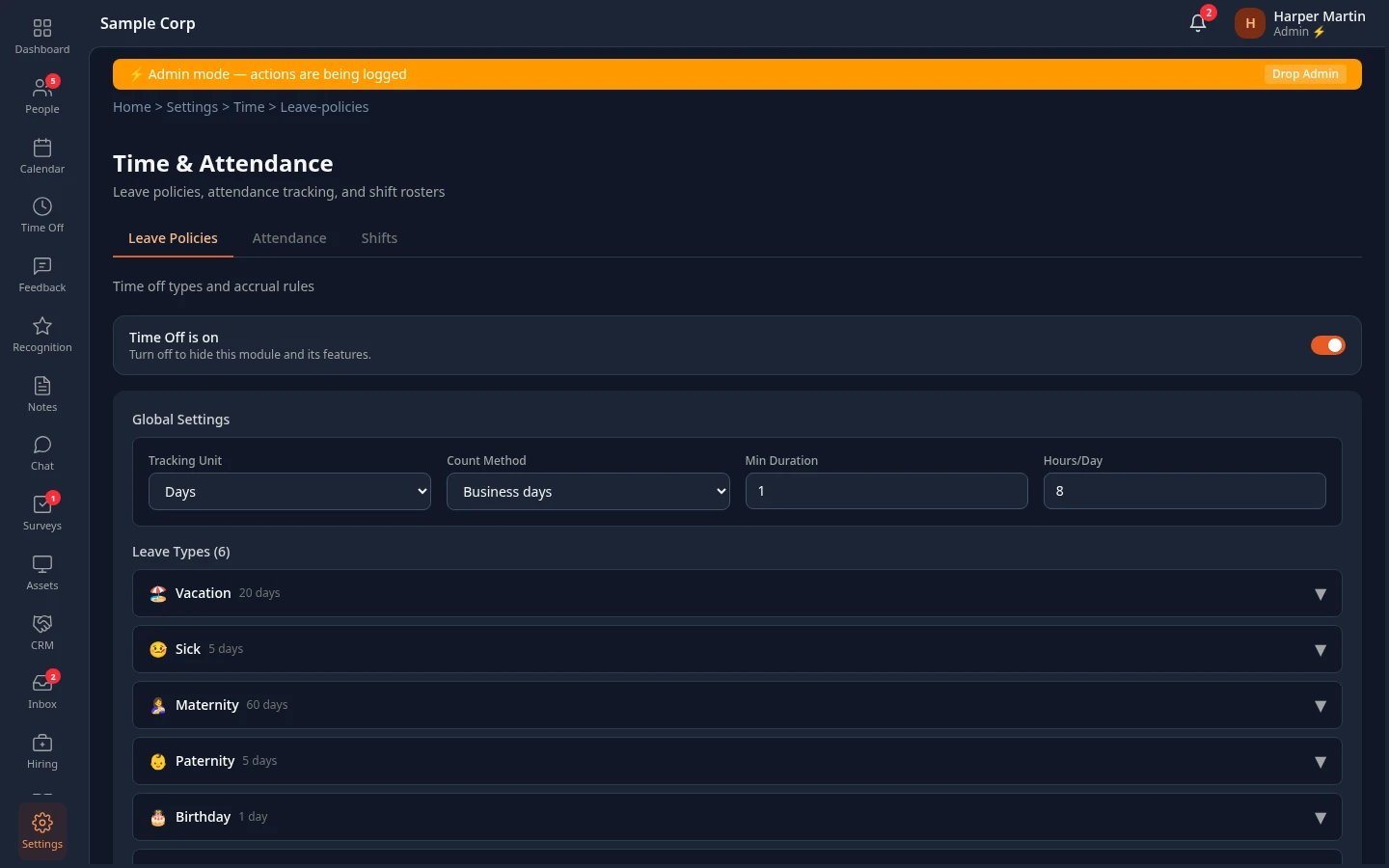
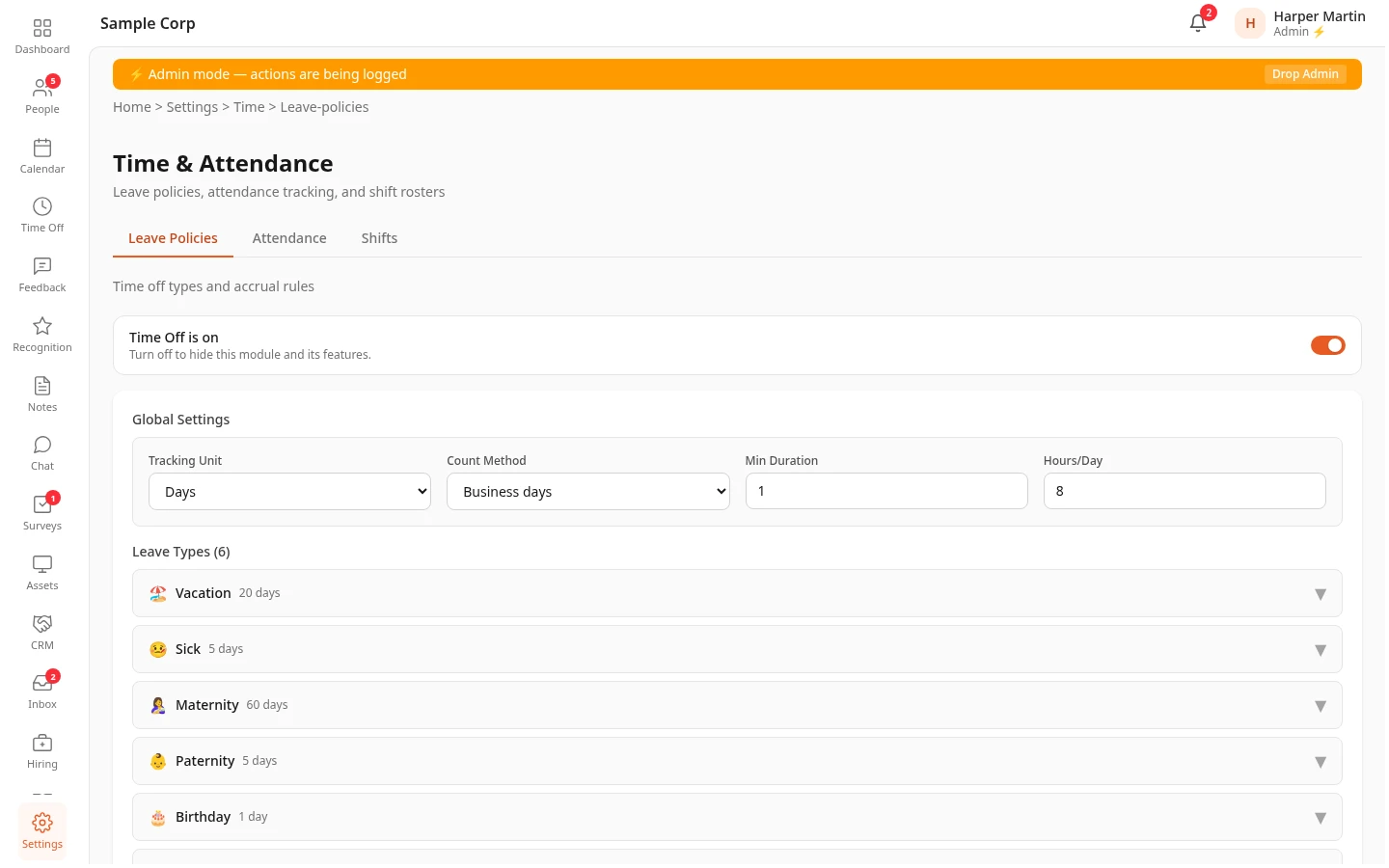
The switch at the top, Time Off is on, turns the whole Time Off module on or off for your company. Turning it off hides Time Off from everyone; nothing is deleted.
Global settings
Section titled “Global settings”These apply to every leave type.
| Setting | What it does | Default |
|---|---|---|
| Tracking Unit | Whether time off is counted in Days or Hours. With hours, balances are shown in hours and single-day requests ask for a number of hours. | Days |
| Count Method | Business days doesn’t count Saturdays, Sundays or company holidays (the holidays on the Calendar, except observances), so Monday to Friday over one holiday uses 4 days. A request that falls only on weekends and company holidays is refused. Calendar days counts every day. The same count is used for balances and for the standard approval flow’s “more than 5 days” HR step. | Business days |
| Hours/Day | The length of a workday. Used to convert days to hours and as the maximum for a partial day. | 8 |
| Min Duration | The shortest request you want to allow. It’s saved with your policy, but requests aren’t checked against it yet. | 1 |
Leave types
Section titled “Leave types”Every workspace starts with these types. Rename, change or remove them, or add your own with + Add Leave Type.
| Leave type | Entitlement per year | Pro-rata | Who it applies to |
|---|---|---|---|
| Vacation | 20 days | Yes | Everyone |
| Sick | 5 days | Yes | Everyone |
| Maternity | 60 days | No | Female only |
| Paternity | 5 days | No | Male only |
| Birthday | 1 day | No | Everyone |
| Bereavement | 5 days | No | Everyone |
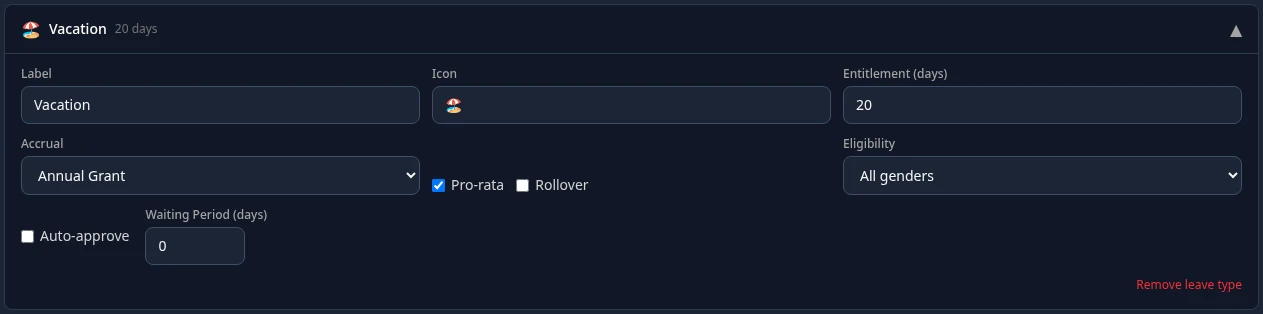
Select a leave type to open its settings.
| Setting | What it does |
|---|---|
| Label and Icon | The name and emoji people see on their balance card and in the Leave Type list. |
| Entitlement (days) | How many days a person gets per calendar year. |
| Accrual | Annual Grant gives the full entitlement at the start of the year. Accrual per Pay Period builds it up instead: set Accrual Rate/Period (days earned per period) and Pay Period (Weekly, Biweekly, Semi-monthly or Monthly), counted from the start of the year or the person’s start date, whichever is later. |
| Pro-rata | For people who join during the year, reduces the annual grant to the share of the year left after their start date, rounded down. |
| Rollover | Carries unused days from last year into this year, up to Rollover Max Days. |
| Eligibility | All genders, Male only or Female only, based on the gender on the person’s HR profile. People outside it get no entitlement for this type. |
| Waiting Period (days) | New people get no entitlement for this type until this many days after their start date. |
| Auto-approve | Saved with the leave type, but requests still go through the approval flow for now. |
To delete a type, open it and select Remove leave type. Existing requests of that type stay in people’s history.
Save your changes
Section titled “Save your changes”When you change anything, a bar with Unsaved changes appears at the bottom of the page. Select Save changes to apply them, or Discard to go back to the saved policy. Reset to defaults (at the bottom of the card) puts the built-in leave types and settings back into the form; nothing changes until you save.
Who approves requests
Section titled “Who approves requests”Leave policies don’t decide who approves. Requests follow the Leave Approval flow: by default the employee’s manager, then HR for requests longer than 5 days. Change it in Settings › Approvals.