Manager quick start
Esta página aún no está disponible en tu idioma.
When people report to you, Anima HR adds manager tools to the pages you already use. This page explains where they are and what to do first.
How you become a manager
Section titled “How you become a manager”- You’re a manager as soon as at least one person has you as their manager, in the Reports To field of their profile. People who have left the company don’t count. Nobody assigns you a Manager role, and it can’t be given by hand.
- HR or an admin sets who reports to whom. If someone is missing from your team, or is there by mistake, ask your HR team to fix their Reports To.
- The manager tools come on top of your other roles. Everything you could do before stays the same.
- They cover your whole org: your direct reports and everyone who reports to them. A few views show your direct reports only; they’re marked below.
- When nobody reports to you any more, the manager tools go away.
- A change takes effect within about a minute. Reload the page if you don’t see it yet. Under your name in the top bar, the label then reads Manager.
What changes in the app
Section titled “What changes in the app”| Where | What you get |
|---|---|
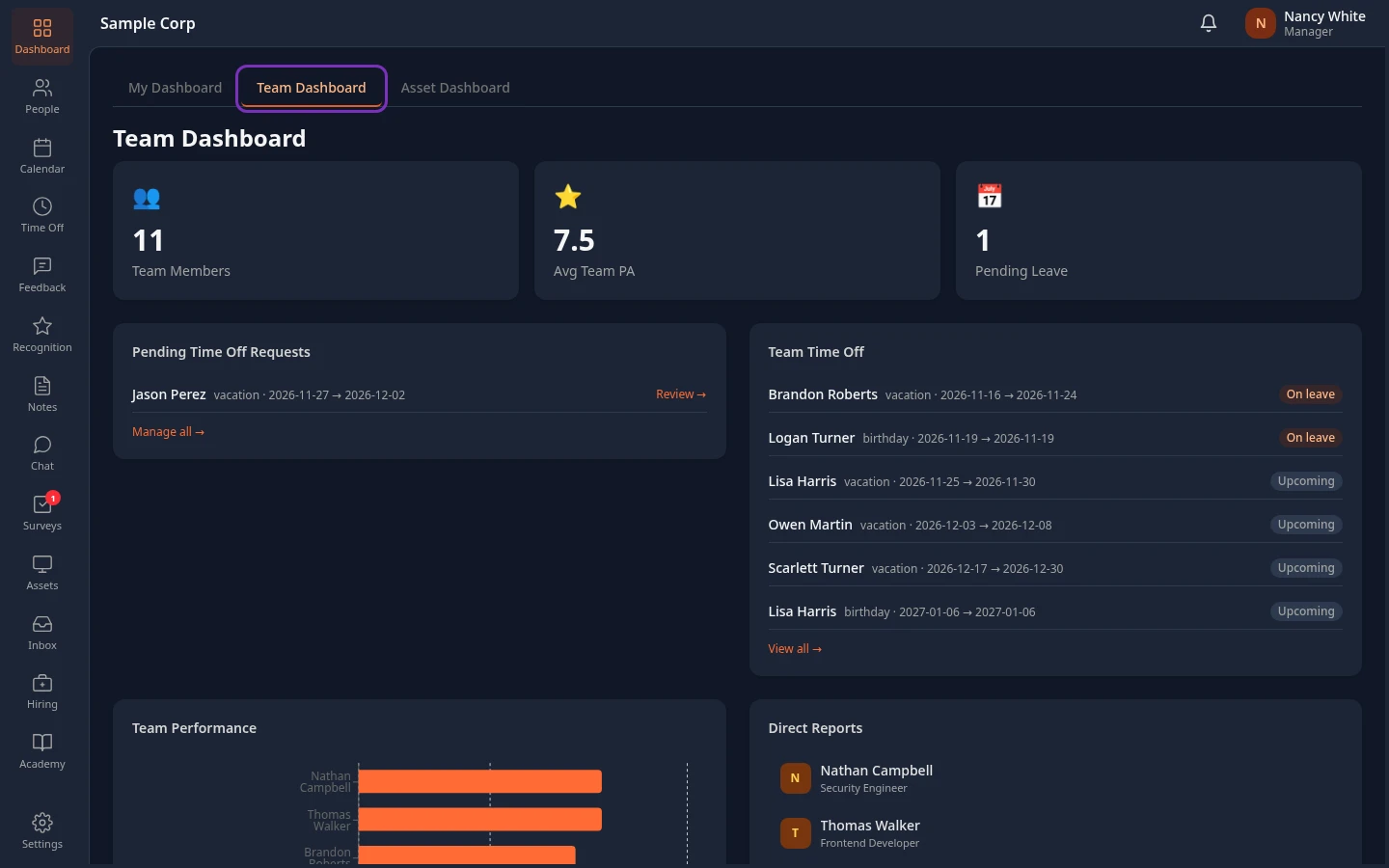
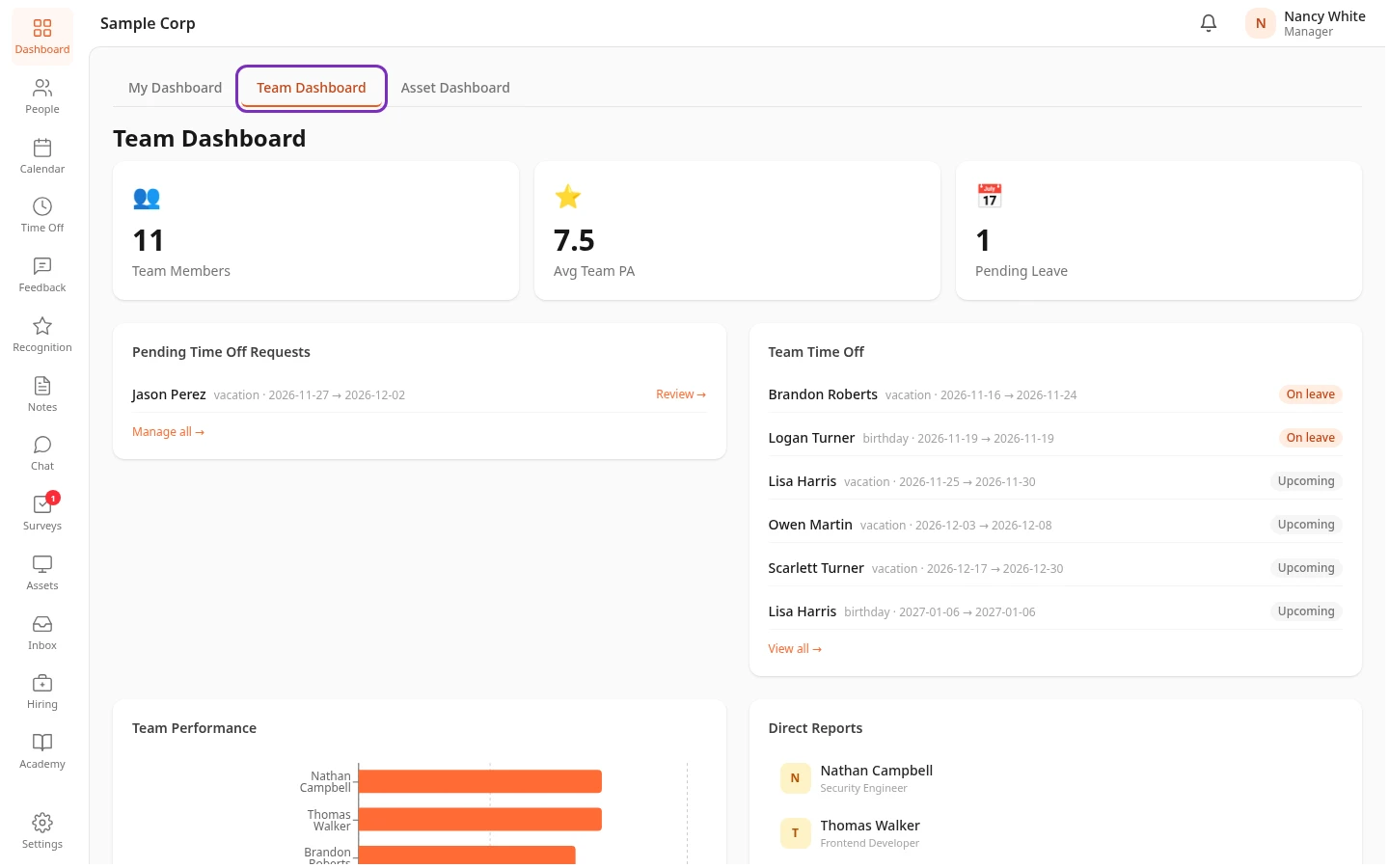
| Dashboard | A Team Dashboard tab, which opens first: Team Members, pending and upcoming time off, Team Performance and your Direct Reports. It covers your direct reports only. |
| Time Off | A Team Requests tab with the time-off requests waiting for a decision, and a Calendar tab that shows your team’s time off as well as yours. |
| Inbox | Requests that need your decision, such as time off from your direct reports, arrive on the Approvals tab. See Approve or reject requests in your Inbox. |
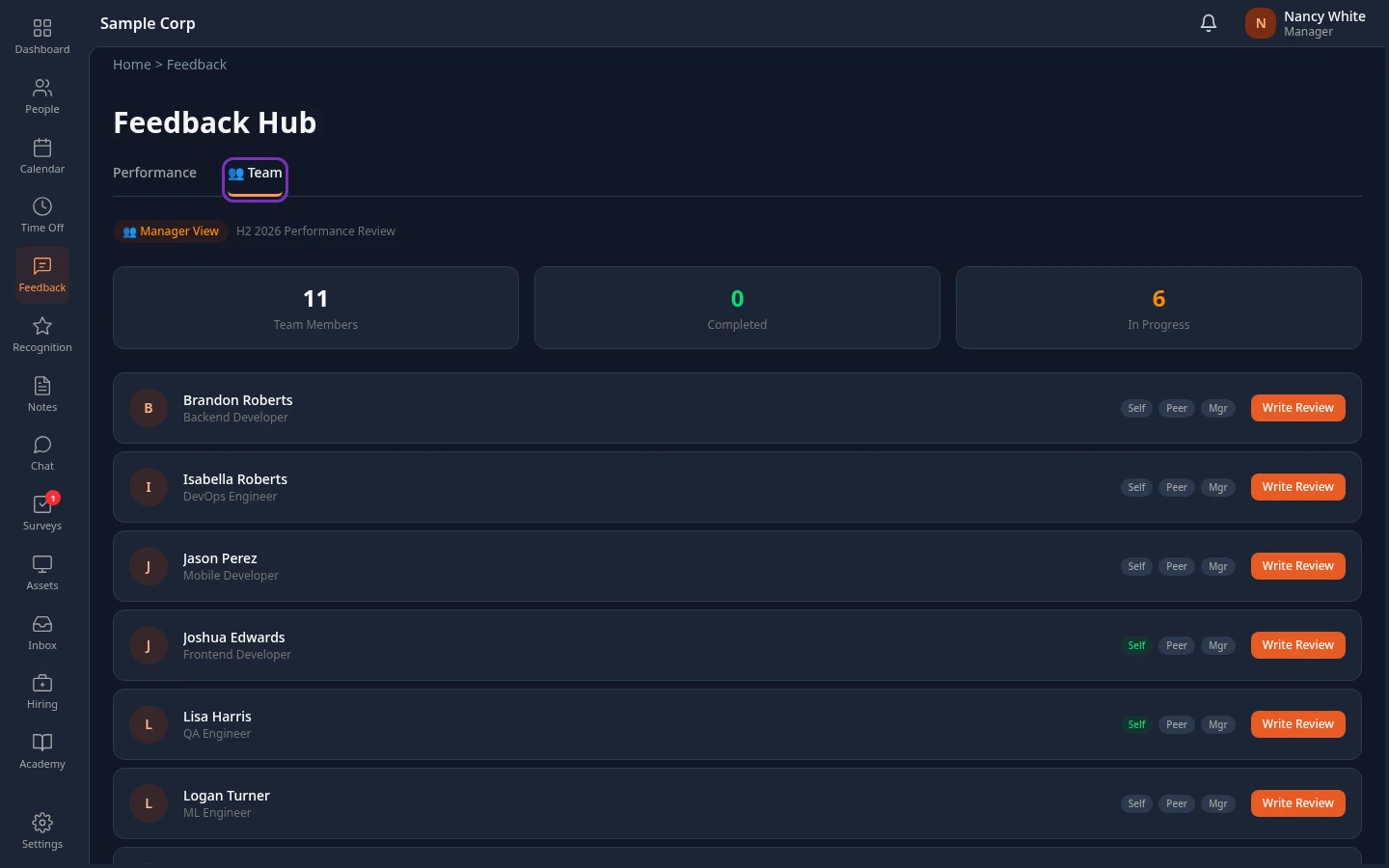
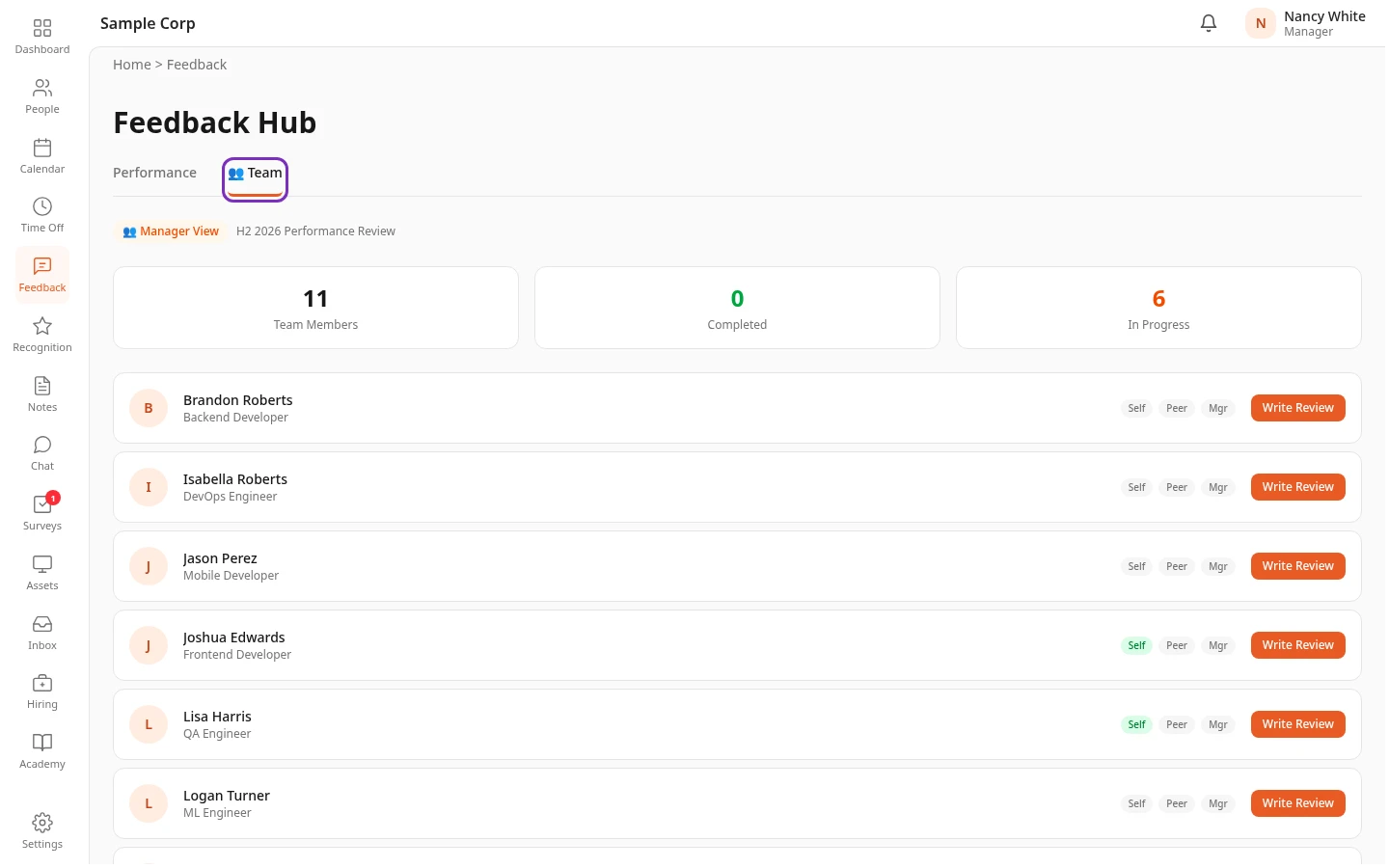
| Feedback | A 👥 Team tab with your direct reports’ progress in the current review cycle, and a Write Review button for each of them. See Write your team’s reviews. |
| People | More on the profiles of the people in your org, such as their personal details and, for your direct reports, their review results and documents. See View a team member’s profile. Salary History on a direct report’s profile shows their salary changes, and you can request one there. |
Your first tasks
Section titled “Your first tasks”-
Check who’s on your team. Select Dashboard. On the Team Dashboard tab, Direct Reports lists everyone who reports to you directly. If the list is wrong, ask your HR team to correct their Reports To. See See how your team is doing.
-
Approve pending time off. Select Time Off, then Team Requests, and approve or reject each request marked Assigned to you. You can also decide from Inbox › Approvals, where you can add a note. On the dashboard, Review → next to a request takes you there too. See Approve or reject time off.
-
Check the team calendar. On the Time Off page, select Calendar to see the days on which people in your team are away. See See your team’s time off.
-
Follow your team’s reviews. Select Feedback, then 👥 Team. While a review cycle is running, each direct report shows Self, Peer and Mgr labels for their self review, their peer reviews and your review. A green label is done, an orange Peer label means only some of the peer reviews are in, and a grey label hasn’t started. Select Write Review to write your review of that person: see Write your team’s reviews. If no cycle is running, or HR has moved it on to its next step, you see No active review cycle.
-
Keep an eye on your Inbox. New requests from your team arrive as notifications on the bell in the top bar and on Inbox › Approvals. See Approve or reject requests in your Inbox.
Can’t see this?
Section titled “Can’t see this?”- There’s no Team Dashboard or Team Requests tab. Nobody reports to you on the org chart yet. Ask your HR team to set you as your team’s manager, then reload the page.
- There’s no 👥 Team tab on Feedback. Your company doesn’t use performance reviews, or the tab is hidden. You can show it again under Page sections in your display settings, unless your admin has hidden it for everyone.
- A menu item is missing. Your company may have turned that module off, or your roles don’t include it. See Troubleshooting.