Use the company calendar
Esta página aún no está disponible en tu idioma.
The Calendar page shows company holidays, company events and your team’s events, one month at a time. To see how holidays affect your time off, see See holidays and your time-off calendar.
Browse the month
Section titled “Browse the month”-
Select Calendar in the menu bar. If your company also uses Scheduling, the page has tabs: select Month.
-
Use ← and → on either side of the month’s name to change the month. Today’s date is circled.
-
Select Holiday, Company Event or Team Event above the calendar to hide or show that type of event. The types you see are underlined; a greyed-out name means its events are hidden.
Each day shows up to three events. A note such as +2 more means the day has more: select the day to see them all.
See a day’s events
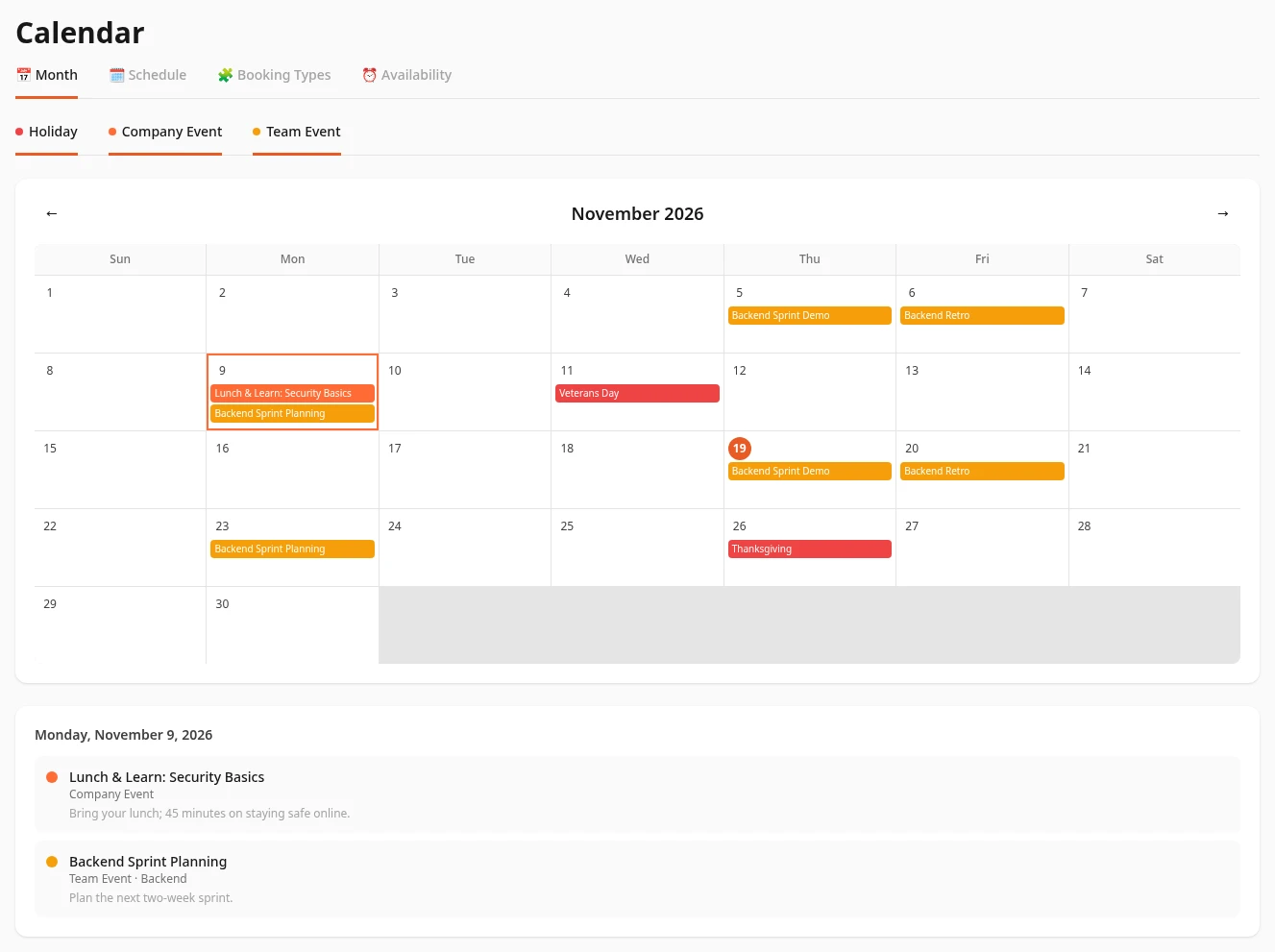
Section titled “See a day’s events”Select a day to list its events under the calendar. Each event shows its name, its type, the team’s name for a team event, and its description. Select the day again to close the list.
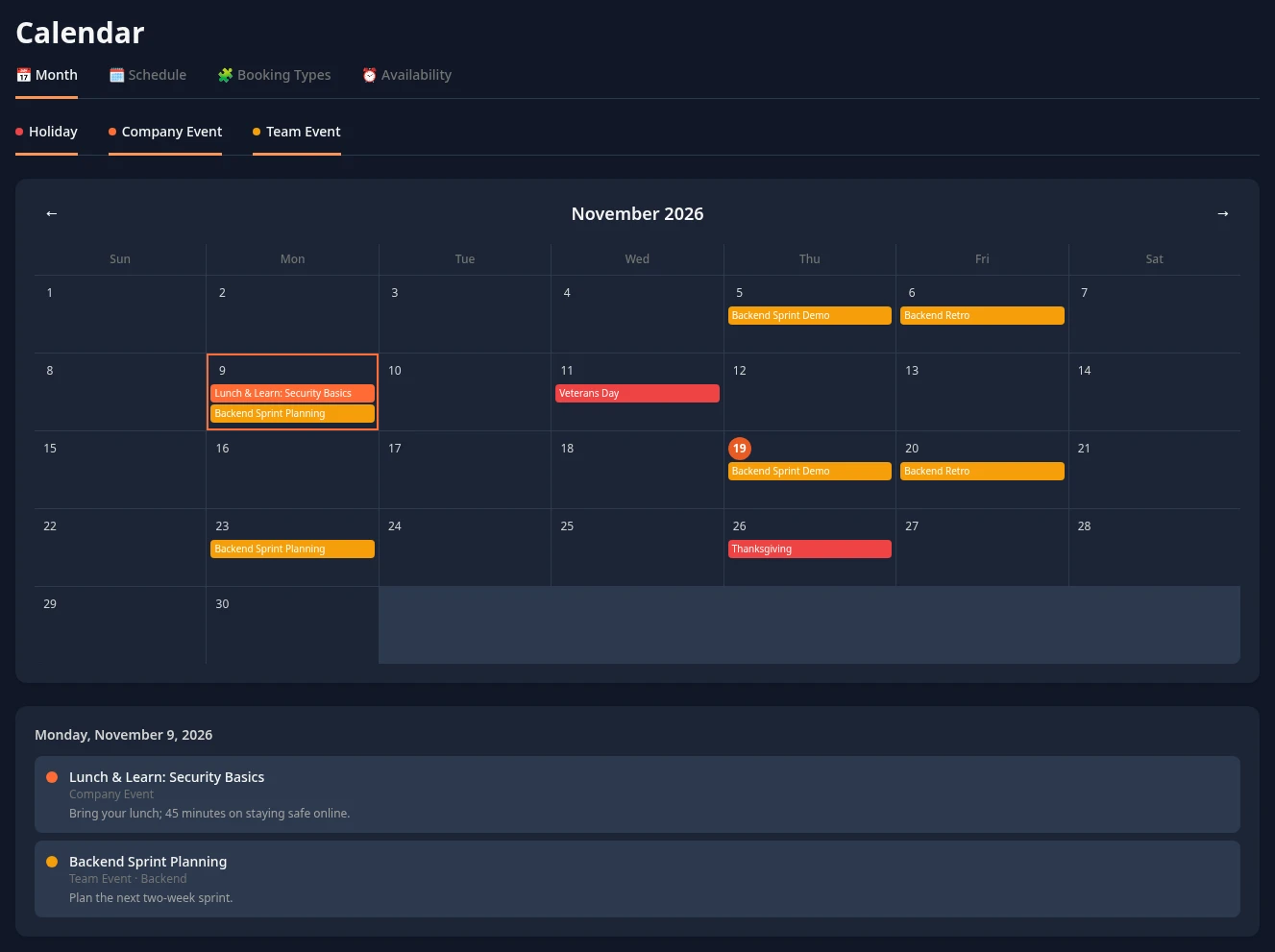
The calendar works by day: it doesn’t show what time an event starts.
What’s on the calendar
Section titled “What’s on the calendar”| Type | What it is |
|---|---|
| Holiday | Company holidays. |
| Company Event | Events for everyone, such as an all-hands meeting or an offsite. |
| Team Event | Events for your team: the Team on your profile. You don’t see other teams’ events, and if you have no team, you don’t see any. HR Admins and admins in admin mode see every team’s events. |
Your bookings and interviews aren’t on this calendar. You find your bookings on the Schedule tab: see Set your availability and booking pages.
Add, change or delete an event
Section titled “Add, change or delete an event”By default, employees and managers can’t add events. + New Event shows above the calendar for HR Admins, for admins in admin mode, and for anyone whose role lets them manage events. A role that only covers your own team lets you add team events for that team.
-
On the Month tab, select + New Event.
-
Enter a Title and choose the Type. The list only has the types you’re allowed to add.
-
For a Team Event, enter the Team: the team’s name exactly as it’s shown on people’s profiles. If you can only add events for your own team, it’s filled in for you.
-
Choose the Start Date. For an event that lasts several days, also choose the End Date.
-
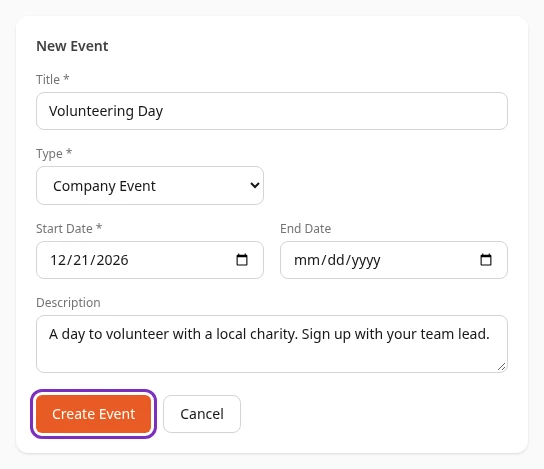
Optionally, add a Description, then select Create Event.
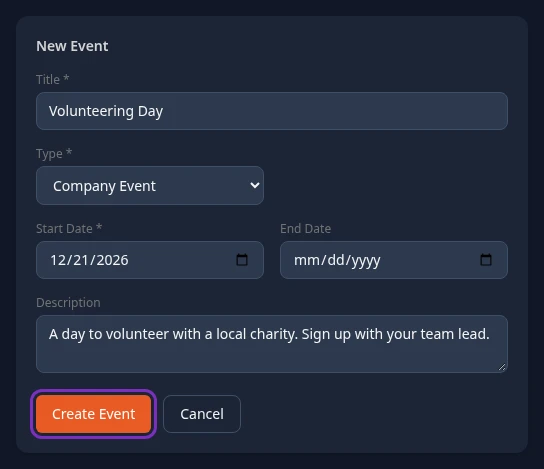
Event created appears, and the event shows for everyone who can see that type of event. Events last whole days: there’s no start time.
To change or delete an event, select its day, then Edit or Delete next to the event. You can change the title, the dates and the description, but not the type. Delete asks Delete this event? first.
Can’t see this?
Section titled “Can’t see this?”- There’s no Calendar in the menu bar. The Calendar and Scheduling modules are both turned off for your company, or you hid Calendar from your menu bar in your display settings.
- There’s no Month tab. The Calendar module is off, and only Scheduling is on.
- There’s no Team Event filter, or no team events. Team events are hidden, by you or by your admin. See Hide sections on some pages. If you have no Team on your profile, you don’t see team events either.
- There’s no + New Event button. Your role doesn’t let you add events. Ask your HR team.