Create or change a custom role
Esta página aún no está disponible en tu idioma.
A custom role gives people the access a job needs on top of their other roles: for example, a benefits coordinator who looks after employment and benefits details for the whole company. You make the role on the Roles screen, then give it to people or groups in Users & Groups. You change the built-in roles on the same screen.
Open the Roles screen
Section titled “Open the Roles screen”-
Turn on admin mode: select your name at the top right, then Elevate to Admin.
-
Select Settings in the menu bar, then Access. The Roles & Permissions tab opens.
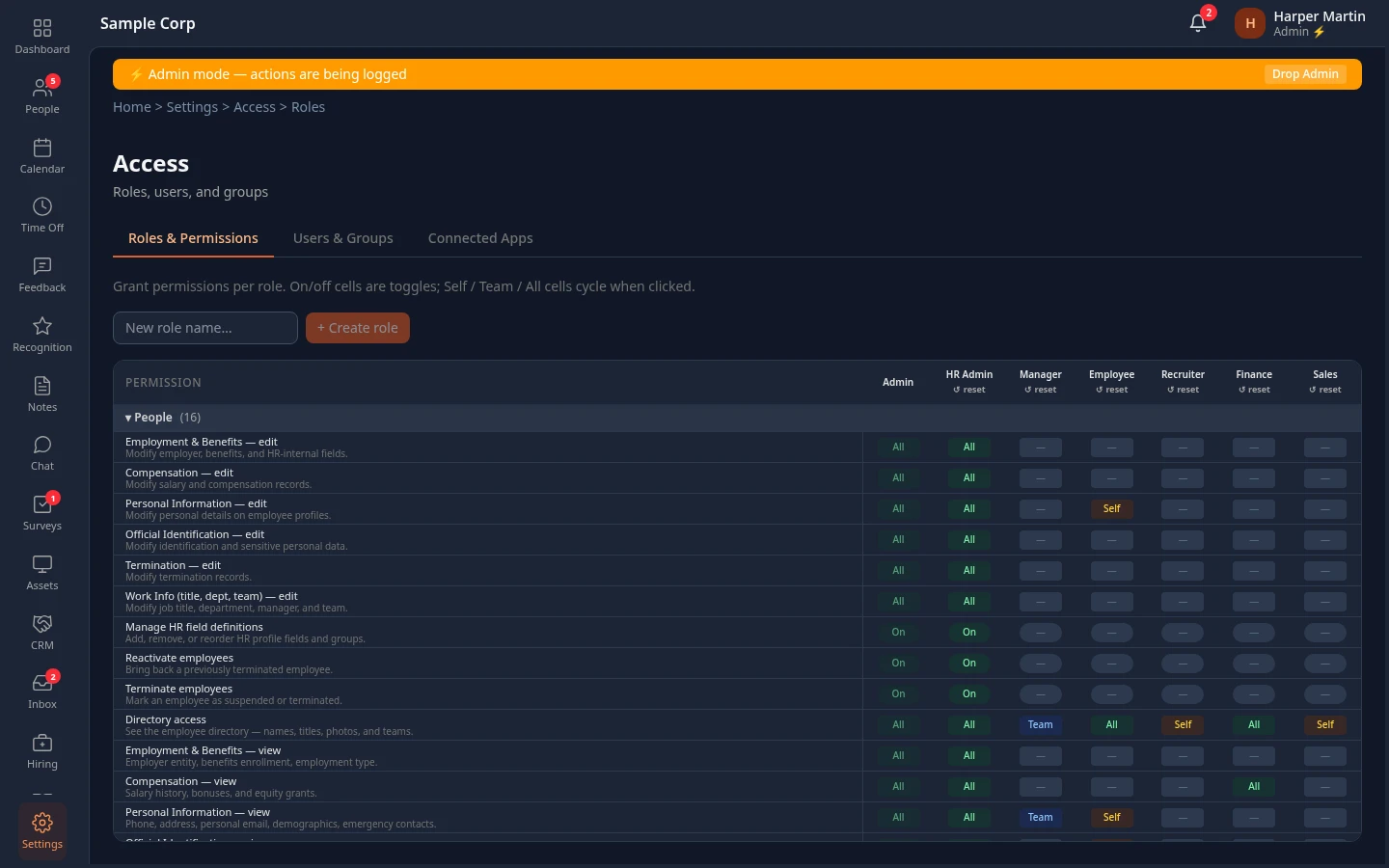
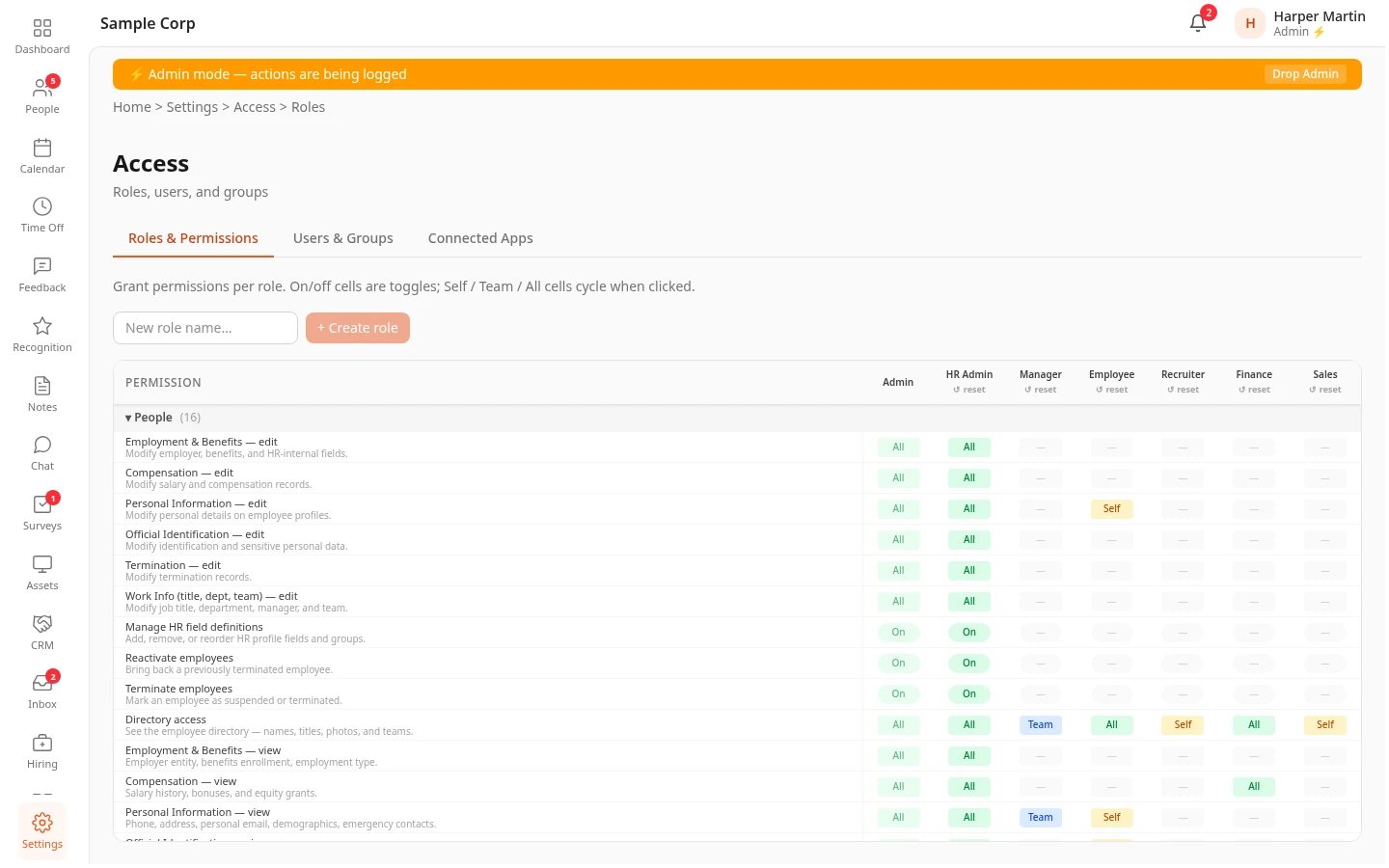
Each column is a role. Each row is a permission, with a short line that says what it allows. The rows are grouped by module: select a module’s row, such as People, to hide or show its permissions. Each cell shows what the role includes:
| Cell | Means |
|---|---|
| — | The role doesn’t include this permission. |
| On | The role includes it. This kind of permission has no reach. |
| Self, Team or All | The role includes it, for the person’s own records, their org’s or everyone’s. See Choose the reach. |
The Admin column always shows All and On, and can’t be changed.
Create a role
Section titled “Create a role”-
Type a name in New role name…, such as Benefits, then select + Create role. A column with that name appears at the right end of the matrix, with nothing in it.
-
Select the cells of the permissions the role needs:
- An on/off cell switches between — and On at each click.
- A cell with a reach moves one step at each click: —, Self, Team, All, then — again.
-
Select Save changes at the top right. Roles updated appears.
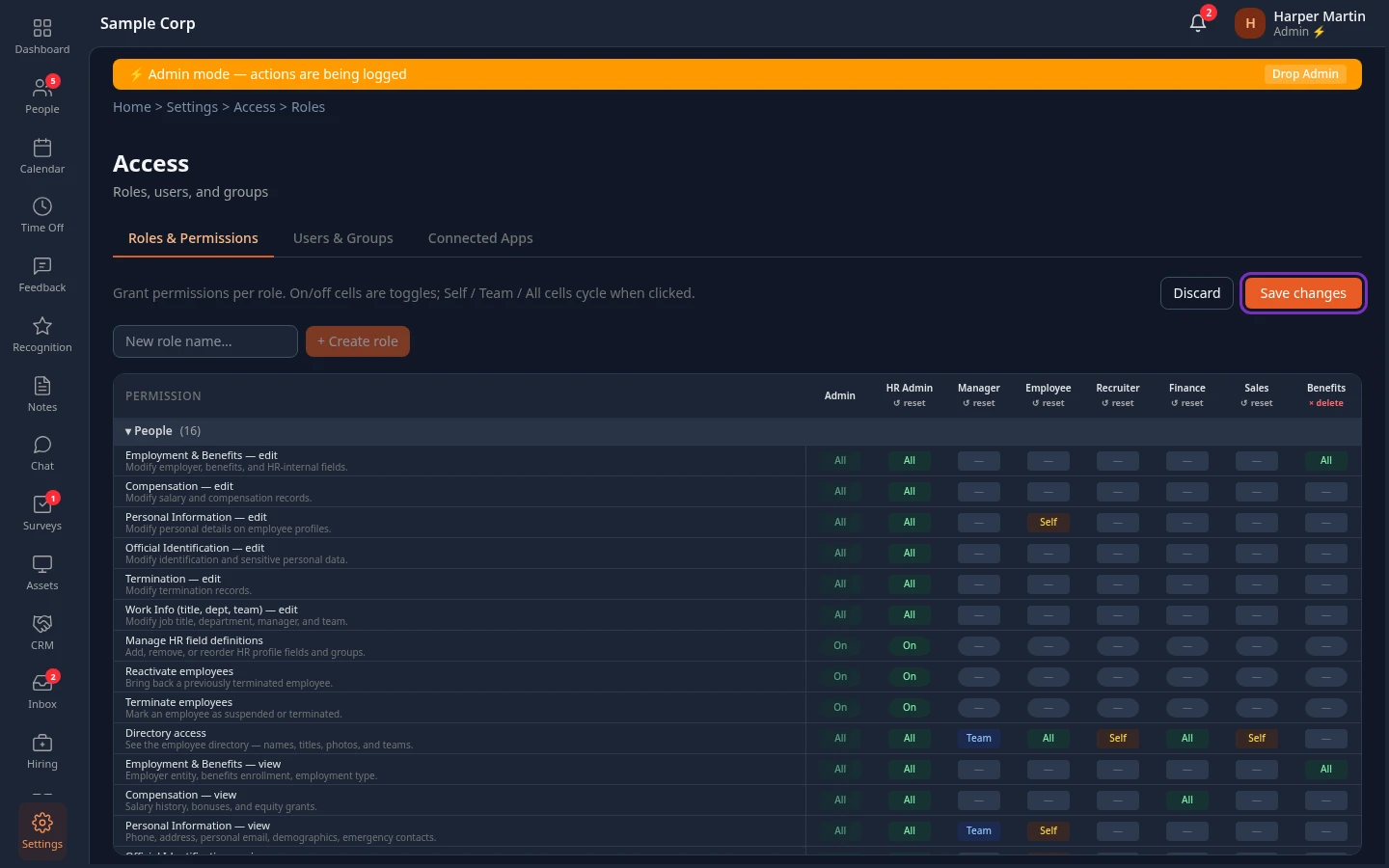
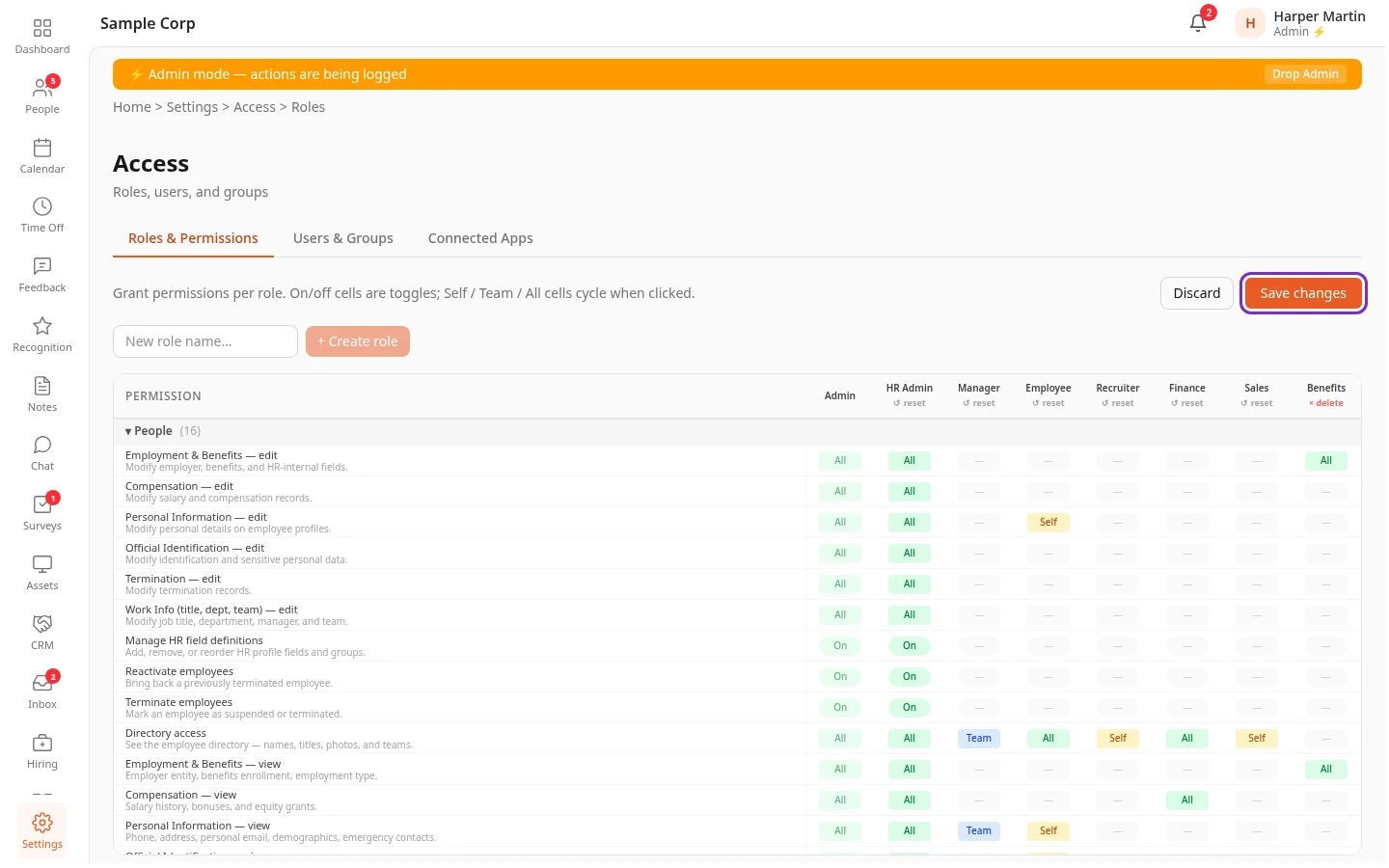
Until you save, nothing changes for anyone, and Discard undoes every change since the last save. Save before you leave the page: switching to another tab of Access asks first, but leaving any other way, such as through the menu bar, loses your changes.
Then give the role to the people or groups who need it, in Users & Groups.
- Only add what people’s other roles don’t already give them. Everyone with the Employee role can already browse the directory, for example, so a custom role doesn’t need Directory access.
- Choose names that differ in their letters or digits. Anima HR makes an internal name for each role from the letters a to z and the digits in its name, such as role_benefits, so Sales Lead and sales-lead can’t both exist. For names in another alphabet, such as Hindi or Arabic, only the number of characters counts, so two names of the same length can’t both exist.
- You can’t rename a role later.
Choose the reach
Section titled “Choose the reach”| Reach | Covers |
|---|---|
| Self | The person’s own records. |
| Team | Their own records and those of everyone in their org: the people who report to them, directly or through other managers. For someone with nobody reporting to them, it works like Self. |
| All | Everyone’s records. People who have left the company are only covered by All. |
Point at a cell to see what Team means for that permission. Choose the narrowest reach the job needs: people notice when access they’ve been using goes away (see What happens to the people who hold the role).
A few permissions work differently:
- Manage events in Calendar: All lets someone add and change company events and every team’s events. Self and Team only let them do this for their own team’s events, the team on their profile.
- The Hiring and Support permissions are on or off. The jobs and help desks someone works on come from interview panels and help desk members, which is why these modules show · access per job or project membership.
Rules every role follows
Section titled “Rules every role follows”- Manage authentication and Manage AI connections (MCP) only work together with Manage settings in the System rows of the same role. Their row says Requires: Manage settings, and their cells stay locked until Manage settings is on. Turning Manage settings off turns them off too.
- You can have up to 50 custom roles.
- The Employee role can’t include any System permission, because everyone holds it.
- A custom role can include any other permission, including those that make it admin-level. Only an Admin in admin mode can give an admin-level role to people: see Roles that only an Admin can give.
Build on another role
Section titled “Build on another role”The Roles screen can’t make one role build on another: a role you create here starts empty and only has the cells you select. To start from an existing role, select the same cells in your new role’s column.
Anima HR can also hold roles that build on another one if they were added outside this screen, through the Anima HR API for example. Such a role gets everything its parent role has, plus or minus its own changes. The chain can be at most three roles long (the role, its parent and the parent’s parent), and no role can build on Admin. The matrix only shows such a role’s own changes, not what it gets from its parent.
Change a role
Section titled “Change a role”Select the cells you want to change in the role’s column, then Save changes. This works the same for custom roles and for every built-in role except Admin. You can’t rename a role here.
What happens to the people who hold the role
Section titled “What happens to the people who hold the role”- When you add permissions or widen a reach, everyone who holds the role gets the new access within about a minute. New menu items and buttons show the next time they open Anima HR or reload the page.
- When you take something away, by turning a permission off, narrowing a reach, deleting the role or resetting it to fewer permissions, the people who hold the role directly or through a group lose that access within a few seconds, and at most within a minute. They stay signed in, and their connected AI apps and personal access tokens keep working with the access they have left. Menu items and buttons for what they lost go away the next time they open Anima HR or reload the page; until then, using them shows that they aren’t allowed. That includes you, if you hold the role.
- This works the same for every role, including Employee and Manager.
Delete a role
Section titled “Delete a role”-
Under the custom role’s name, select × delete, then OK.
-
Select Save changes.
Built-in roles can’t be deleted. The people who held the role lose its permissions, as above, and stay signed in.
Who can create and change roles
Section titled “Who can create and change roles”- Admins in admin mode, and anyone with a role that includes Manage roles in the System rows. They don’t need admin mode.
- Manage roles is admin-level: only an Admin in admin mode can give someone a role that includes it.
- Whoever has Manage roles can add any permission to any role except Admin, including roles they hold themselves and admin-level permissions, and the people who hold those roles get them at once. Only give Manage roles to people you would trust with the Admin role.
- HR Admins can’t open this screen.
If saving fails
Section titled “If saving fails”The problems are listed in a red box above the matrix, and Please check your input and try again appears.
| Message | What to do |
|---|---|
| Starts with Duplicate role id | Two roles have names that make the same internal name. Delete the new column with × delete, then create the role again with another name. |
| Starts with Too many custom roles | You already have 50 custom roles. Delete one you don’t use. |
| Starts with The Employee role can’t grant | Turn off the System permission it names in the Employee column. |
Can’t see this?
Section titled “Can’t see this?”- There’s no Access card in Settings, or the Roles screen takes you back to the Dashboard. Turn on admin mode. If you’re not an Admin, ask one to give you a role with Manage roles.
- A cell can’t be selected. It’s in the Admin column, or its permission needs another one first: the row says Requires: and the permission it needs.
- There are no Custom Type rows under People. They only appear once a profile field uses that access type in Settings › People › HR Fields.
- The page says Configuration unavailable. The roles didn’t load. Reload the page.
Related
Section titled “Related”- Understand how access works
- Use the built-in roles
- How roles work, for everyone