Set up company 1:1 note templates
Esta página aún no está disponible en tu idioma.
Company templates are sets of questions for one-on-one meetings. When someone writes a Structured note on the Notes page, they pick a template and answer its questions. The templates you set up here appear for everyone under Company Templates, next to the personal templates people make for themselves.
Open note templates
Section titled “Open note templates”-
Select Settings in the menu bar. If you’re an Admin, turn on admin mode first: select your name at the top right, then Elevate to Admin.
-
Open the Notes card. It has one screen, Note Templates.
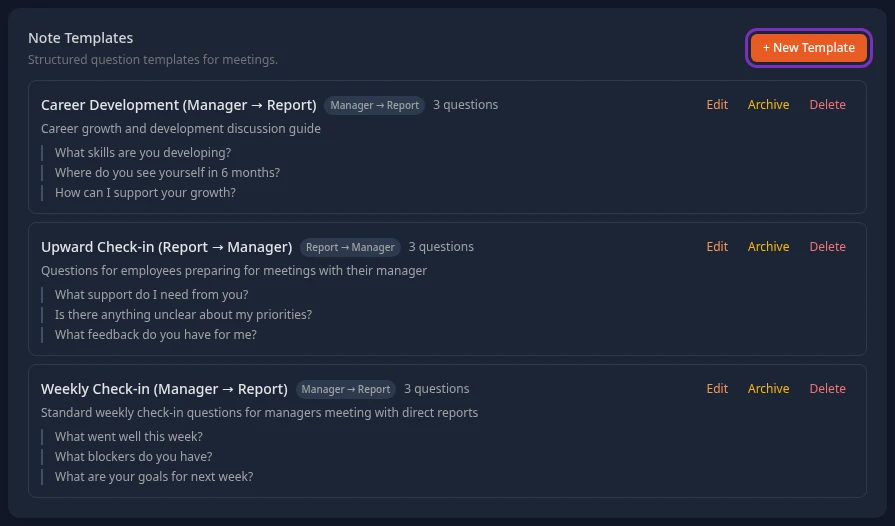
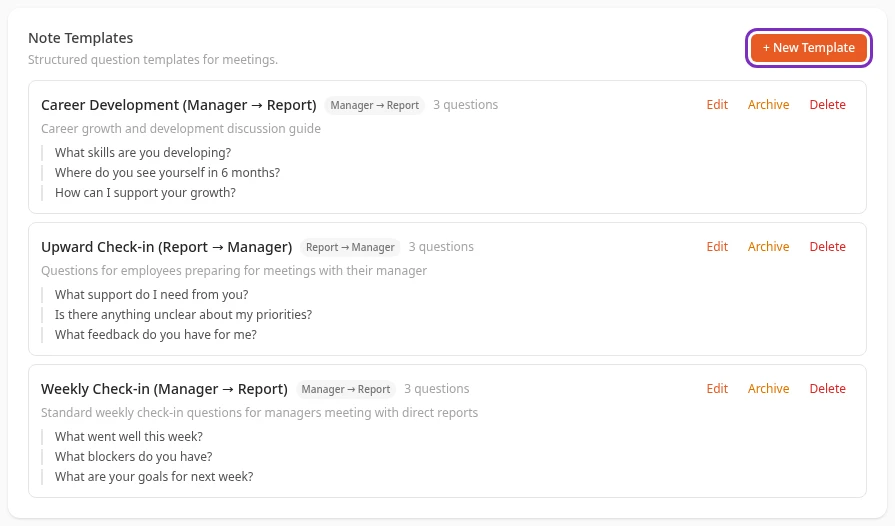
Every workspace starts with three templates: Weekly Check-in (Manager → Report), Career Development (Manager → Report) and Upward Check-in (Report → Manager), with three questions each. Change them, or add your own.
Add a template
Section titled “Add a template”-
Select + New Template.
-
Enter a Template Name and, if you like, a Description (optional). People see both when they pick a template.
-
Choose a Direction. It decides who’s offered the template (see the next section).
-
Type the first question, then select + Add question for each further one. Select ✕ next to a question to remove it.
-
Select Save. A template needs a name and at least one question.
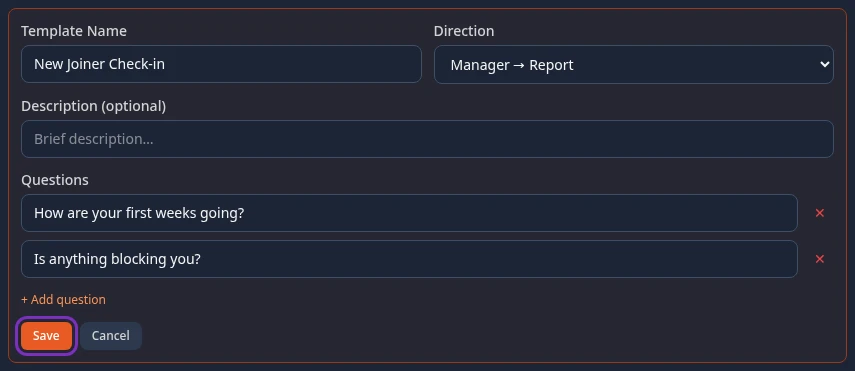
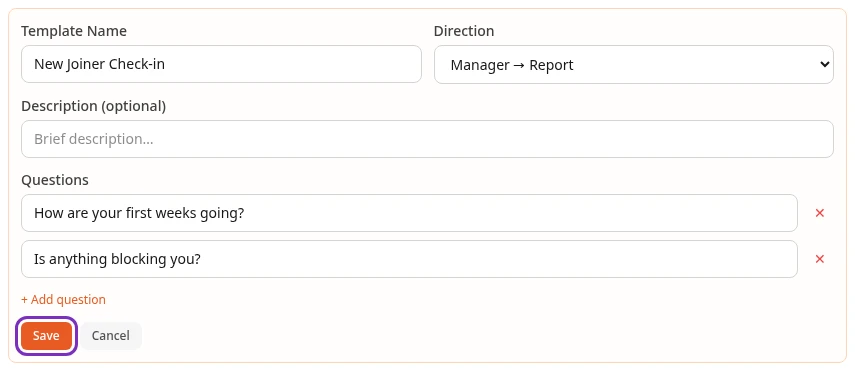
Each template saves on its own: there’s no save bar on this screen. To change a template, select Edit next to it, change it and select Save. Notes people already wrote from a template keep the questions they answered.
Who sees a template
Section titled “Who sees a template”Everyone with the Notes module can use company templates. The Direction decides who’s offered each one:
| Direction | Offered to | Use it for |
|---|---|---|
| Manager → Report | Only people with at least one person reporting to them | The questions a manager asks in a 1:1 |
| Report → Manager | Everyone, managers included | An employee preparing for a 1:1 with their manager |
| General | Everyone | Any other meeting |
A template’s questions are visible to anyone it’s offered to. Don’t put anything in a question you wouldn’t want every employee to read. Who can read a note written from a template is set on each note, not on the template. For now, a note marked private can still be read by the person it’s about.
Archive or delete a template
Section titled “Archive or delete a template”- Archive stops offering the template when people write a note.
- Delete asks you to confirm (Delete this template?), then removes the template. Notes already written from it keep their questions and answers.
Personal templates
Section titled “Personal templates”People make their own templates on the Templates tab of the Notes page, and only they can see them. Your own personal templates also appear in this list, without a mark that tells them apart. Editing one here changes only your personal template.
Can’t see this?
Section titled “Can’t see this?”- There’s no Notes card. The Notes module is off: it’s in the Disabled group at the bottom of Settings. See Turn modules on and off.
- Save says Access denied. Your roles don’t include the Notes permission Edit global templates. Admin (in admin mode) and HR Admin have it. See Understand how access works.