Answer a survey
Esta página aún no está disponible en tu idioma.
Surveys from your company, such as a monthly pulse survey, are on the Surveys page. Each survey is either anonymous or identified, and that decides who can see your answers.
Find your open surveys
Section titled “Find your open surveys”Select Surveys in the menu bar. A red number on it counts the surveys waiting for you. You don’t get a notification when a new survey opens.
The Survey Center opens. My Pending Surveys lists the open surveys you haven’t answered yet. Each one shows its due date, after Due, and who it’s for, such as Company or Team.


When there’s nothing left to answer, the card says All caught up.
Answer a survey
Section titled “Answer a survey”-
Select Respond next to the survey.
-
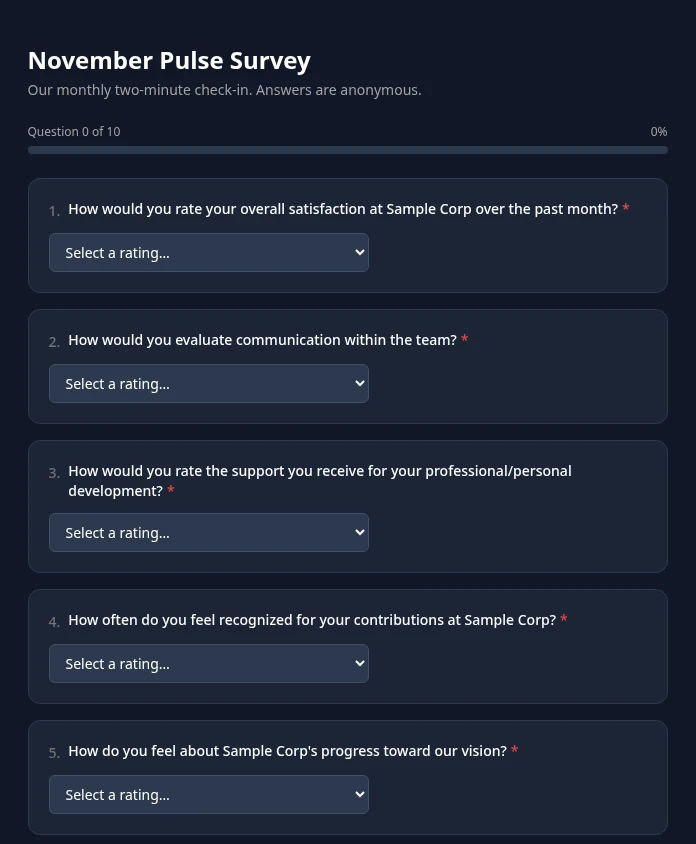
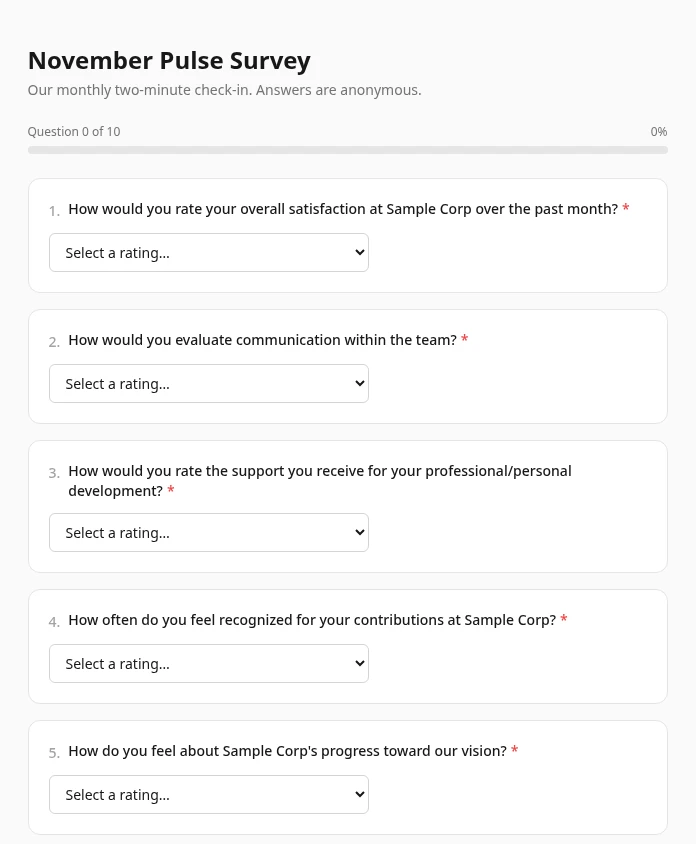
Answer the questions. Required ones are marked with a red asterisk.
Depending on the question, you choose a rating, pick one or more options, drag items into order, or type your answer. Ratings with more than seven points use a Select a rating… list. Some questions only appear after certain answers. Most surveys show a bar at the top with how far you’ve got, for example Question 3 of 10 and 30%.
-
Select Submit Response at the bottom of the page.
Some surveys show one question per page instead: select Next → to go on, ← Back to go back, and Submit on the last question. Some of them don’t let you go back.
Thank you! confirms that your response was submitted, and the survey moves to My Completed Surveys. You can answer each survey once, and you can’t change your answers after you submit.
If you missed a required question, a box above the button says, for example, Please answer 2 required questions: and lists them. Select one to jump to it. On a one-question-per-page survey, This question is required shows when you select Next → without answering.
Save your answers and finish later
Section titled “Save your answers and finish later”You don’t have to answer in one sitting. Your answers are saved as a draft as you go: two seconds after you stop answering, while Saving draft… shows, or each time you select Next →.
Close the page whenever you like. When you open the survey again from My Pending Surveys, your answers are filled back in. A one-question-per-page survey opens at the first question you haven’t answered.
Nobody else can see your draft, and it’s deleted when you submit. Try to submit by the Due date. The survey doesn’t close by itself on that date, but once the person running it ends it, it says Survey is not accepting responses and an unsent draft can’t be submitted any more.
Who can see your answers
Section titled “Who can see your answers”Whoever creates a survey decides whether it’s anonymous or identified. The survey page doesn’t say which while you answer, so check the survey’s description or ask whoever sent it.
| Anonymous survey | Identified survey | |
|---|---|---|
| Your name with your answers | No. Your response is saved without your name, with the day you answered but not the time. | Yes. |
| Who can read your answers | Nobody can link answers to a person: not admins, HR, your manager or the survey’s creator. Results show totals, averages and the written answers, without names. | The survey’s creator and people who see all survey results, such as HR Admins, see your answers next to your name. Your manager sees their team’s combined results, written answers included. |
| Who can see that you answered | Nobody. People who run the survey only see how many people have responded and how many haven’t. | HR, the survey’s creator and your manager can see whether you’ve responded. |
| When results show | Once at least 5 people have answered. Your admin can change this number. | Right away. |
For an anonymous survey, the app keeps a separate record that you answered, so it doesn’t ask you again. That record can’t be linked to your answers.
See the results
Section titled “See the results”My Completed Surveys lists the surveys you’ve answered, each with View Results. Only some roles can open survey results: by default managers, HR Admins and Admins in admin mode. Anyone else gets Access Denied (You are not authorized to view results for this survey.), even when the survey’s creator chose to share the results with the people who answered.
If you got a public link
Section titled “If you got a public link”Some surveys are also shared through a public link, for example with people outside the company. Public links only exist for anonymous surveys, and the survey page says 🔒 Your response is anonymous.
- You don’t need to sign in. If the page says Password required, enter the password you were given and select Continue.
- Answer the questions and select Submit response. You may need to complete a quick check that you’re human first.
- Answers on a public link aren’t saved as you go, so finish before you close the page.
- A response sent through a public link isn’t tied to your account, so the survey stays in your My Pending Surveys.
| Message | What it means |
|---|---|
| Survey not found | The link is wrong or has been turned off. |
| Survey closed | The survey no longer accepts responses. |
| Link expired | The link was only valid until a date that has passed. |
| Response limit reached | The survey already has the maximum number of responses. |
Can’t see this?
Section titled “Can’t see this?”- There’s no Surveys in your menu bar. The Surveys module is turned off for your company, or your roles don’t include it. Ask your admin.
- A survey you expected isn’t in My Pending Surveys. You’ve already answered it (look under My Completed Surveys), it has closed, or it was sent to a list of specific people that doesn’t include you.
- The survey says Survey is not accepting responses. It has closed, or it hasn’t opened yet.
- Submitting says Already responded. You’ve answered this survey before.
- View Results says Access Denied. Your role doesn’t include survey results. See See the results.