Set up Academy and Training settings
Esta página aún no está disponible en tu idioma.
Settings › Academy & Training holds two modules: Academy, for online courses, and Training, for instructor-led training events. This page covers the two settings tabs, Academy Settings and Training. Most of their settings are saved but not used yet, and this page says which ones are.
Open the settings
Section titled “Open the settings”-
Select Settings in the menu bar. If you’re an Admin, turn on admin mode first: select your name at the top right, then Elevate to Admin.
-
Open Academy & Training. It opens on the Academy Settings tab; Training is the last tab.
-
Change what you need, then select Save changes in the bar at the bottom of the page.
Academy is on and Training is on, at the top of each tab, are the modules’ switches. Academy is on after setup and Training is off; see Turn modules on and off. HR Admins can open and save both tabs without admin mode.
Academy Settings
Section titled “Academy Settings”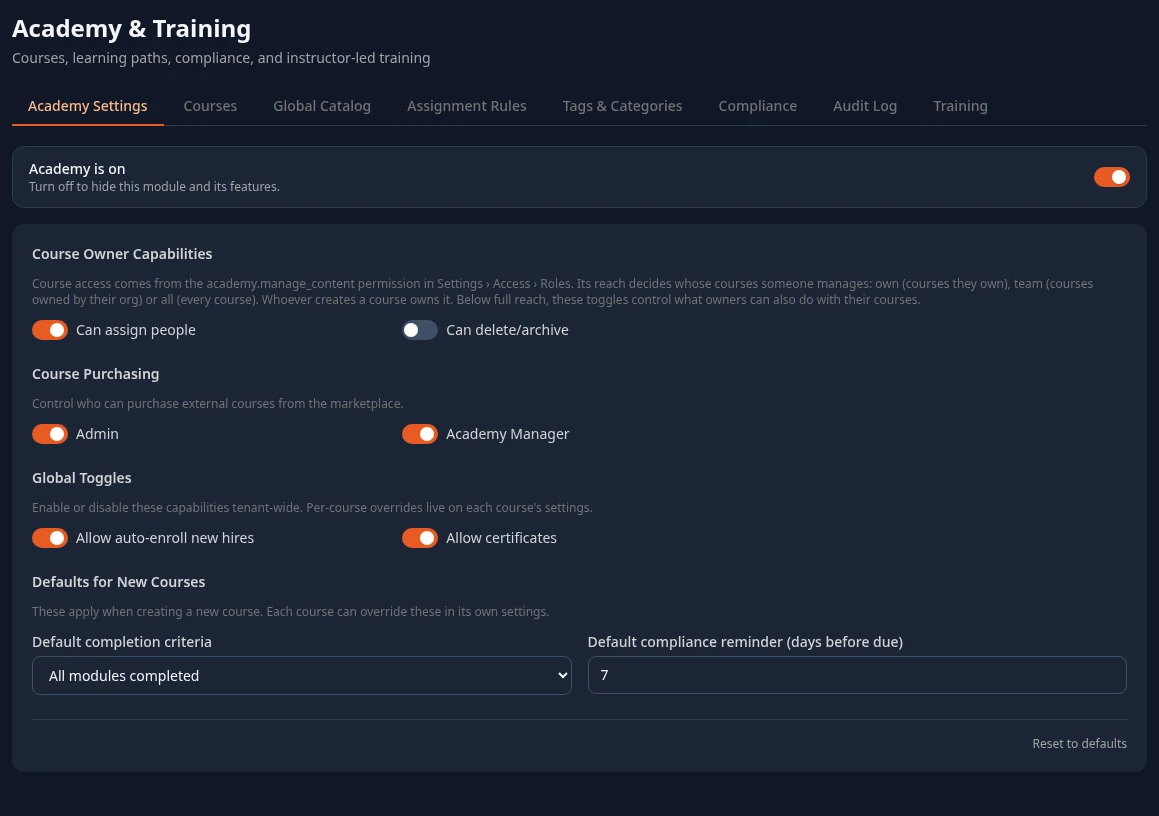
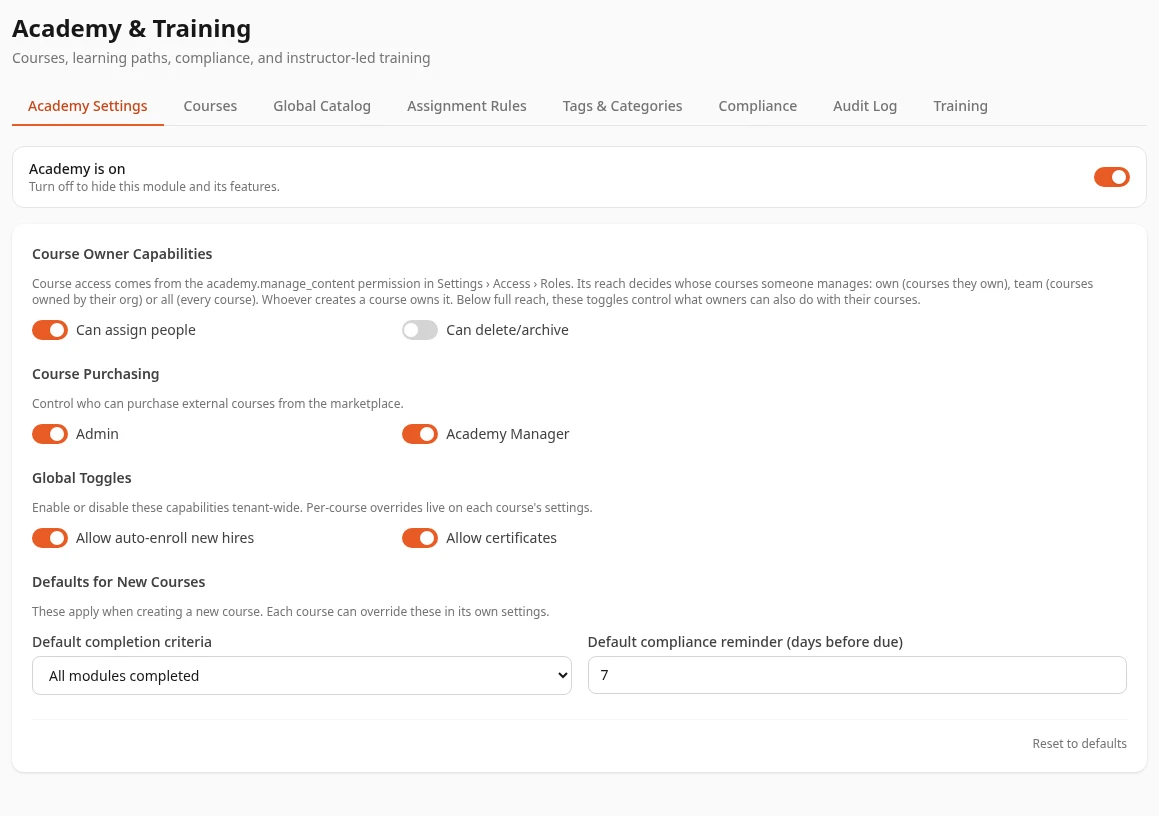
Who can create and edit courses doesn’t come from this tab. It comes from the Manage content permission in Academy, and its reach decides whose courses: Self for the courses someone owns, Team for courses owned by their org, All for every course. Whoever creates a course owns it. See Create or change a custom role to give someone this permission.
| Setting | What it does | Default |
|---|---|---|
| Can delete/archive (under Course Owner Capabilities) | Lets people whose Manage content reach is Self or Team delete the courses they manage. With it off, only people with All reach can delete courses. | Off |
| Can assign people | Saved but not used yet. Assigning courses depends on the Assign courses permission in Academy. | On |
| Admin and Academy Manager (under Course Purchasing) | Saved but not used yet. | On |
| Allow auto-enroll new hires | Saved but not used yet. | On |
| Allow certificates | Saved but not used yet. Certificates are created when someone completes a course, whether this is on or off. | On |
| Default completion criteria | Saved but not used yet. | All modules completed |
| Default compliance reminder (days before due) | Saved but not used yet. | 7 |
Reset to defaults only changes the settings on this tab. Tags, categories and assignment rules, which have tabs of their own, stay as they are.
The other Academy tabs
Section titled “The other Academy tabs”Each of these has its own guide:
- Courses: create, edit and publish your company’s courses.
- Global Catalog: ready-made courses you can add to your company’s Academy.
- Assignment Rules: assign courses to people automatically, for example everyone in a team.
- Tags & Categories: the categories and tags used to sort courses.
- Compliance: who has completed required courses and who is overdue.
- Audit Log: a record of changes to courses and assignments.
Some parts of Academy don’t work fully yet: quizzes can’t be given questions, watching a video doesn’t complete its module, and people can’t open their certificates from their profile. See Take a course and Certificates.
Training
Section titled “Training”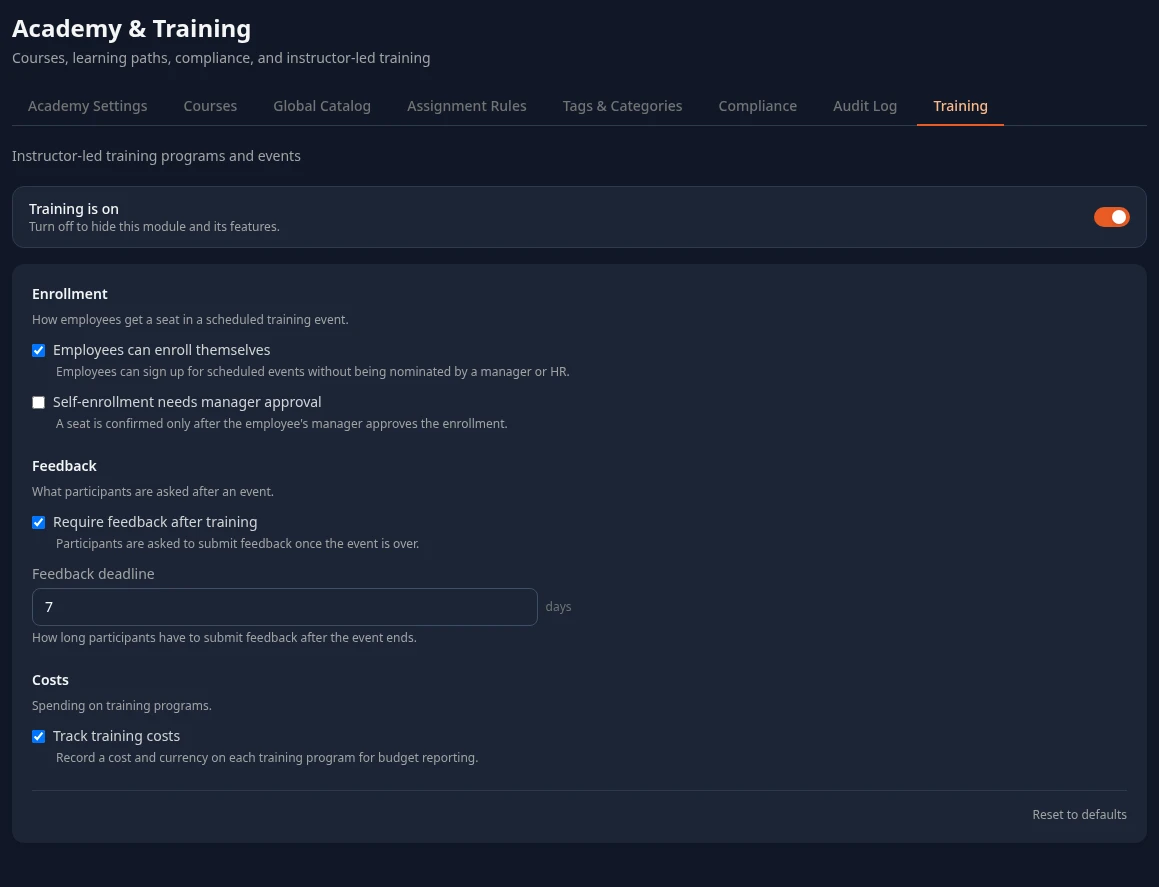
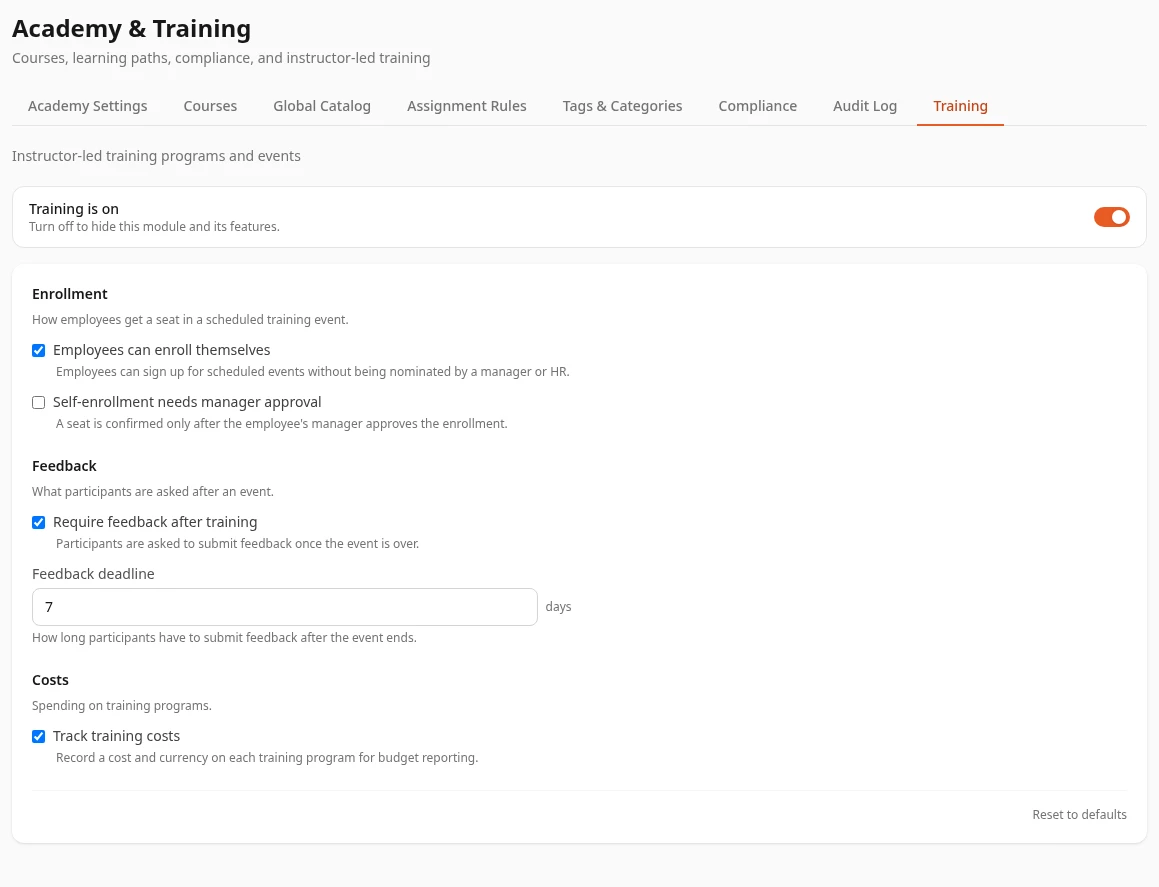
| Setting | What it would do | Default |
|---|---|---|
| Employees can enroll themselves | Lets employees sign up for scheduled events without being nominated. | On |
| Self-enrollment needs manager approval | Confirms a seat only after the employee’s manager approves. | Off |
| Require feedback after training and Feedback deadline | Asks participants for feedback within this many days of the event. | On, 7 days |
| Track training costs | Records a cost and currency on each training program. | On |
None of the Training settings has an effect yet. Whether someone can enroll themselves depends on their role (the Training permissions), enrollments need no approval, no feedback is asked for, and a cost can always be entered on a program.
Can’t see this?
Section titled “Can’t see this?”- There’s no Academy & Training card in Settings. If you’re an Admin, turn on admin mode. Other people need a role that can save one of its tabs: see Who sees what.
- Some tabs are missing. The Courses, Global Catalog, Tags & Categories and Audit Log tabs need Manage content in Academy, Assignment Rules needs Assign courses, and Compliance needs View progress.
- A tab only shows a button such as Enable Training. The module is off: select the button to turn it on.