Set up the AI assistant
Esta página aún no está disponible en tu idioma.
The AI assistant is Chat in the menu bar. People ask it questions in plain words, and it answers from the HR data they’re allowed to see. Chat Settings decides which AI model it uses, how many questions each person can ask a day, how long conversations are kept and what people see when they open it.
Turn Chat on or off
Section titled “Turn Chat on or off”Chat is on in a new workspace, and with the sample data. Its switch is on the Chat card in Settings, like every module with a card of its own: see Turn modules on and off. With Chat off, Chat leaves the menu bar and the page says Chat is not enabled for this workspace.
Open Chat Settings
Section titled “Open Chat Settings”-
Turn on admin mode: select your name in the top bar, then Elevate to Admin.
-
Select Settings in the menu bar, then the Chat card. Chat Settings opens on a page of its own; ← Settings takes you back.
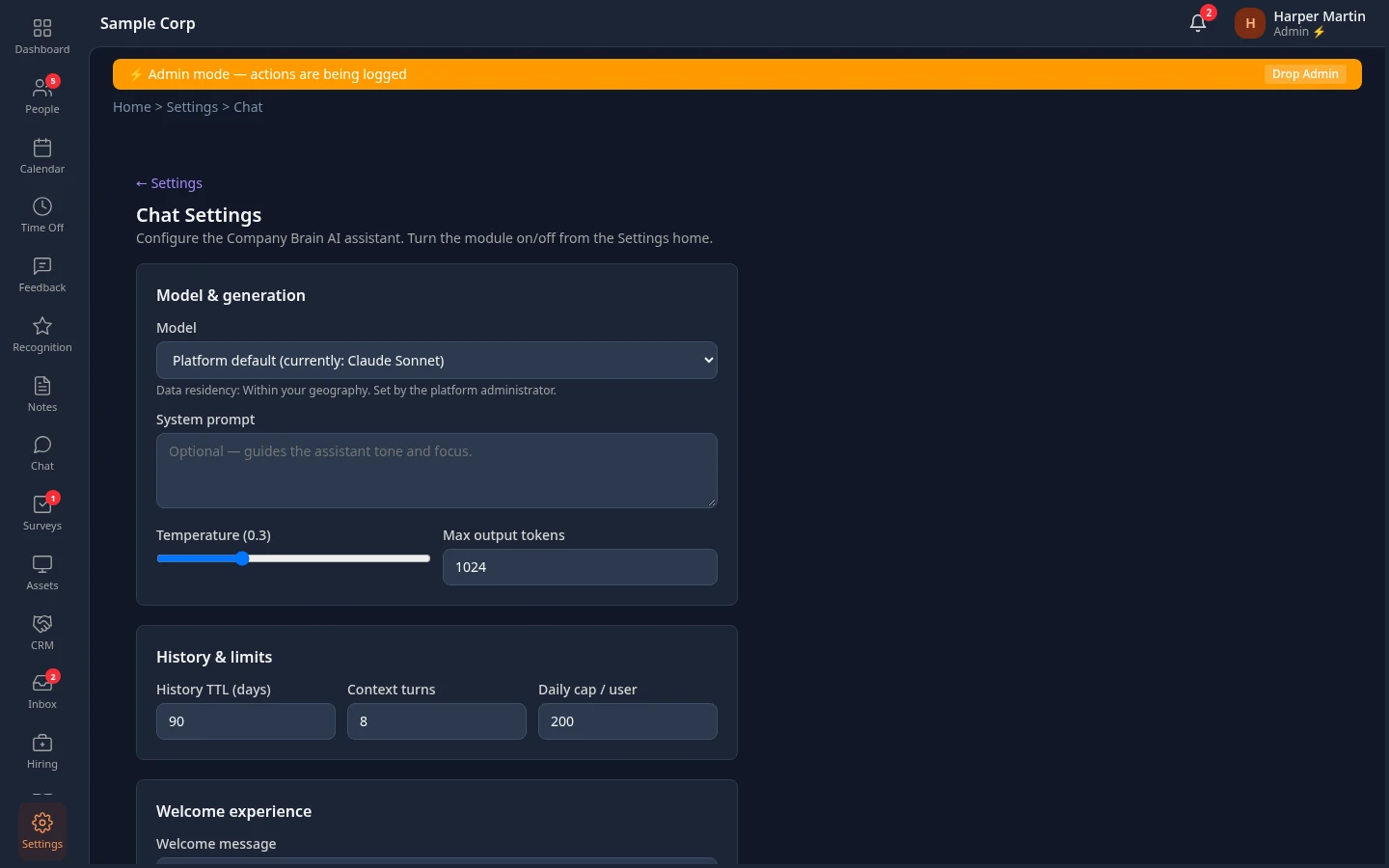
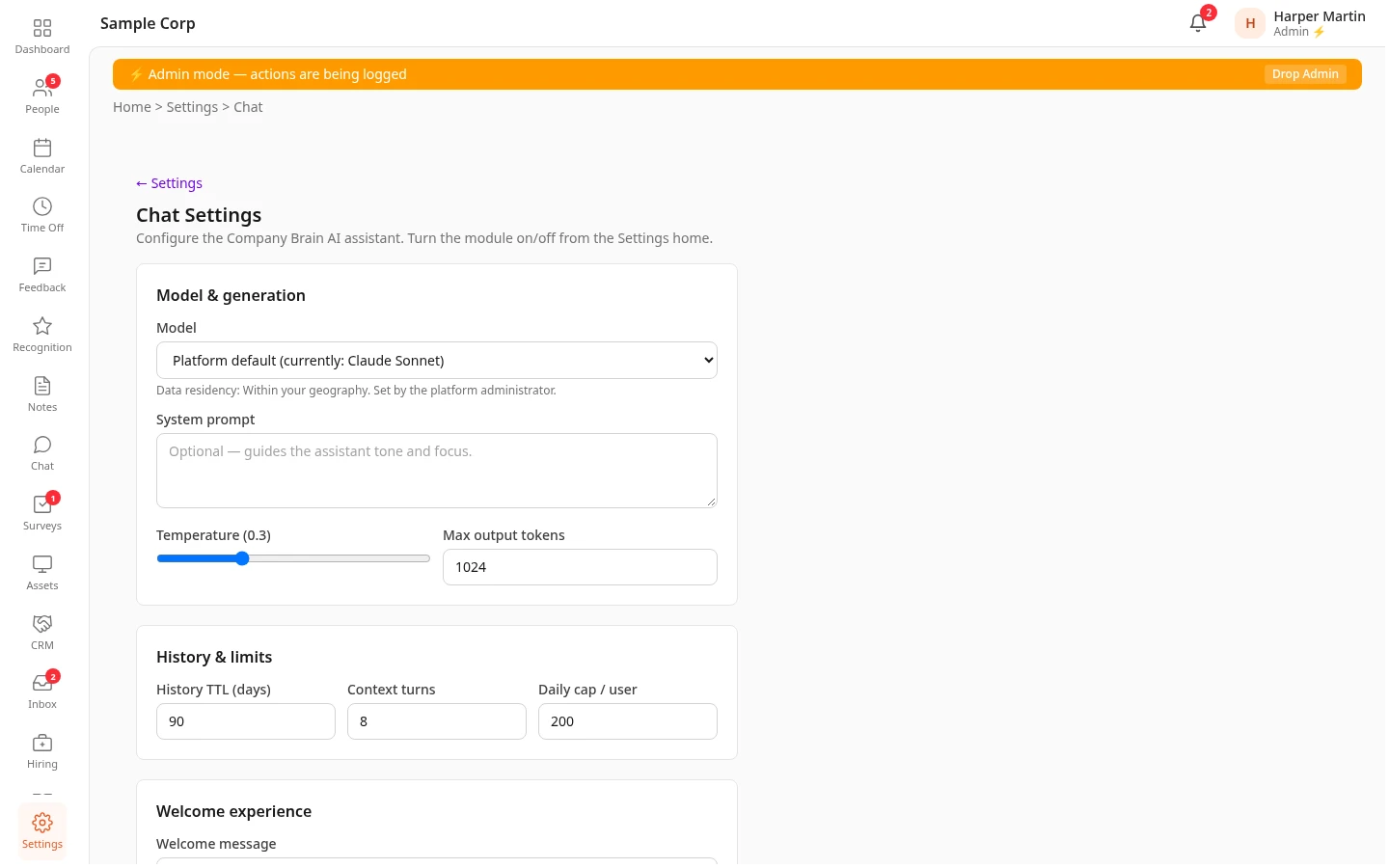
HR Admins see the Chat card and its switch, but the page only says Access denied: Chat’s own Manage settings permission is admin-level, so only Admins have it. See Roles that only an Admin can give.
Save your changes
Section titled “Save your changes”The page has no bar for unsaved changes. Select Save at the bottom of the page when you’re done; Chat settings saved confirms it. Reset throws away the changes you haven’t saved; it doesn’t put the built-in settings back. Leaving the page also throws your changes away without asking.
Model & generation
Section titled “Model & generation”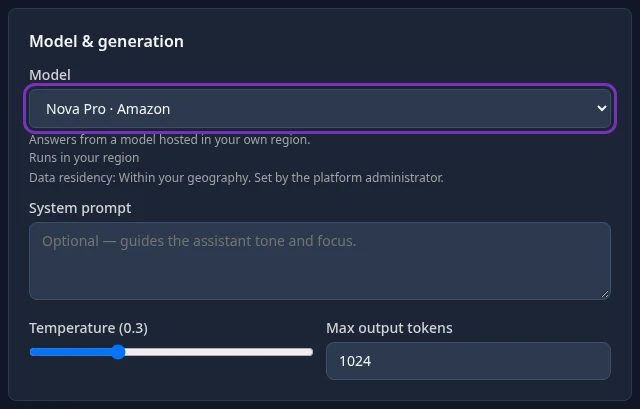
| Setting | What it does | Default |
|---|---|---|
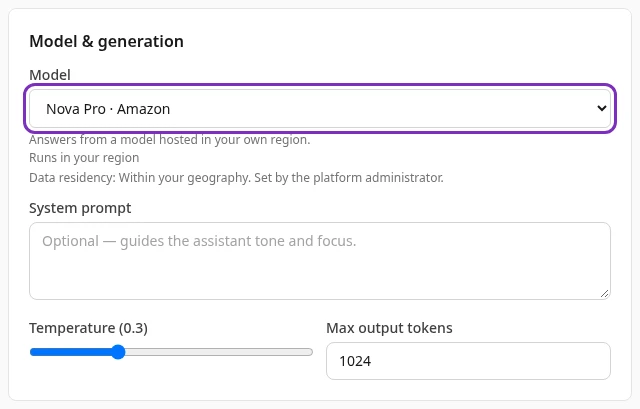
| Model | The AI model that writes the answers. The list shows the models Anima HR offers your workspace, each with its maker, such as · Anthropic. Pick one to see what it’s for and where it runs. Platform default follows the model Anima HR recommends, and changes when that recommendation does. | Platform default |
| System prompt | Extra instructions for the assistant, such as the tone to use or topics to focus on, up to 4,000 characters. They’re added after the assistant’s built-in rules and can’t switch them off: the assistant still only uses data the person may see. | Empty |
| Temperature | How varied the answers are, from 0 (the same question gets nearly the same answer) to 1 (more varied wording). | 0.3 |
| Max output tokens | The longest answer the model may write, from 128 to 4096 tokens. 1024 tokens is roughly 750 English words. | 1024 |
The list only offers models you’re allowed to choose, and saving checks it again. Messages above the list tell you when chat can’t answer:
- Your selected model can’t be used, so chat uses … instead, with the reason: for example, the model was retired or isn’t available in your region. Chat keeps working with the other model. Pick another one to make the message go away.
- No models are configured yet, so chat is unavailable., or a message about your region or data residency: nobody gets answers until a model is available. People who ask see Chat is not set up for this workspace yet. or a similar message. Contact Anima HR support.
While Chat is off, the list is empty and says Turn AI Chat on to choose a model.
Where AI runs
Section titled “Where AI runs”Data residency under the list says where the model may process your company’s questions and data: In your region only, Within your geography (for example, any region in the EU) or Global. Each model says what it does: Runs in your region, May run in any region of … or May run in any AWS region worldwide. Anima HR sets the data residency of your workspace; you can’t change it here. Contact Anima HR support to change it.
History & limits
Section titled “History & limits”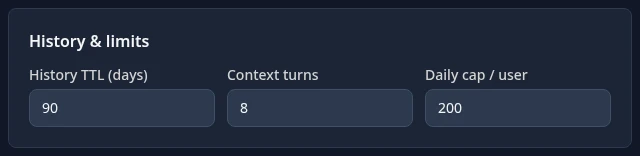
| Setting | What it does | Default |
|---|---|---|
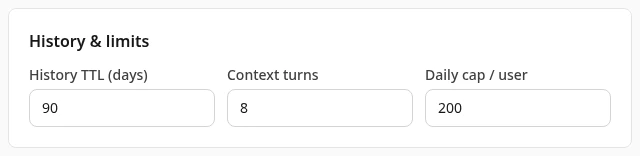
| History TTL (days) | How long each question and answer is kept, from 1 to 365 days. A message is deleted that many days after it was sent, and a change only applies to messages sent after you save. Only the text is kept, with the names of the data the assistant used, never the data itself. | 90 |
| Context turns | How many earlier questions and answers in the conversation go with each new question, from 1 to 20, so that people can ask follow-ups such as “and last year?”. More turns make follow-ups work better and answers slower. | 8 |
| Daily cap / user | How many questions each person can ask a day, up to 10,000. 0 means no limit. The day starts at midnight in the Company timezone set on the Branding tab. Someone over the limit sees You’ve reached today’s chat limit. Try again tomorrow. | 200 |
People see their conversations in a list beside the chat and can open, continue or delete them. That list needs the View history permission in Chat, which every built-in role with Use AI also has.
Welcome experience
Section titled “Welcome experience”These appear on the empty chat page, before the first question.
| Setting | What it does | Default |
|---|---|---|
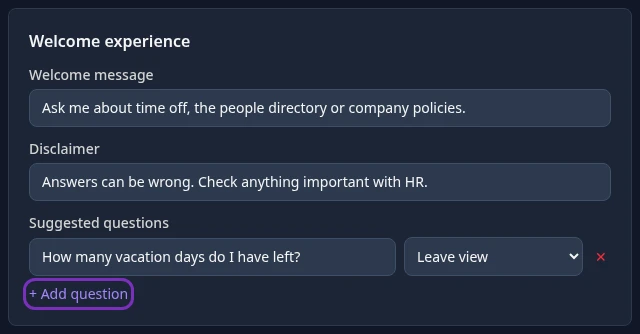
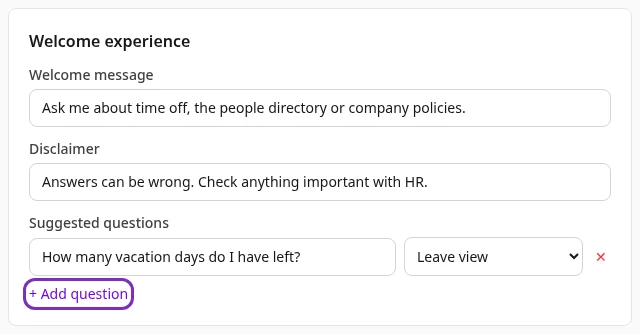
| Welcome message | Text under the greeting, up to 500 characters. Empty shows the built-in text, which says what the assistant can help with. | Empty |
| Disclaimer | Small print under the question box, up to 500 characters, such as a reminder to check answers. | Empty |
| Suggested questions | Up to 8 questions people can select to ask straight away. + Add question adds one, ✕ removes it. The list next to each question shows it only to people with that permission: Everyone, Leave view, Reviews view, Salary view, Recognition view or Company documents. A question with no text can’t be saved. | None |
Advanced options for end users
Section titled “Advanced options for end users”Let users pick their own model, Let users adjust temperature and Let users append to the system prompt are saved, but they have no effect yet: people can’t change any of these in Chat.
Relationship graph
Section titled “Relationship graph”Chat also has graph tabs that show how people are connected: who reports to whom, teams, recognition, feedback and reviews.
| Setting | What it does | Default |
|---|---|---|
| Enable the relationship graph (mind map) and Enable the 3D graph view | Show or hide the graph tabs in Chat. For now this only hides them for people who can open Settings; everyone else still sees both tabs. | On |
| Default expansion hops | Saved, but it has no effect yet. | 1 |
| Edge types shown | Which kinds of links the graph draws, for everyone. Reports to, Same team, Kudos, Feedback and Reviewed work. Hired by and Assigned asset have no effect, because the graph doesn’t draw those links yet. | All on |
Each link only shows when the viewer may see it: recognition links need the recognition feed, for example.
Who can use the assistant
Section titled “Who can use the assistant”People can use Chat when one of their roles has Use AI in Chat. The Employee, Manager, Finance and Sales roles have it, so everyone who has the Employee role can use Chat. HR Admin and Recruiter don’t have it on their own. To take Chat away from everyone, turn the module off; to limit it to some people, take Use AI out of the Employee role and give it to a role that only those people hold. See Create and change custom roles.
What the assistant can read
Section titled “What the assistant can read”The assistant looks up data the same way the person asking would. It can read:
- their own profile, and the profiles in the people directory they may open;
- their direct reports, if they’re a manager;
- time off: balances and requests;
- the company calendar and holidays;
- recognition;
- salary and salary history, and reviews, only where the person’s roles let them see them;
- company documents they may open, through a search of their text.
Each answer is limited by the person’s roles and reach, exactly as in the rest of the app. An employee who asks about a colleague’s salary gets no salary, because they can’t see it on the colleague’s profile either. The assistant only reads data: it doesn’t change anything in Anima HR.
Document search needs your workspace’s documents to be indexed for search. Where that isn’t set up yet, the assistant answers that it found no documents. The documents are the ones in Company documents.
Questions, and the data read to answer them, go to the AI model under your workspace’s data residency.
The assistant can also use other apps your company connects, such as a ticket system. See Connect other apps for the assistant.
Can’t see this?
Section titled “Can’t see this?”- There’s no Chat card in Settings. Turn on admin mode. If the card is under Disabled, turn Chat on with its switch.
- Chat Settings says Access denied. You need admin mode. HR Admins can’t open Chat Settings.
- People don’t see Chat in the menu bar. Check that Chat is on and that one of their roles has Use AI.
- Chat answers that it isn’t set up. No model is available for your workspace: see the message above Model.