Find your way around
Every page in Anima HR has the same frame: the menu bar down the left side, the top bar across the top, and the page in the middle. On a phone the frame is different; see On a phone.
The menu bar
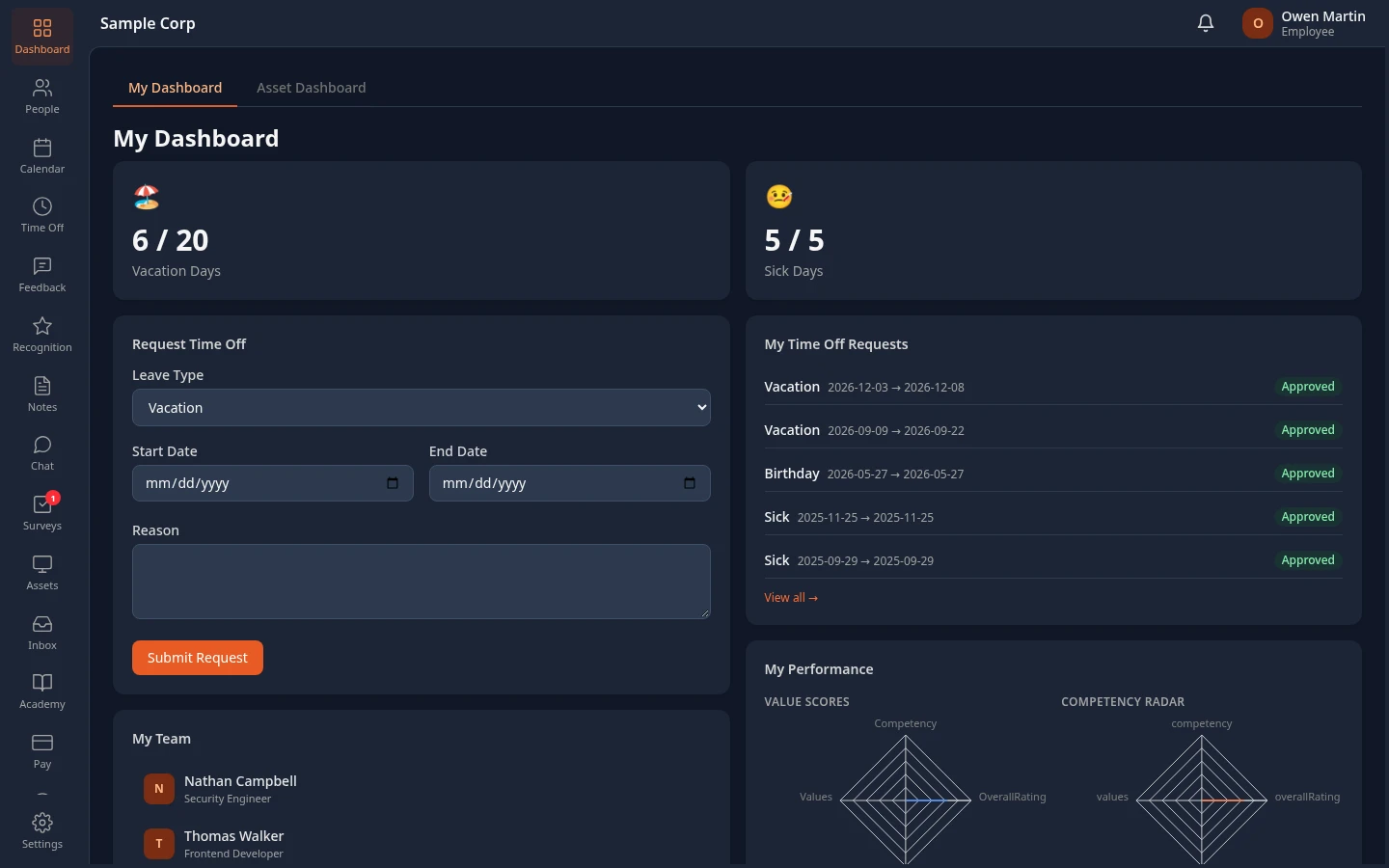
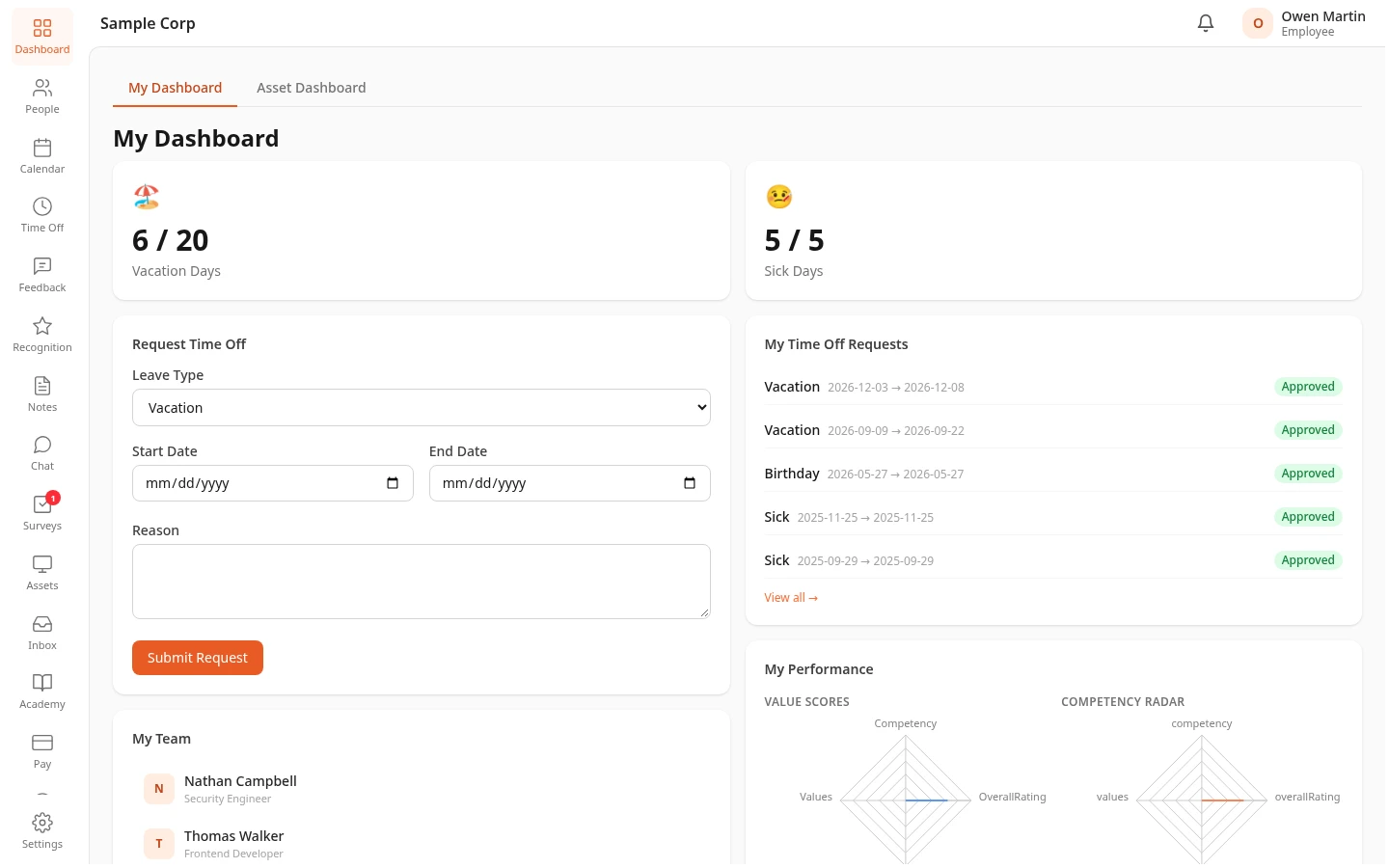
Section titled “The menu bar”The menu bar lists the modules you can use. Select an item to open it. The item for the page you’re on is highlighted.
- You only see modules that your company has turned on and that your roles let you use, so a colleague’s menu can differ from yours. See Welcome to Anima HR.
- Admins choose the order and the names of the items. You can hide the ones you don’t use: see Set your language, theme and menu bar.
- A red number on an item counts things waiting for you: unread notifications on Inbox, surveys to answer on Surveys and, for people who manage users, new people waiting for review on People.
- Settings is at the bottom. Everyone can open it to change their own display settings. People whose roles can change workspace settings also find those there: Admins, HR Admins, and for example Finance for Pay and Recruiters for Hiring.
These are the items you may see. Your admin may have renamed some of them.
| Item | What it’s for |
|---|---|
| Dashboard | Your home page. See Your dashboard. |
| People | The company directory and everyone’s profile, including yours, with an Org Chart view. |
| Calendar | Company holidays and events. |
| Time Off | Your time-off requests and balances. If your company also uses Attendance or Shifts, they’re on the same page, called Time & Attendance. |
| Feedback | Feedback and performance reviews. |
| Recognition | Kudos for your colleagues. |
| Notes | 1:1 meeting notes. |
| Chat | The AI assistant. |
| Surveys | Surveys for you to answer, and for people who run surveys, the surveys they create. |
| Assets | The equipment your company has given you. People who can see every asset, such as HR Admins and Finance, get the company’s asset dashboard instead. |
| CRM | Contacts and deals, for sales teams. |
| Inbox | Notifications and approvals. See The Inbox. |
| Hiring | Jobs, candidates and interviews, for recruiters and interview panels. |
| Academy | Your courses, including the ones your company requires you to take. |
| Pay | Payslips, expense reports and loans. |
| Support | Requests to your company’s help desk. |
The top bar
Section titled “The top bar”From left to right, the top bar shows:
- Your company’s logo or name.
- The bell. A red number shows how many notifications you haven’t read. Select the bell to see your latest notifications, then select one to open it, or select Mark all read or View all. View all opens your Inbox. The number updates every minute.
- The first letter of your first name, and your full name. Under your name: Employee, Manager if people report to you, or Admin ⚡ in admin mode. Other roles you hold, such as HR Admin or Finance, aren’t shown here.
Select your name to open your menu.
| Item | What it does |
|---|---|
| View Profile | Opens your profile. |
| Sign-in security | Two-step verification for your account. |
| Connected apps | The AI apps you’ve connected to your account. Only shows when your company has turned on AI connections. |
| Elevate to Admin | Admins only. Turns on admin mode. In admin mode it’s Drop Admin. |
| Log out | Signs you out. |
Your dashboard
Section titled “Your dashboard”After you sign in, you land on the Dashboard, unless you followed a link to another page. What it shows depends on your role. When you have more than one view, tabs at the top switch between them.
- My Dashboard, for everyone: your time-off balances, a form to request time off, your recent requests, your team, your performance scores, upcoming company events and the latest recognition.
- Team Dashboard, for managers: the size of your team, pending time-off requests, upcoming team time off, team performance and your direct reports.
- Organization Dashboard, for people who can see everyone’s HR data, such as HR Admins and Admins in admin mode: headcount, retention, and charts by area, gender, nationality, tenure and education. They also get the Team Dashboard, where Viewing team of shows any manager’s team.
- Asset Dashboard, when your company uses Assets: the number and value of the company’s assets. It only shows figures to people who can see every asset, such as HR Admins and Finance. Everyone else sees zeros.
Admins choose which cards each dashboard shows in Settings › Dashboard, and you can hide some cards yourself in your display settings. If your company turned the dashboard off, you land on the first page of your menu bar instead.
The Inbox
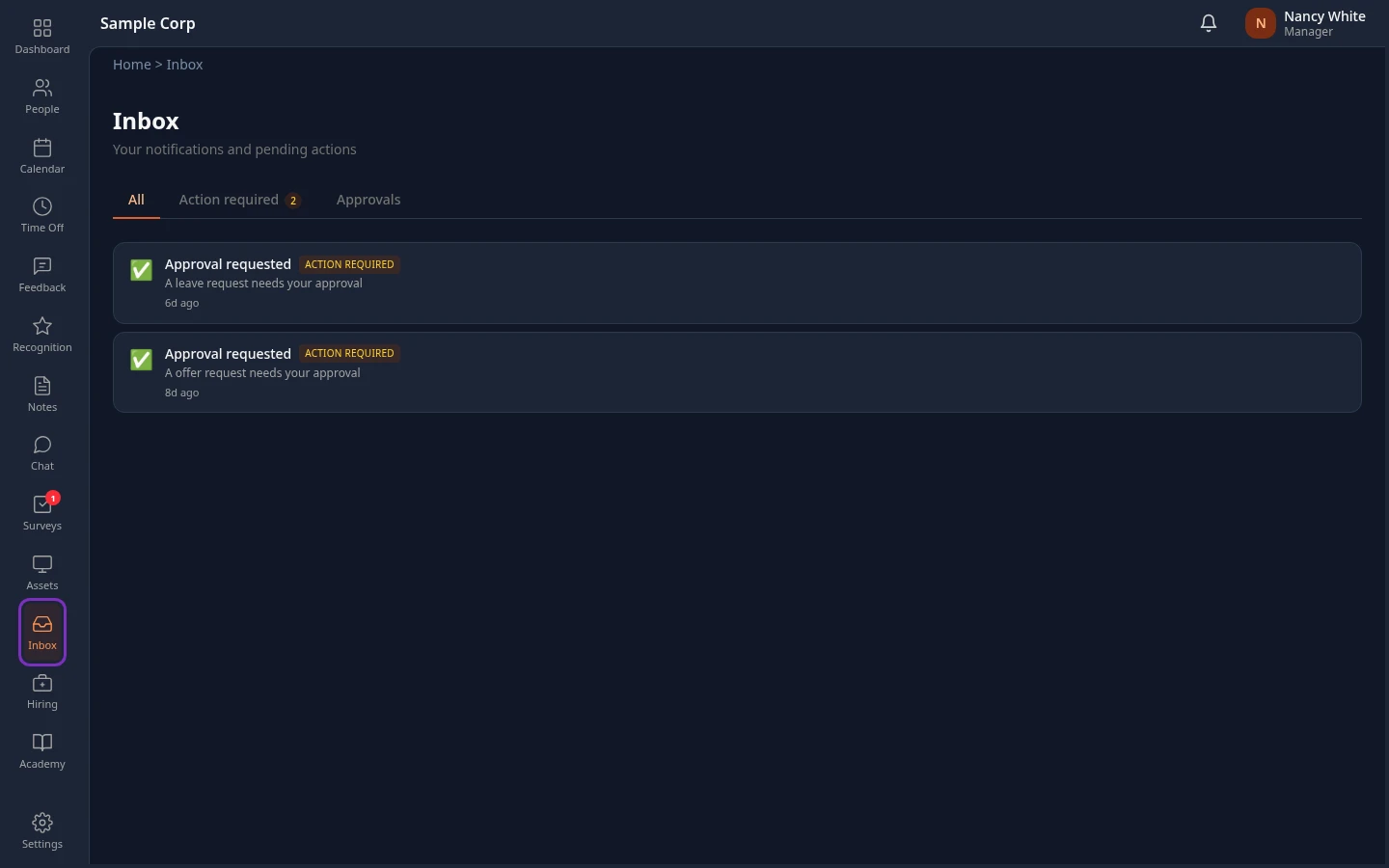
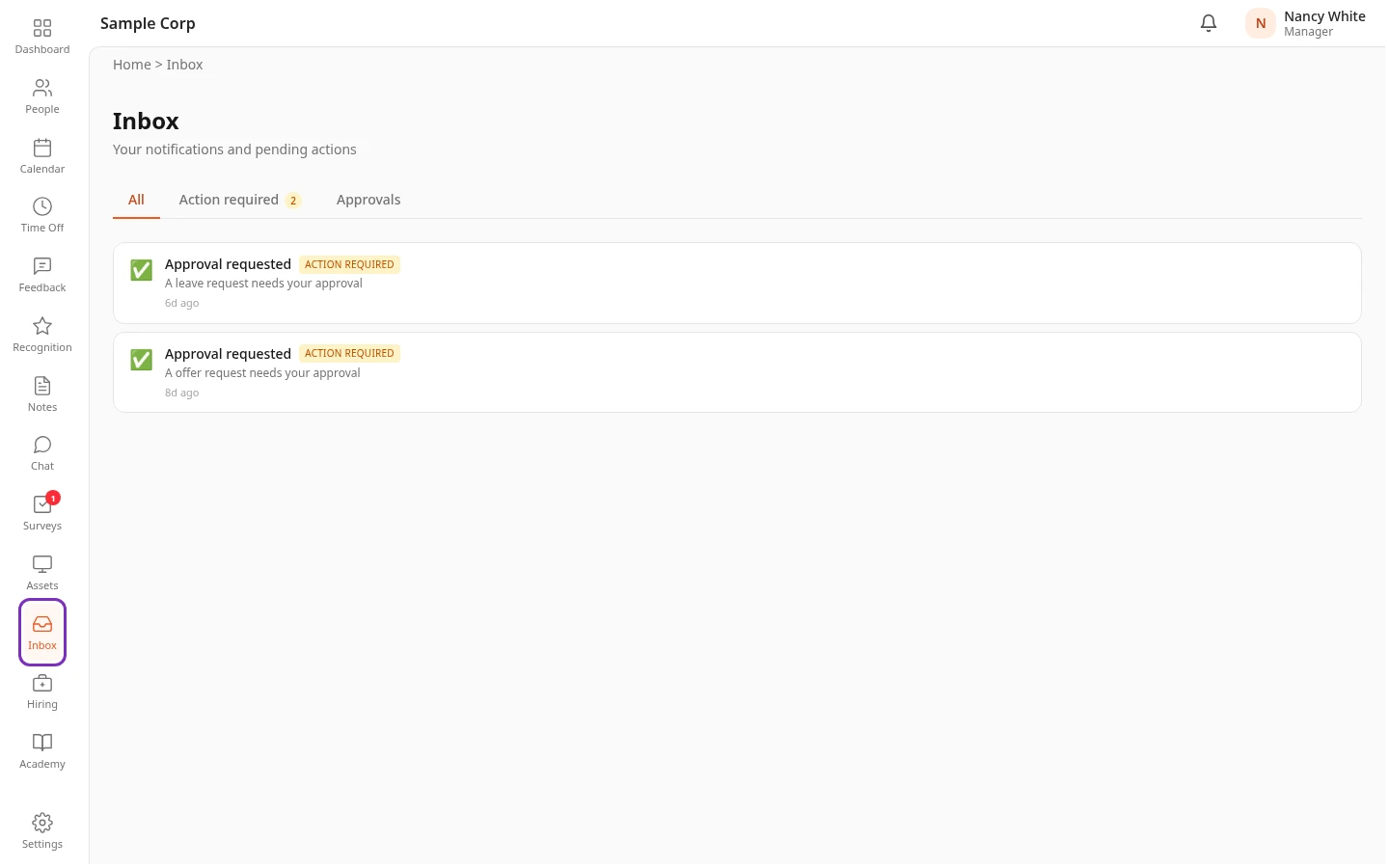
Section titled “The Inbox”The Inbox collects your notifications and the requests waiting for your decision. Select Inbox in the menu bar, or View all under the bell.
| Tab | What’s in it |
|---|---|
| All | Every notification, newest first. Unread ones are highlighted. |
| Action required | Notifications that need you to do something, such as a request to approve or a request for feedback. The number next to the tab counts them. |
| Approvals | Requests waiting for your decision, such as your team’s time off. You approve or reject them right there. See Approve or reject time off. See Approve or reject requests in your Inbox. |
Select a notification to open the page it’s about; it’s then marked as read. Mark all read marks all of them. The Inbox shows your latest 100 notifications, and notifications are deleted after 90 days.
Breadcrumbs
Section titled “Breadcrumbs”Under the top bar, a trail such as Home > Time Off shows where you are. Select any part of it to go back there. The Dashboard and people’s profile pages don’t show it.
Admin mode
Section titled “Admin mode”Admins work with the access of their other roles, usually Employee, until they turn on admin mode. What the Admin role adds, such as every settings screen and everyone’s data, only works in admin mode.
-
Select your name in the top bar. On a phone, open the menu instead.
-
Select Elevate to Admin. The page reloads in admin mode.
While admin mode is on, an orange bar at the top of every page reads ⚡ Admin mode — actions are being logged, and the label under your name reads Admin ⚡.


To leave admin mode, select Drop Admin in the orange bar or in the menu under your name. Admin mode also ends when you close the browser tab, but not when you log out, so drop it before you log out. When an admin views the app as another person to help them, the bar reads Admin · viewing as and that person’s name, with a Stop viewing button. See View the app as someone else.
HR Admins and the other roles have no admin mode: their access is always on.
Messages at the top of the page
Section titled “Messages at the top of the page”Other bars can appear under the top bar:
| Message | What it means |
|---|---|
| You’re exploring with sample data. Ask your admin to go live when ready. | Your workspace still has sample data. Admins in admin mode see You’re exploring with sample data. Ready to start with real data? with a Go Live button instead. |
| A billing message, such as Your last payment failed. Please update your payment method to avoid service interruption. | There’s a problem with your company’s subscription. People who manage billing see a Manage billing link; everyone else sees Contact your admin. See Plans and features. |
| This workspace is scheduled for deletion on a date | Your company’s workspace is going to be deleted. The contact support link opens the Anima HR contact page. |
On a phone
Section titled “On a phone”On a screen narrower than 768 pixels, such as a phone, the frame changes:
- The top bar shows the menu button (☰) on the left, your company’s logo or name in the middle, and the first letter of your first name on the right.
- A bar at the bottom of the screen holds Dashboard, People, Time Off and Feedback, if they’re in your menu bar, and More.
- More, or the menu button, opens the full menu: every item of your menu bar, then Settings, Elevate to Admin or Drop Admin for admins, and your name, which opens your profile. Close it with ✕, by swiping it away or by tapping outside it.
- On the People, Time Off and Feedback pages, pull down from the top to refresh the page.