Check in and out
If your company tracks your attendance, you clock in when you start work and clock out when you finish. Anima HR records both times, the hours you worked, and any late or overtime minutes.
Clock in and out
Section titled “Clock in and out”-
Select Time Off in the menu bar. When your company uses Attendance, the page title is Time & Attendance.
-
Select the Attendance tab.
-
When you start work, select Clock In.
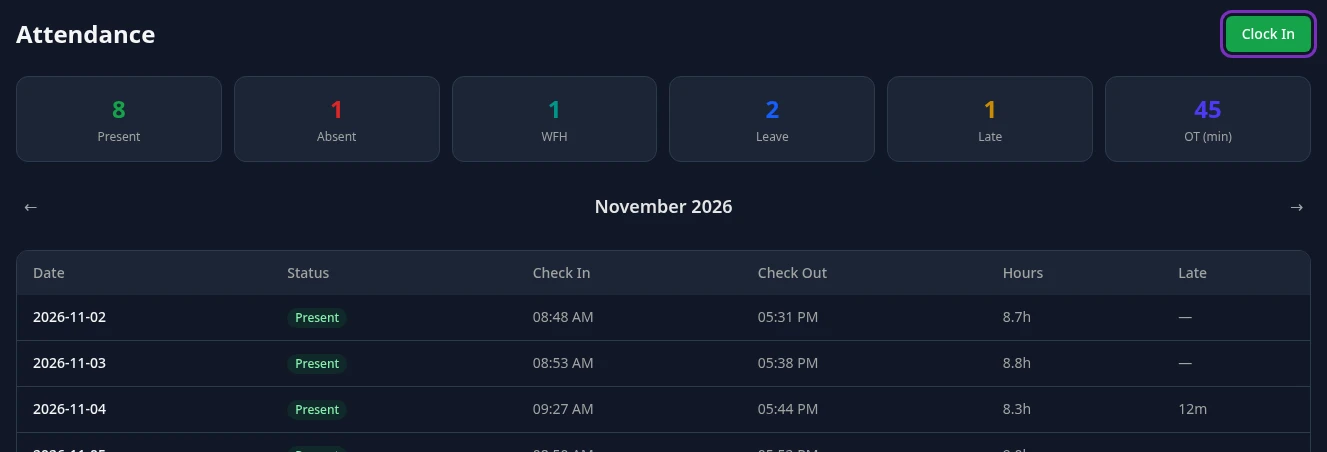
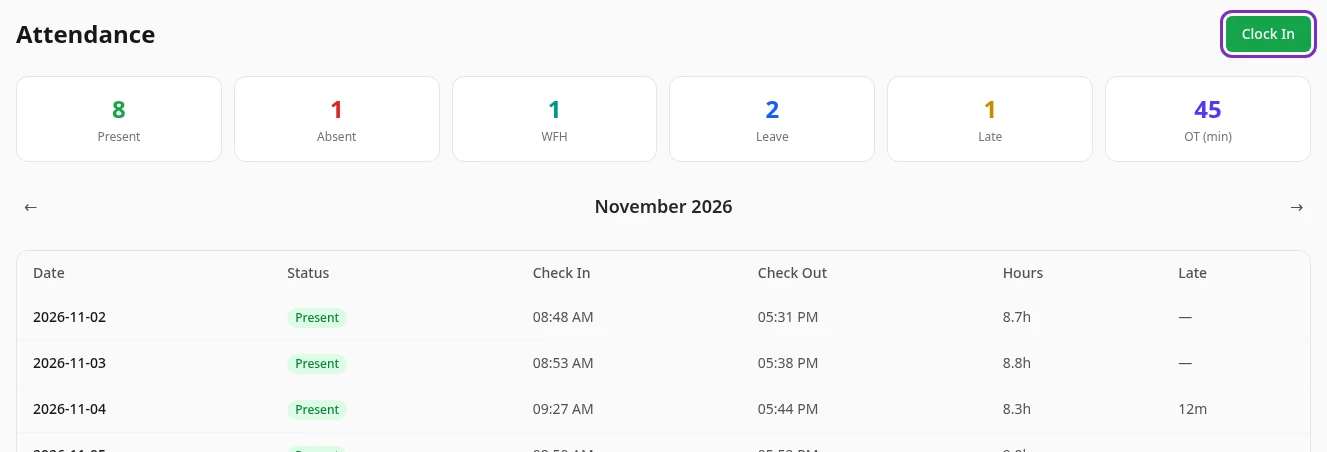
The button changes to Clock Out, and today appears in the table with the status Present and your Check In time.
-
When you finish for the day, select Clock Out.
✓ Done for today replaces the button, and today’s row shows your Check Out time and your Hours.
Nothing else confirms the click. If the button doesn’t change, your time wasn’t saved: reload the page and try again.
How clocking in works
Section titled “How clocking in works”- You clock in and out once a day. There are no breaks: after you clock out, you can’t clock in again until the next day.
- If you forget to clock out, that day keeps your check-in time with no check-out time and no hours. You can’t add them yourself later, so tell your HR team.
- Anima HR doesn’t check where you are when you clock in. There are no location or network rules.
Late arrivals and overtime
Section titled “Late arrivals and overtime”When you clock in, Anima HR compares the time with the start of the work day. When you clock out, it compares the time with the end of the work day. The same times apply to everyone in your workspace: the start and end times and the grace period of your shift aren’t used.
| Setting | What it does | Default |
|---|---|---|
| Work day starts | Clocking in after this time plus the grace period counts as late. | 09:00 |
| Late grace period | Minutes after the start time you can clock in without being late. | 15 minutes |
| Work day ends | Time worked after this, beyond the overtime threshold, counts as overtime. | 17:30 |
| Overtime threshold | Minutes after the end time before overtime starts. | 30 minutes |
With the defaults, clocking in at 09:25 records 10 late minutes, and clocking out at 18:30 records 30 minutes of overtime. Your admin can change these settings in Settings › Time & Attendance › Attendance.
If your attendance isn’t tracked
Section titled “If your attendance isn’t tracked”If the tab shows Attendance not tracked for your role — you’re recorded as present. instead of Clock In, your company doesn’t track your attendance. You don’t need to clock in, and your attendance table stays empty.
This depends on Attendance Tracking on your profile. When it’s empty, your workspace’s default applies, and unless your admin changed it, that default is not to track attendance. At the moment HR can’t change Attendance Tracking on a profile (saving it fails), so for most people the workspace default decides. If you think you should be clocking in, ask your HR team.
What managers see
Section titled “What managers see”Managers clock in and out the same way. The Attendance tab only shows your own attendance: Anima HR doesn’t have a screen for your team’s attendance.
Can’t see this?
Section titled “Can’t see this?”- There’s no Attendance tab. The Attendance module is turned off for your company. An admin can turn it on.
- There’s no Clock In button. Your attendance isn’t tracked. See If your attendance isn’t tracked.