Give people roles
A person’s roles decide what they can see and do in Anima HR. You give roles in Settings › Access › Users & Groups, to one person at a time or to a group, whose members all get the group’s roles. What each role allows is set on the Roles & Permissions tab next to it.
Open Users & Groups
Section titled “Open Users & Groups”-
Turn on admin mode: select your name in the top bar, then Elevate to Admin.
-
Select Settings in the menu bar, then Access.
-
Select the Users & Groups tab.
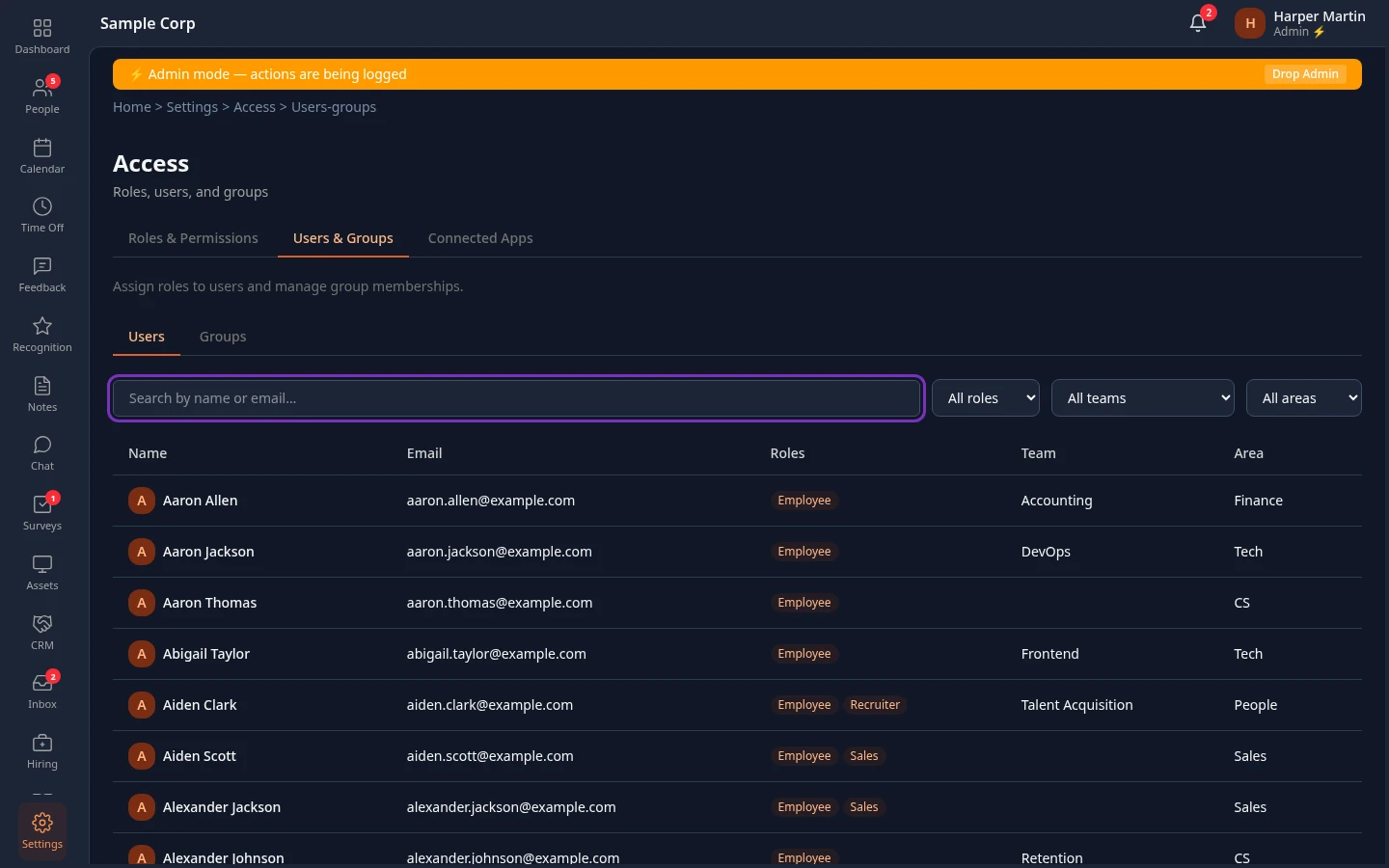
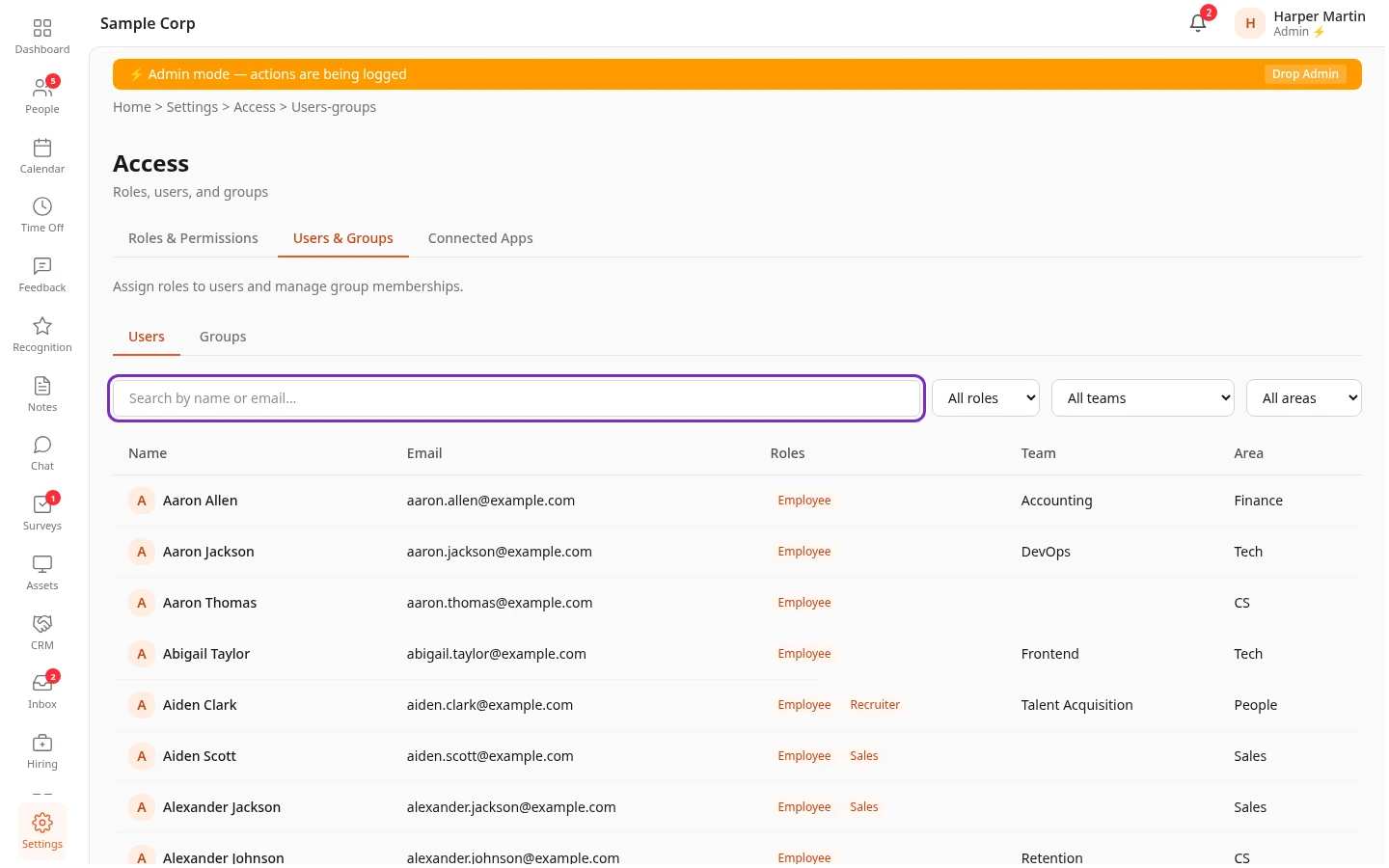
The Users tab lists everyone in the workspace, 20 people per page, including people who have left and people waiting in Pending HR Review. The Roles column shows the roles each person was given, directly or through a group. It doesn’t show Manager: see Manager is automatic.
- To find someone, type at least 2 letters of their name or email address in Search by name or email….
- All teams and All areas narrow the list to one team or area.
- All roles shows who was given a role, under Users with and the role’s name. It lists people and groups by their internal ID, such as
usr_06dd…, instead of their name, and marks every entry direct, even a group. For Manager it always shows No users have this role assigned.
See a person’s roles
Section titled “See a person’s roles”Select a person in the list to open their panel. Select × to go back to the list.
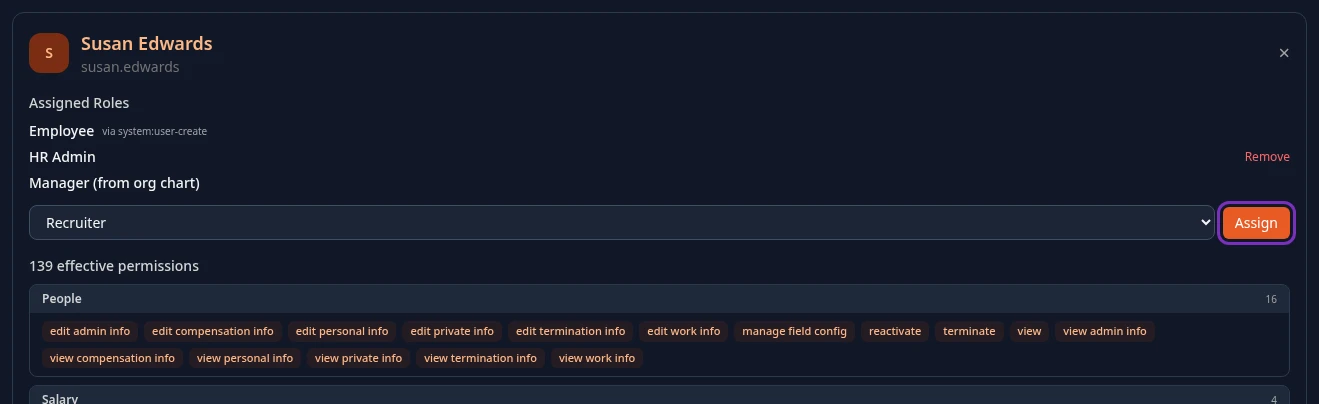
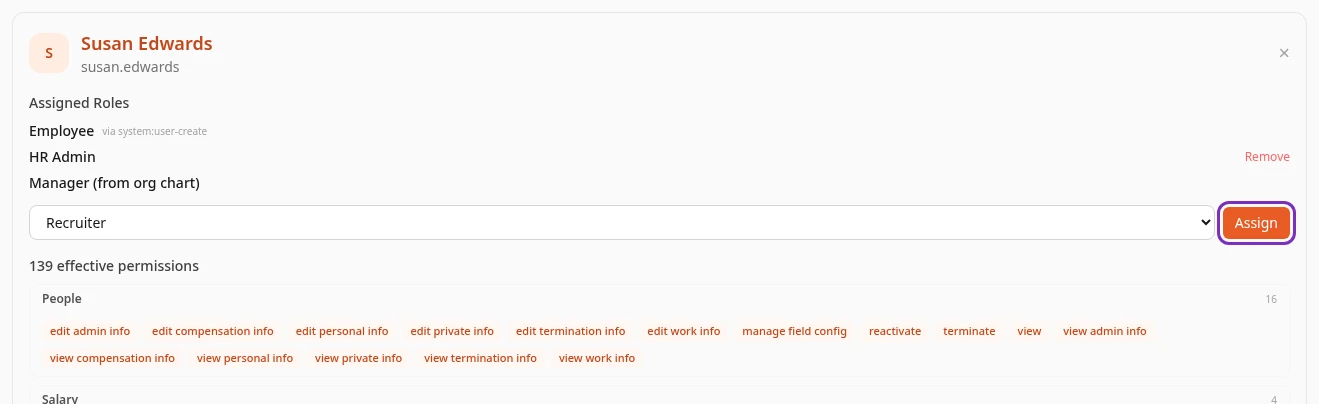
Assigned Roles lists every role the person holds. The grey note after a role says where it comes from:
| Note | Where the role comes from | Can you remove it here? |
|---|---|---|
| None | You or another admin gave it to the person. | Yes, with Remove. |
| via group: and a group’s name | The person is in that group. | No. Remove it from the group, or the person from the group, on the Groups tab. |
| via system:user-create | It was given automatically when the person’s account was created: usually Employee. See Choose the role a new person starts with. | No. |
| via system:seed | It’s part of the sample data. | No. |
Manager (from org chart) shows for people who have someone reporting to them.
Under the roles, a line such as 138 effective permissions lists every permission the person has from all their roles together, grouped by module, such as People or Time Off. For an Admin, it’s what they have outside admin mode.
Give someone a role
Section titled “Give someone a role”-
Open the person’s panel on the Users tab.
-
Under Assigned Roles, choose a role in Select role….
The list has every role in your workspace except Manager. Your own roles are marked (custom). Admin is only listed while you’re in admin mode.
-
Select Assign.
Role assigned appears. A person can hold several roles and gets everything each of them allows. The new access works within a minute. If they have Anima HR open, the new menu items show after they reload the page.
The list also offers roles the person only holds automatically or through a group, such as Employee. Assigning one of those gives it to them directly, with a Remove link. A role they also get from a group stays for as long as they’re in the group.
Remove a role
Section titled “Remove a role”-
Open the person’s panel on the Users tab.
-
Select Remove next to the role.
-
Select Remove again to confirm. The question next to it names the role and the person, such as Remove HR Admin from Susan Edwards?
Role removed appears. The person keeps what their other roles give them.
You can’t remove:
- a role that comes from a group, or one that was given automatically (see the table above);
- Manager, which comes from the org chart;
- Admin from the last person who holds it directly: You can’t remove the last admin. appears.
If you remove someone’s only role, they can still sign in, but they see an almost empty app.
Manager is automatic
Section titled “Manager is automatic”Manager isn’t in the role list and can’t be given. Anyone with at least one active person reporting to them gets it, and loses it when nobody reports to them any more. To make someone a manager, set them as Reports To on another person’s profile. See How roles work.
Give roles to a group
Section titled “Give roles to a group”A group gives its roles to all its members. Use groups for roles that many people share, such as Finance for your whole finance team. Groups are only for roles: they’re separate from the teams and areas on people’s profiles, and a group can’t contain other groups.
Create a group
Section titled “Create a group”-
On Users & Groups, select Groups.
-
Type a name in New group name…, then select + Create Group.
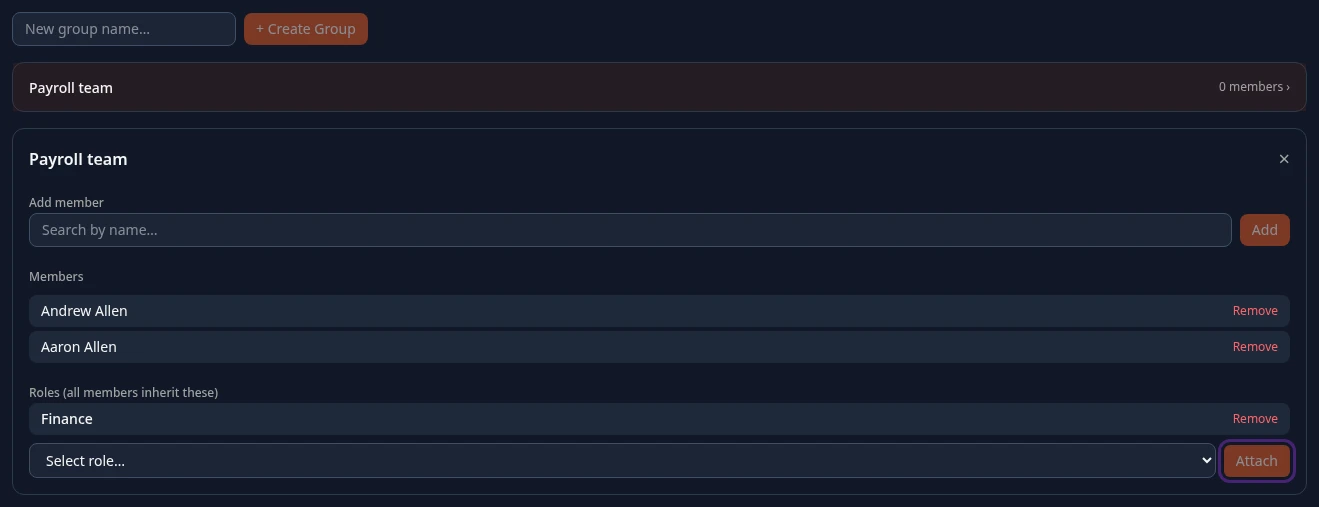
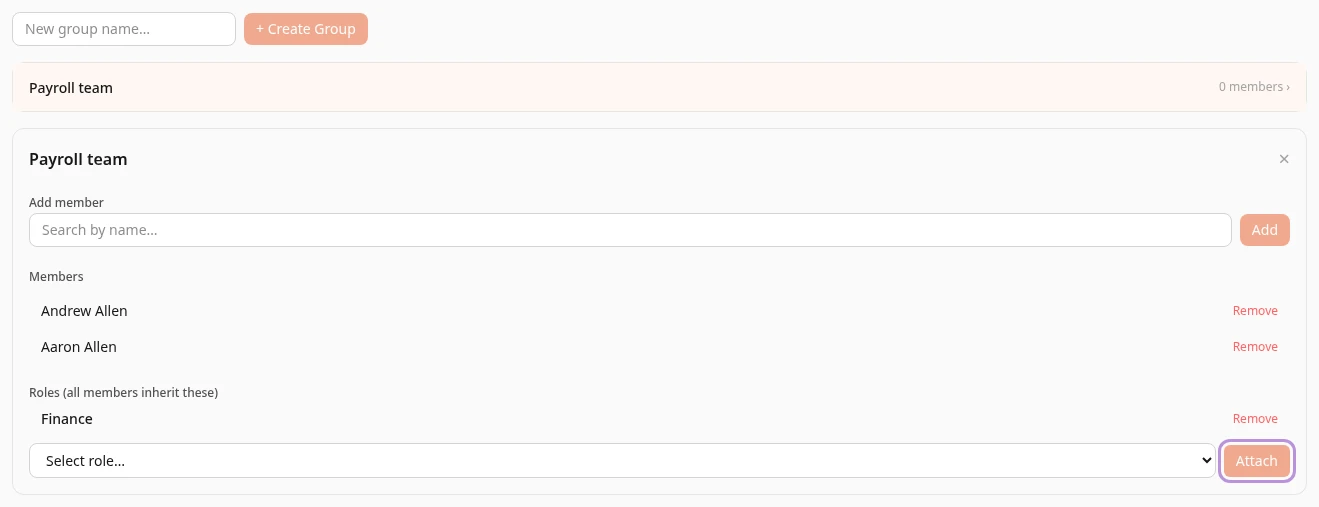
Group created appears and the group is added to the list. The list shows 0 members next to every group, whatever the number: open a group to see who’s in it.
Add members and roles
Section titled “Add members and roles”-
Select the group in the list.
-
Under Add member, type at least 2 letters of a person’s first or last name in Search by name…, select the person, then select Add. Repeat for each person.
People who have left aren’t offered.
-
Under Roles (all members inherit these), choose a role in Select role…, then select Attach.
New members get the group’s roles within a minute, and so does every member when you attach a role. Admin is only offered in admin mode, and Manager never is.
Remove members and roles
Section titled “Remove members and roles”- Remove next to a member takes them out of the group.
- Remove next to a role takes it away from every member.
Neither asks you to confirm. The people they affect lose the access as removing a role from one person does, and stay signed in.
You can’t rename or delete a group in the app. To stop a group giving access, remove its roles or its members.
When a person has several roles
Section titled “When a person has several roles”A person has everything their roles allow together: the roles given to them directly, the roles of every group they’re in, and Manager if people report to them. When two roles give the same permission for different people, such as the person’s team in one role and the whole company in another, the wider one applies. Removing a role, or taking someone out of a group, only takes away what none of their other roles gives.
What needs admin mode
Section titled “What needs admin mode”With the built-in roles, only Admins in admin mode can open Settings › Access. Some changes need admin mode whoever makes them:
- giving or removing Admin;
- giving or removing a role with a permission that, as shipped, only Admin has, such as Manage roles, Manage billing or Impersonate users;
- adding people to, or removing them from, a group that has such a role.
Without admin mode, these changes are refused with Only an elevated admin can grant or remove admin-level access.
HR Admins can’t open Users & Groups, because the Access card needs Manage roles. They can choose the role a person starts with when they add them: see Choose the role a new person starts with.
See roles in the directory and on profiles
Section titled “See roles in the directory and on profiles”People who can manage users, such as HR Admins and Admins in admin mode, also see roles outside Settings:
- People, in the Grid, List and Org Chart views: a badge for each role a person was given, directly or through a group, except Employee. Manager doesn’t get a badge there.
- A person’s profile: the badges at the top leave out Employee, and Role under Work Information lists all their roles, Employee and Manager included, with a Manage roles link to Users & Groups.
Everyone else only sees the Role row on their own profile.
Reset someone’s two-step verification
Section titled “Reset someone’s two-step verification”When someone has lost their authenticator and their recovery codes, you reset their two-step verification from their panel on the Users tab. See Reset someone’s two-step verification.
Can’t see this?
Section titled “Can’t see this?”- There’s no Access card in Settings. Turn on admin mode. With the built-in roles, only Admins in admin mode see it.
- Admin isn’t in the role list. Only Admins in admin mode can give it. Anyone else who can open this page sees Elevate to assign or remove the Admin role.
- A role has no Remove link. It comes from a group, it was given automatically, or it’s Manager. See See a person’s roles.
- Manage roles on a profile takes you to your dashboard. Your role lets you manage users but not roles, like HR Admin. Only people who can manage roles can open Users & Groups.