Connect other apps for the assistant
A connector lets the AI assistant in Chat use another app your company works with, such as a ticket system or a knowledge base, through that app’s MCP server. People can then ask in Chat, for example, “which of my tickets are still open?”. You add connectors on Settings › AI connections (MCP) › Connectors, approve the tools each one offers, and pick the roles that may use it.
This is the other direction from letting people connect their own AI apps: there, an outside AI app reads Anima HR; here, the Anima HR assistant reads another app. Each has its own switch.
Turn connectors on
Section titled “Turn connectors on”AI connectors are off in a new workspace, and with the sample data.
-
Turn on admin mode: select your name in the top bar, then Elevate to Admin.
-
Select Settings in the menu bar, then the AI connections (MCP) card. While both of its modules are off, the card is under Disabled, at the bottom of the page.
-
Select the Connectors tab, then Enable AI connectors. The tab now reads AI connectors is on.
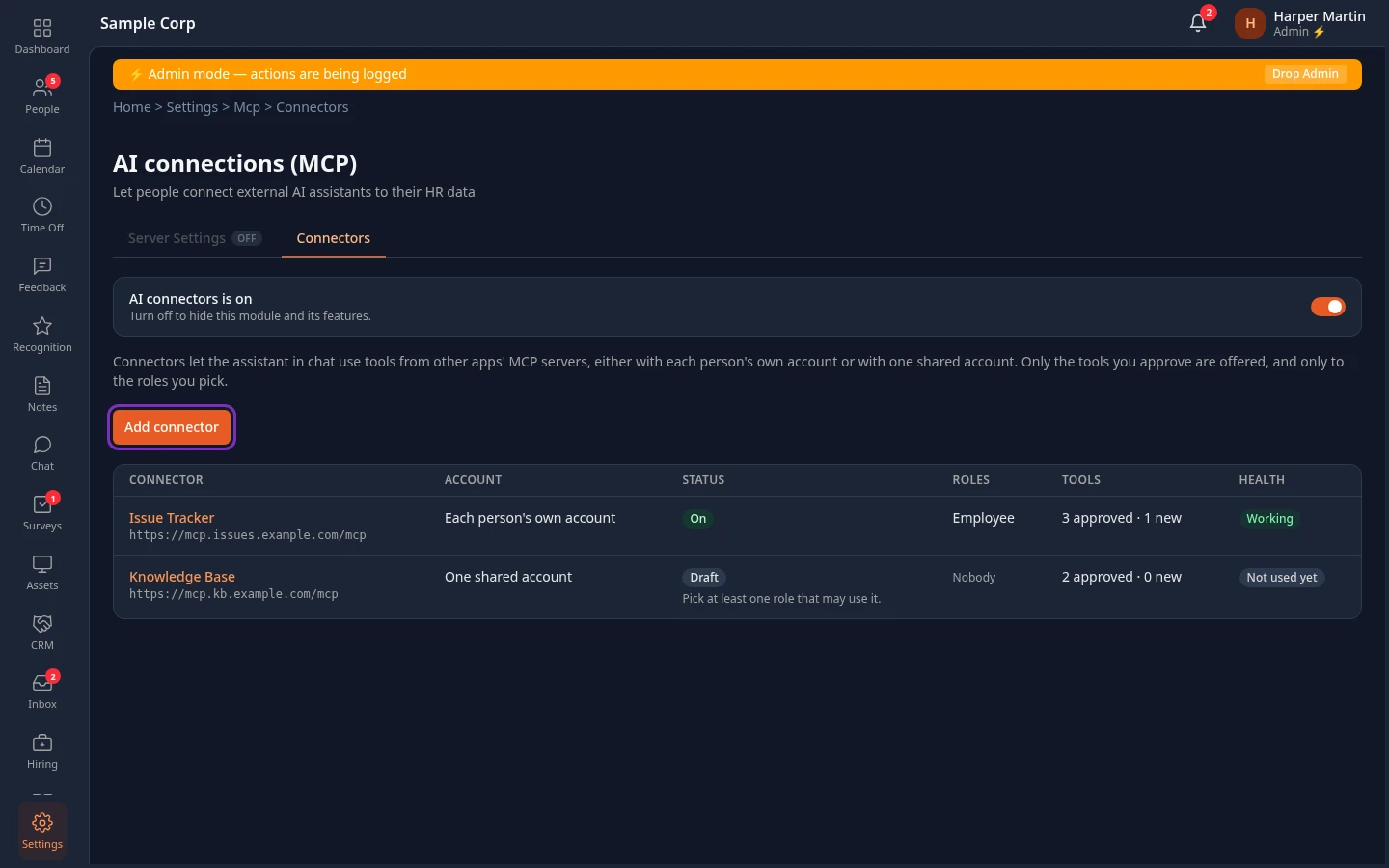
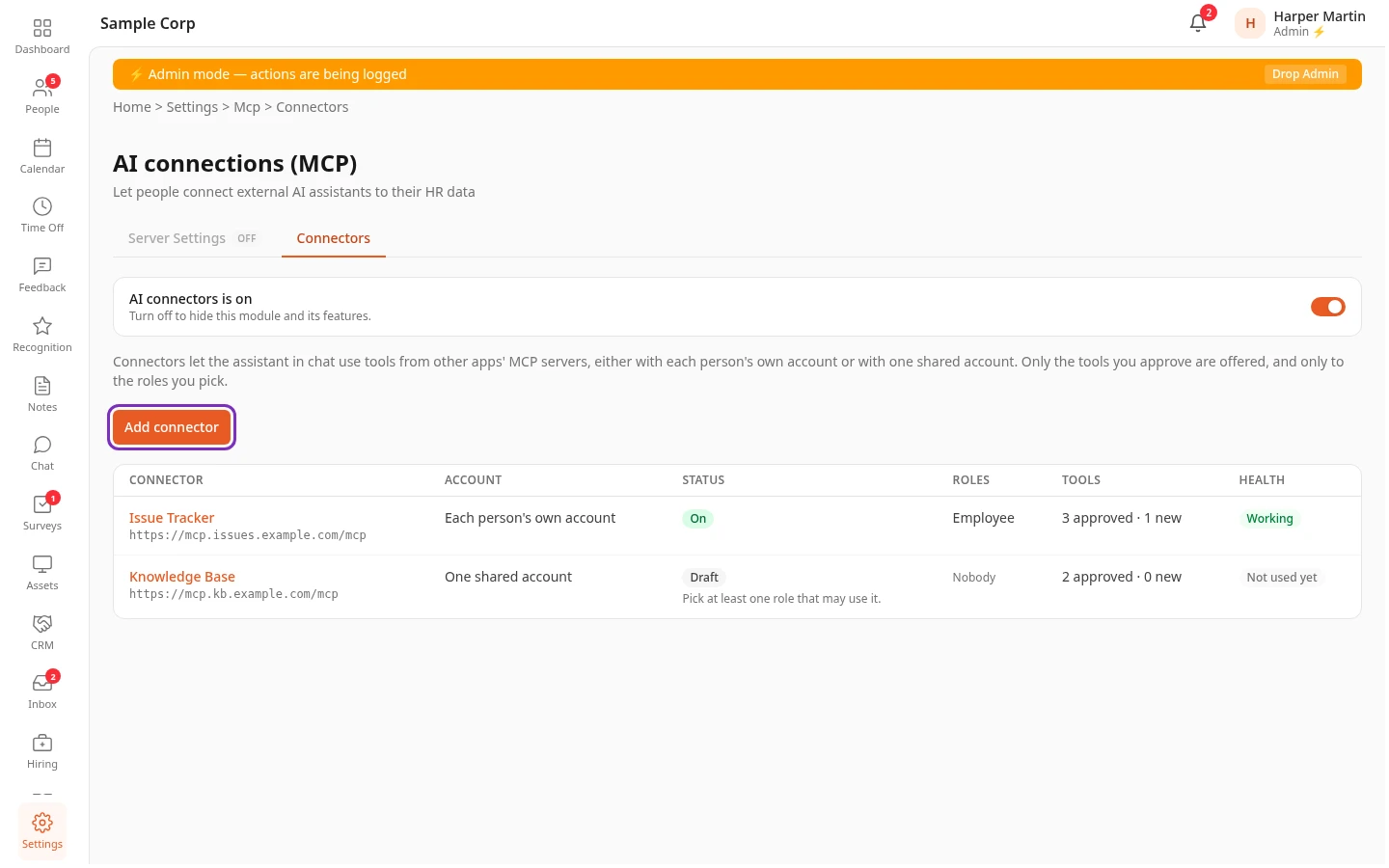
Only Admins can open this tab: it needs Manage AI connections (MCP), which only the Admin role has. Chat must be on as well. Anima HR can also switch connectors off for a workspace; they then stop working even while the tab says they’re on.
The list shows each connector with its server address, whose account it uses, its status, the roles that may use it, how many of its tools are approved, new or changed, and its health: Working, Failing or Not used yet. Select a connector’s name to open its page.
| Status | Meaning |
|---|---|
| On | People in its roles can use it in Chat. |
| Ready, off | Everything is set up; select Turn on on its page. |
| Draft | A step is missing. The line under it says which, such as Approve at least one tool. |
| Needs attention | It stopped working, for example because its sign-in expired or its server changed. Its tools are paused until you fix it. |
Before people can use a connector
Section titled “Before people can use a connector”A person can use a connector in Chat when all of these are true:
- the connector is On;
- one of their roles has Use other apps in chat in Chat. No built-in role has it: add it to a role on the Roles & Permissions tab of Settings › Access (see Create and change custom roles);
- one of their roles is in the connector’s Who can use it list. Employee there means everyone who also has Use other apps in chat;
- for a connector that uses each person’s own account, they’ve connected their account (see below);
- they aren’t in admin mode, and aren’t viewing the app as someone else. Connectors never run with admin mode.
Add a connector
Section titled “Add a connector”-
Select Add connector. Add a connector opens above the list, with its steps across the top.
-
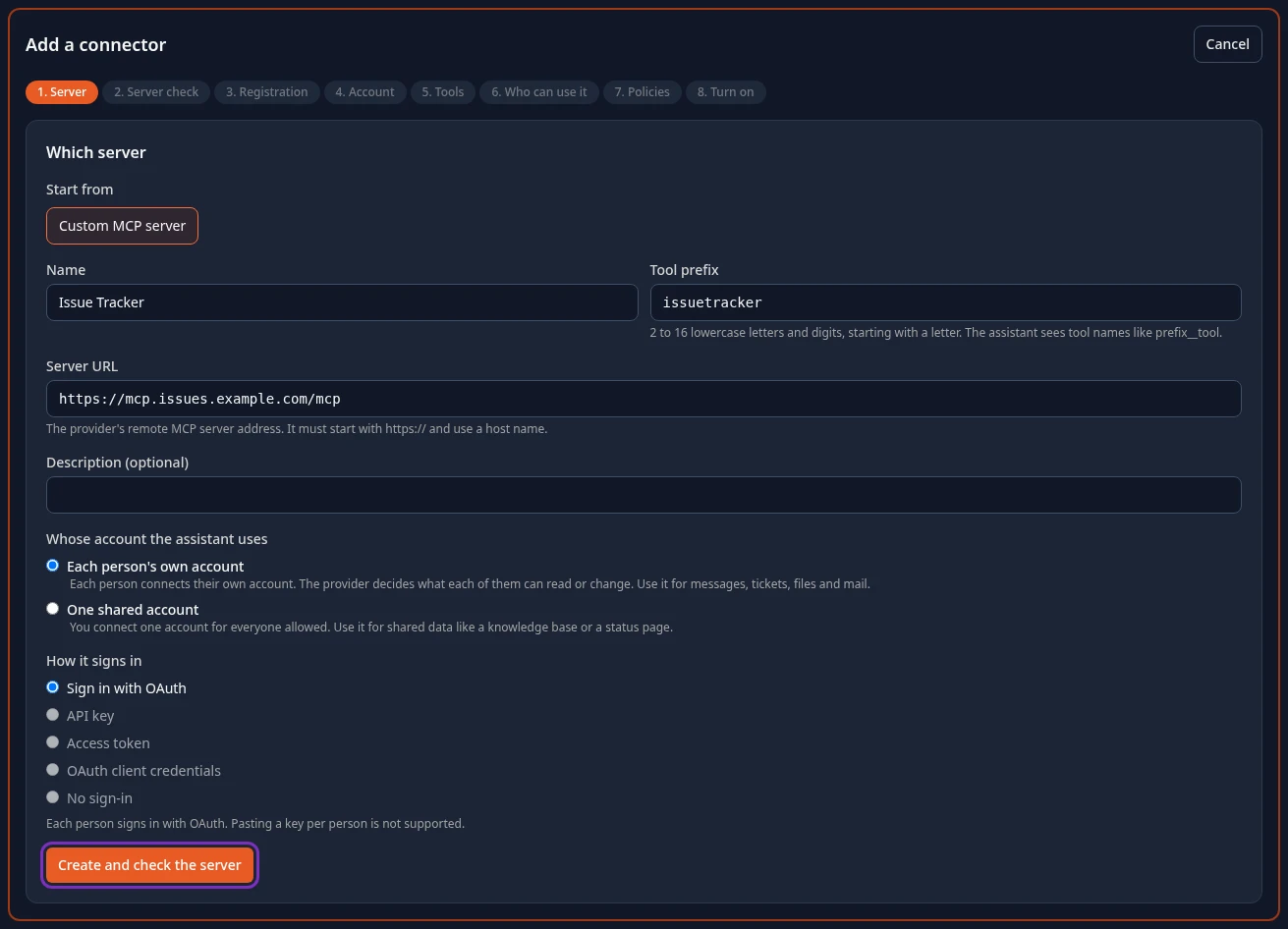
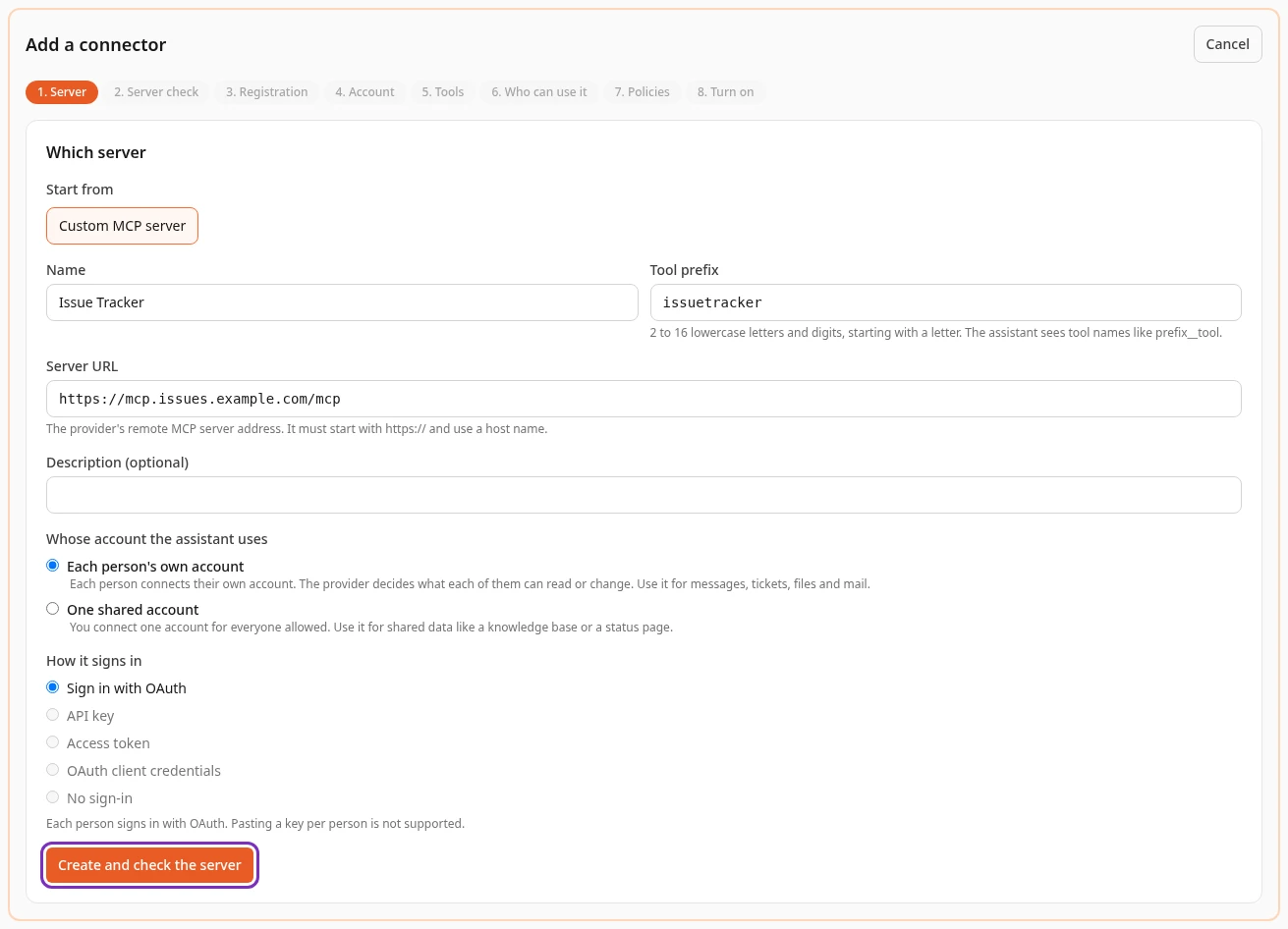
On 1. Server, fill in:
- Name: what people see in Chat, such as the app’s name.
- Tool prefix: 2 to 16 lowercase letters and digits. It’s filled in from the name.
- Server URL: the app’s MCP server address from its documentation. It must start with
https://. - Whose account the assistant uses: Each person’s own account, for messages, tickets, files and mail, or One shared account that you connect for everyone allowed, for shared data such as a knowledge base.
- How it signs in: Sign in with OAuth, API key, Access token, OAuth client credentials or No sign-in, as the app’s documentation says. With each person’s own account, only Sign in with OAuth is possible.
-
Select Create and check the server. Anima HR asks the server which MCP version it speaks and how it signs people in, and shows the answer on 2. Server check. The server URL, whose account and the sign-in method can’t be changed afterwards: to change them, add a new connector.
-
Go through the other steps with Next. Each step saves on its own, so you can leave with Close and finish later on the connector’s page.
Start from only offers Custom MCP server for now. A workspace can have up to 25 connectors.
Registration
Section titled “Registration”For OAuth, the other app needs to know the connector before anyone can sign in. Under How the provider knows this connector, pick what the app supports:
- Client metadata URL: nothing to enter; the app reads the connector’s details from your workspace. Some apps want its domain on an allow list.
- Your own app: register an app in the other app’s admin console with the Redirect URI shown, then paste its Client ID and Client secret. The secret is stored encrypted and never shown again.
- Automatic registration: Anima HR registers the connector itself with Register with the provider. Use it when the others aren’t available.
The redirect URI and client metadata URL are on your workspace’s own address, with Copy buttons.
Account
Section titled “Account”- One shared account: connect the account everyone will use, ideally a service account. Paste the API key or Access token (only its last 4 characters are shown afterwards), get a token with your app’s client ID and secret, or select Connect the shared account and sign in. Remove the shared account stops the connector until you connect another.
- Each person’s own account: select Connect my account and sign in once, so that Anima HR can list the tools for you to approve. Everyone else connects their own account later.
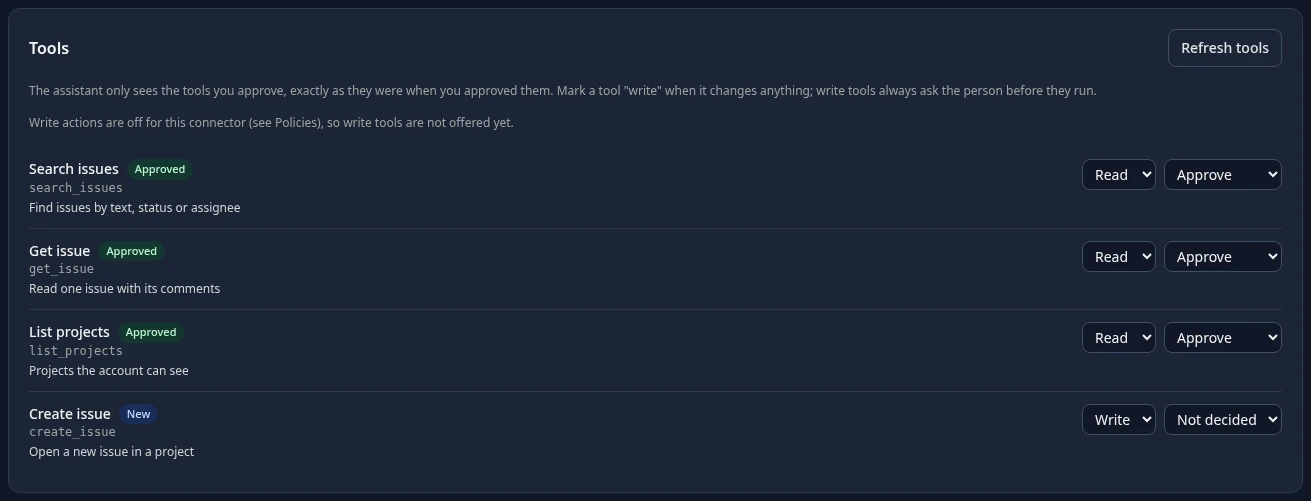
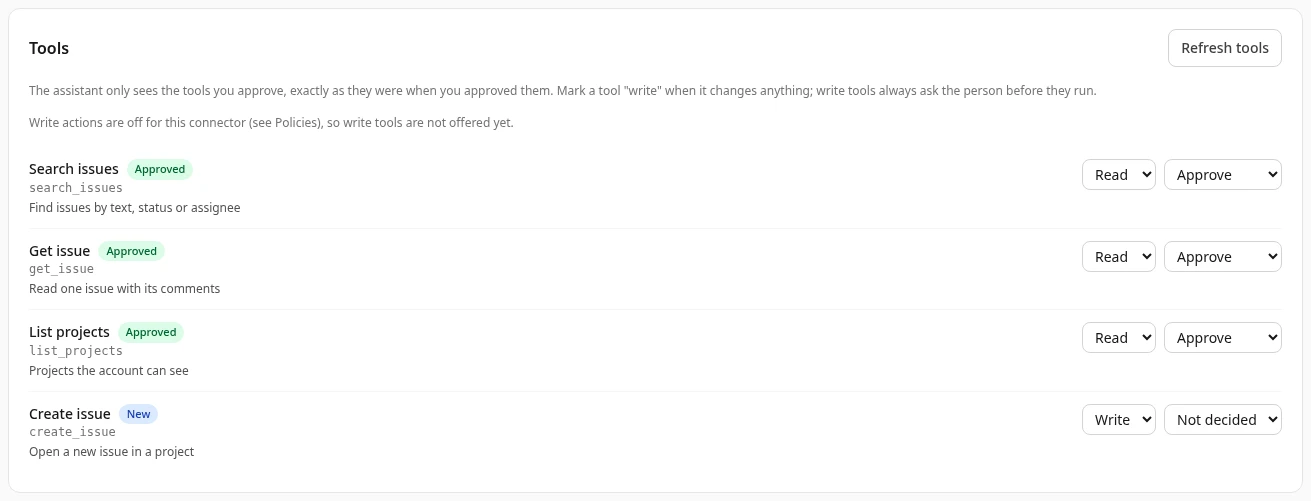
The assistant only sees the tools you approve, exactly as they were when you approved them. For each tool, choose:
- Read or Write: mark a tool Write when it changes anything in the other app.
- Approve or Reject.
Then select Save tool decisions. You can approve up to 50 tools per connector. Refresh tools asks the server for its current list. When the server changes a tool, it’s marked Changed on the server and paused until you approve it again.
Who can use it
Section titled “Who can use it”Tick the roles whose people may use the connector, then Save. With no role ticked, nobody can use it. A warning names any ticked role that doesn’t have Use other apps in chat, because its people also need another role that does.
Policies
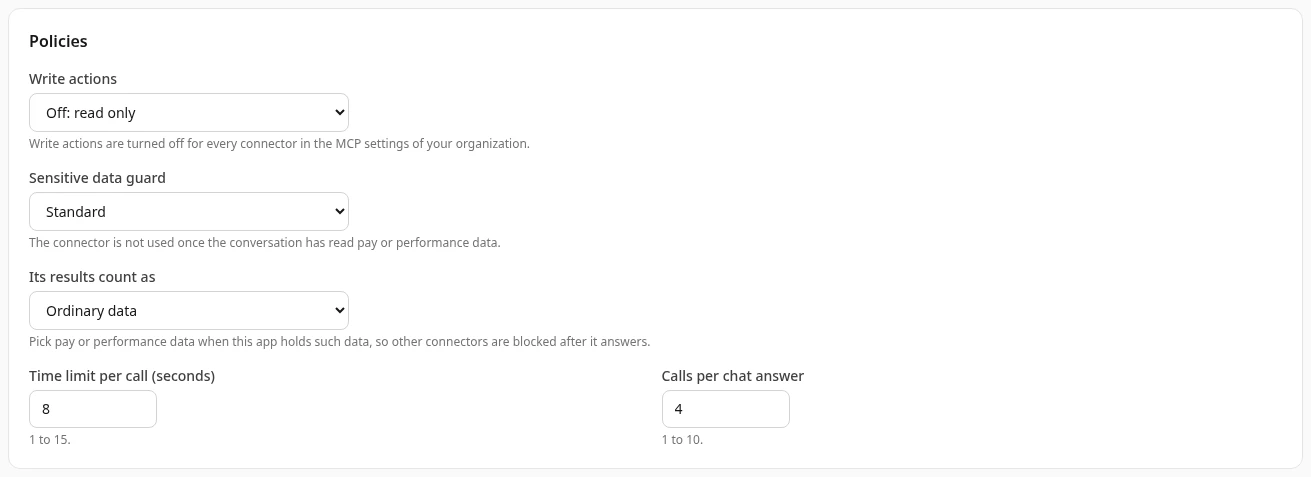
Section titled “Policies”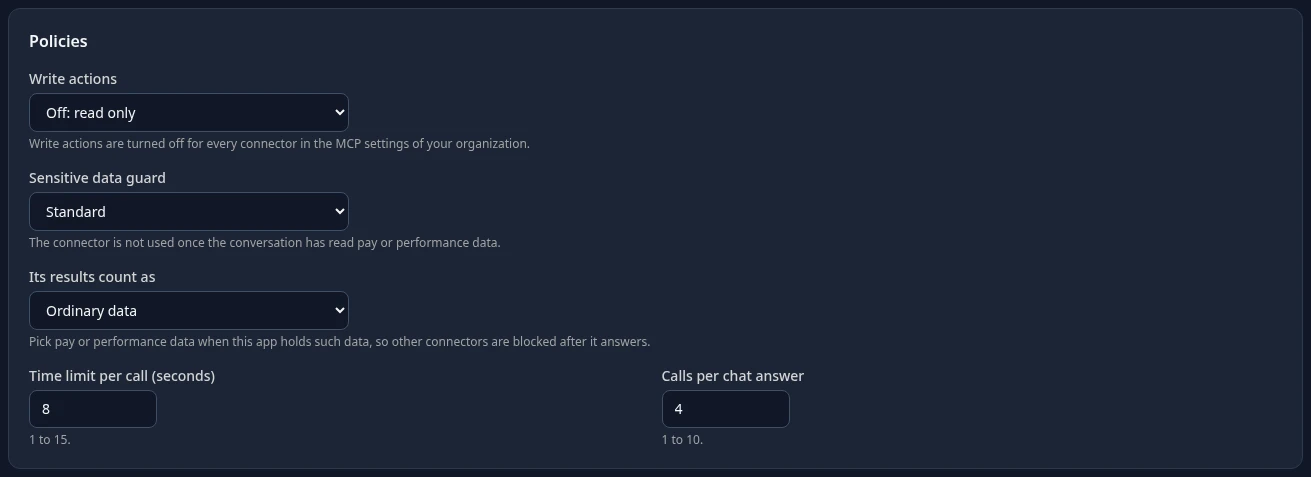
| Setting | What it does | Default |
|---|---|---|
| Write actions | Off: read only, or Allowed, the person approves each one: approved write tools then propose an action that the person approves in Chat. | Off: read only |
| Sensitive data guard | Standard: the connector isn’t used once the conversation has read pay or performance data. Strict: it isn’t used once the conversation has read any HR data. People then see that the app wasn’t used, with New conversation. | Standard |
| Its results count as | Ordinary data, Pay data or Performance data. Pick pay or performance data when the app holds such data, so that other connectors are blocked after it answers. | Ordinary data |
| Time limit per call (seconds) | How long the assistant waits for the app, from 1 to 15. | 8 |
| Calls per chat answer | How many times the assistant may use the connector for one answer, from 1 to 10. | 4 |
Turn on
Section titled “Turn on”Data handling and switch explains what leaves Anima HR: the questions people ask, and HR data the assistant already read in the conversation, can be sent to the other app; its results go to the AI model under your workspace’s data residency; and the other app’s own terms decide what it does with the data. Tick I have read this and confirm it on behalf of my organization, then select Turn on. Your name and the date are recorded. Turn off stops the connector for everyone at once.
People connect their own accounts
Section titled “People connect their own accounts”For a connector that uses each person’s own account, people connect on their Connected apps page, under Your accounts in other apps. See Each person’s own Connected apps page.
In Chat, an answer that used a connector says Other apps used, with the app’s name and whose account was used. When someone’s sign-in to the other app has expired, Chat says so, with Reconnect.
Approving actions in Chat
Section titled “Approving actions in Chat”When write actions are allowed, a write tool never runs by itself. The assistant shows a card, Action in …, with the tool, the account it acts as, Exactly what it will send, and Approve and Deny. The person has 15 minutes to decide; after that the request expires and nothing is sent. Only the person who asked can approve it.
Disconnect people
Section titled “Disconnect people”A connector’s page lists People connected for a connector that uses each person’s own account, with when they connected and last used it.
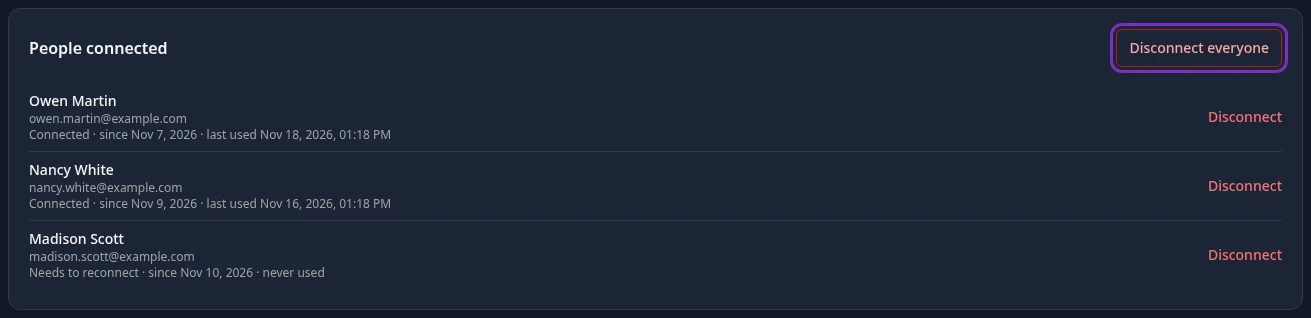
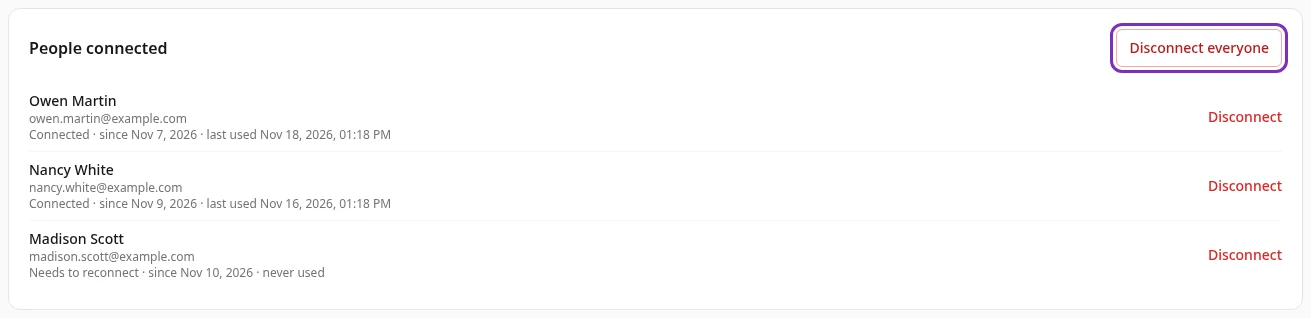
- Disconnect next to a person, then Disconnect in Disconnect this person?: their account stops working in Chat at once. They can connect it again.
- Disconnect everyone, then Disconnect everyone to confirm: every connected account stops working, and people have to connect again.
People’s accounts are also disconnected when they’re suspended or leave the company.
Test or delete a connector
Section titled “Test or delete a connector”At the top of a connector’s page, Test checks that the server answers and says how many tools it offers. Delete, then Delete in Delete this connector?, removes it from Chat at once, with its tools, shared account and app secret, and disconnects everyone. ← All connectors goes back to the list.
Can’t see this?
Section titled “Can’t see this?”- There’s no AI connections (MCP) card. Turn on admin mode. HR Admins can’t open it.
- The tab only shows Enable AI connectors. Connectors are off: select it to turn them on.
- People don’t get answers from a connector. Check that it’s On, that they have Use other apps in chat and a role in Who can use it, that they connected their account if it uses each person’s own, and that they aren’t in admin mode. A new conversation helps if the guard blocked it.