Set the default dashboard
यह कंटेंट अभी तक आपकी भाषा में उपलब्ध नहीं है।
Default Dashboard sets the layout of the dashboards in Anima HR: which widgets show, in which order and how wide. Each dashboard has one layout, the same for everyone who gets it. People can’t rearrange their own dashboard; they can only hide a few widgets for themselves if you let them.
Open the default dashboard
Section titled “Open the default dashboard”-
Select Settings in the menu bar. If you’re an Admin, turn on admin mode first: select your name at the top right, then Elevate to Admin.
-
Open Dashboard.
People who can change settings also have a gear button, Open settings, next to the title of My Dashboard, Team Dashboard and Organization Dashboard. It opens the same screen.
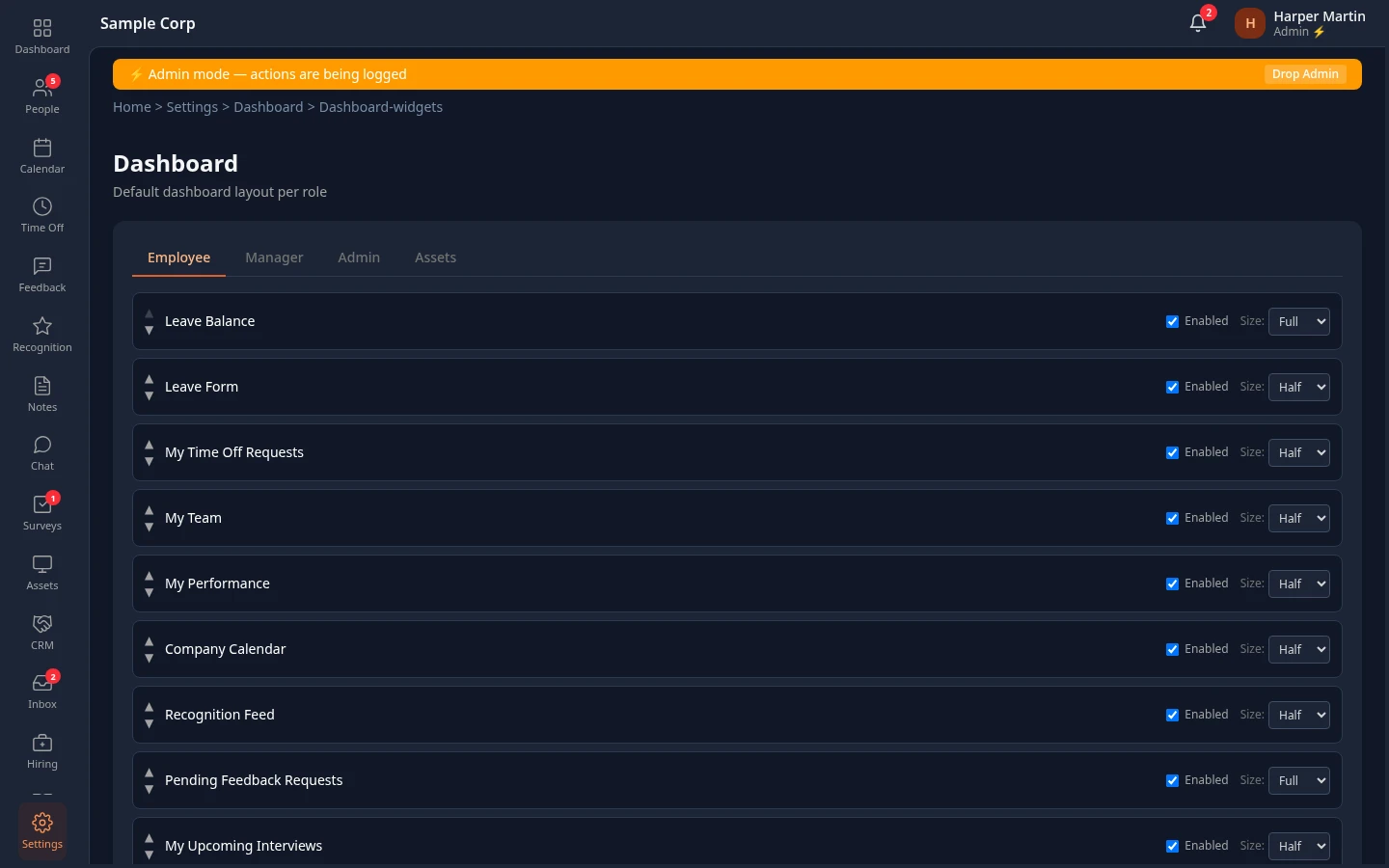
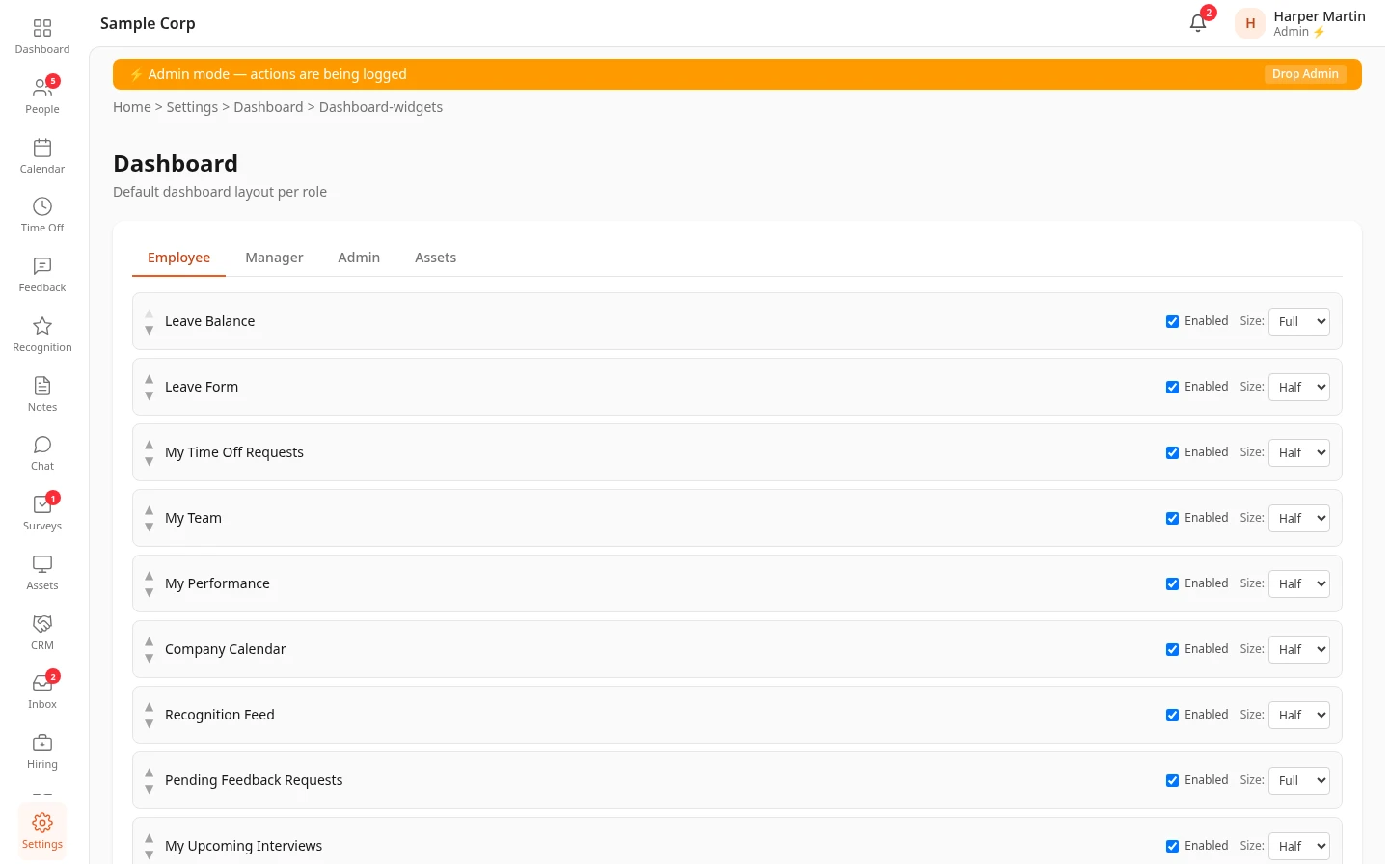
One layout per dashboard
Section titled “One layout per dashboard”The tabs are dashboards, not roles:
| Tab | Dashboard | Who gets it |
|---|---|---|
| Employee | My Dashboard | Everyone |
| Manager | Team Dashboard | Managers, and people who can see everyone’s time off and reviews, such as HR Admins and Admins in admin mode |
| Admin | Organization Dashboard | People who can see everyone’s HR data, such as HR Admins and Admins in admin mode |
| Assets | Asset Dashboard | Everyone, while the Assets module is on. This tab has no effect: see Widgets that don’t show yet |
People who get several dashboards see a tab for each on their Dashboard page. They start on the Organization Dashboard if they have it, else on the Team Dashboard if people report to them, else on My Dashboard.
Change the widgets
Section titled “Change the widgets”-
Select the tab of the dashboard you want to change.
-
Change its widgets:
- Clear Enabled to take a widget off the dashboard, and select it again to put it back. A widget that isn’t enabled is greyed out: you can’t move it or change its size until you enable it again.
- In the Size: list, choose how wide a widget is: Full, Half or Third. See How sizes work.
- Move a widget up or down the list with ▲ and ▼.
-
Change other tabs too if you like. All of them are saved together.
-
Select Save changes in the bar at the bottom of the page. Discard goes back to the saved layout.
People get the new layout within a few minutes.
Reset to defaults, at the bottom of the screen, asks you to confirm, then puts the original layout of every dashboard back into the form: the widgets in The widgets, in their default order and size, all enabled. Nothing changes until you select Save changes.
How sizes work
Section titled “How sizes work”Each dashboard lays out the sizes in its own way:
| Size | My Dashboard | Team Dashboard | Organization Dashboard |
|---|---|---|---|
| Full | The whole width. Above the two columns if no narrower widget comes before it, else below them. | The whole width, below the top row | The whole width |
| Half | One of two columns. Widgets fill the left and the right column in turn. | One of two columns | One of three columns, the same as Third |
| Third | The same as Half | In the top row, three to a row, where the counters are by default | One of three columns |
On My Dashboard, some widgets ignore part of what you set:
- Recognition Feed is always half width.
- Leave Form, My Time Off Requests, My Team and My Performance stay in their default places near the top, whatever order you set for them. Moving the other widgets works, also to before or between them.
On a phone, every widget takes the full width of the screen.
The widgets
Section titled “The widgets”Each table lists the widgets that show on that dashboard, in their default order. Every widget starts enabled. A widget whose module is off doesn’t show, whatever you set here.
My Dashboard
Section titled “My Dashboard”| Widget | What it shows | Default size | Needs |
|---|---|---|---|
| Leave Balance | The person’s vacation and sick balances | Full | Time Off |
| Leave Form | The form to request time off | Half | Time Off |
| My Time Off Requests | The person’s five latest requests | Half | Time Off |
| My Team | The colleagues who report to the same manager | Half | |
| My Performance | The person’s value scores and competency scores | Half | People Analyzer |
| Company Calendar | The next eight calendar events | Half | Calendar |
| Recognition Feed | The five newest kudos, under Recognition | Half | Recognition |
Team Dashboard
Section titled “Team Dashboard”| Widget | Card on the dashboard | Default size | Needs |
|---|---|---|---|
| Team Members | Team Members | Third | |
| Avg Team PA | Avg Team PA | Third | People Analyzer |
| Pending Leave Count | Pending Leave | Third | Time Off |
| Pending Leave Requests | Pending Time Off Requests | Half | Time Off |
| Team Time Off | Team Time Off | Half | Time Off |
| Team Performance | Team Performance | Half | People Analyzer |
| Direct Reports | Direct Reports | Half | |
| Company Calendar | Company Calendar | Half | Calendar |
| Recognition Feed | Recognition | Half | Recognition |
What each card shows: see See how your team is doing.
Organization Dashboard
Section titled “Organization Dashboard”| Widget | Card on the dashboard | Default size | Needs |
|---|---|---|---|
| Active Employees | Active | Third | |
| Former Employees | Separated | Third | |
| Retention Rate | Retention | Third | |
| Avg PA Score | Avg PA | Third | People Analyzer |
| Areas | Areas: how many areas your people work in | Third | |
| Nationalities | Nationalities: how many nationalities your people have, up to 9 (see below) | Third | |
| Headcount by Area | Headcount by Area | Full | |
| Gender Split | Gender Split | Third | |
| Top Nationalities | Top Nationalities: the eight largest, and the rest together as Other | Half | |
| Tenure Distribution | Tenure Distribution | Half | |
| Education Level | Education Level | Half | |
| By Employer | By Employer, only when your people work for more than one employer | Half | |
| Recognition Feed | Recognition | Half | Recognition |
Nationalities counts the bars of Top Nationalities, so with more than eight nationalities it shows 9, whatever the real number.
Widgets that don’t show yet
Section titled “Widgets that don’t show yet”These widgets are listed, and you can enable, move and size them, but no dashboard shows them yet:
- Employee: Pending Feedback Requests, My Upcoming Interviews, Pending Scorecards, My Pending Expense Reports and Unpaid Reimbursements.
- Manager: Pending Feedback Requests, My Upcoming Interviews, Pending Scorecards, Pending Expense Approvals and Team Spend This Month.
- Admin: Pending Feedback Requests, Open Positions, Candidates in Pipeline, Interviews This Week, Spend This Month, Pending Payouts and Budget Utilization.
- Assets: all of them. The Asset Dashboard always shows the same figures, whatever you set on this tab.
What else decides what people see
Section titled “What else decides what people see”- Modules. A widget only shows while its module is on: see the Needs columns above.
- UI Customization. In Settings › General › UI Customization, four Dashboard rows hide widgets for everyone, on every dashboard that has them: Time off (balance, request form, your requests) hides Leave Balance, Leave Form and My Time Off Requests; My team hides My Team; Upcoming calendar hides Company Calendar; Recognition feed hides Recognition Feed. See Page sections.
- People’s own choices. While those rows are User Adjustable, each person can hide the same widgets for themselves in their display settings. They can’t hide other widgets, or move or resize any. See Hide sections on some pages.
- Roles. The layout doesn’t change what data people see. Each widget shows what the person’s roles cover, and the Team Dashboard and the Organization Dashboard only open for the people in One layout per dashboard.
Can’t see this?
Section titled “Can’t see this?”- There’s no Dashboard card in Settings, or it’s greyed out under Disabled. The Dashboard module is off. Turn it on with the switch on its card. While it’s off, people land on the first page of their menu bar after they sign in.
- There’s no Dashboard card. The Default Dashboard tab only shows with Manage navigation.
- A widget doesn’t show on a dashboard. Its module is off, it’s hidden in UI Customization or by the person, or it’s one of the widgets that don’t show yet.