Choose what people see in the menu bar and on pages
UI Customization decides which items show in everyone’s menu bar and which sections show on a few pages, and which of them each person may hide for themselves. It only changes the layout: what people can open, and which data they see, still depends on their roles and on which modules are on.
Open UI Customization
Section titled “Open UI Customization”-
Select Settings in the menu bar. If you’re an Admin, turn on admin mode first: select your name at the top right, then Elevate to Admin.
-
Open General, then the UI Customization tab.
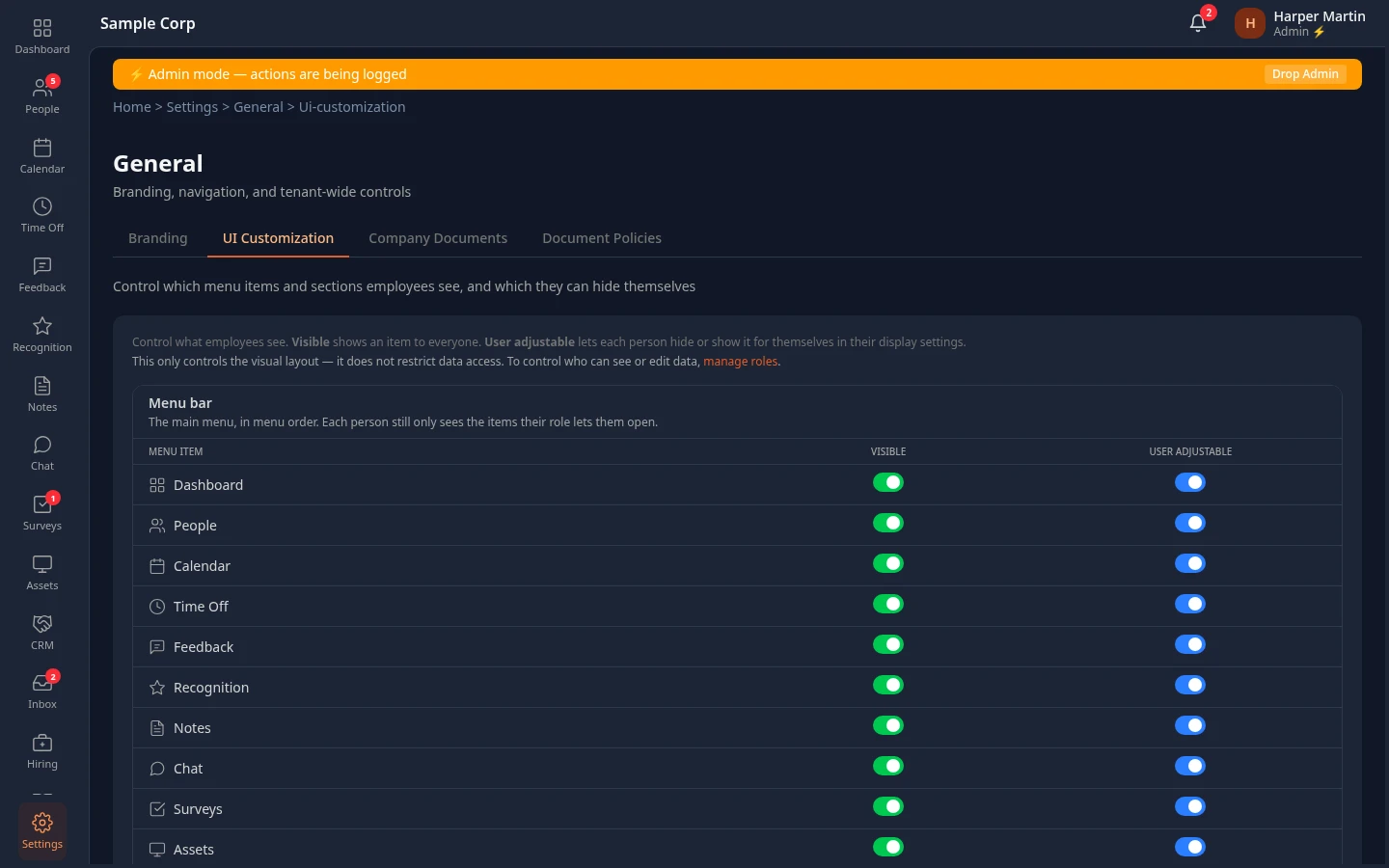
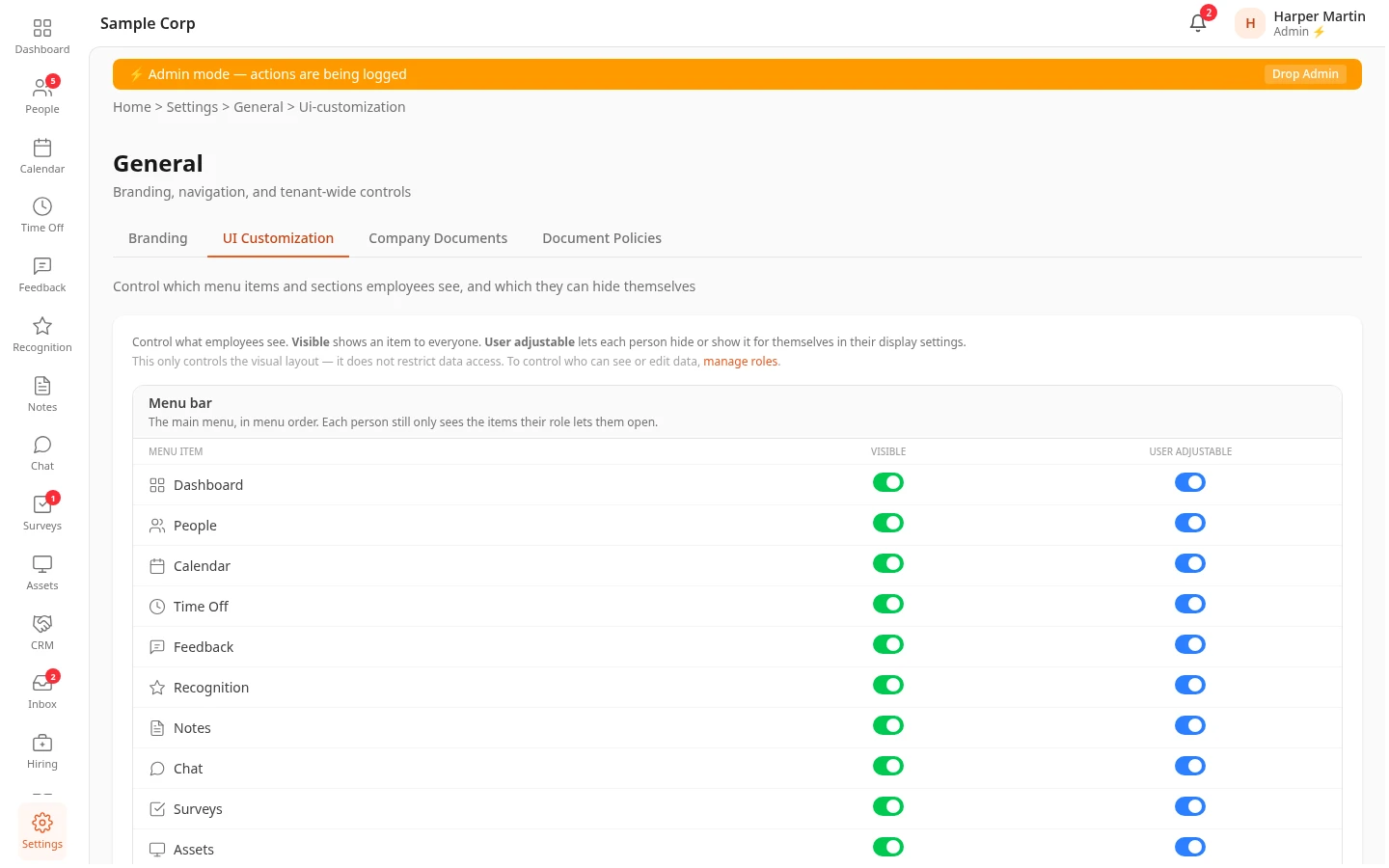
The tab starts with the Menu bar table, which lists every item the menu bar can hold, in menu order. Then comes one table per page for the sections you can hide on it: Dashboard, People, Calendar, Feedback and Notes.
Visible and User Adjustable
Section titled “Visible and User Adjustable”Every row has two switches.
| Switch | What it does | Default |
|---|---|---|
| Visible | Off hides the item or section from everyone. | On |
| User Adjustable | On lets each person hide or show it for themselves in their display settings. Off keeps it on screen for everyone. It’s locked while Visible is off. | On, except four profile sections: see Page sections |
What each combination does:
| Visible | User Adjustable | What people see |
|---|---|---|
| On | On | The item shows. Each person can hide it for themselves. |
| On | Off | The item shows, and nobody can hide it. People who had hidden it see it again. |
| Off | Locked | Nobody sees the item, and nobody can show it again. |
People’s own choices are kept while you lock an item. If you turn User Adjustable back on later, an item someone had hidden before is hidden for them again.
Save your changes
Section titled “Save your changes”When you change a switch, a bar with Unsaved changes appears at the bottom of the page. Select Save changes to apply your changes, or Discard to go back to the saved ones. People get the new layout within a few minutes.
Reset to defaults, at the bottom of the tab, asks you to confirm, then makes every menu item visible and adjustable again and puts back the default page sections. Nothing changes until you save.
The menu bar
Section titled “The menu bar”- People only see the items they can use: the item’s module is on and their roles let them open its page. You can hide items here, but not add one for someone who can’t open it.
- A row marked Module off belongs to a module that’s switched off. Its switches are locked until you turn the module on.
- Hiding an item takes it out of the menu bar, and out of the menu and the bottom bar on a phone. The page still opens from links, notifications and bookmarks, with the same access as before.
- Hiding Dashboard doesn’t change where people land after they sign in: that’s still the dashboard. To remove the dashboard, turn the Dashboard module off.
- Settings isn’t in the list. It’s always at the bottom of the menu bar.
- The names and the order of the items come from the main Settings page: drag a module’s card to move its menu item, or rename a single-module card, such as People, with the pencil next to its name.
Page sections
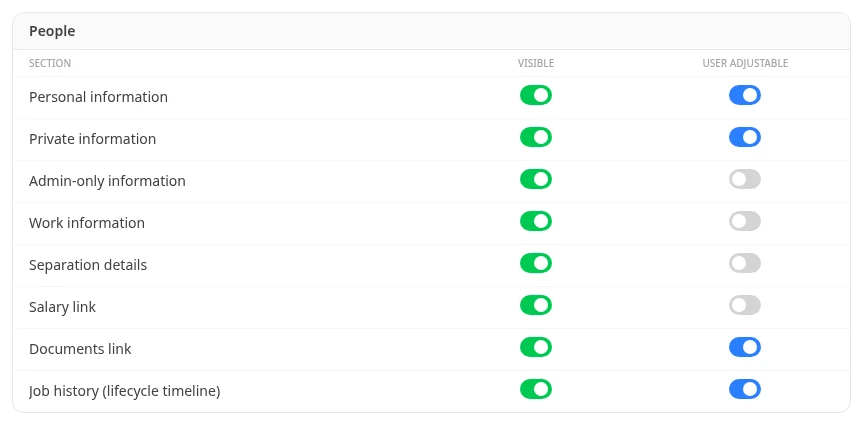
Section titled “Page sections”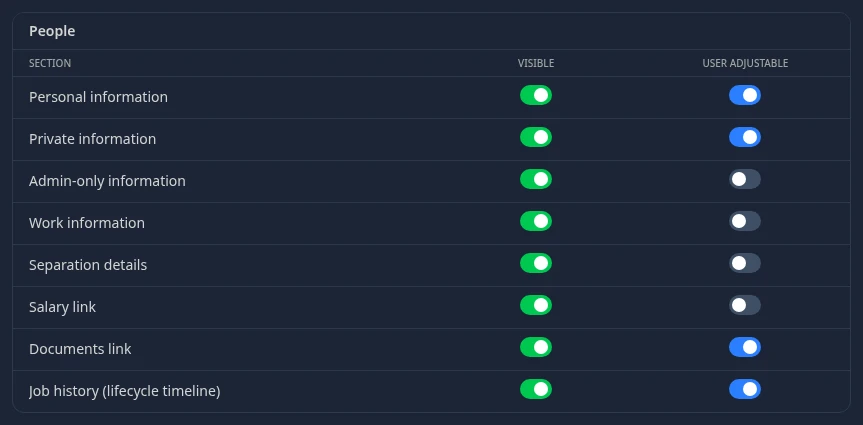
| Page | Row | What it hides |
|---|---|---|
| Dashboard | Time off (balance, request form, your requests) | The time-off balances, the request form and My Time Off Requests on My Dashboard |
| Dashboard | My team | My Team on My Dashboard |
| Dashboard | Upcoming calendar | Company Calendar on My Dashboard and the Team Dashboard |
| Dashboard | Recognition feed | Recognition on every dashboard |
| People | Personal information | The Personal Information section of profiles |
| People | Private information | The Private Information section |
| People | Admin-only information | The Admin Only section, which only people who can edit profiles get |
| People | Work information | The Work Information section |
| People | Separation details | The Separated, Separation Date and Separation Reason lines on the profile of someone who has left |
| People | Salary link | The Salary History link on profiles |
| People | Documents link | The Documents link on profiles |
| People | Job history (lifecycle timeline) | The Employee History timeline on profiles |
| Calendar | Team events | Team events, and the Team Event filter, on the Calendar page |
| Feedback | Team tab | The 👥 Team tab, which managers and HR get |
| Notes | Templates tab | The Templates tab |
User Adjustable is off by default for Admin-only information, Work information, Separation details and Salary link, so people can’t hide those. Every other row starts visible and adjustable.
- A row only changes something for people who’d see the section anyway. Hiding Salary link makes no difference to someone who can’t see salaries.
- Profile sections are only hidden while someone reads a profile. When they select Edit Profile, every field they may change shows.
- A hidden tab stays hidden when someone follows a link to it: the page opens on its first tab instead.
- Hidden team events still show in the dashboard’s Company Calendar and in the Upcoming strip of the Time Off page.
- Rows marked Module off are locked until their module is on. For example, Job history (lifecycle timeline) needs Promotions & Transfers, which is off in a new workspace.
What people see in their display settings
Section titled “What people see in their display settings”In Settings › Display, Theme & Language, each person gets a switch for every menu item and page section you leave Visible and User Adjustable, among the ones they use. If you leave them none, the list reads Your admin has set the menu bar for everyone, so there is nothing to change here., or the same for page sections. What they hide only changes their own view. See Set your language, theme and menu bar.
It doesn’t change access
Section titled “It doesn’t change access”Hiding a menu item or a section never takes away anyone’s access, and showing one never gives access. Data keeps its own rules:
- Who can see and edit which data is set by roles, in Settings › Access › Roles & Permissions.
- Which modules exist for everyone is set by the module switches on the Settings page.
- Which fields profiles have is set in Settings › People › HR Fields.
Can’t see this?
Section titled “Can’t see this?”- There’s no General card in Settings. It needs the permission Manage settings, which HR Admins have. Admins turn on admin mode first.
- There’s no UI Customization tab. The tab only shows with Manage navigation.
- A row’s switches are greyed out. The row is marked Module off: turn its module on first.