Browse the org chart
यह कंटेंट अभी तक आपकी भाषा में उपलब्ध नहीं है।
The org chart shows who reports to whom. It starts with you, so your manager and your team are one step away, and you can move from there to anyone in the company.
Open the org chart
Section titled “Open the org chart”-
Select People in the menu bar.
-
Select the Org Chart tab.
The chart starts with your card, highlighted and marked You. Above it are your manager, their manager and so on, up to the top of the company. If people report to you, they’re below your card, and your card says how many, such as · 3 reports. Each card shows the first letter of the person’s name, then their name and title.
The People page remembers the view you chose, so it opens on Org Chart next time.
Move around the chart
Section titled “Move around the chart”- Select anyone’s card to move the chart to them: their managers appear above, the people who report to them below, and their card is highlighted.
- Select the highlighted card to open that person’s profile.
- Select ← Back to me to bring the chart back to your own card.
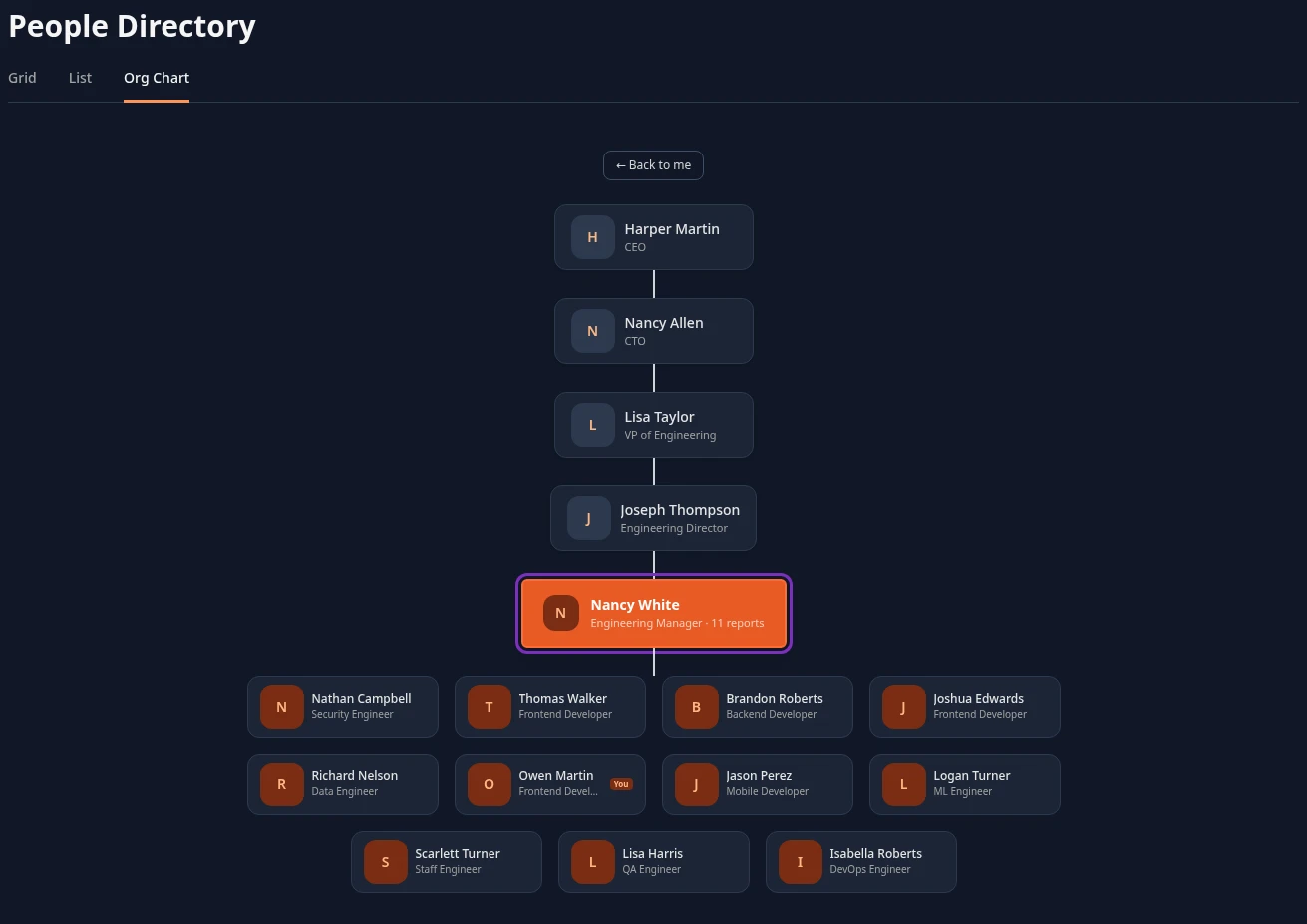
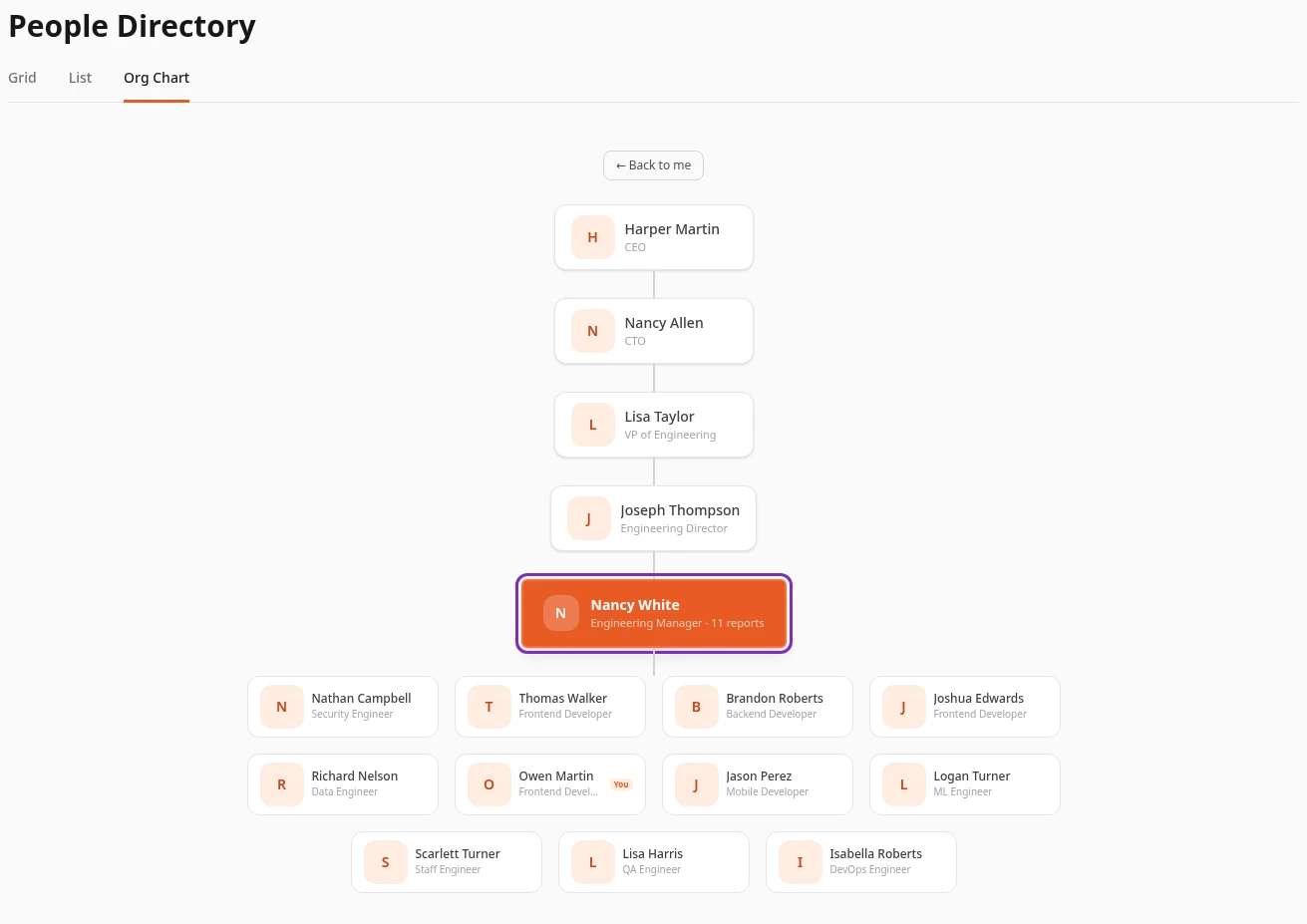
The org chart has no search. To jump to someone, find them in Grid or List, open their profile and use its Organization card.
Find your manager and your team
Section titled “Find your manager and your team”- Your manager is the card just above yours.
- To see your team, meaning everyone who shares your manager, select your manager’s card. The people who report to them are listed below it, with you marked You.
- When you select someone at the very top of the company, the other people who don’t report to anyone are shown next to them.
The My Team card on your dashboard also lists the people who share your manager.
The Organization card on a profile
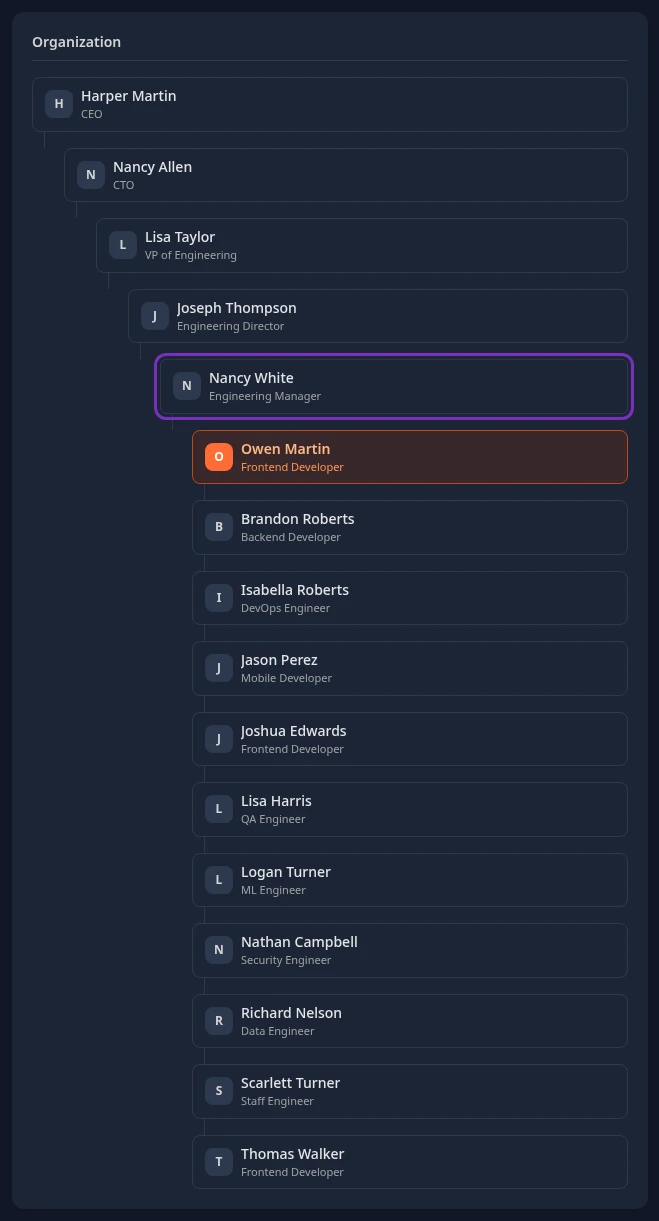
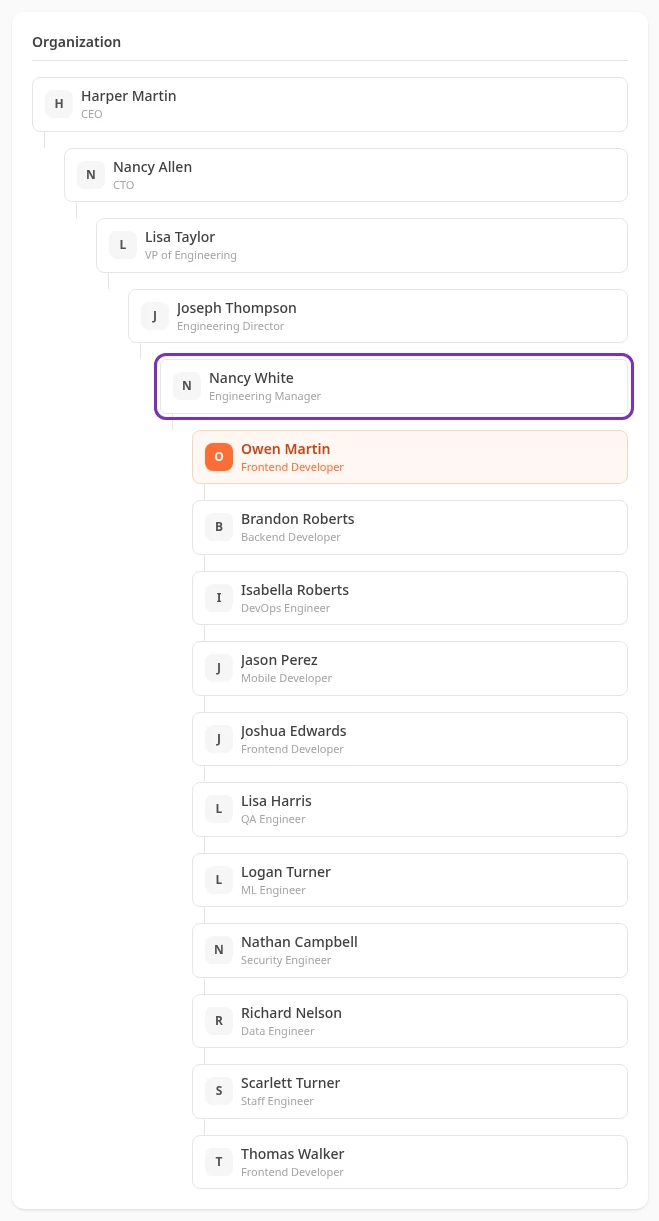
Section titled “The Organization card on a profile”Every profile has an Organization card. It lists the person’s managers from the top of the company down, then the person, highlighted. Below come the people who report to them or, if nobody does, the colleagues who share their manager. Select a name to open that person’s profile.
Who’s on the chart
Section titled “Who’s on the chart”The chart follows the Reports To field on each profile. People who have left the company aren’t on it, and neither are new people waiting for HR to finish setting up their account.
Can’t see this?
Section titled “Can’t see this?”- There’s no People in your menu bar. Your company turned the People module off, or the item is hidden: see Choose what’s in your menu bar.
- Nobody is above your card, or the wrong person is. Your profile has no manager, or the wrong one. Ask your HR team to correct your Reports To.