Set up email delivery
यह कंटेंट अभी तक आपकी भाषा में उपलब्ध नहीं है।
Anima HR emails people invitations and password reset links, and some modules email candidates, contacts and people who book meetings. By default these come from noreply@animahr.io through Anima HR’s own email service, with nothing to set up. In Settings › System › Email Delivery you can send through your company’s SMTP server instead, or turn email off.
Open Email Delivery
Section titled “Open Email Delivery”-
Turn on admin mode: select your name in the top bar, then Elevate to Admin.
-
Select Settings in the menu bar, open System, then the Email Delivery tab.
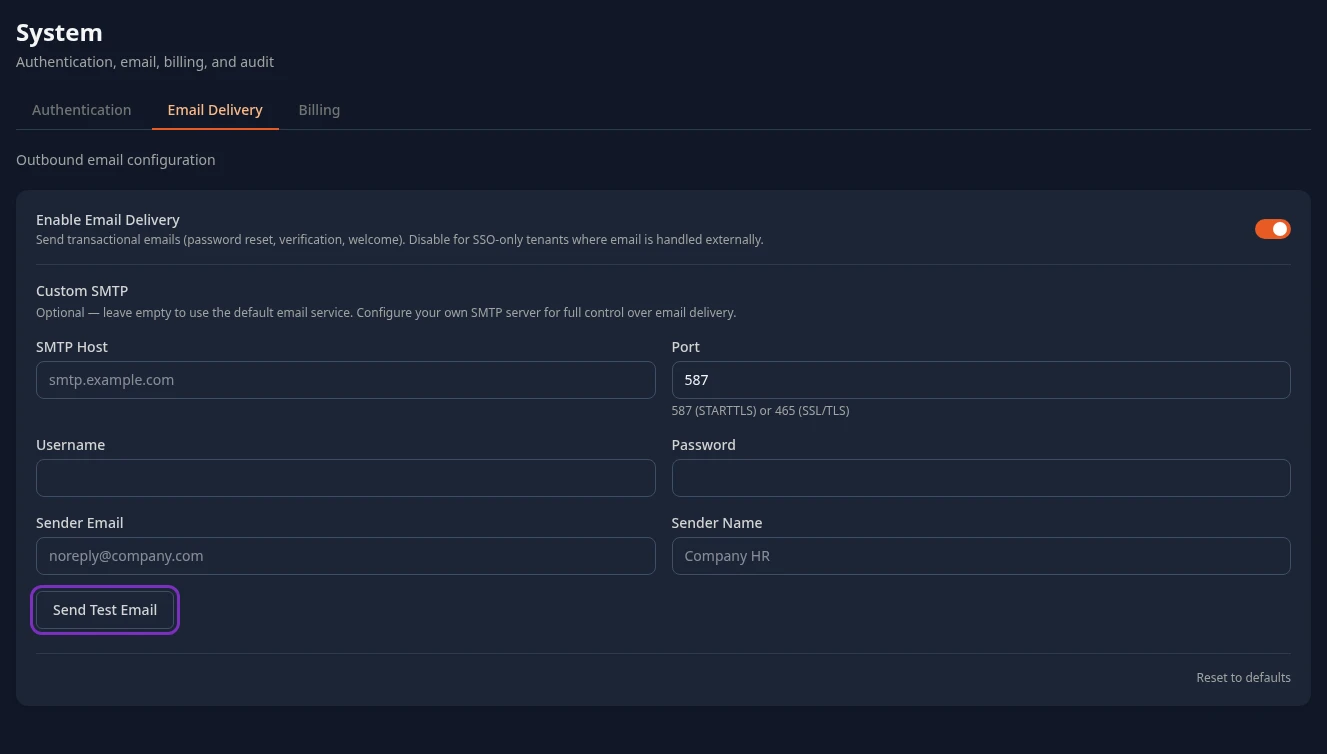
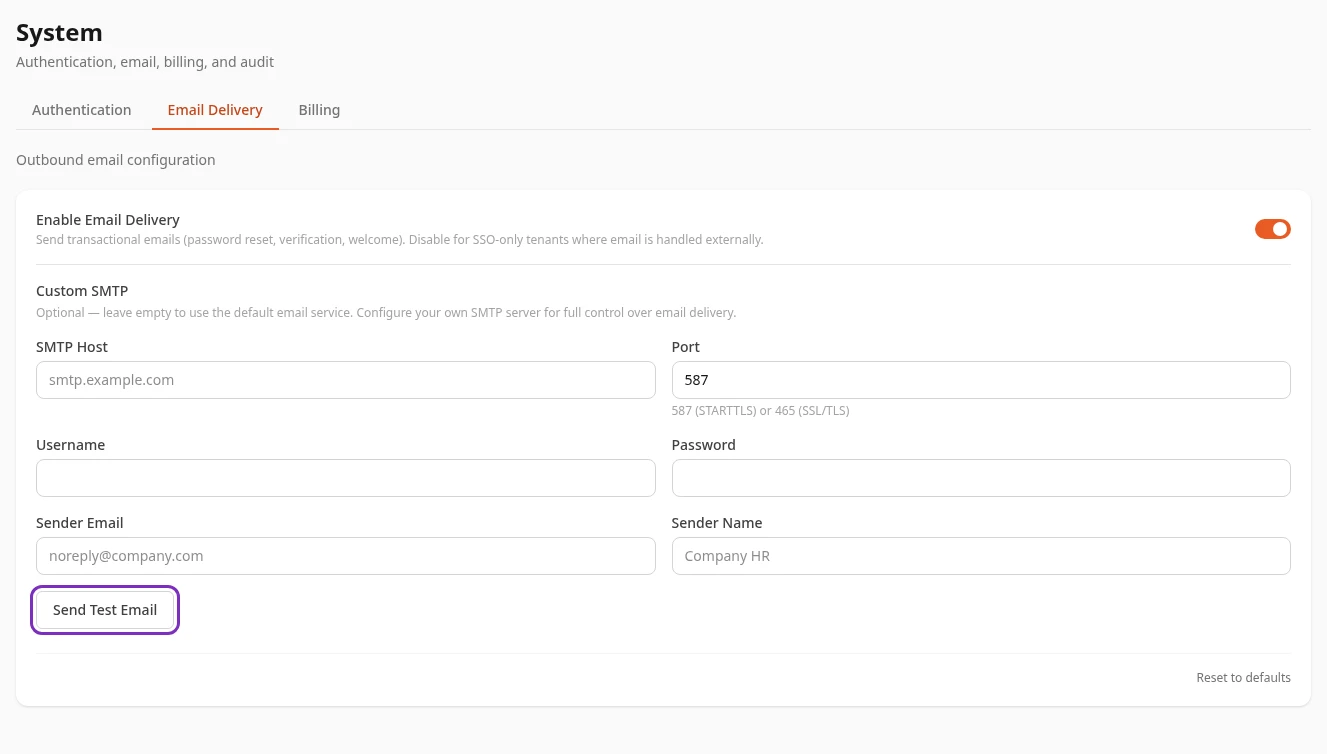
| Setting | What it does | Default |
|---|---|---|
| Enable Email Delivery | Turns all email from your workspace on or off. See When email is off. | On |
| SMTP Host | Your SMTP server’s address. Empty: Anima HR’s own email service sends your email, from noreply@animahr.io, and the fields below aren’t used. |
Empty |
| Port | 465 connects with SSL/TLS from the start. With any other port, such as 587, the server must offer STARTTLS: Anima HR doesn’t send email over an unencrypted connection. | 587 |
| Username and Password | The account Anima HR signs in to your SMTP server with. | Empty |
| Sender Email | The address your email comes from. Use an address your server is allowed to send from. Empty: noreply@animahr.io, which your server is likely to refuse. |
Empty |
| Sender Name | The name shown with the sender address, such as Company HR. Empty: Anima HR. | Empty |
Sender Email and Sender Name only apply with your own SMTP server. Anima HR’s own service always sends from Anima HR <noreply@animahr.io>.
Use your own SMTP server
Section titled “Use your own SMTP server”-
Fill in SMTP Host, Port, Username, Password, Sender Email and Sender Name.
-
Select Save changes in the bar at the bottom of the page.
-
Select Send Test Email, then check that the email arrives.
Once SMTP Host is filled in, every email goes through your server. If your server refuses a message, Anima HR doesn’t fall back to its own service. Apart from CRM, which marks the email as failed, nobody is told: an invitation or a reset link just doesn’t arrive. Send a test email after every change, and use a sender address your domain’s email security (SPF and DKIM) allows, so that messages don’t land in spam.
To go back to Anima HR’s own service, empty SMTP Host and save.
Send a test email
Section titled “Send a test email”Send Test Email sends an email titled Test email from and your workspace’s name, the first part of its address, to your own email address. It uses your saved settings, not what you’ve typed: save your changes first. Saved changes can take up to a minute to apply, so if a test fails right after a change, wait a minute and try again.
- Test email sent to and your address, with a green tick, means the server accepted it. Check your inbox and your spam folder.
- Email delivery failed: and your server’s answer, with a red cross, means it didn’t. Check the settings the answer points to, save, and try again.
Sending a test email needs the Manage email permission, which only Admins in admin mode have by default.
What Anima HR sends
Section titled “What Anima HR sends”| Who gets it | |
|---|---|
| Invitation, titled You’re invited to join your company on AnimaHR | People you add on the People page, unless you turn on Skip invite email |
| Password reset, titled Reset your password | Anyone who selects Forgot Password? on the sign-in page |
| Test email | You, when you select Send Test Email |
| Interview details, and rejections and stage changes as your Hiring settings allow | Candidates |
| Candidate account emails | Candidates who create an account on your careers page or reset its password |
| Booking confirmations, changes and cancellations with a calendar invite, and reminders | People who book a meeting, and the person they book |
| Replies to support requests | The person who filed the request |
| Emails sent from CRM | Your contacts |
Notifications, such as approval requests, feedback requests and recognition, aren’t emailed: they show under the bell in the top bar and in Inbox. The welcome email you got when you signed up, and billing emails, come from Anima HR directly, whatever you set here.
When email is off
Section titled “When email is off”With Enable Email Delivery off, Anima HR sends nothing, and still behaves as if it had:
- Adding someone on the People page says Invite sent to their address, but no email goes out. Turn on Skip invite email when you add them and send them the link yourself. See Add your people.
- Forgot Password? says a link has been sent, and none arrives. Nobody can reset a forgotten password, so only turn email off if everyone signs in with single sign-on.
- Candidates, contacts and people who book meetings get no emails either, and CRM still records its emails as sent.
Save your changes
Section titled “Save your changes”Select Save changes in the bar at the bottom of the page, or Discard to go back.
Reset to defaults, at the bottom of the tab, asks you to confirm, then puts back only what this tab shows: Enable Email Delivery on and an empty Custom SMTP server. Your Authentication settings (single sign-on, MFA Policy, lockouts) stay as they are. Nothing changes until you select Save changes.
Can’t see this?
Section titled “Can’t see this?”- Settings has no System card. Turn on admin mode.
- HR Admins don’t see the System card. Only an Admin in admin mode can change email delivery or send a test email, so the tab is hidden from everyone else.
- The Custom SMTP fields and Send Test Email are missing. Enable Email Delivery is off.
Related
Section titled “Related”- Choose how people sign in
- Go-live checklist
- Sign in: what people do with their invitation and reset emails