Sign in
यह कंटेंट अभी तक आपकी भाषा में उपलब्ध नहीं है।
Your company has its own Anima HR workspace, with its own web address. You sign in there with your email and password, or with your company’s single sign-on. If you use two-step verification, you also enter a code from your phone.
Find your workspace
Section titled “Find your workspace”Your workspace’s address is a name your company chose, followed by .animahr.io: for example, acme.animahr.io. The link in your invitation email takes you there. Bookmark it once you’re in.
If you don’t know the address, find the invitation email Anima HR sent you, or ask your HR team or your admin. The Anima HR website doesn’t search or list workspaces, so that nobody can find out which companies use Anima HR.
Sign in with your email and password
Section titled “Sign in with your email and password”-
Go to your workspace’s address. If you aren’t signed in, the sign-in page opens, with Welcome back at the top.
-
Enter your Email and Password.
-
Select Sign In.
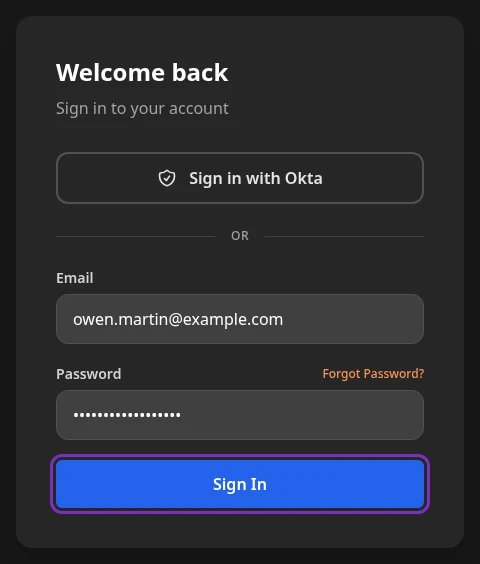
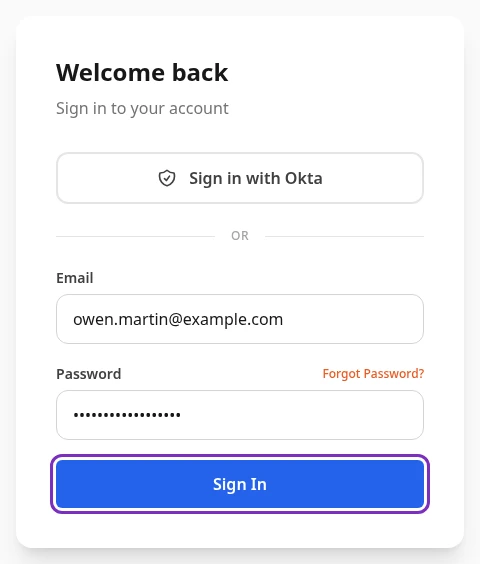
You land on the page you were trying to open, or on your Dashboard. If you use two-step verification, Anima HR asks for your code first: see Sign in with two-step verification.
You stay signed in on that browser until you log out, or until you haven’t used Anima HR on it for 7 days.
Sign in with single sign-on
Section titled “Sign in with single sign-on”If your company uses single sign-on (SSO), the sign-in page has a button above the email field with the name of your company’s identity provider, such as Sign in with Okta. If your admin didn’t name it, it reads Sign in with SSO (SAML) or Sign in with SSO (OIDC).
-
Select the Sign in with button.
-
Sign in at your identity provider, if it asks you to.
-
Anima HR shows Finishing sign-in…, then the page you were trying to open.
- If your company uses single sign-on only, there’s no password form: the sign-in page takes you straight to your identity provider, and shows Redirecting to your identity provider… while it does.
- Admins can still sign in with their password when your company uses single sign-on only, for example while the identity provider is down. Add
/login?passwordto your workspace’s address, such asacme.animahr.io/login?password. The page then shows Password sign-in is turned off for this workspace. Only Admins can sign in with a password here; everyone else signs in with single sign-on. above the password form. Anyone else who signs in there gets Password sign-in is turned off for this workspace. Sign in with your identity provider. - Your identity provider looks after your password and any two-step verification. Anima HR doesn’t ask for a code of its own when you sign in this way.
- The first time you sign in with single sign-on, Anima HR may ask you to complete your profile. Fill in the form and select Submit. You then see Pending HR Review until HR finishes setting up your account.
If single sign-on fails, Sign-in didn’t complete appears with the reason. See Can’t sign in?.
Your first sign-in
Section titled “Your first sign-in”From an invitation
Section titled “From an invitation”When HR or an admin adds you to Anima HR, you get an email titled “You’re invited to join”, followed by your company’s name. Your admin may also send you the link another way.
-
In the email, select Set Your Password.
-
Enter a password in Set Password, and the same password again in Confirm Password.
Use at least 8 characters, with an uppercase letter, a lowercase letter, a number and a special character such as
!or#. The hint under the field shows these rules. -
Select Set Password.
You’re signed in and see your dashboard. If your company requires two-step verification, you see Password set successfully! Redirecting to login… instead. Sign in with your new password, then set up two-step verification.
The link in your invitation works for 7 days, and only once. If it has expired, ask your HR team or admin to resend it: a resent link works for 24 hours, and older links stop working. Or select Forgot Password? on the sign-in page and set your first password from the reset email. See Reset a forgotten password.
If you created the workspace
Section titled “If you created the workspace”If you signed up your company for Anima HR, you chose your password on the signup page once the workspace was ready. Sign in with your email and that password. If you closed the page before choosing one, select Forgot Password? and set it from the reset email; see Reset a forgotten password. Then follow the admin quick start.
Reset a forgotten password
Section titled “Reset a forgotten password”-
On the sign-in page, select Forgot Password?.
-
Enter your Email and select Send Reset Link.
You see If an account exists for that email, a password reset link has been sent. whatever email you typed, so the page never reveals who has an account.
-
Open the email titled “Reset your password” and select Reset Password.
-
On Set a new password, enter your new password in New Password and Confirm Password, then select Reset Password.
You’re signed in with your new password. If you use two-step verification, or your company requires it, you see Your password has been reset successfully. instead: select Sign In and sign in with your new password.
- Use the link within an hour. It works once.
- Only the newest link works. If you ask for links several times within a few minutes, you may not get another email: wait 15 minutes, then try again.
- Your new password follows the same rules as your first one: at least 8 characters, with an uppercase letter, a lowercase letter, a number and a special character.
- Resetting your password signs you out of Anima HR on all your devices. It also ends a lockout.
- If you were invited and never set a password, this sets your first one.
- No reset email is sent to a suspended account. When your company uses single sign-on only, only Admins get one.
If you sign in with single sign-on, your password belongs to your identity provider: change or reset it there.
Set up two-step verification
Section titled “Set up two-step verification”Two-step verification adds a second step after your password: a 6-digit code from an authenticator app on your phone, such as Google Authenticator, Microsoft Authenticator or 1Password. Your admin can require it for everyone, or for Admins and HR Admins only. If it isn’t required, you can turn it on yourself.
If you sign in with single sign-on, you don’t need it in Anima HR: your identity provider handles it.
When your company requires it
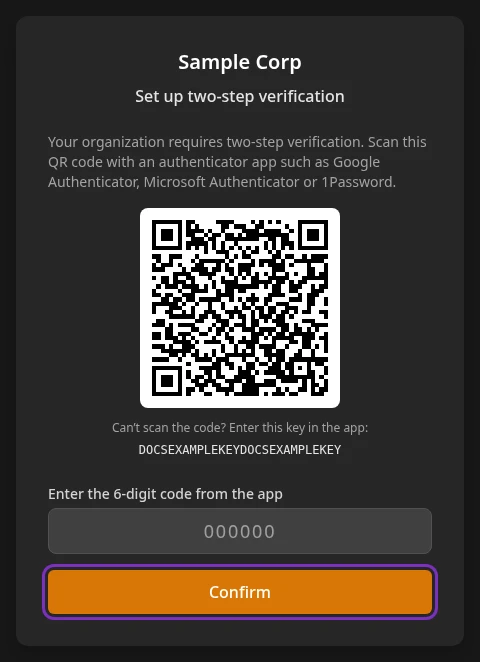
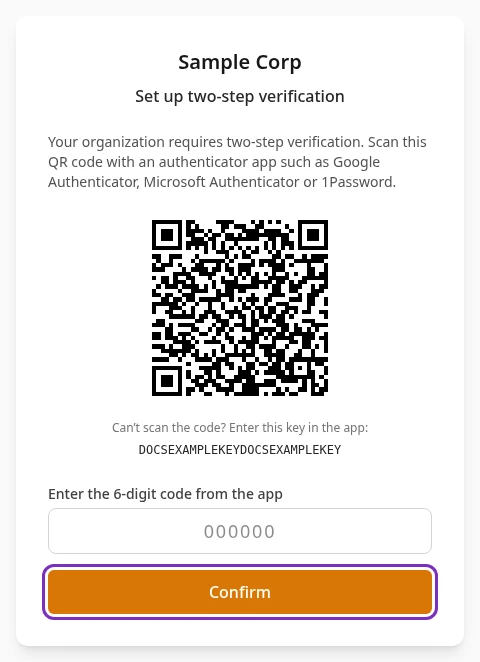
Section titled “When your company requires it”The first time you sign in after it becomes required, Set up two-step verification opens after your password.
-
In your authenticator app, add an account by scanning the QR code. If you can’t scan it, enter the key shown under Can’t scan the code? Enter this key in the app: instead.
-
Enter the code the app shows in Enter the 6-digit code from the app, then select Confirm.
-
Save your recovery codes shows 10 codes. Select Copy codes and keep them somewhere safe, such as a password manager. They aren’t shown again.
-
Select Continue.
Finish within 10 minutes of entering your password. After that, This sign-in step has expired. Sign in again. appears, and you start again from the sign-in page.
If you’re signed in when your company starts requiring two-step verification, Anima HR asks you to sign in again within about 15 minutes, and you set it up then.
Turn it on yourself
Section titled “Turn it on yourself”-
Select your name in the top bar, then Sign-in security.
-
Select Turn on two-step verification.
-
Optionally, give the authenticator a Name, such as Work phone, then select Continue.
-
Scan the QR code with your authenticator app, enter the 6-digit code it shows and select Confirm.
-
Copy your recovery codes and keep them somewhere safe, then select I’ve saved them.
From your next sign-in with your password, Anima HR asks for a code.
Sign in with two-step verification
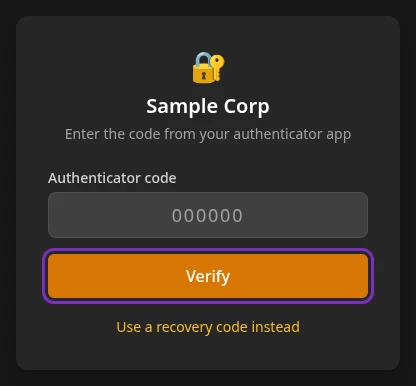
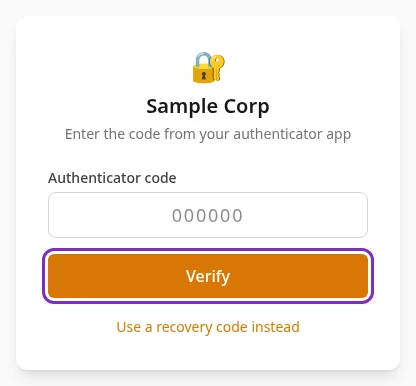
Section titled “Sign in with two-step verification”After your password, Enter the code from your authenticator app appears.
-
Open your authenticator app. The code for your workspace is listed under your company’s name and your email.
-
Enter the code in Authenticator code and select Verify.
- Enter the code within 5 minutes of your password.
- Each code works once. If you’ve just used one, wait for the app to show the next.
- A code from any authenticator you’ve added works.
- After 5 wrong codes, you see Too many attempts. Wait a few minutes, then sign in again.
Use a recovery code
Section titled “Use a recovery code”If you don’t have your phone, select Use a recovery code instead, enter one of your recovery codes in Recovery code and select Verify. Each recovery code works once. Use your authenticator app instead takes you back to the code from your app.
If you’ve lost your phone and your recovery codes, ask an admin to reset your two-step verification. This removes your authenticators and recovery codes and signs you out everywhere. You then sign in with your password and, if your company requires it, set up two-step verification again. Admins can’t reset their own: they ask another admin.
Manage your sign-in security
Section titled “Manage your sign-in security”Select your name in the top bar, then Sign-in security.
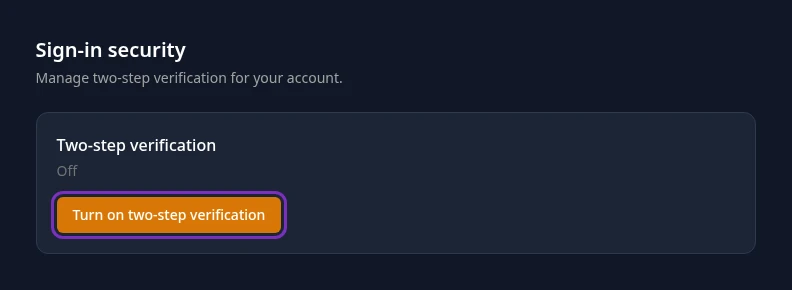
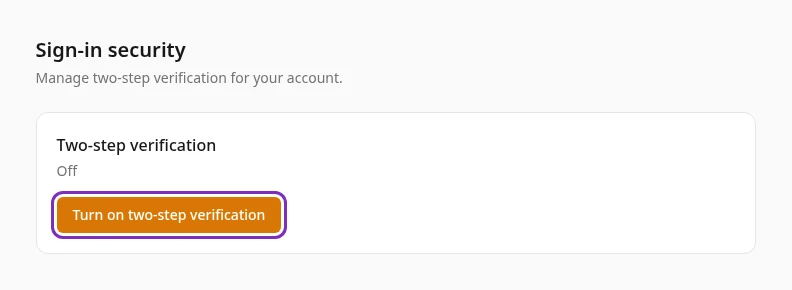
- Two-step verification shows On or Off, and Required by your organization when your company requires it.
- Your authenticators are listed with the date you added each one and the date you last used it. You can have up to 5.
- Add an authenticator works like turning two-step verification on, but first asks for a Code from an authenticator you already use.
- Remove asks for a current code, or for a recovery code after Use a recovery code instead. Then select Remove authenticator. Removing your last authenticator turns two-step verification off and deletes your recovery codes. If your company requires two-step verification, you can’t remove your only authenticator: add another one first.
- Recovery codes shows how many unused codes you have left. Get new recovery codes asks for a current code; Generate then makes 10 new codes, and your old ones stop working.
The page doesn’t list the devices you’re signed in on. To sign out everywhere, reset your password.
Sign out
Section titled “Sign out”Select your name in the top bar, then Log out. The sign-in page opens. This signs you out of this browser only.
If your account is locked
Section titled “If your account is locked”After 5 wrong passwords in a row, sign-in to your account is locked for a while: 1 minute the first time, then 5 minutes, then 15 minutes, and 30 minutes for every lockout after that. When this happens, you see Too many attempts. Please wait and try again.
Wait, then try again with the right password, or reset your password, which also ends the lockout. Your admin can change the number of attempts and how long lockouts last.
Can’t sign in?
Section titled “Can’t sign in?”| Message | What it means and what to do |
|---|---|
| Invalid email or password | The email or password is wrong, or you haven’t set a password yet. If you were just invited, set your password with the link in your invitation email, or with Forgot Password?. Otherwise, check the email address, or select Forgot Password? to set a new password. If your company uses single sign-on, use the Sign in with button instead. The sign-in page also shows this message when it can’t reach Anima HR: if you’re sure of your password, try again in a few minutes. |
| Too many attempts. Please wait and try again. | Sign-in to your account is locked after too many wrong passwords. See If your account is locked. |
| This account has been suspended. Contact your administrator. | Your account is suspended in Anima HR, for example because HR recorded that you’ve left. You can’t sign in or set a password, and if you were signed in, Anima HR signed you out. Ask your HR team or admin. |
| Password sign-in is turned off for this workspace. Sign in with your identity provider. | Your company signs in with single sign-on only. Go to your workspace’s address and sign in through your identity provider. Only Admins can still use a password. |
| Please verify your email before logging in. | Your email address hasn’t been confirmed. Select Forgot Password? and set your password from the reset email: the link confirms your address. |
| That code didn’t work. Check it and try again. | The code is wrong, already used or too old. Enter the code the app shows now. If codes keep failing, set your phone’s date and time to update automatically. |
| Too many attempts. Wait a few minutes, then sign in again. | You entered 5 wrong codes. Wait 5 minutes, then sign in again. |
| This sign-in step has expired. Sign in again. | More than 5 minutes passed since you entered your password, or 10 minutes during setup. Go back to your workspace’s address and sign in again. |
| Two-step verification setup couldn’t start. Sign in again. | The QR code couldn’t be prepared. Sign in again. |
| This reset link has expired or is invalid. Please request a new one. | The link is more than an hour old, has already been used, or a newer link replaced it. Select Forgot Password? again. |
| At least 8 characters, with an uppercase letter, a lowercase letter, a number and a special character such as ! or # (on the Set Password or Set a new password page) | The password doesn’t follow these rules. Change it and try again. |
| Something went wrong. Please try again. (on the Set Password or Set a new password page) | Anima HR couldn’t save your password. Try again in a few minutes. |
| This invite link has expired. Ask your admin to resend. | Ask your HR team or admin to resend the invitation, or select Forgot Password? on the sign-in page and set your first password from the reset email. |
| Invalid invite link. | The link is incomplete, has already been used, or a newer invitation replaced it. If you’ve already set your password, sign in. Otherwise, select Forgot Password? on the sign-in page to set your password. |
| Workspace Deactivated | Your company’s workspace is no longer active. Contact your admin. |
| Setup in Progress | You’re signed in, but your admin hasn’t finished setting up the workspace. Try again later. |
| Pending HR Review | You’ve sent your profile, and HR hasn’t finished setting up your account yet. Ask your HR team. |
When single sign-on fails, Sign-in didn’t complete appears with one of these messages and a Back to sign in button.
| Message | What it means and what to do |
|---|---|
| Your sign-in link expired or was already used. Please sign in again. | The sign-in took too long, or an old sign-in link was used. Select Back to sign in and try again. |
| Your identity provider did not approve the sign-in. | You cancelled at your identity provider, or it refused the sign-in. Try again, or ask your IT team. |
| Your account isn’t allowed to sign in to this workspace. | This workspace doesn’t accept your email address, or your account has been suspended. Ask your admin. |
| Single sign-on isn’t set up for this workspace. | Single sign-on is turned off for your workspace. Sign in with your email and password, or ask your admin. |
| Single sign-on failed. Please try again or contact your administrator. | Something else went wrong. Try again, and contact your admin if it keeps happening. |
| This workspace has been deactivated. | Your company’s workspace is no longer active. Contact your admin. |