Write your team's reviews
यह कंटेंट अभी तक आपकी भाषा में उपलब्ध नहीं है।
When HR launches a review cycle that includes manager reviews, you have one to write for each of your direct reports. The 👥 Team tab of the Feedback page shows how far each person’s reviews have got, and opens the review form. Your own self-assessment and your upward review of your manager work like everyone else’s: see Complete your self-review.
You aren’t notified when a cycle starts or when your team submits their reviews. Your HR team announces each cycle, and the 👥 Team tab shows where things stand.
Follow your team’s progress
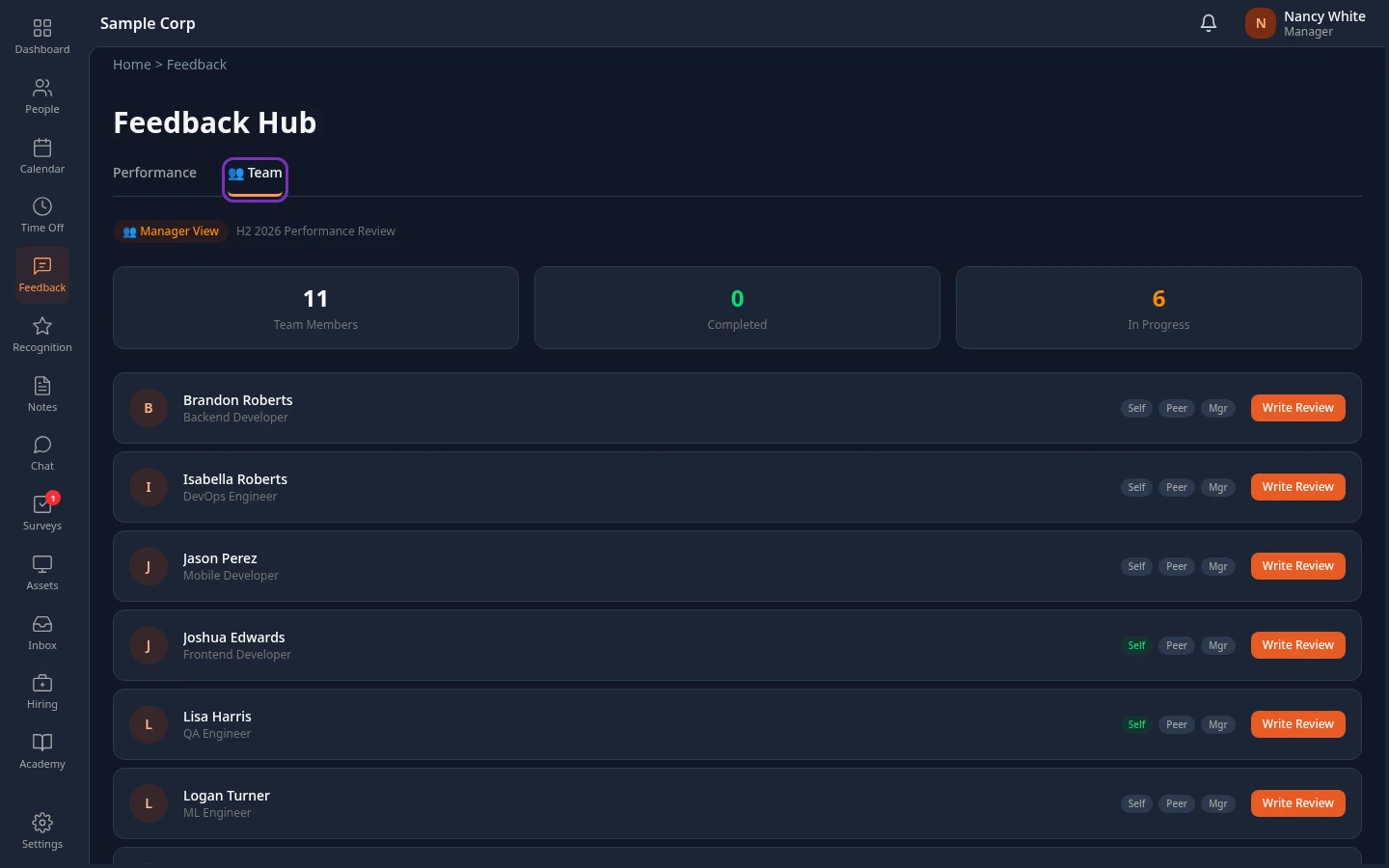
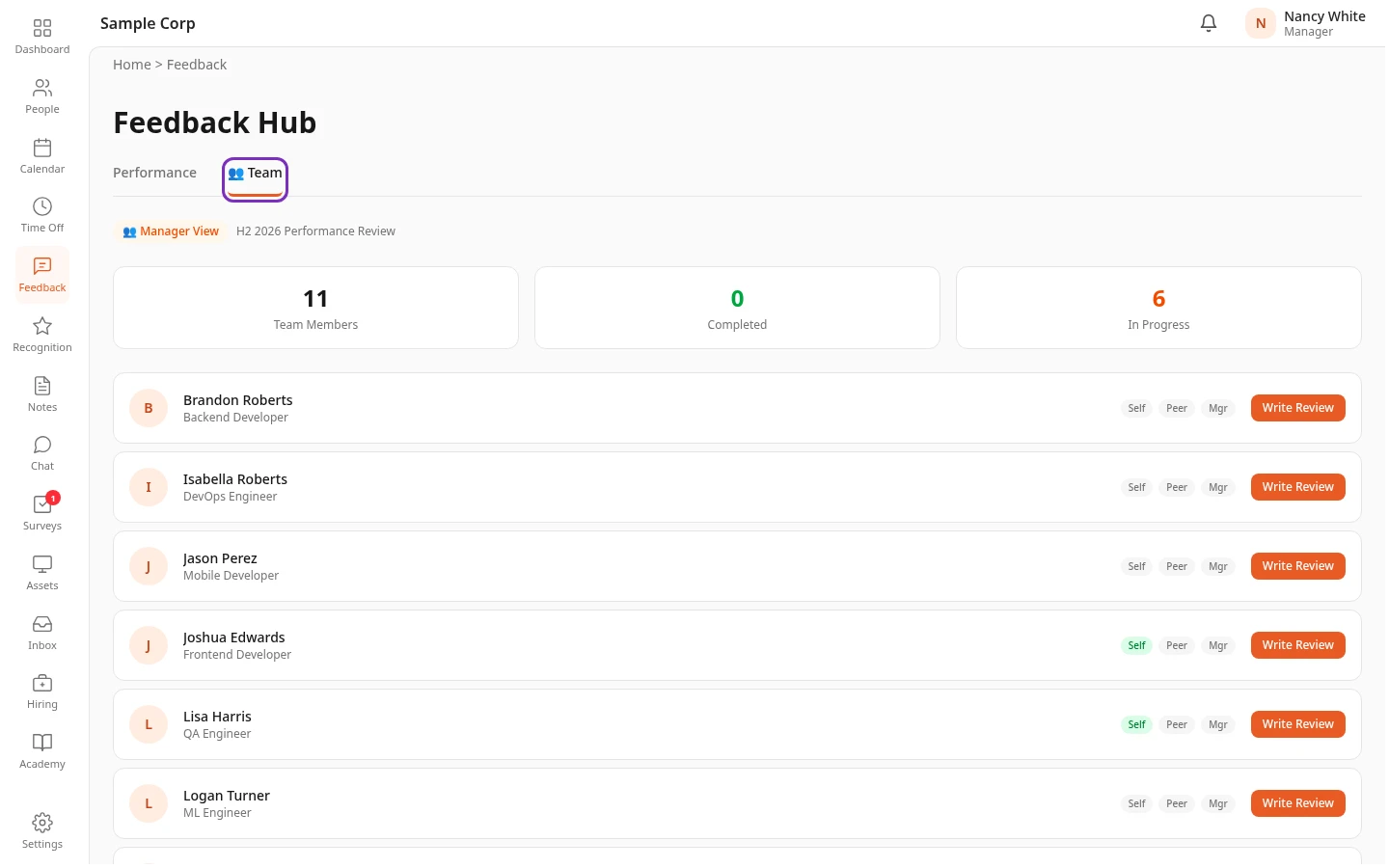
Section titled “Follow your team’s progress”Select Feedback in the menu bar, then the 👥 Team tab. Under Manager View and the name of the cycle, three counts sum up your team. Below them is a row for each of your direct reports.
| Count | What it counts |
|---|---|
| Team Members | Your direct reports taking part in the cycle. |
| Completed | The people whose reviews are all in: their self-assessment, their peer reviews, your review of them and their upward review of you. |
| In Progress | The people with at least one of those reviews submitted. |
Each row has a label for each review about the person:
| Label | Turns green when |
|---|---|
| Self | They’ve submitted their self-assessment. |
| Peer | All their peer reviewers have submitted. It’s orange while only some of them have. |
| Mgr | You’ve submitted your review of them. |
A grey label hasn’t started yet, or has nothing to wait for, such as Peer when nobody was asked to review the person. Select a name to open the person’s profile.
The tab lists your direct reports only. People further down your org are reviewed by their own managers.
Write a manager review
Section titled “Write a manager review”-
On the 👥 Team tab, select Write Review next to the person.
-
The Manager Review form opens, with Reviewing:, the person’s name and the cycle. For each question, select a rating from 1 to 5.
Point at a number to see what it means: Needs Improvement, Below Expectations, Meets Expectations, Exceeds Expectations or Outstanding. The label of the rating you select shows next to the scale.
-
Write a comment in the box under each question.
The box says Optional comment, or Comment required when a comment is expected. The app doesn’t check either, so go through every question before you submit.
-
Select Submit Review when you’re done, or Save Draft to keep your answers and finish later.
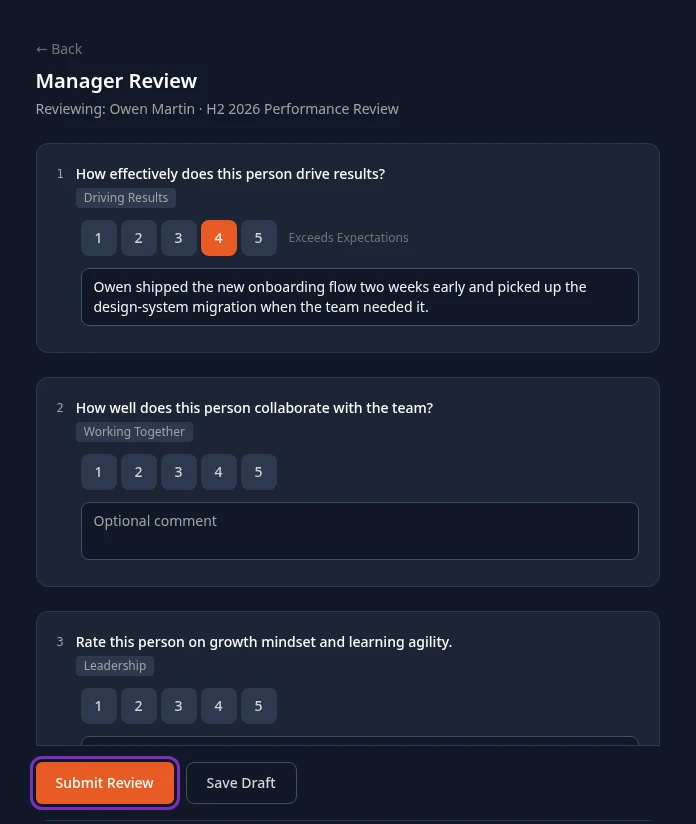
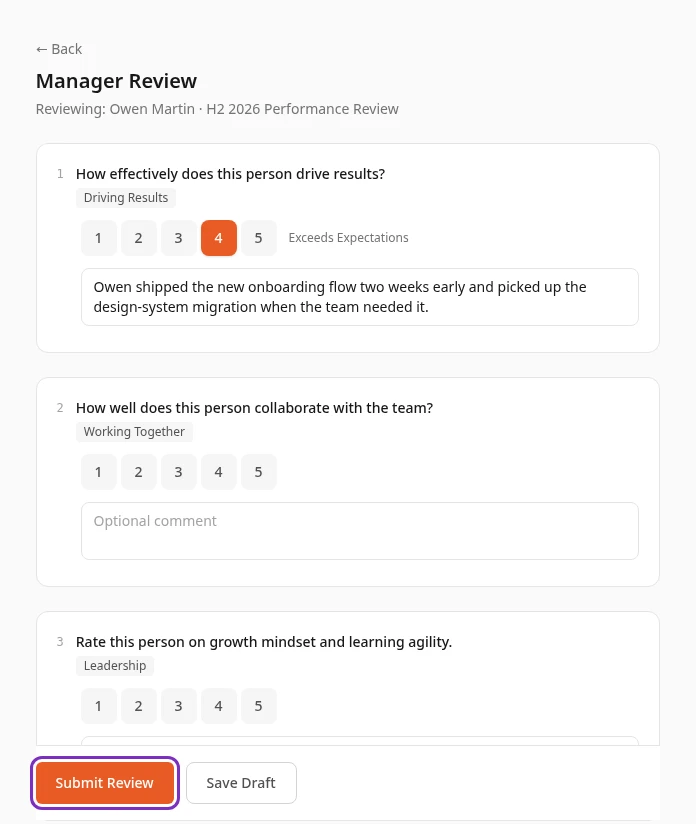
Review submitted or Draft saved appears and you’re back where you started. A submitted review turns the person’s Mgr label green, and its card on the Performance tab shows ✓ Submitted. A draft stays Pending: it doesn’t count toward the person’s scores, and they don’t see it. The person isn’t notified either way.
A question can show the competency it’s about, such as Driving Results or Working Together. Your ratings feed the person’s Competency Radar, and questions about one of your company’s values feed their Value Scores. See Read your team’s review results.
While the cycle is running, the app doesn’t show you what the person or their peers have written. Their answers are part of the person’s results once HR closes the cycle.
To change a review, open it again, with Write Review on the 👥 Team tab or with Write Review → or Edit → on its card. Your saved answers are filled back in. Saving replaces them with what’s on the screen. If your saved answers can’t be loaded, a message says so and Submit Review and Save Draft stay off until you select Try again.
Start from the Performance tab
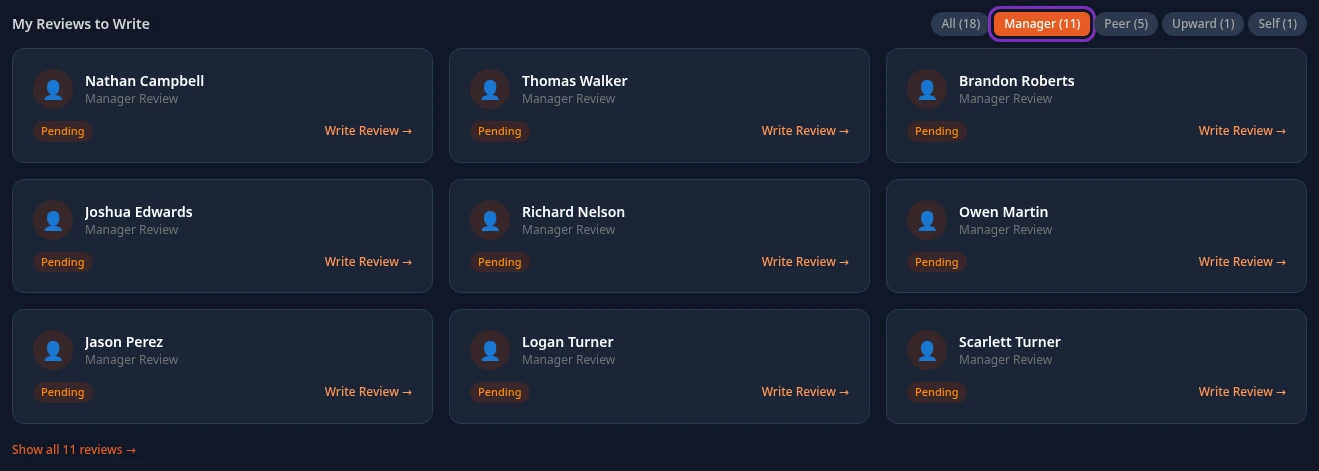
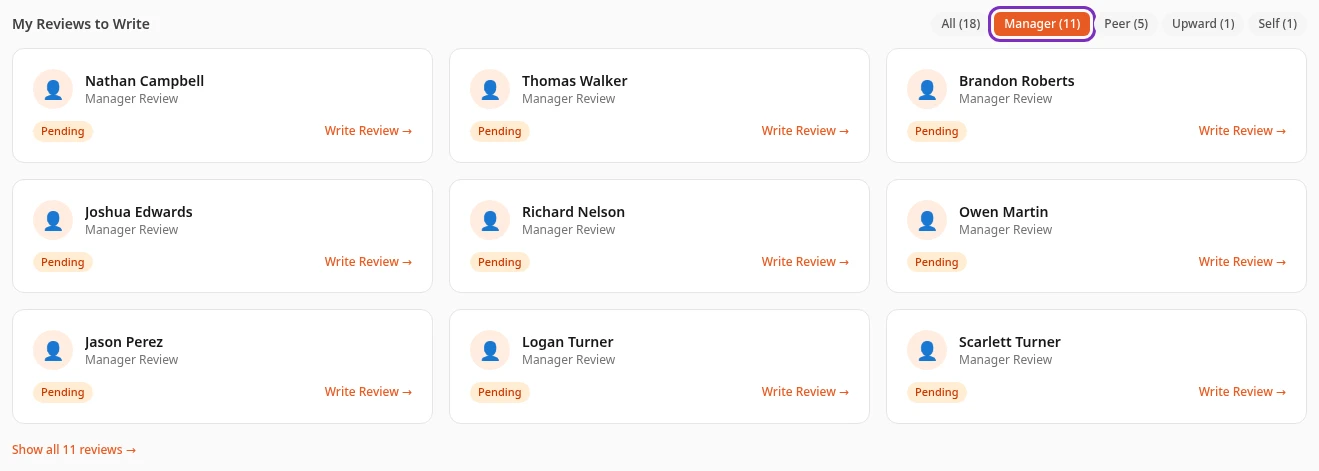
Section titled “Start from the Performance tab”Your manager reviews are also on the Performance tab, under My Reviews to Write: a Manager Review card for each person, next to your self-assessment and your upward review. Select Manager above the cards to show only your manager reviews, then select a card to open the form. If there are more than nine, the rest are under the Show all link, such as Show all 11 reviews →.
Deadlines
Section titled “Deadlines”HR can set a deadline for each kind of review when they create the cycle, including one for manager reviews. The app doesn’t show these dates or send reminders, and it doesn’t stop you from submitting late, so check HR’s announcement. Nothing happens automatically on those dates: the cycle moves to its next step only when HR moves it. A review that’s still a draft when HR closes the cycle doesn’t count.
Peer reviewers
Section titled “Peer reviewers”A cycle can ask colleagues to review each of your reports. You can’t choose or approve those peer reviewers in the app: there’s no screen for it, even when the cycle’s review template is set to Manager assigns or Self-nominate (manager approves). If nobody is assigned, the person’s Peer label stays grey and their results have no peer feedback. Ask your HR team how peer reviewers are chosen.
Who sees your review
Section titled “Who sees your review”- The person sees your ratings and comments, with your name, under Manager Review in their results, once HR closes the cycle. In a cycle that doesn’t produce a rating, such as a quarterly check-in, results don’t show in the app at all.
- Your manager, the managers above you, HR Admins and Admins in admin mode have access to the reviews about the people in their part of the company, what you wrote included.
- Nobody else can see it. The person’s peers only see what they wrote themselves.
Can’t see this?
Section titled “Can’t see this?”- There’s no Feedback in your menu bar. The Feedback module is turned off for your company, or your roles don’t include it. Ask your admin.
- There’s no 👥 Team tab. Your company doesn’t use performance reviews, nobody reports to you, or the tab is hidden. You can show it again under Page sections in your display settings, unless your admin has hidden it for everyone.
- The 👥 Team tab says No active review cycle. No cycle is running, or HR has moved the cycle on to its next step. The tab only follows a cycle during its first step, but you can still write your reviews from the Performance tab, under My Reviews to Write.
- Submit Review says You are not assigned to review this subject for this group. The person joined the company, or started reporting to you, after HR launched the cycle. Manager reviews go to whoever was the person’s manager on that day. Ask your HR team.
- You have a Manager Review card for someone who no longer reports to you. You were their manager when the cycle started, so the review is still yours. Ask your HR team if someone else should write it.
Related
Section titled “Related”- Read your team’s review results
- Complete your self-review (what your team sees)
- Prepare for your 1:1s
- Manager quick start