Set up company holidays and the calendar
यह कंटेंट अभी तक आपकी भाषा में उपलब्ध नहीं है।
Company holidays live in one place: the Holiday events on the company Calendar. Everyone sees them on the Calendar, in the Upcoming strip on the Time Off page and on the Dashboard, and time off, payroll and booking pages skip them. You can add a holiday in Settings or on the Calendar page: both show and change the same list.
Manage holidays in Settings
Section titled “Manage holidays in Settings”-
Select Settings in the menu bar. If you’re an Admin, turn on admin mode first: select your name at the top right, then Elevate to Admin.
-
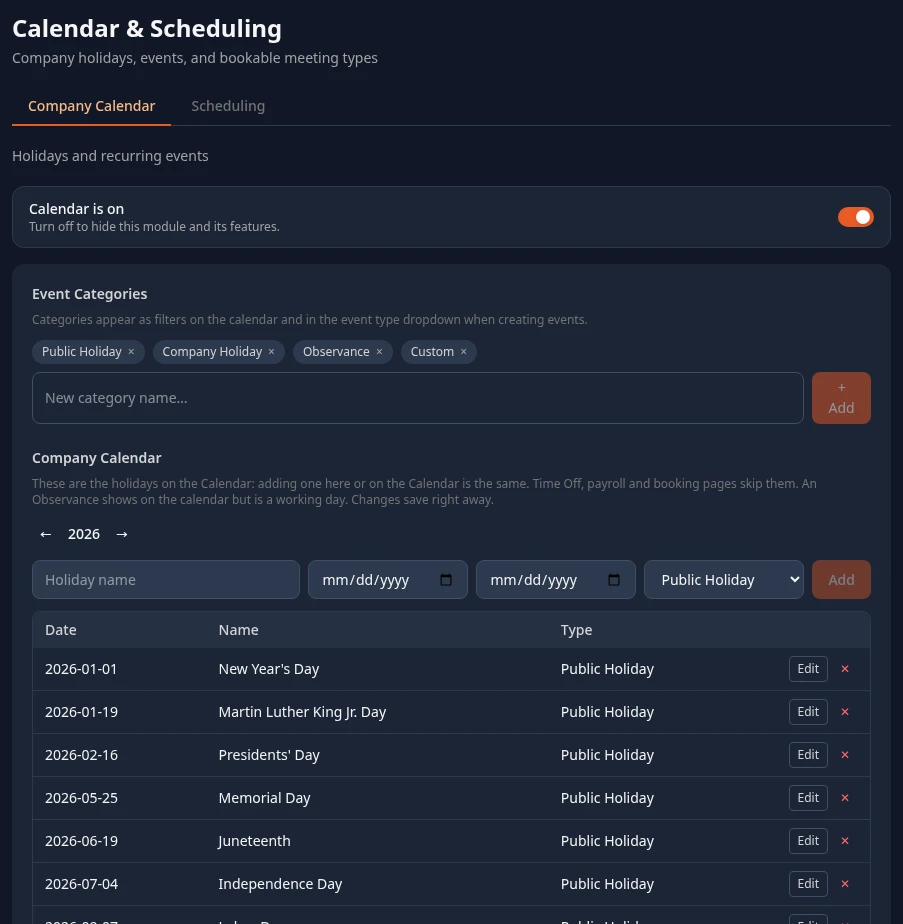
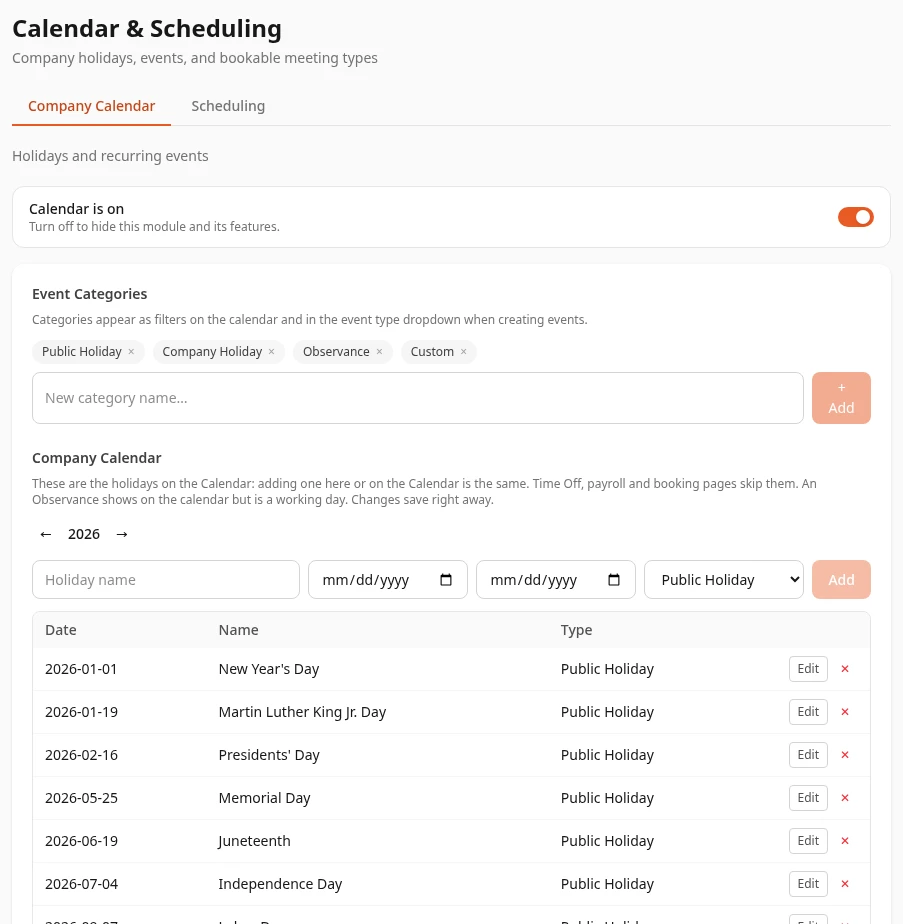
Open Calendar & Scheduling. It opens on the Company Calendar tab, which shows one year’s holidays. Use Previous year and Next year to change the year.
-
To add a holiday, type its name in Holiday name, choose the Date and, for a holiday of several days, the End date, choose a Type, then select Add.
-
To change a holiday, select Edit on its row, change it, then select Save. To delete one, select Remove holiday on its row and confirm.
Changes save right away: there’s no Save changes step. A holiday you add here appears on the Calendar for everyone, and one added on the Calendar page appears here.
How the list works:
- Holidays don’t repeat by themselves: add next year’s dates each year.
- A holiday can last several days. Each day in it is a day off.
- Calendar is on, at the top of the tab, turns the Calendar module on or off. See Turn modules on and off.
What the holidays change
Section titled “What the holidays change”- Time-off requests. With the Count Method set to Business days, holidays inside a request aren’t counted: a Monday-to-Friday request over a holiday uses 4 days. A request that only covers weekends and holidays is refused. See Leave policies.
- Payroll. Holidays aren’t counted as working days in a pay period.
- Booking pages. No one can be booked on a holiday. See Set your availability and booking pages.
The type matters in one case: an Observance shows on the calendar (marked working day in the list) but isn’t a day off, so time off, payroll and booking pages treat it as a normal day. Public Holiday, Company Holiday and Custom all work the same way.
Adding or removing a holiday also changes the balance of time off already requested over that date.
Holidays from the old list
Section titled “Holidays from the old list”Before holidays moved to the Calendar, this tab kept its own list of dates. If your workspace still has entries there that aren’t on the Calendar, the tab says how many and marks them Not on the calendar yet. They still count as days off for time off and payroll. Select Move to calendar to turn them into Holiday events; the old list is then empty. Moving needs Manage holidays in Calendar with All reach and Manage calendar in System (HR Admins, Admins in admin mode). Selecting it again does nothing more.
Don’t change Event Categories
Section titled “Don’t change Event Categories”Event Categories, above the list, are the types you can give a holiday. The tab says they also become the filters and event types on the Calendar page, and they do, with a side effect.
Add holidays and events to the Calendar
Section titled “Add holidays and events to the Calendar”Company events and team events are added on the Calendar page, and holidays can be added there too: select Calendar in the menu bar, then + New Event. A holiday added there gets the type Public Holiday; to make it an Observance, change it in Settings. The steps are in Use the company calendar.
Who sees + New Event, and which types they can add:
| Permission (in Calendar) | What it allows | Who has it by default |
|---|---|---|
| Manage holidays | Add, change and delete Holiday events. | HR Admins, Admins in admin mode |
| Manage events | Add, change and delete Company Event and Team Event events. With Team or Self reach, only team events for the person’s own team. | HR Admins, Admins in admin mode |
Employees and managers can’t add events by default. To let someone else, such as an office manager, add events, give them a role with one of these permissions: see Create or change a custom role.
Who can change the holiday list
Section titled “Who can change the holiday list”HR Admins, and Admins in admin mode. The Calendar & Scheduling card needs Manage settings in System. Adding, changing and removing holidays needs Manage holidays in Calendar; without it the list is read-only. Saving the rest of the tab, such as Event Categories, needs Manage calendar in System. HR Admins have all three.
Can’t see this?
Section titled “Can’t see this?”- There’s no Calendar & Scheduling card in Settings. If you’re an Admin, turn on admin mode. Other people need a role with Manage settings in System.
- Saving says You don’t have permission to access this resource. Your roles open the card but don’t include Manage calendar in System.
- Save rejected – fix these issues: names a holiday’s
type. A holiday uses a category you added. Give it one of the four built-in types. - Events have disappeared from the Calendar. Someone saved a change to Event Categories. See Don’t change Event Categories.
- A holiday shows on the Calendar, but time off still counts it. Its type is Observance, which is a working day. Change its Type in Settings.
- There’s no Add, Edit or Remove holiday. Your roles don’t include Manage holidays in Calendar.
- There’s no Move to calendar button. Moving the old list needs Manage holidays at All and Manage calendar in System.