Share company documents
यह कंटेंट अभी तक आपकी भाषा में उपलब्ध नहीं है।
Company Documents holds the files that belong to the company rather than to one person, such as the employee handbook or your policies. You upload them in Settings and choose, for each file, whether all employees or only HR can open it. Employees find the files shared with them under Documents in the menu bar: see Find company documents.
Open Company Documents
Section titled “Open Company Documents”-
Select Settings in the menu bar. If you’re an Admin, turn on admin mode first: select your name at the top right, then Elevate to Admin.
-
Open General, then the Company Documents tab.
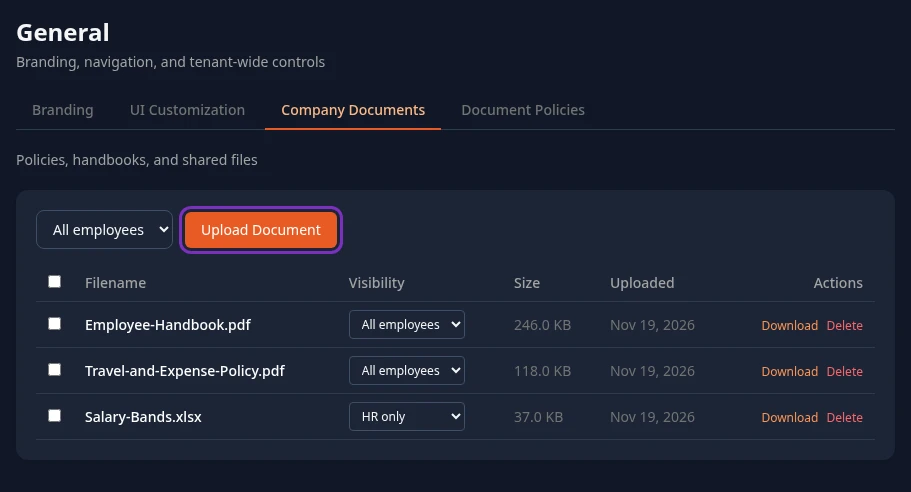
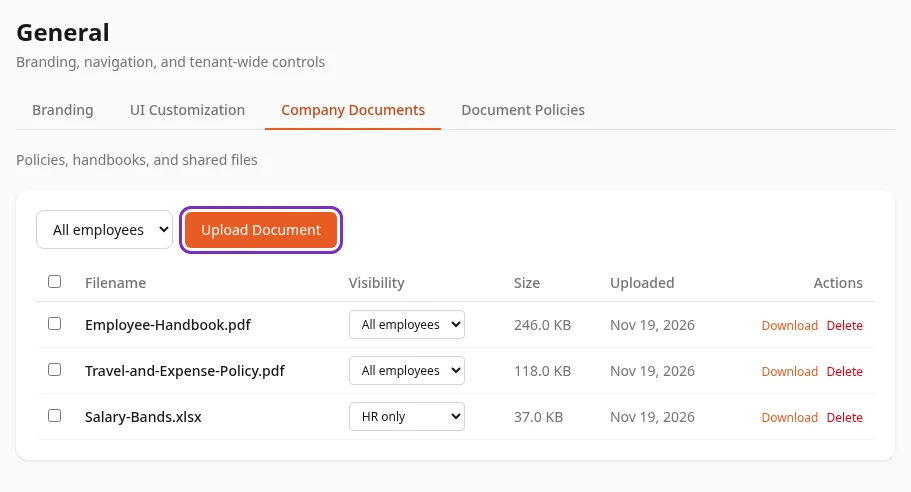
No company documents uploaded yet. means the list is empty. Company Documents doesn’t belong to a module, so no module switch hides it.
Upload a document
Section titled “Upload a document”-
In the list next to Upload Document, choose who can open the file: All employees or HR only. See Who can open company documents.
-
Select Upload Document and choose the file.
Document uploaded appears and the file is added to the list. You upload one file at a time, and nobody is told about the new file.
- A file can be up to 50 MB. A bigger one is refused with File too large (max 50MB).
- Program files can’t be uploaded:
.exe,.msi,.dmg,.app,.jar,.bat,.cmd,.com,.ps1,.sh,.scr,.vbsand.wsfare refused with Executable files are not allowed. Any other type is accepted. - Spaces in the file name are replaced with hyphens, and other symbols with underscores.
Who can open company documents
Section titled “Who can open company documents”| Option | Who can open the file |
|---|---|
| All employees | Everyone whose role has the permission View company under Documents. Every built-in role has it, so by default that’s everyone in your company. The list starts on this option. |
| HR only | HR: people with the HR Admin role, and Admins while they’re in admin mode. |
Where employees find them
Section titled “Where employees find them”Everyone with the permission View company has Documents in the menu bar. It opens Company documents, which lists the files they can open, newest first, with each file’s name, upload date, size and Download. Employees see the All employees files; HR and Admins in admin mode also see the HR only ones there, marked HR only. Nobody can upload, change or delete files on that page.
A role without View company can’t list or download All employees files anywhere in the app, unless it also has Manage company.
Manage the list
Section titled “Manage the list”The list shows each file’s Filename, who can open it under Visibility, its Size and the date it was Uploaded. What you do here applies straight away: this tab has no Save changes bar.
- To change who can open a file, choose another option under Visibility.
- Download saves a copy of the file. The link behind it only works for 30 minutes, so you can’t share it as a permanent link.
- To delete a file, select Delete, then confirm Delete?. Document deleted appears.
- To delete several files, select their checkboxes, or the checkbox at the top to select them all. Then select Delete Selected and confirm.
Someone who opens this tab through a custom role without HR access doesn’t see the HR only files.
Can’t see this?
Section titled “Can’t see this?”- There’s no General card in Settings. It needs the permission Manage settings, which HR Admins have. Admins turn on admin mode first.
- Uploading a file says Access denied. Your role opens Settings, but uploading company documents also needs the permission Manage company, under Documents.
- A file you expected isn’t in the list. It’s shared as HR only and your role doesn’t open HR files, or someone deleted it.
Related
Section titled “Related”- Document rules and retention
- Find company documents, what employees see
- Your documents, the files about each person