Request a shift change
Employee
यह कंटेंट अभी तक आपकी भाषा में उपलब्ध नहीं है।
Ask to work a different shift for a day or a few days from the Shifts tab on the Time & Attendance page.
Send a request
Section titled “Send a request”-
Select Time Off in the menu bar, then the Shifts tab.
-
Next to My Current Shift, select Request Change.
-
In Requested Shift, choose the shift you want to work. Your current shift isn’t in the list.
-
Choose the From Date: the first day you want to change. It can’t be in the past.
-
To change more than one day, choose the To Date: the last day. Leave it empty for a single day.
-
Optionally, enter a Reason.
-
Select Submit Request.
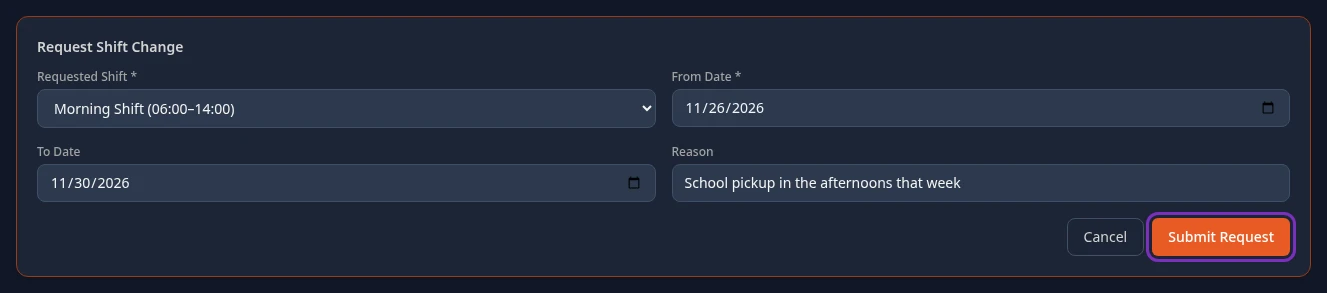
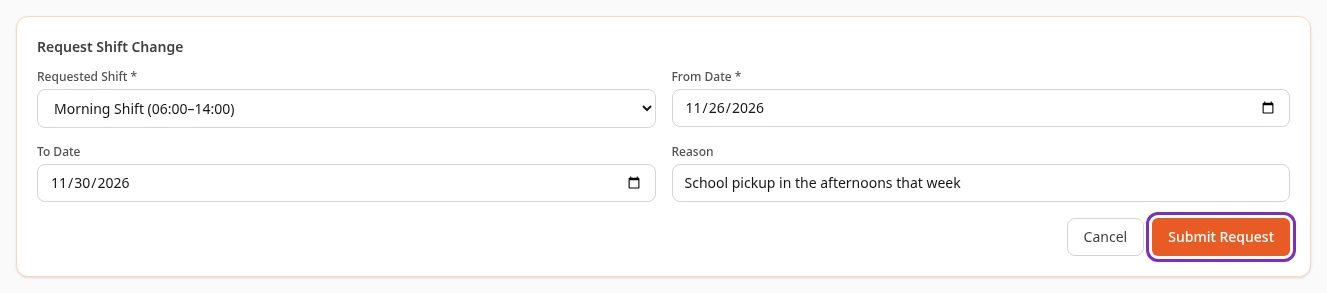
The form closes, and your request appears under My Shift Requests with the status Pending. Cancel closes the form without sending anything.


What happens next
Section titled “What happens next”- My Shift Requests lists your 10 most recent requests, with their status.
- A request stays Pending until it’s approved. Then its status changes to Approved, but your assigned shift doesn’t change by itself.
- You can’t change or cancel a request after you send it.
Can’t see this?
Section titled “Can’t see this?”- There’s no Shifts tab. The Shifts module is turned off for your company. An admin can turn it on.
- Requested Shift has no shifts to choose from. Your company has no other shift set up.
- Submit Request stays greyed out. Choose a Requested Shift and a From Date first.
- The form stays open after you select Submit Request. Your request wasn’t saved. Try again later, and tell your HR team if it keeps happening.