Read your team's review results
यह कंटेंट अभी तक आपकी भाषा में उपलब्ध नहीं है।
When HR closes a review cycle, each person’s results bring everything together: their self-assessment, your review, their peer reviews and, if they manage people, the upward reviews from their own team. You open a direct report’s results from their profile.
Open a report’s results
Section titled “Open a report’s results”-
Open the person’s profile: select their name on the 👥 Team tab of the Feedback page, or under Direct Reports on your Team Dashboard.
The Performance card on the profile shows their Value Scores and Competency Radar from their most recent closed cycle.
-
Below the profile’s cards, select Performance Reviews.


-
The Feedback Hub opens on the Performance tab and says Select a review cycle above to view results. Select a cycle card marked Finalized to see the person’s results for that cycle.
Current, the cycle that’s running, has nothing to show: its answers can’t be read in the app until HR closes the cycle.
-
Select a reviewer’s row to see each question with their rating and comment.
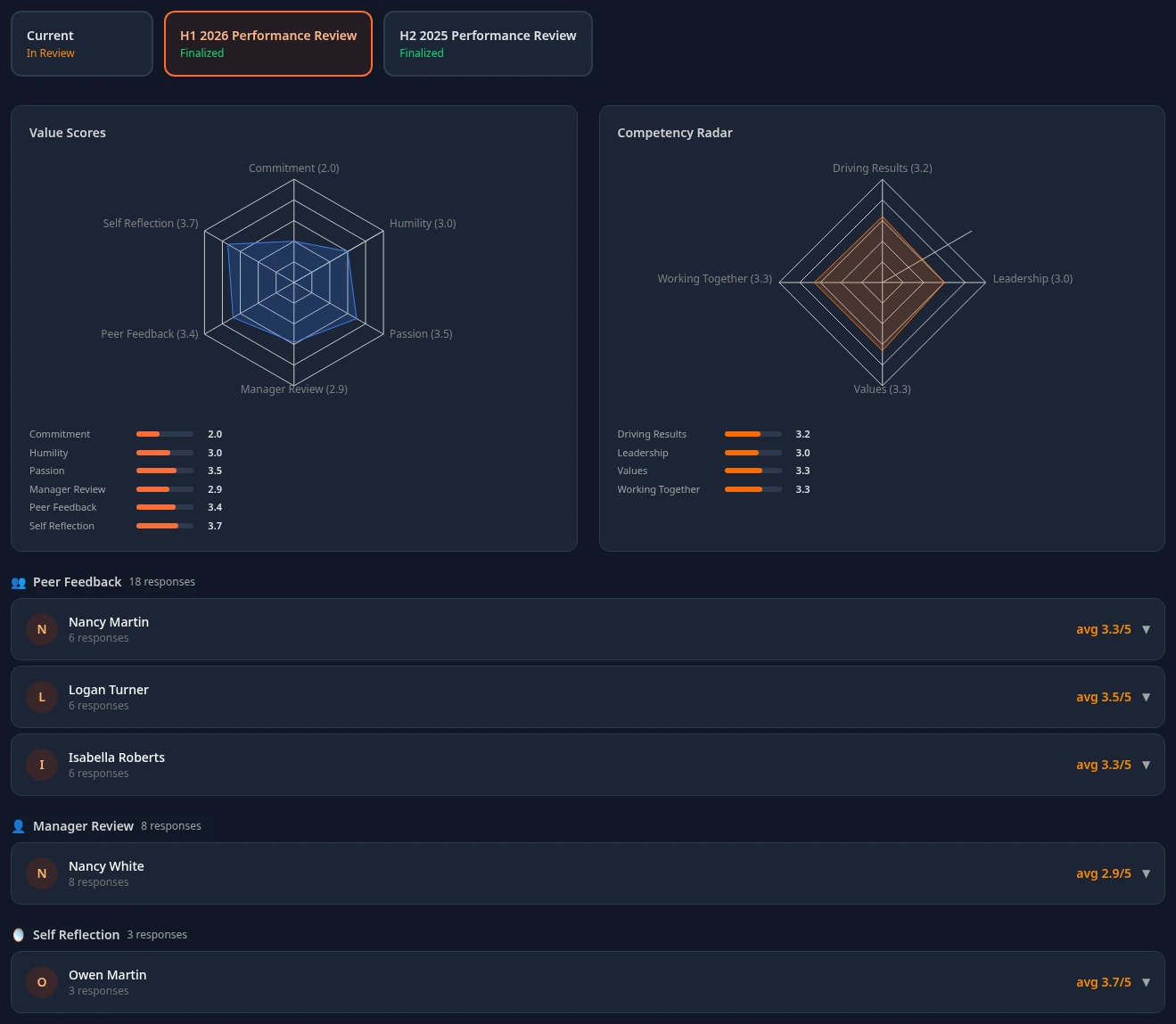
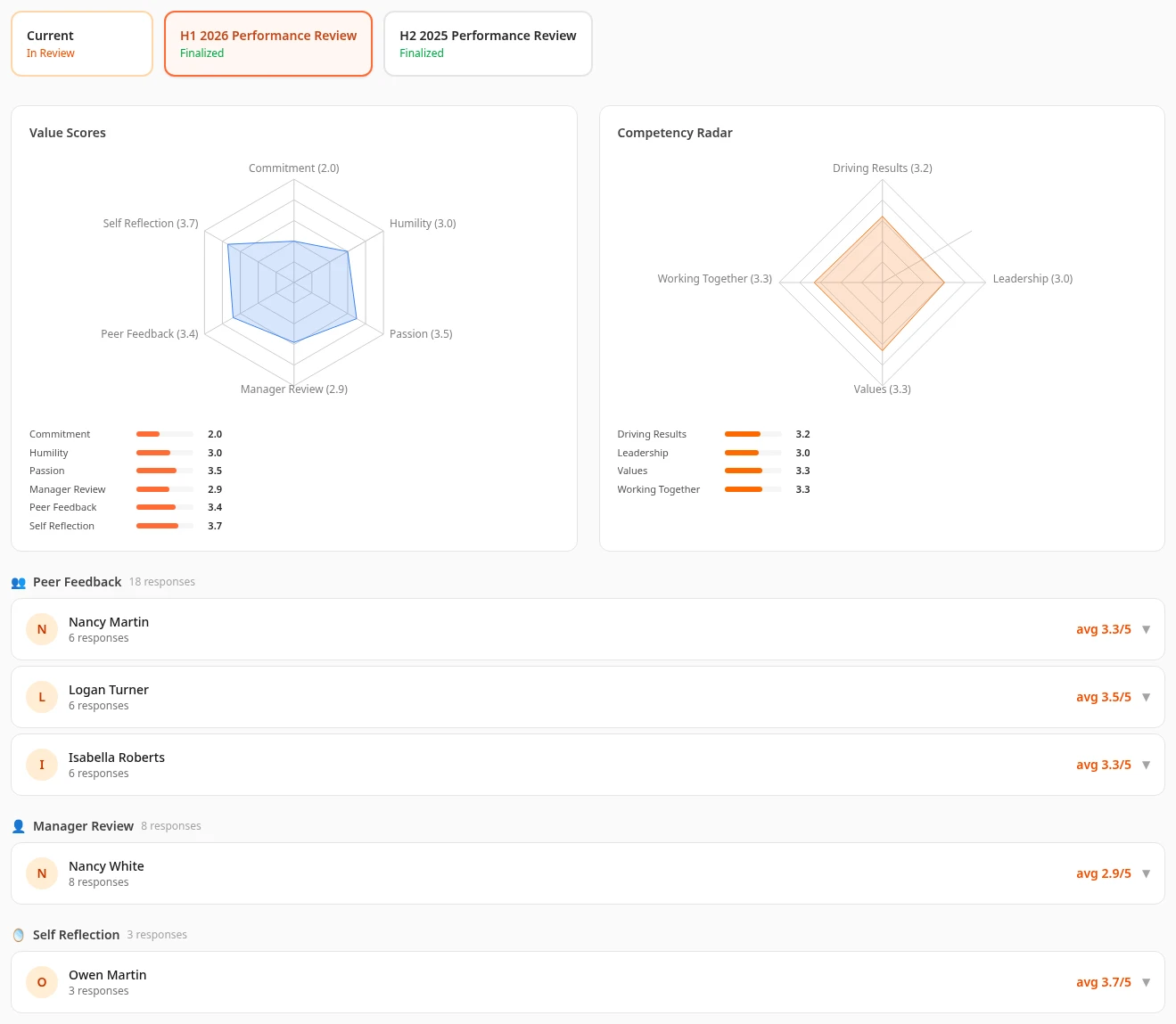
The page doesn’t name the person at the top, so keep track of whose results you opened. To get back to your own reviews, select the Performance tab.
What the results show
Section titled “What the results show”| Section | What it shows |
|---|---|
| Value Scores | The person’s average rating for each company value, and the average from each group of reviewers, such as Peer Feedback and Manager Review. |
| Competency Radar | Their average rating for each competency the questions cover, such as Driving Results or Working Together. |
| Peer Feedback, Upward Feedback, Manager Review, Self Reflection | A row for each reviewer, with their name, how many answers they gave and their average rating. Upward Feedback only shows for people who manage a team themselves. |
The charts count every submitted rating, the person’s own self-assessment included.
What you see that they don’t
Section titled “What you see that they don’t”The person can read their own results too, on their Performance tab. Your view has more in it:
- Peer names. You see who wrote each peer review. When the cycle keeps peers anonymous, which is the default, the person sees Peer 1, Peer 2 and so on.
- Upward reviews. If the person manages a team, you see the upward reviews their team wrote about them, with names. They only see the average, as Upward Feedback under Value Scores.
- Drafts. Answers that a reviewer saved as a draft but never submitted show too, with nothing to mark them. They don’t count in the charts, and the person doesn’t see them.
The person’s own results can also show a GWC Assessment, which you don’t get: see People Analyzer scores.
When results are ready
Section titled “When results are ready”- A cycle gets its card once HR closes it. Until then, including while HR is sharing results, the cycle has no card.
- Cycles that don’t produce a rating, such as a quarterly check-in, never get a card, so the reviews written in them can’t be read in the app.
- The cycle cards are the cycles you took part in. If the person wasn’t in one, for example because they joined after it started, its charts show 0.0 everywhere and there are no reviewer rows.
Who can open someone’s results
Section titled “Who can open someone’s results”- The person, on their own Performance tab.
- You, for your direct reports. The Performance Reviews link and the Performance card only show on your direct reports’ profiles, not on the profiles of people further down your org.
- HR Admins, and Admins in admin mode, for everyone.
Colleagues can’t open them, peer reviewers included.
Your own results
Section titled “Your own results”You’re reviewed in the same cycles, by your own manager, your peers and your team, and your results work like everyone else’s: see See your results. Your team’s upward reviews of you only show as their average, as Upward Feedback under Value Scores. You don’t see their answers or who wrote them.
Scores on your Team Dashboard
Section titled “Scores on your Team Dashboard”Team Performance on the Team Dashboard has a bar for each direct report: the average of every rating they’ve received, in every cycle and from every reviewer, their own self-ratings and ratings still in draft included. So it can differ from the averages in their results. Avg Team PA, at the top of the dashboard, comes from People Analyzer.
People Analyzer scores
Section titled “People Analyzer scores”People Analyzer scores people on your company’s values and on Gets It, Wants It and Capacity (GWC). For managers today:
- Avg Team PA on the Team Dashboard is the average People Analyzer total of your direct reports, or — when none of them has one.
- You don’t see your reports’ own scores. Their results don’t show you the GWC Assessment they see in theirs.
- There’s no People Analyzer page to open, and scores can’t be entered in the app, so Avg Team PA shows — unless your workspace has sample data.
- In your own results, GWC Assessment shows your own scores when you have some.
Can’t see this?
Section titled “Can’t see this?”- There’s no Performance Reviews link on the profile. The person isn’t your direct report, or your company doesn’t use performance reviews.
- The profile has no Performance card, or it’s empty. The card only shows for your direct reports, and only while the People Analyzer module is on. It’s empty when the person has no closed cycle yet, or when you opened the profile from the People directory: open it from the 👥 Team tab or your Team Dashboard instead.
- There’s no Finalized card. HR hasn’t closed a cycle that produces a rating yet.
Related
Section titled “Related”- Write your team’s reviews
- Complete your self-review (what your team sees)
- Manager quick start