Set up recognition and milestone badges
यह कंटेंट अभी तक आपकी भाषा में उपलब्ध नहीं है।
People thank each other with kudos on the Recognition page, and their profile shows the badges they’ve received and milestone badges for their time at the company. The Recognition tab of the Feedback card in Settings sets up the milestone badges. Its other settings are saved but don’t change anything yet.
For what employees do, see Recognize a colleague.
Open the Recognition settings
Section titled “Open the Recognition settings”-
Select Settings in the menu bar. If you’re an Admin, turn on admin mode first: select your name at the top right, then Elevate to Admin.
-
Open Feedback, then the Recognition tab.
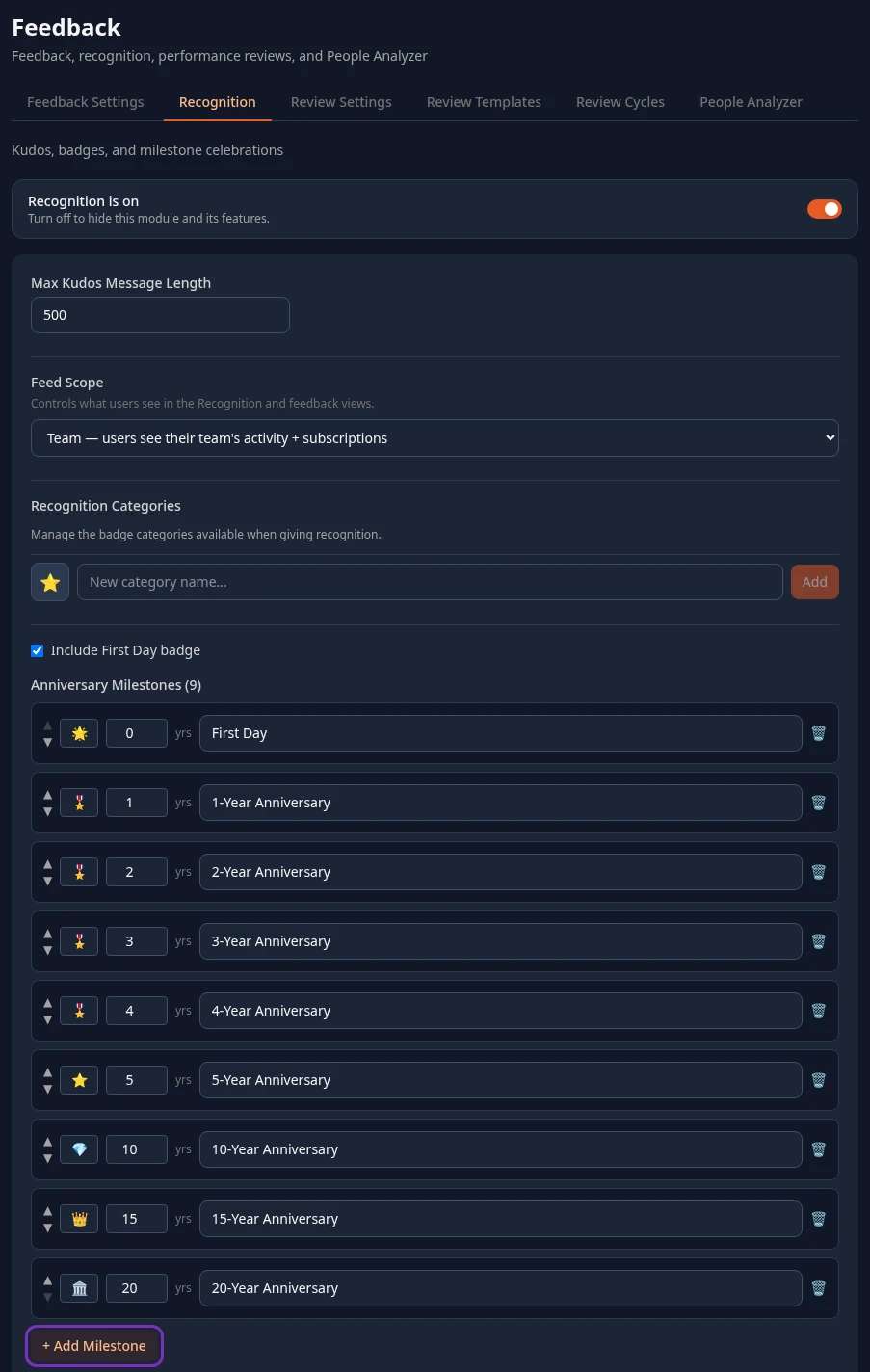
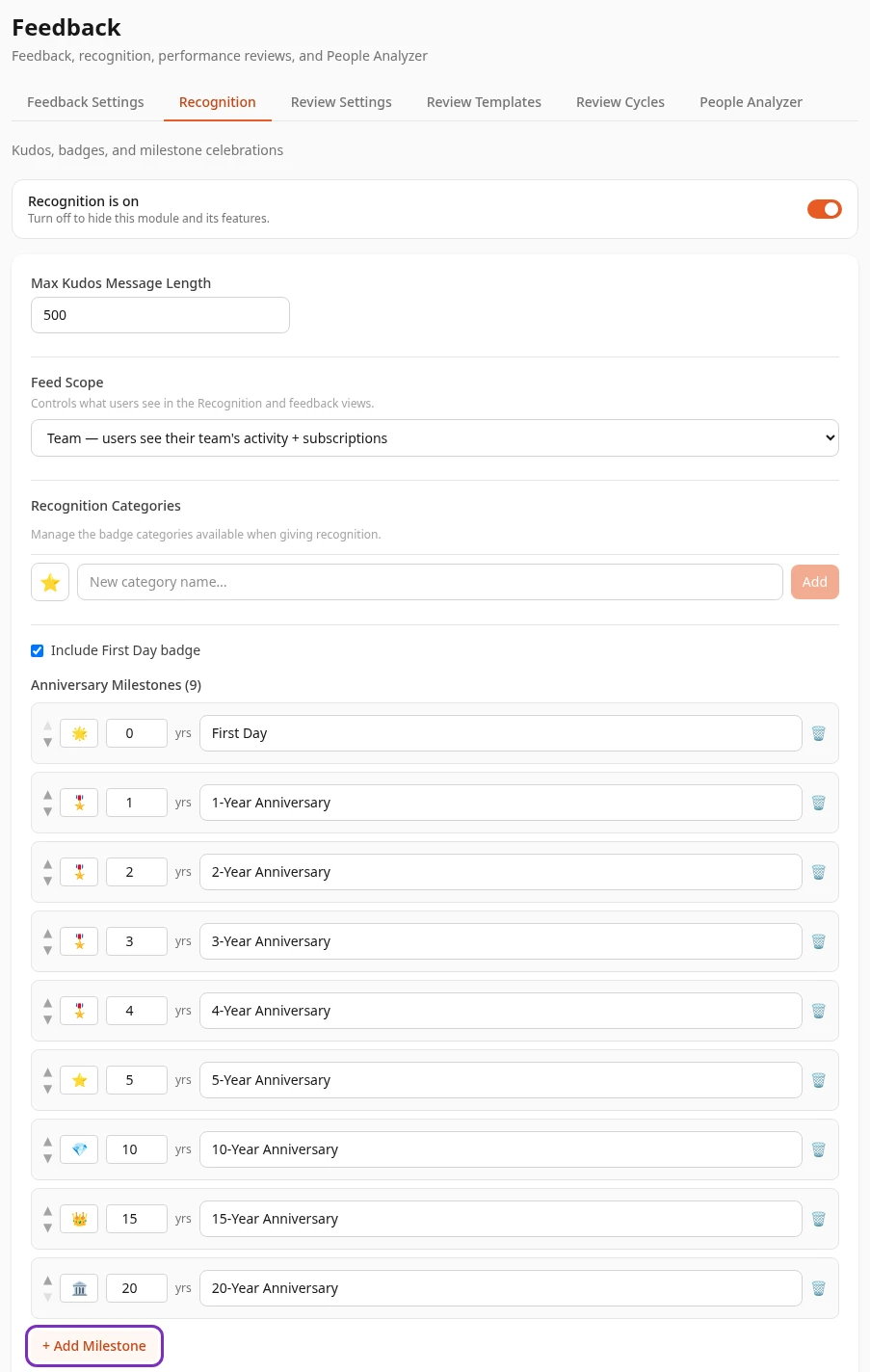
The Recognition is on switch at the top turns Recognition on or off for everyone. With it off, the Recognition page and the Recognition section of profiles are hidden; kudos already given are kept. See Turn modules on and off.
Milestone badges
Section titled “Milestone badges”Milestone badges show under Milestones in the Recognition section of each profile, worked out from the person’s start date. They’re the same for everyone: there’s nothing to award by hand.
-
Under Anniversary Milestones, change a badge’s emoji, its number of years (yrs) or its label.
-
To add one, select + Add Milestone. It starts one year after your longest milestone, such as 21-Year Anniversary; change it as you need.
-
To remove one, select 🗑 on its row. Use ▲ and ▼ to change the order the badges show in.
-
Select Save changes in the bar at the bottom of the page.
| Setting | What it does | Default |
|---|---|---|
| Anniversary Milestones | The badges and how many full years at the company each needs. A person gets every badge they’ve reached, so someone with six years has the First Day badge and the 1, 2, 3, 4 and 5-year ones. A badge with 0 years shows from the person’s start date. | 🌟 First Day (0 years); 🎖 1-Year Anniversary to 4-Year Anniversary; ⭐ 5-Year Anniversary; 💎 10-Year Anniversary; 👑 15-Year Anniversary; 🏛 20-Year Anniversary |
| Include First Day badge | Off hides every 0-year milestone, so people only get badges from their first anniversary. | On |
Each milestone needs an emoji and a label, and two milestones can’t have the same number of years; otherwise saving fails. People without a start date on their profile get no milestone badges.
Milestones only show on profiles. They don’t post anything to the recognition feed, and nobody is notified when someone reaches one.
Settings that don’t do anything yet
Section titled “Settings that don’t do anything yet”| Setting | What it does today | Default |
|---|---|---|
| Max Kudos Message Length | Saved, but has no effect. Kudos messages can always be up to 500 characters. | 500 |
| Feed Scope | Has no effect. The Recognition page always opens on Company, which shows everyone’s kudos, and people can switch to Self or Team themselves. | Team — users see their team’s activity + subscriptions |
| Recognition Categories | Has no effect. The Badge Type list people choose from when they give kudos is always the same seven badges, such as 🤝 Helping Hand and 🏆 People Champion. | None |
Save your changes
Section titled “Save your changes”When you change a milestone, Include First Day badge or Max Kudos Message Length, a bar with Unsaved changes appears at the bottom of the page. Select Save changes to apply them, or Discard. Reset to defaults puts the built-in milestones back into the form; nothing changes until you save. Profiles show the new badges within a few minutes.
Can’t see this?
Section titled “Can’t see this?”- There’s no Feedback card in Settings. You need admin mode, or a role that can save one of its tabs. See Settings and admin mode.
- The tab says Recognition is turned off. Select Enable Recognition to turn it on for everyone.
- Save changes fails with an access error. Saving the milestones needs Recognition › Manage milestones. See Custom roles.