Interview a candidate and submit your scorecard
Este conteúdo não está disponível em sua língua ainda.
When a recruiter schedules an interview with you, it gets its own page in Hiring: the candidate, the job, the questions for your interview role and your scorecard, which saves itself as you type. After the interview you submit the scorecard, and the rest of the panel can read it.
Find your interviews
Section titled “Find your interviews”Select Hiring in the menu bar. Your interviews are under Upcoming interviews, with the date and time, the length and the place. Select an interview to open its page. Join meeting → opens the video call link, when the interview has one.
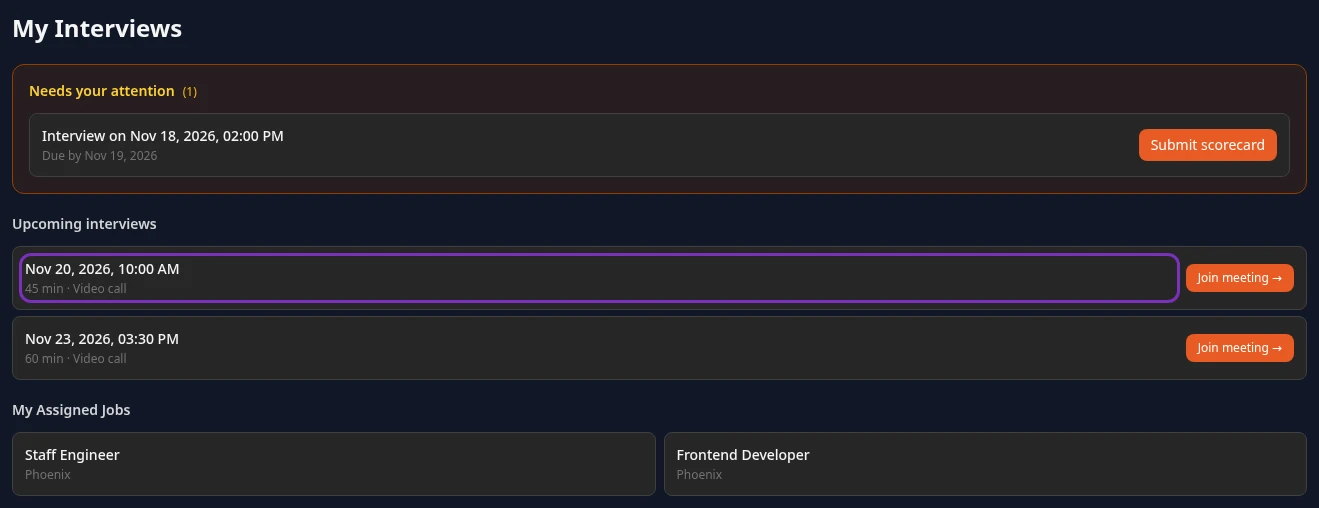
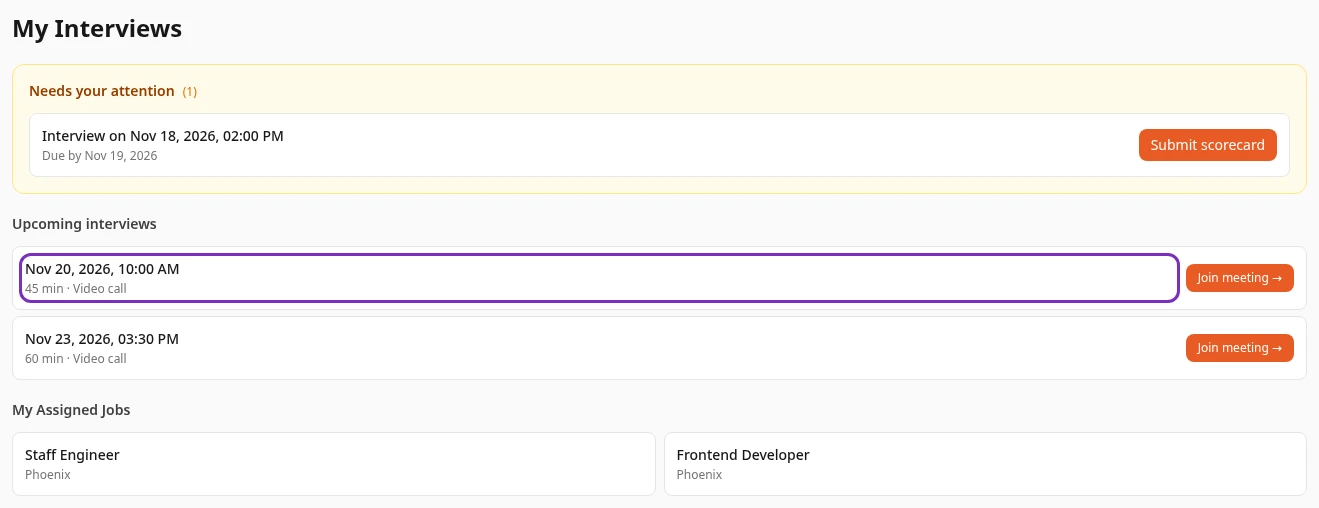
- The list doesn’t name the candidate or the job. Open the interview to see them.
- Interviews don’t show on the Calendar page, and you don’t get a notification or an email when one is scheduled with you, so check this list. The candidate gets an email with the date, the length, the meeting link and your name.
- An interview has one interviewer. When several of you meet the candidate together, each of you has your own interview and writes your own scorecard.
- To see all your interviews, past ones included, open one and select Interviews in the breadcrumbs at the top of the page.
Prepare for the interview
Section titled “Prepare for the interview”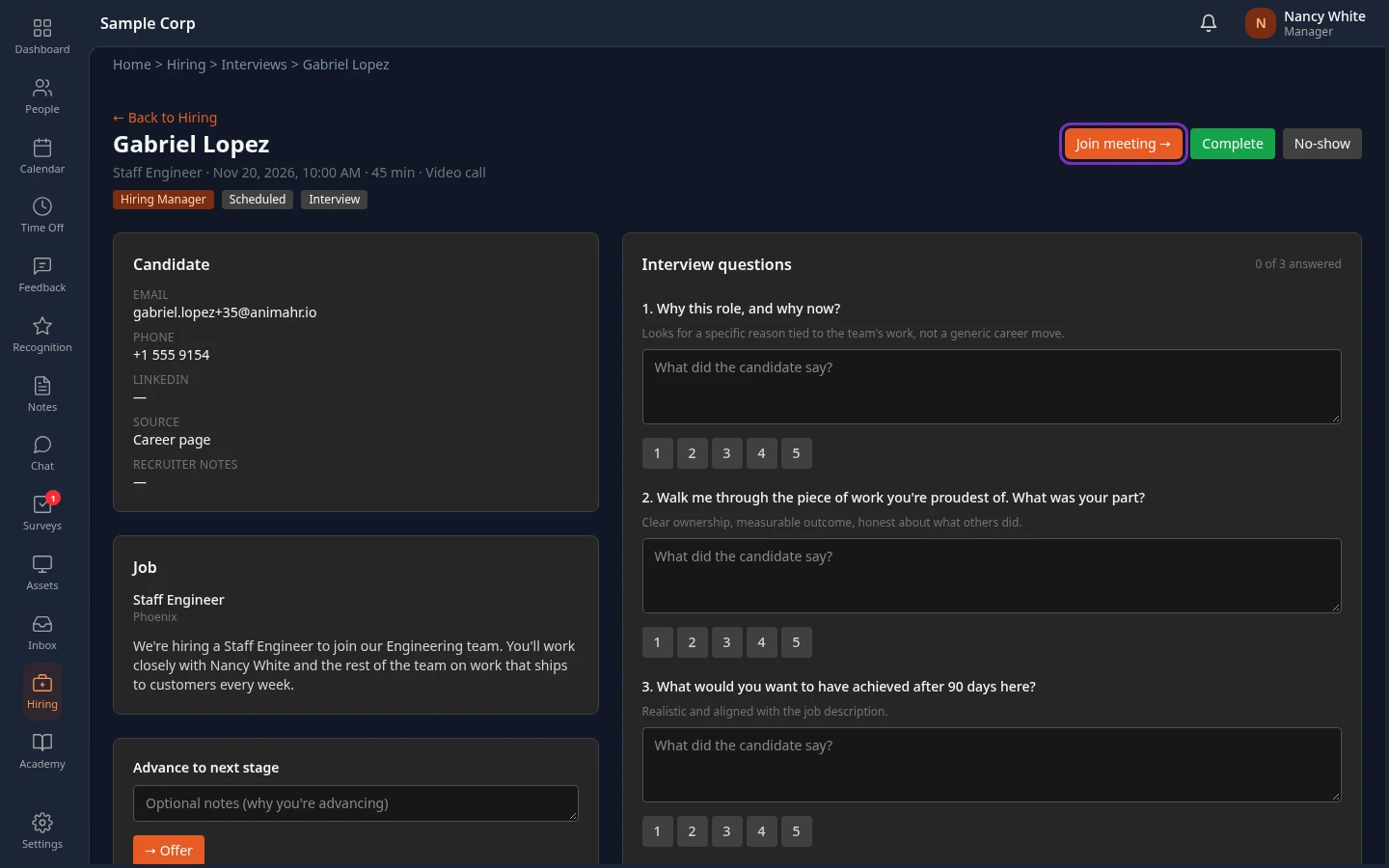
| Part of the page | What it shows |
|---|---|
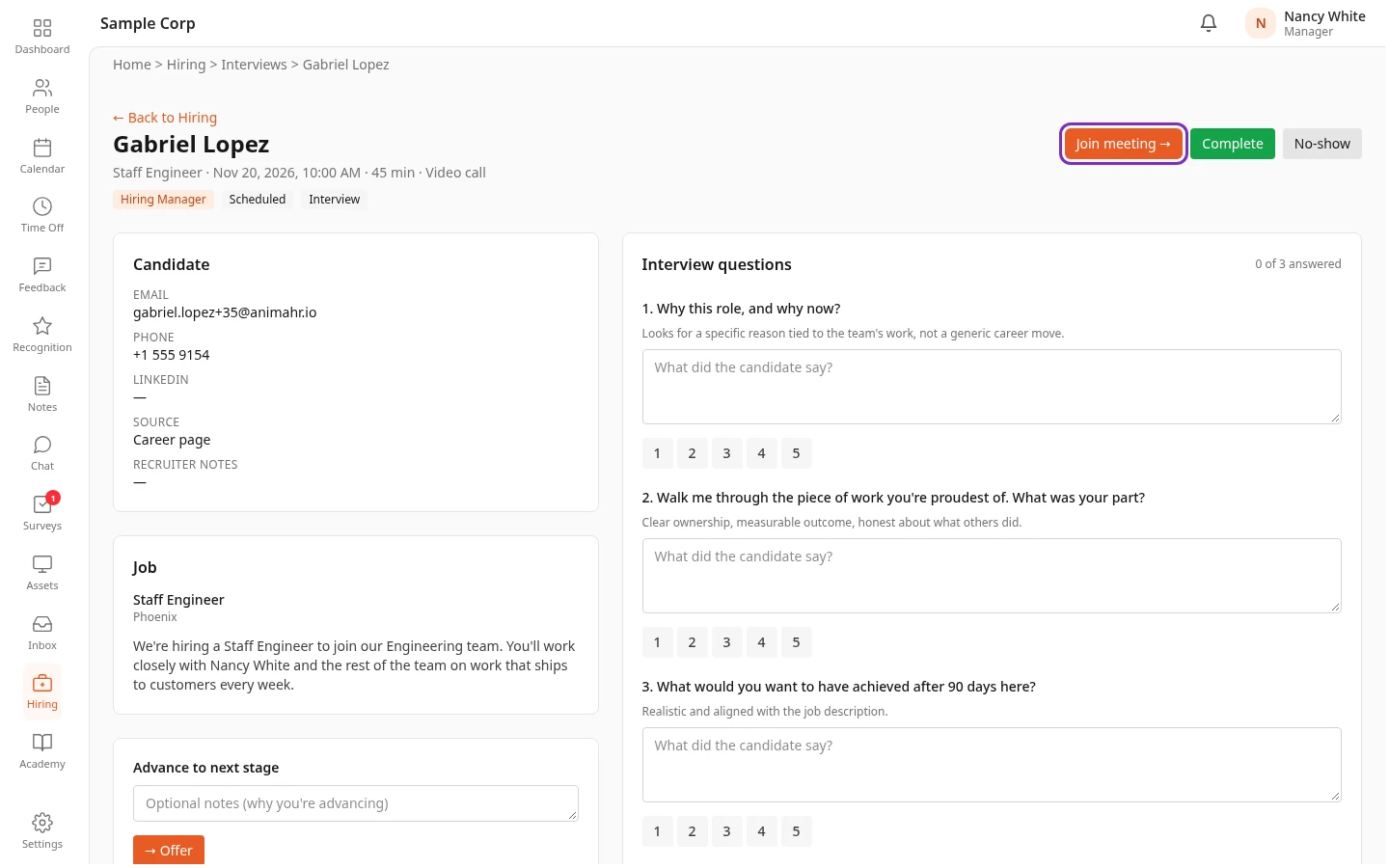
| The top | The candidate’s name, the job, the date, time, length and place, and three labels: your interview role, the interview’s status and the candidate’s stage. |
| Candidate | Their email, phone, LinkedIn profile and source, and Recruiter notes: what the recruiter wrote about them. |
| Job | The job’s description and Requirements. |
| Advance to next stage, Reject candidate | Only if your interview role allows them. See Move a candidate forward or reject them. |
| Panel feedback | The scorecards the rest of the panel has submitted for this candidate. See Who sees your scorecard. |
| Interview questions | The questions for your interview role, each with a hint about what a good answer looks like. Your admin sets them for each role in Settings › Hiring. |
Take notes and submit your scorecard
Section titled “Take notes and submit your scorecard”-
During the interview, type what the candidate says in the box under each question. To rate an answer, select a number from 1 to 5; select it again to clear it. Ratings are optional.
-
To note a question that isn’t on the list, type it in Ask something that isn’t on the list and select Add question. It’s marked (your question), and Remove takes it off.
-
Under Rate each dimension, rate the candidate from 1 to 5 on Technical Skills, Communication, Culture Fit and Problem Solving. Your company may use other dimensions.
-
Select an Overall rating (1–5), and choose a Recommendation: Strong hire, Hire, Neutral, No hire or Strong no hire. The recommendation is required: Submit scorecard stays greyed out without it.
-
Add Strengths, Concerns and Additional notes if you want, then select Submit scorecard.
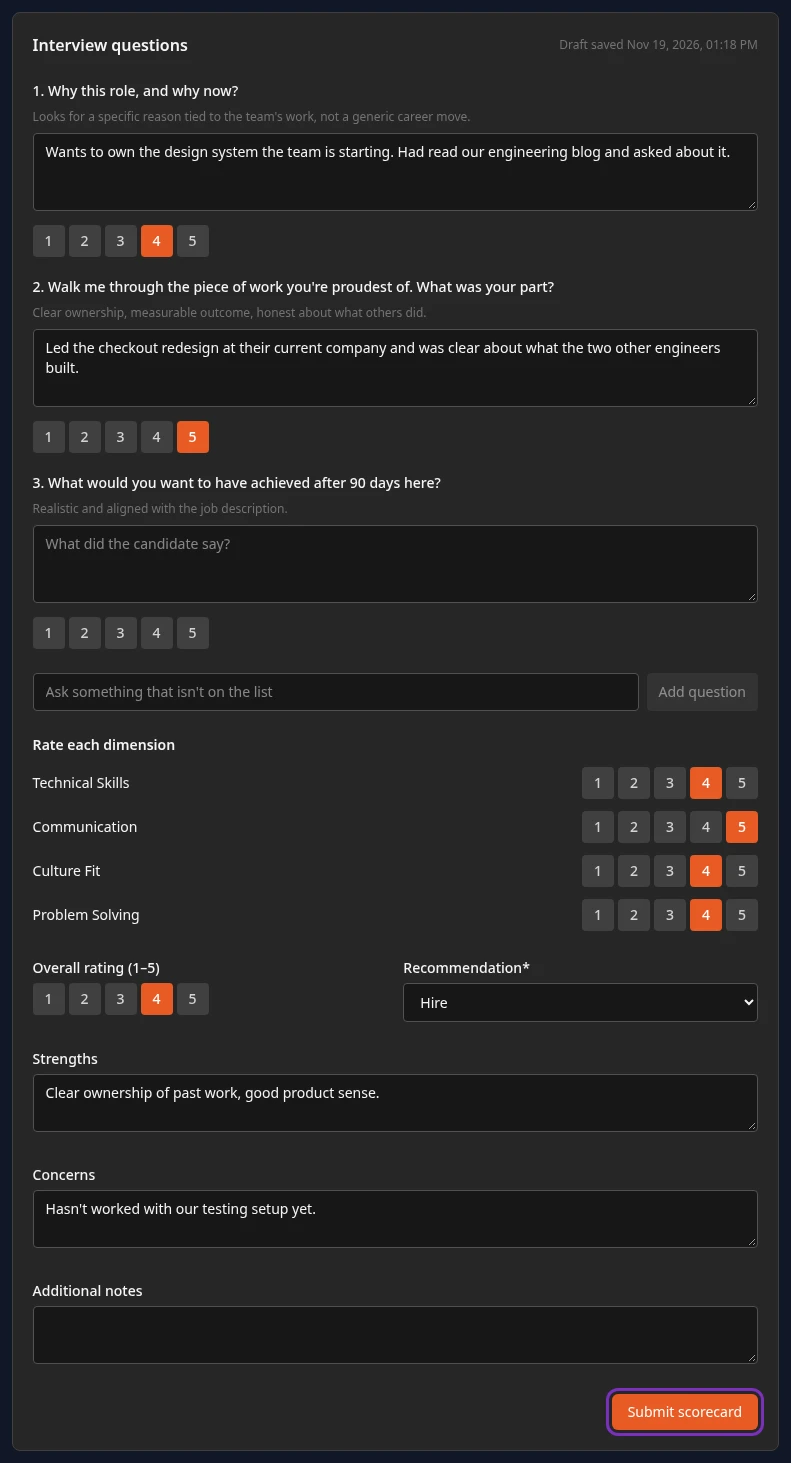
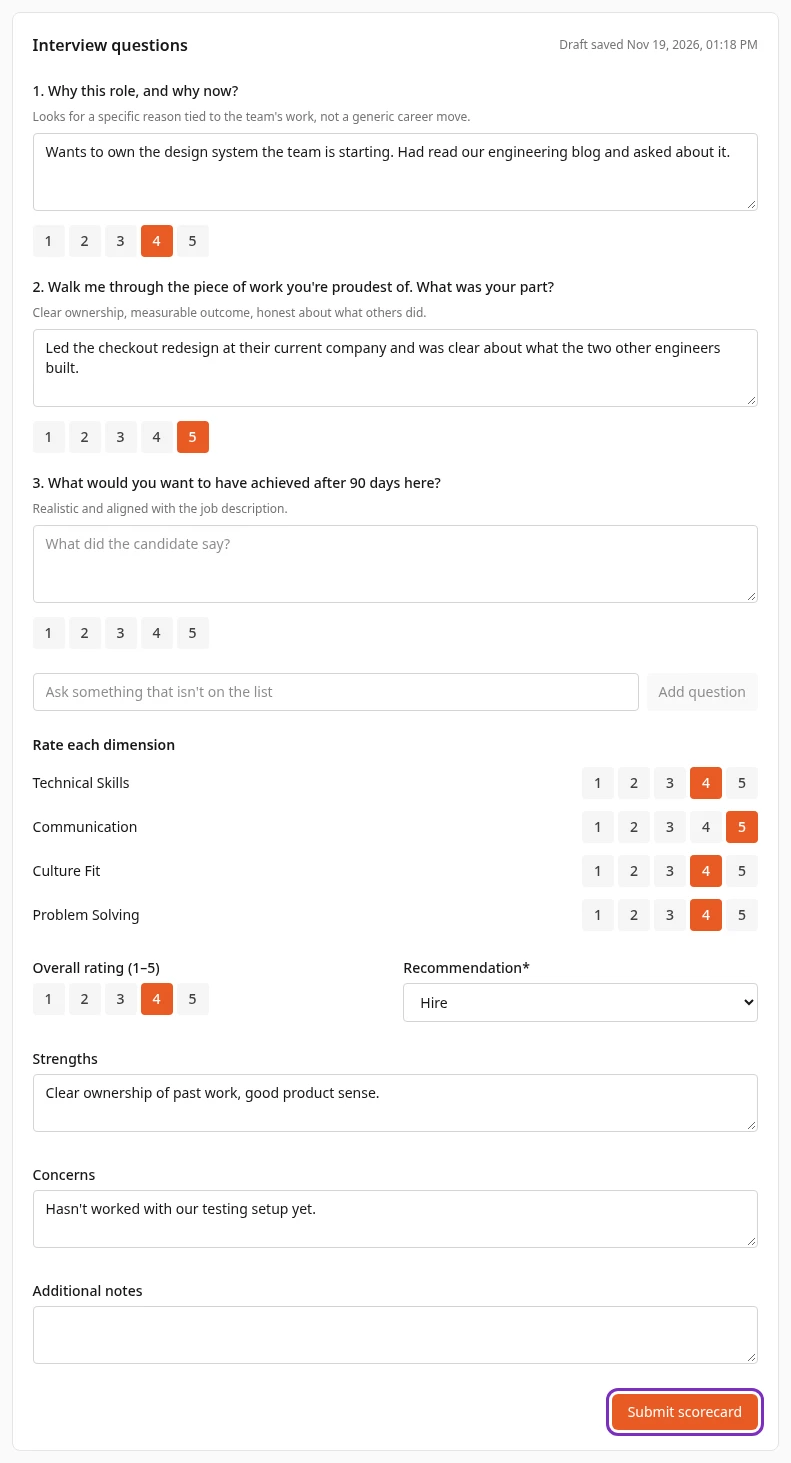
Scorecard submitted appears, and the button becomes Update scorecard.
While you type, the page saves a draft a moment after each change. The top of the questions reads Saving draft…, then Draft saved with the time. Only you can see your draft, and it’s kept for 90 days after your last change. When you open the page again, it shows your latest draft or scorecard.
- If Couldn’t save the draft. Keep this page open; it will retry. appears, the page tries again on its own after a few seconds, then less often until the save works. Submit scorecard sends everything on the page anyway.
- When you leave the page, it saves the changes it hasn’t saved yet. If you close or reload the tab before they’re saved, your browser asks you to confirm.
After the interview
Section titled “After the interview”-
Open the interview and select Complete, or No-show if the candidate didn’t come. Only the interviewer sees these buttons. Until you select one, the interview stays under Upcoming interviews, even after its date.
-
If you haven’t submitted your scorecard yet, the interview moves to Needs your attention on the Hiring page, with the date your feedback is due. Select Submit scorecard there to go back to the interview page.
- The recruiter sets the due date when scheduling the interview. By default it’s one day after the interview.
- Nothing reminds you: Anima HR doesn’t send a notification or an email when a scorecard is due or late.
- An interview marked No-show doesn’t ask for a scorecard.
- You can change your scorecard at any time: edit it and select Update scorecard. The new version replaces the old one.
- You have one scorecard for each candidate on a job. If you interview the same candidate again, update the scorecard you have.
Who sees your scorecard
Section titled “Who sees your scorecard”Once you submit it, everyone on the job’s panel can read your scorecard, under Panel feedback on the candidate’s interview pages and under Scorecards in the candidate panel. So can recruiters and HR. They see your name, your recommendation, your overall rating, your strengths, concerns and notes, and your answers to the questions.
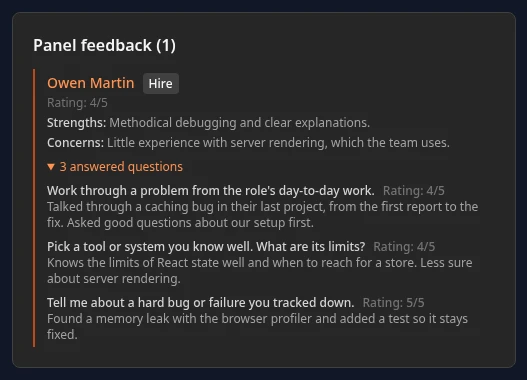
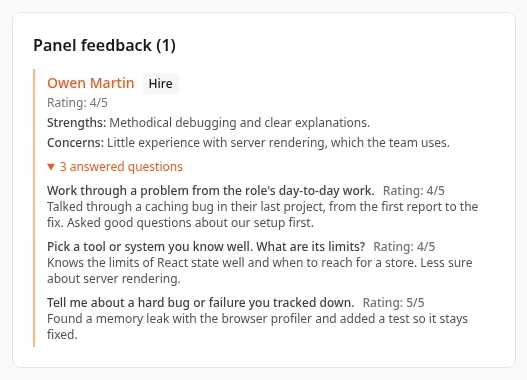
- Your ratings for each dimension are saved with the scorecard, but the app doesn’t show them on these lists.
- Your draft stays private until you submit.
- Some companies hide the panel’s scorecards from you until you’ve submitted your own, so that you form your own view first. Their scorecards then show only the name, followed by (hidden until you submit). Recruiters and HR always see everything. This is off unless your company turned it on.
Submit a scorecard without an interview page
Section titled “Submit a scorecard without an interview page”The candidate panel has a scorecard button too: open the job, select the candidate’s card, then 📝 Submit scorecard, or 📝 Edit scorecard once you’ve written one.
- If you interviewed the candidate, the button opens your interview page.
- If you met the candidate without an interview scheduled in Anima HR, it opens a form with the dimensions, the Overall rating (1–5), the Recommendation and the three text boxes, but no questions, and it doesn’t save a draft. When you’ve already written a scorecard or a draft for the candidate, the form starts from it, and your answers to the interview questions are kept.
Can’t see this?
Section titled “Can’t see this?”- An interview is missing from Upcoming interviews. The recruiter hasn’t scheduled it in Anima HR with you as the interviewer, or it was cancelled. Ask the recruiter: nobody on a panel can schedule or move interviews.
- There’s no Complete or No-show button. You aren’t this interview’s interviewer, or it’s already marked.
- The page says Interview not found. The interview no longer exists, or you’re no longer on the job’s panel.
- This would replace your saved interview notes. Open the interview to edit your scorecard. appears. The page you submitted from was loaded before an update of Anima HR. Reload it in your browser, or open the interview page, and submit again: your notes are still there.