Set your language, theme and menu bar
Este conteúdo não está disponível em sua língua ainda.
Your display settings change how Anima HR looks to you, and nobody else. They’re saved to your account, so they follow you to other devices, and each change applies as soon as you make it: there’s no save button.
Open your display settings
Section titled “Open your display settings”-
Select Settings at the bottom of the menu bar. On a phone, open the menu and select Settings.
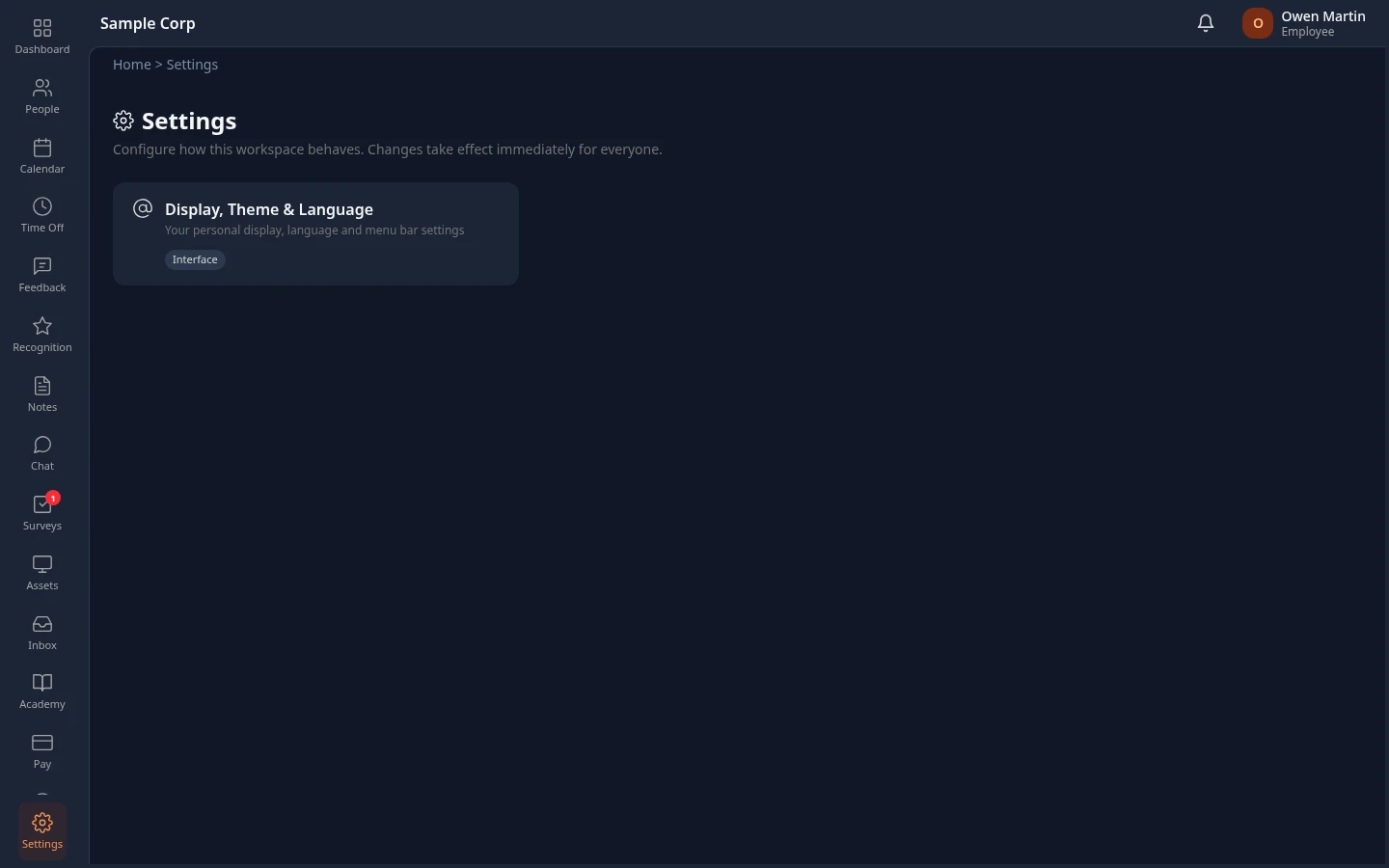
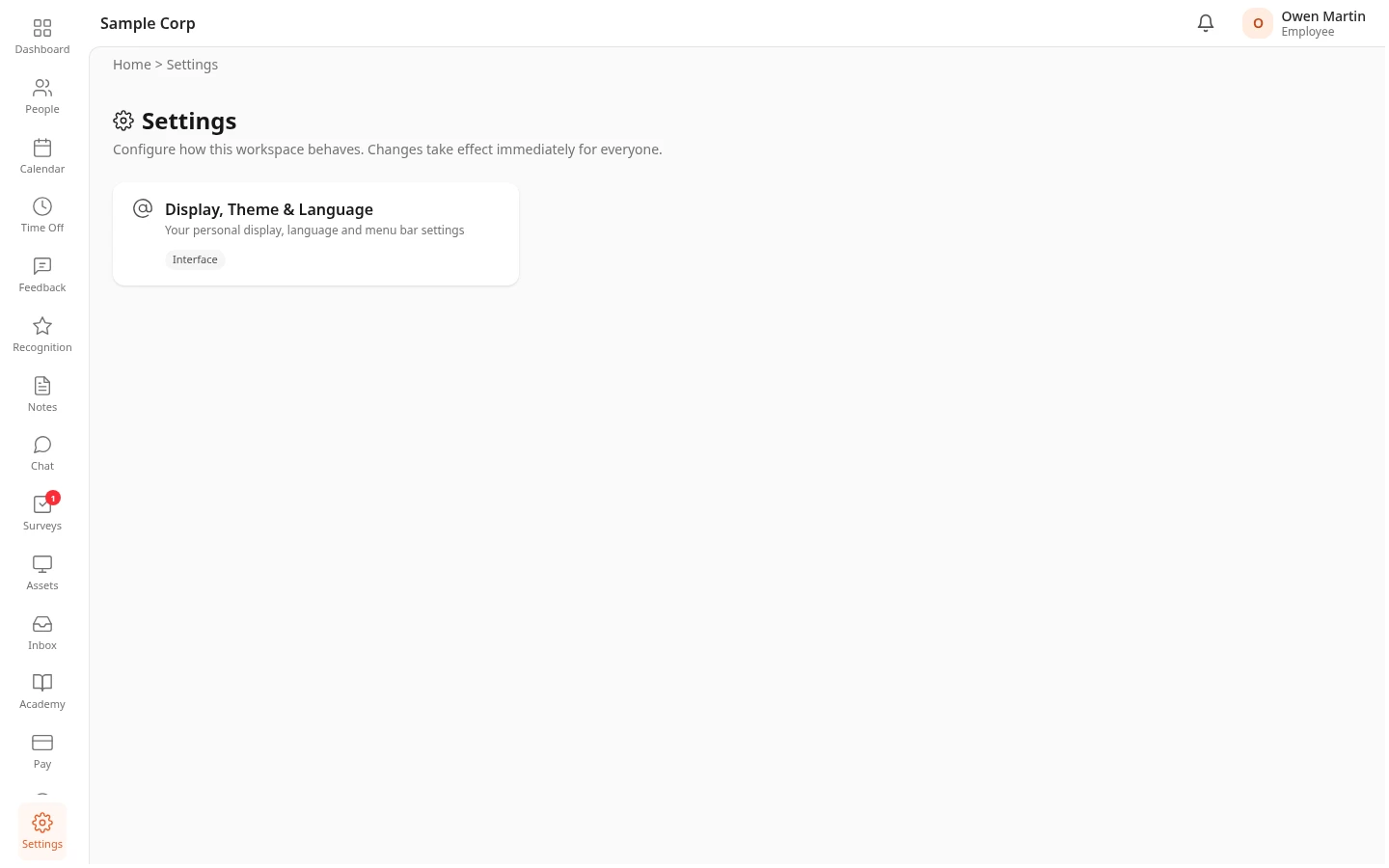
-
Select Display, Theme & Language.
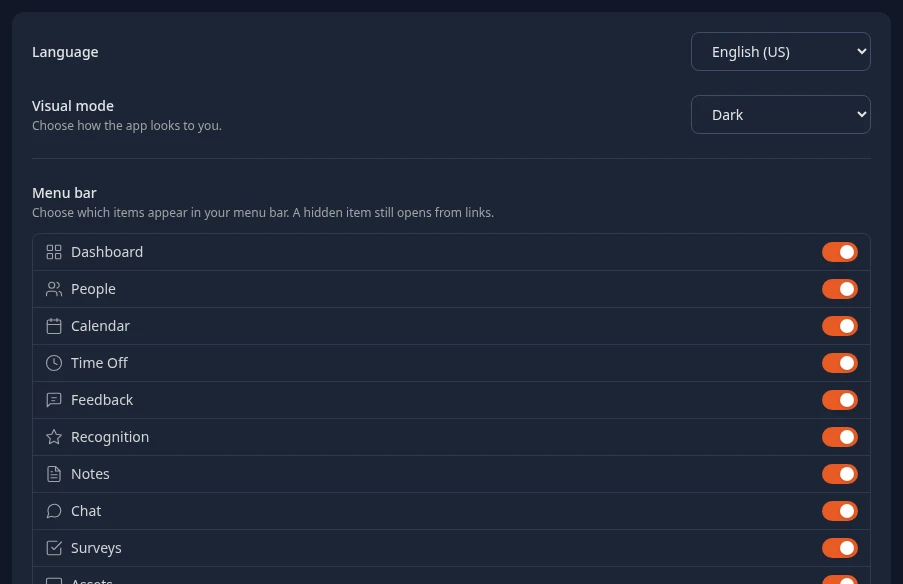
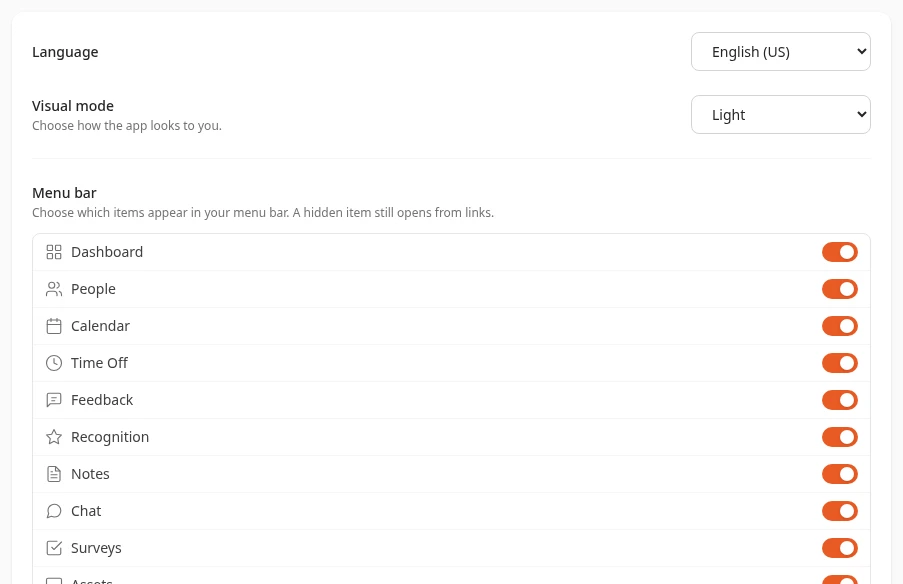
Admins see more cards on the Settings page. Display, Theme & Language is always the first one.
Change the language
Section titled “Change the language”In Language, choose English (US), Español, Português, हिन्दी or العربية. The app switches right away.
Until you choose a language, the app uses your company’s default language, which an admin sets in Settings › General › Branding. If that default isn’t one of the five languages above, the app stays in English. Once you’ve chosen a language, it stays yours, even if the company default changes later.
Names your company set up, such as leave types, stay the way your admin wrote them. In Arabic, the text is translated but pages keep their left-to-right layout.
Switch between light and dark
Section titled “Switch between light and dark”In Visual mode, choose Light or Dark. New accounts start in Dark.
Choose what’s in your menu bar
Section titled “Choose what’s in your menu bar”Under Menu bar, each menu item you can use has a switch. Turn a switch off to hide that item from your menu bar, and on to show it again. The bar at the bottom of the screen on your phone follows the same choices.
Hiding an item only tidies your menu: you keep your access, and links and notifications still open the page.
Items your admin doesn’t let people adjust aren’t in the list. If it says Your admin has set the menu bar for everyone, so there is nothing to change here., your admin has fixed the whole menu.
Hide sections on some pages
Section titled “Hide sections on some pages”Under Page sections, switches grouped by page let you hide parts of a few pages:
| Page | Sections you may be able to hide |
|---|---|
| Dashboard | Time off (balance, request form, your requests), My team, Upcoming calendar, Recognition feed |
| People | Personal information, Private information, Documents link, Job history (lifecycle timeline) on profiles |
| Calendar | Team events |
| Feedback | Team tab, for managers and HR |
| Notes | Templates tab |
You only see the sections your admin lets people adjust, for modules that are on, and that you’d see anyway. Hiding a section only changes your own view. It doesn’t hide your information from anyone else.
What admins control
Section titled “What admins control”Admins decide which menu items and page sections everyone sees, and which ones people may hide themselves. HR Admins and Admins in admin mode do this in Settings › General › UI Customization: see Choose what people see in the menu bar and on pages.
The Menu bar table lists every item of the menu, followed by one table per page for the page sections. Each row has two switches:
| Switch | What it does | Default |
|---|---|---|
| Visible | Off hides the item or section from everyone. People can’t show it again in their display settings. | On |
| User Adjustable | Off stops people from hiding the item or section themselves. Anyone who had hidden it sees it again. | On, except the Admin-only information, Work information, Salary link and Separation details sections of profiles |
Select Save changes to apply them. These switches only change the layout, not what data people can see. To control access, use roles in Settings › Access › Roles & Permissions: see Understand how access works.
Admins can also change the order of menu items on the main Settings page by dragging a module’s card. Cards for a single module, such as People or Hiring, show a pencil when you point at the card’s name: select it to rename the menu item.
Can’t see this?
Section titled “Can’t see this?”- The Menu bar list says your admin has set the menu bar for everyone. Your admin turned off User Adjustable or Visible for every item you can use. Ask them if you need to change something.
- An item you use isn’t in the list. Your admin hid it for everyone or doesn’t let people hide it, or its module is off, or your roles don’t let you open it.
- A hidden item is back. Your admin turned off User Adjustable for it, which shows it to everyone again.