Understand how access works
Este conteúdo não está disponível em sua língua ainda.
What each person can see and do in Anima HR comes from their roles. This article explains how roles, permissions and reach fit together, so you can plan your roles before you change anything in Settings › Access.
Roles hold permissions
Section titled “Roles hold permissions”A role is a set of permissions. A permission is one thing a person may do or see, such as Approve in Time Off, which lets them approve time-off requests, or Directory access in People, which lets them browse the people directory.
- Your workspace comes with seven built-in roles, such as Employee, Manager and HR Admin. See Use the built-in roles.
- You can add up to 50 roles of your own. See Create or change a custom role.
- A person can hold several roles, and gets everything any of them allows. A role never takes away what another role gives.
- People get the Employee role when they’re added. If whoever adds them on the People page picks another role in Access Policy, they get only that role, without Employee. See Employee.
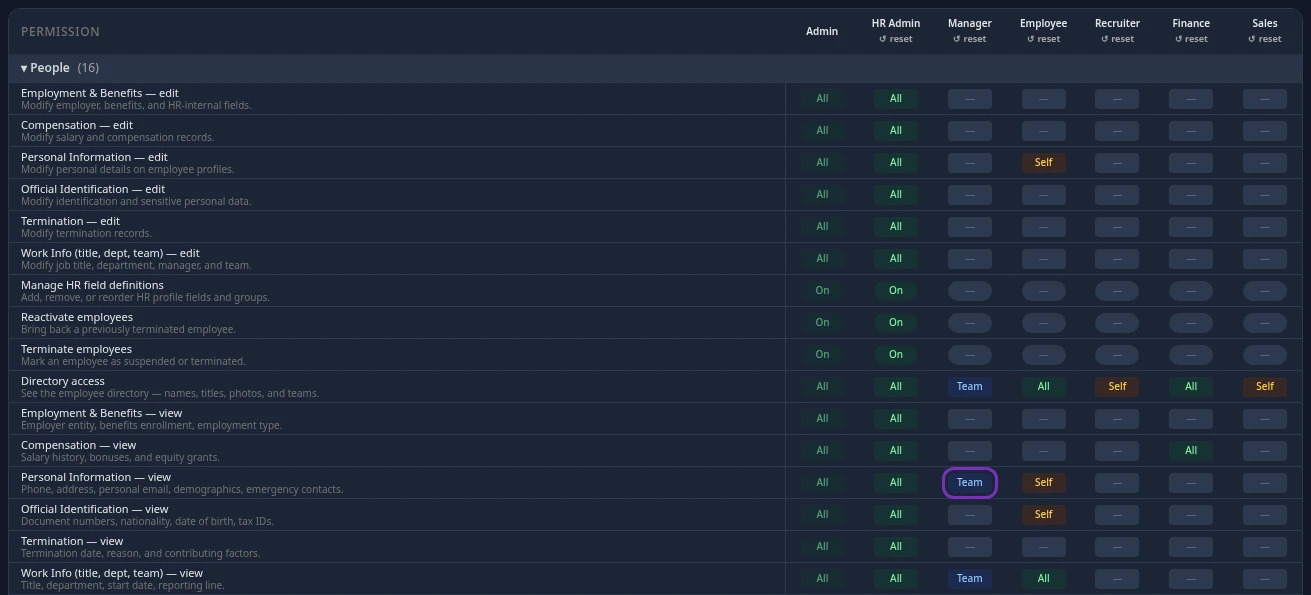
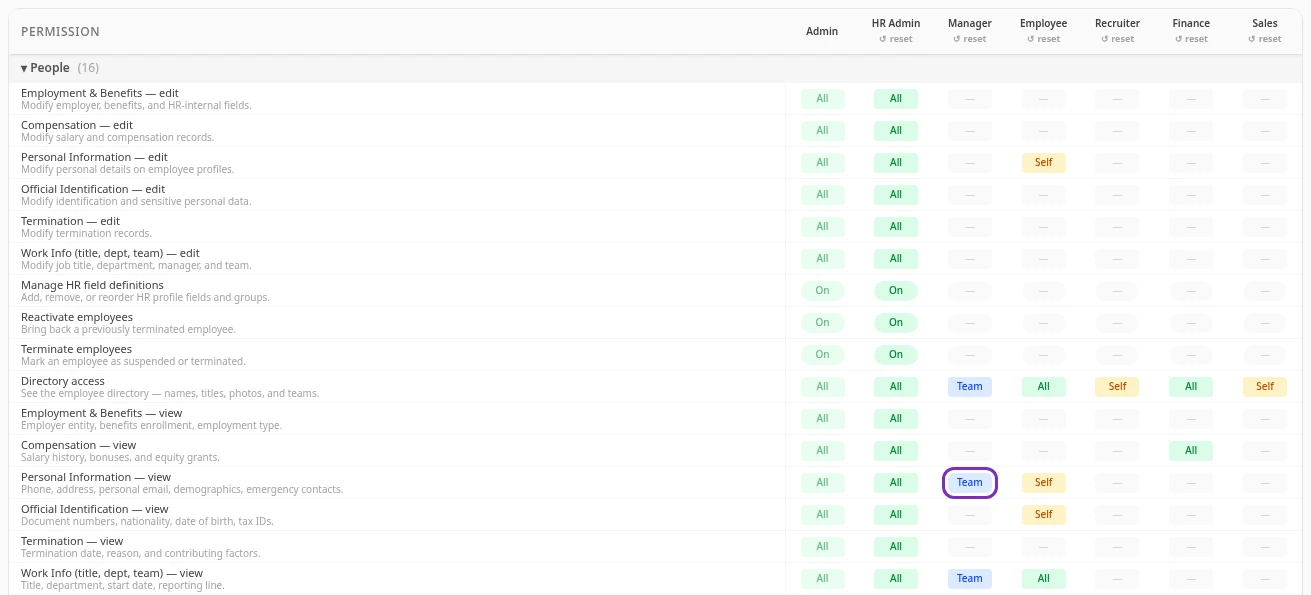
Every role and its permissions are on one screen, Settings › Access › Roles & Permissions: a column for each role, and a row for each permission, grouped by module.
Reach: whose records a permission covers
Section titled “Reach: whose records a permission covers”Permissions about people’s records, such as their time off, profile, salary or expense reports, also say whose records they cover. This is the permission’s reach:
| Reach | Covers |
|---|---|
| Self | The person’s own records. |
| Team | Their own records and those of everyone in their org: the people who report to them, directly or through other managers. People who have left the company aren’t included. |
| All | Everyone’s records. |
The other permissions are actions or settings, such as Manage policies in Time Off, which lets someone change the leave policies. A role either has them or doesn’t: the matrix shows On.
- Team only adds something for people who manage others. For someone with nobody reporting to them, it covers their own records, like Self.
- When two of a person’s roles give the same permission with different reaches, the wider one applies.
How people get their roles
Section titled “How people get their roles”- Directly or through a group. You give roles to people one at a time, or to a group so that everyone in it gets them. Both happen in Users & Groups.
- Manager is automatic. Anyone with at least one person reporting to them on the org chart has the Manager role, on top of their other roles. People who have left don’t count. Nobody can give or remove Manager by hand: to change who is a manager, change Reports To on people’s profiles. See How you become a manager.
- Admin needs admin mode. The Admin role has every permission, for everyone’s records, but only while admin mode is on. Until an Admin selects Elevate to Admin, they only have their other roles, usually Employee and Manager. Everything done in admin mode is logged. See Admin mode.
Profile fields follow their access type
Section titled “Profile fields follow their access type”Each field on a profile has an access type, and each type has a pair of permissions in the People rows of the matrix:
| Access type | Examples | Permissions |
|---|---|---|
| Personal | Phone, personal email, address, date of birth | Personal Information — view and Personal Information — edit |
| Private | ID document numbers, tax and social security numbers | Official Identification — view and Official Identification — edit |
| Admin | Employer, employment type, benefits | Employment & Benefits — view and Employment & Benefits — edit |
| Work | Title, department, team, start date | Work Info (title, dept, team) — view and Work Info (title, dept, team) — edit |
| Termination | The date and reason someone left | Termination — view and Termination — edit |
| Custom 1 to 4 | Groups of fields your company defines | Custom Type 1 — view to Custom Type 4 — edit |
- Pay isn’t a profile field. Salaries and raises live in Salary, and the Salary permissions decide who sees and approves them.
- The reach of the view permission decides whose profiles show fields of that type. The reach of the edit permission decides whose fields of that type someone can change.
- You choose each field’s type in its Access type list in Settings › People › HR Fields. The Custom Type rows only appear in the matrix once a field uses that type.
- Only Admin includes the Custom Type permissions to begin with. When you start using a custom type, add its permissions to the roles that need them. A role with them can then only be given by an Admin in admin mode: see Roles that only an Admin can give.
- A person’s name, work email, username, title and manager show to anyone who can open their profile, whatever the roles say.
- On their own profile, people see the types that any of their roles lets them view.
- Anima HR removes the fields someone isn’t allowed to see before it sends them a profile, so those fields never reach their browser.
For what each type shows with the built-in roles, see Who can see what on your profile.
What doesn’t change access
Section titled “What doesn’t change access”- Turning a module on or off. A module that’s off is hidden from everyone and stops working. Turning a module on only makes it available to the people whose roles include its permissions. Time Off then shows for everyone, because the Employee role includes its permissions, but CRM only shows for people with the Sales role or another role with CRM permissions.
- Hiding menu items and page sections. Admins can hide items for everyone in Settings › General › UI Customization, and people can hide some for themselves. This only changes what’s shown, not what people are allowed to see: a hidden menu item’s page still opens from a link, and hiding a section doesn’t protect the data in it. Showing an item doesn’t give access either, because the menu bar only lists pages a person’s roles let them open.
Example: time off and salary
Section titled “Example: time off and salary”Owen is a developer. He reports to Nancy, an engineering manager, who reports to the head of engineering. Susan has the HR Admin role, and Madison has the Finance role. They all have the Employee role too.
| Approve Owen’s time off | See Owen’s salary history | Approve a raise for Owen | |
|---|---|---|---|
| Owen | No | Yes | No |
| Nancy, his manager | Yes | Yes | Only when the raise waits on her |
| The head of engineering | Yes | Yes | No |
| Owen’s teammates | No | No | No |
| Susan (HR Admin) | Yes | Yes | Yes |
| Madison (Finance) | No | Yes | No |
Each answer comes from one permission and its reach:
- Time off. Approving time off is Approve in Time Off. The Manager role has it at Team, so Nancy and the head of engineering can approve requests from anyone in their org. HR Admin has it at All. Employee and Finance don’t have it. Nobody can approve their own request.
- Salary history. Seeing it is View in Salary. Employee has it at Self, so Owen sees his own. Manager has it at Team, and HR Admin and Finance at All.
- Raises. Approving one is Approve changes in Salary, which HR Admin has at All. The Manager role doesn’t have it, but a manager can decide a raise whose approval flow is waiting on them. Finance can see salaries but not approve them.
Roles decide who is allowed to approve, not who is asked. Owen’s request goes to the approvers in the Leave Approval flow: by default Nancy, then HR for requests longer than 5 days. Whoever an approval step is waiting on can decide that step. Someone who can approve the request but isn’t the one being waited on, such as the head of engineering or HR, decides the step in their place, and the rest of the flow still runs. People who can approve at All can also override the whole flow with a reason. See Who approves requests.
To change the outcome, change a role. Giving the Finance role Approve changes in Salary at All would let Madison approve raises for everyone. To let an auditor read every expense report and its history without approving anything, make a custom role with View and View audit in Reimbursements at All, and give it to the auditor.