Complete your self-review
Este conteúdo não está disponível em sua língua ainda.
Your HR team runs performance reviews in cycles, such as a half-yearly performance review. While a cycle is running, everything you have to write is on the Performance tab of the Feedback page: your self-assessment, and any reviews of colleagues or of your manager.
How a review cycle works
Section titled “How a review cycle works”- HR launches each cycle from a review template. Everyone working at the company at that moment takes part and gets their reviews to write right away. Someone who joins afterwards isn’t added to that cycle.
- You don’t get a notification when a cycle starts. Your HR team announces it.
- Each cycle can have deadlines, for self-assessments and for manager reviews. The app doesn’t show them on your reviews and doesn’t stop you from submitting late, so check HR’s announcement for the dates.
- While a cycle runs, you only see what you wrote yourself. Your results, with what others wrote about you, show once HR closes the cycle. See See your results.
A cycle can collect up to four kinds of review, depending on its template:
| Review | Who writes it | About whom |
|---|---|---|
| Self-Assessment | You | Yourself |
| Manager Review | Your manager | You |
| Peer Feedback | Colleagues chosen for you | You. You may also be asked to write it about colleagues. |
| Upward Feedback | You | Your manager |
Your peer reviewers are chosen for you: you can’t pick them in the app. Peer reviews you’re asked to write appear on your list once you’ve been assigned to them, which can be after the cycle starts.
Write your self-assessment
Section titled “Write your self-assessment”-
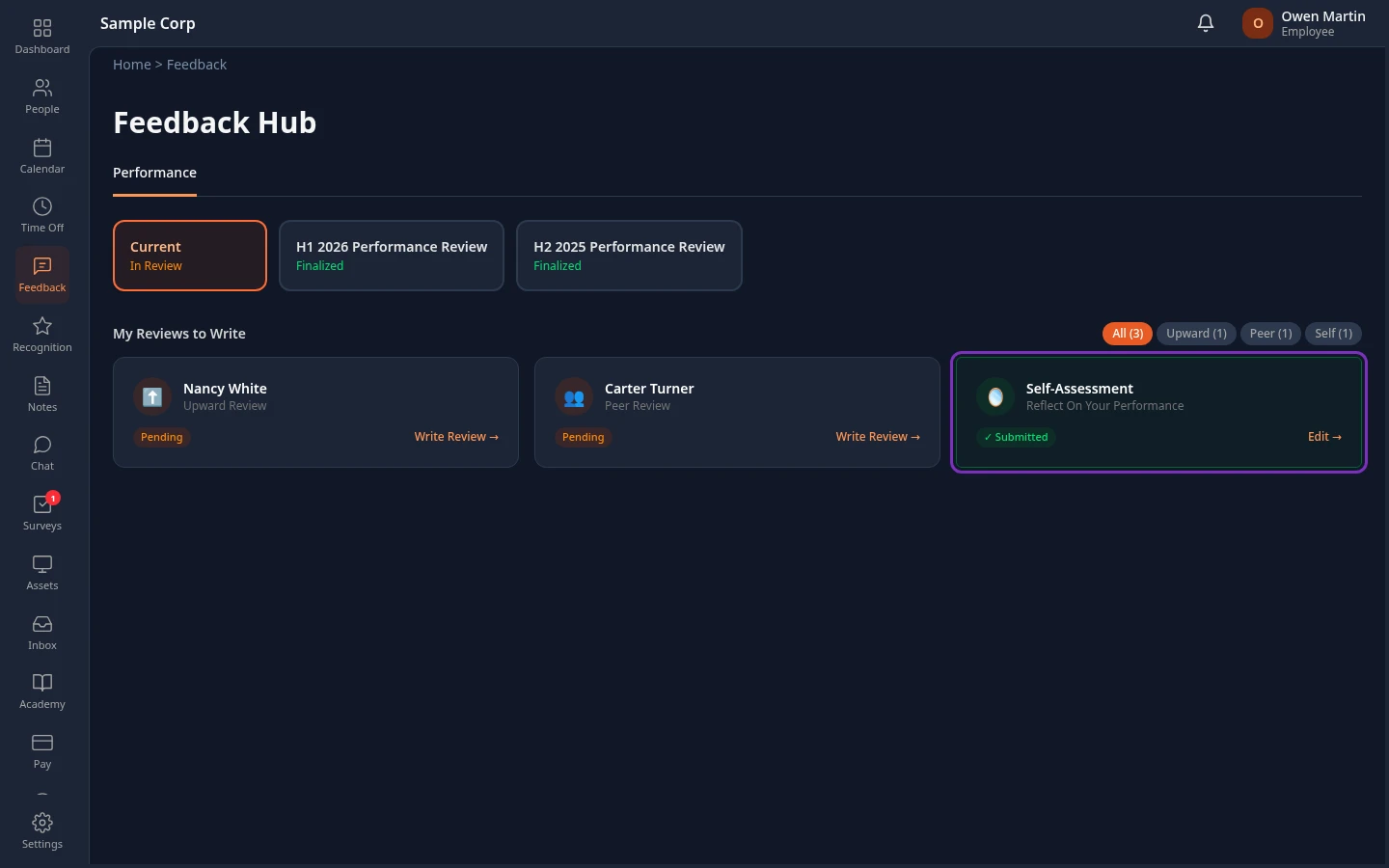
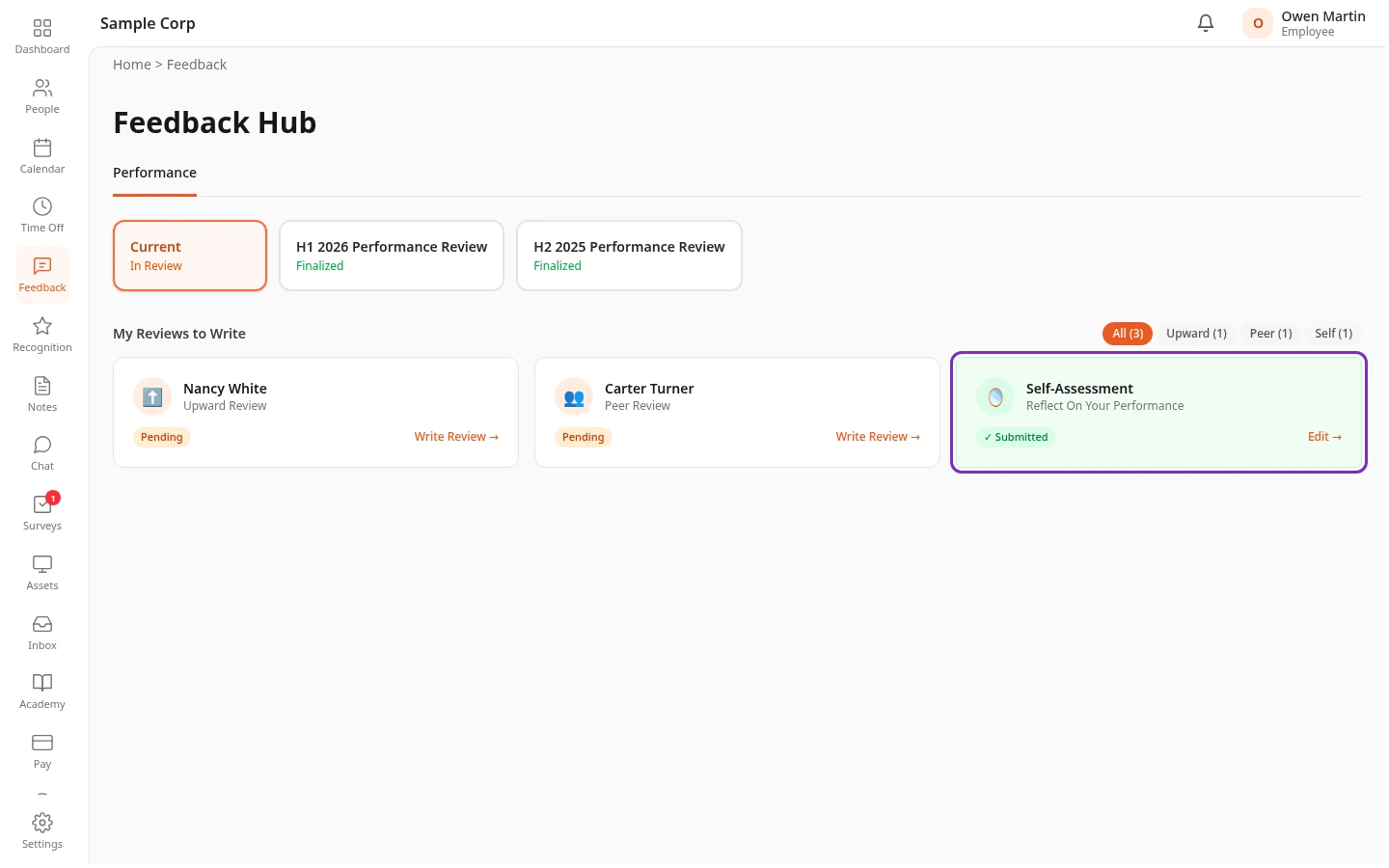
Select Feedback in the menu bar. The Feedback Hub opens on the Performance tab, with Current selected.
-
Under My Reviews to Write, select the Self-Assessment card.
-
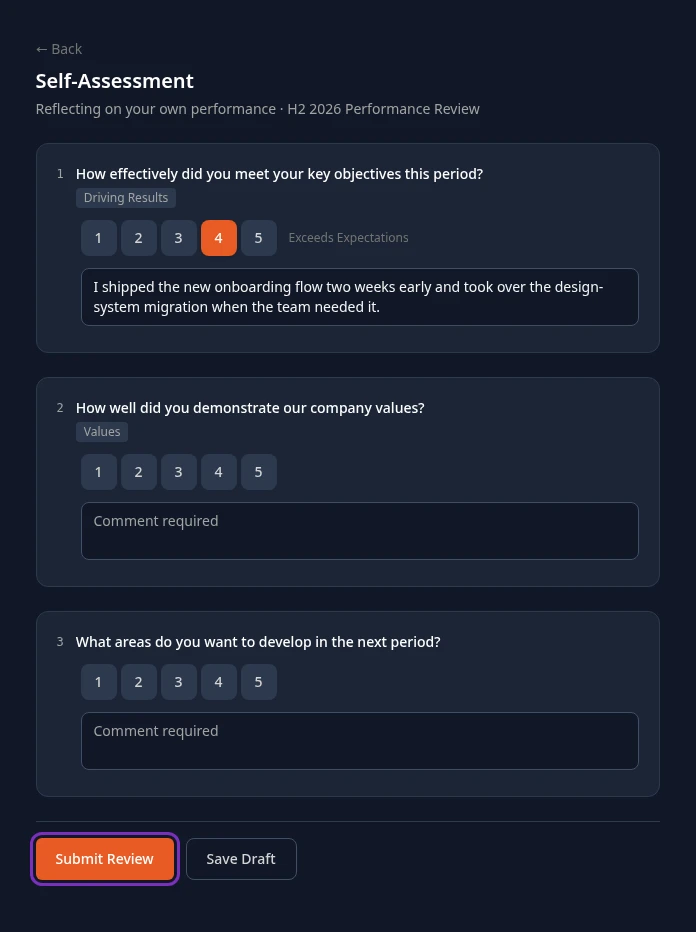
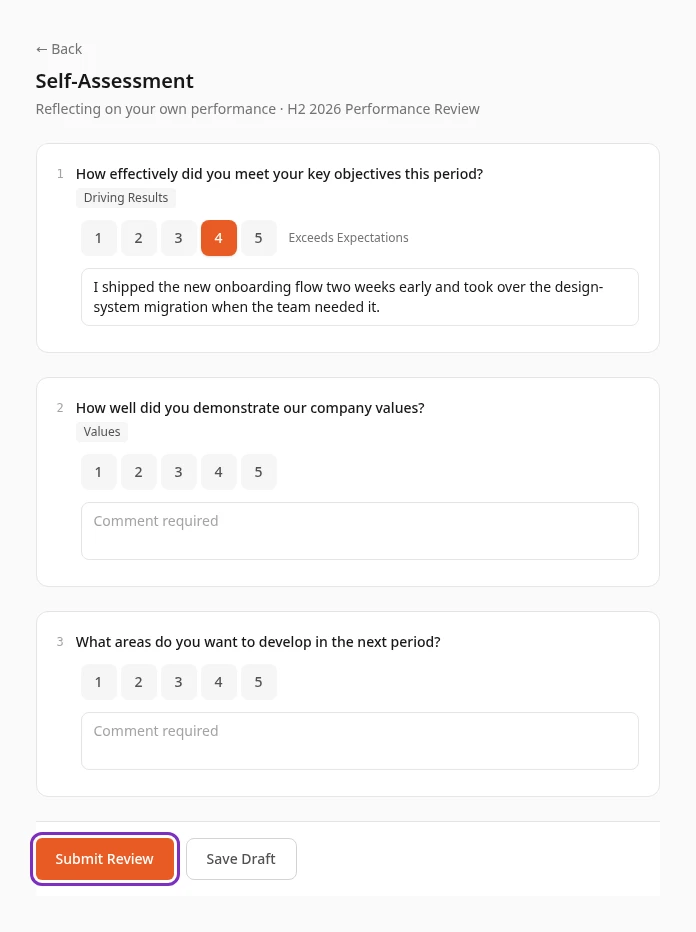
Answer each question: select a rating from 1 to 5, then write your comment in the box under it.
Point at a number to see what it means. The label of the rating you select shows next to the scale: Needs Improvement, Below Expectations, Meets Expectations, Exceeds Expectations or Outstanding. Some questions only ask for a comment, and some show the competency they’re about, such as Driving Results.
-
Select Submit Review when you’re done, or Save Draft to keep your answers and finish later.
Review submitted or Draft saved appears and you’re back on the Performance tab. A submitted review’s card turns green and shows ✓ Submitted. A draft still shows Pending.
The comment box says Comment required when a comment is expected, or Optional comment. The app doesn’t check that you answered everything, so go through every question before you submit.
When you open a review again, with Write Review → after saving a draft or Edit → after submitting, your saved answers are filled back in, so you can carry on where you left off. Save Draft or Submit Review then saves what’s on the screen. Once you’ve submitted a review, save your changes with Submit Review: Save Draft turns your answers back into a draft, and drafts don’t count in the results.
If your saved answers can’t be loaded, a message says so and Submit Review and Save Draft stay off, so an empty form can’t replace them. Select Try again.
Write peer and upward reviews
Section titled “Write peer and upward reviews”The other cards under My Reviews to Write are reviews of other people. A card with a colleague’s name is a peer review you’ve been asked to write, and the card with your manager’s name is your upward review of them. The line under the name says which.
They work like your self-assessment: select the card, answer the questions, then select Submit Review. The form is called Peer Feedback or Upward Feedback and shows Reviewing: with the person’s name.
When you have several kinds of review to write, buttons above the cards, such as All, Self, Peer and Upward, show one kind at a time. The number on each button counts its reviews. If you have more than nine reviews, the rest are under the Show all link, for example Show all 12 reviews →.
Who reads what you write
Section titled “Who reads what you write”| What you write | Who can read it |
|---|---|
| Self-Assessment | Your manager, the managers above them and HR, with your name. It’s also part of your own results. |
| Peer Feedback about a colleague | The colleague, once the cycle is closed. If the cycle keeps peers anonymous, which is on by default, they see Peer 1, Peer 2 and so on instead of names. Their manager, the managers above them and HR see your name. |
| Upward Feedback about your manager | Your manager doesn’t see your answers or your name, but their results show the average of the upward ratings they received, as Upward Feedback under Value Scores. If you’re their only report, that average comes from your ratings alone. Their own manager, the managers above, and HR can read your answers, with your name. |
See your results
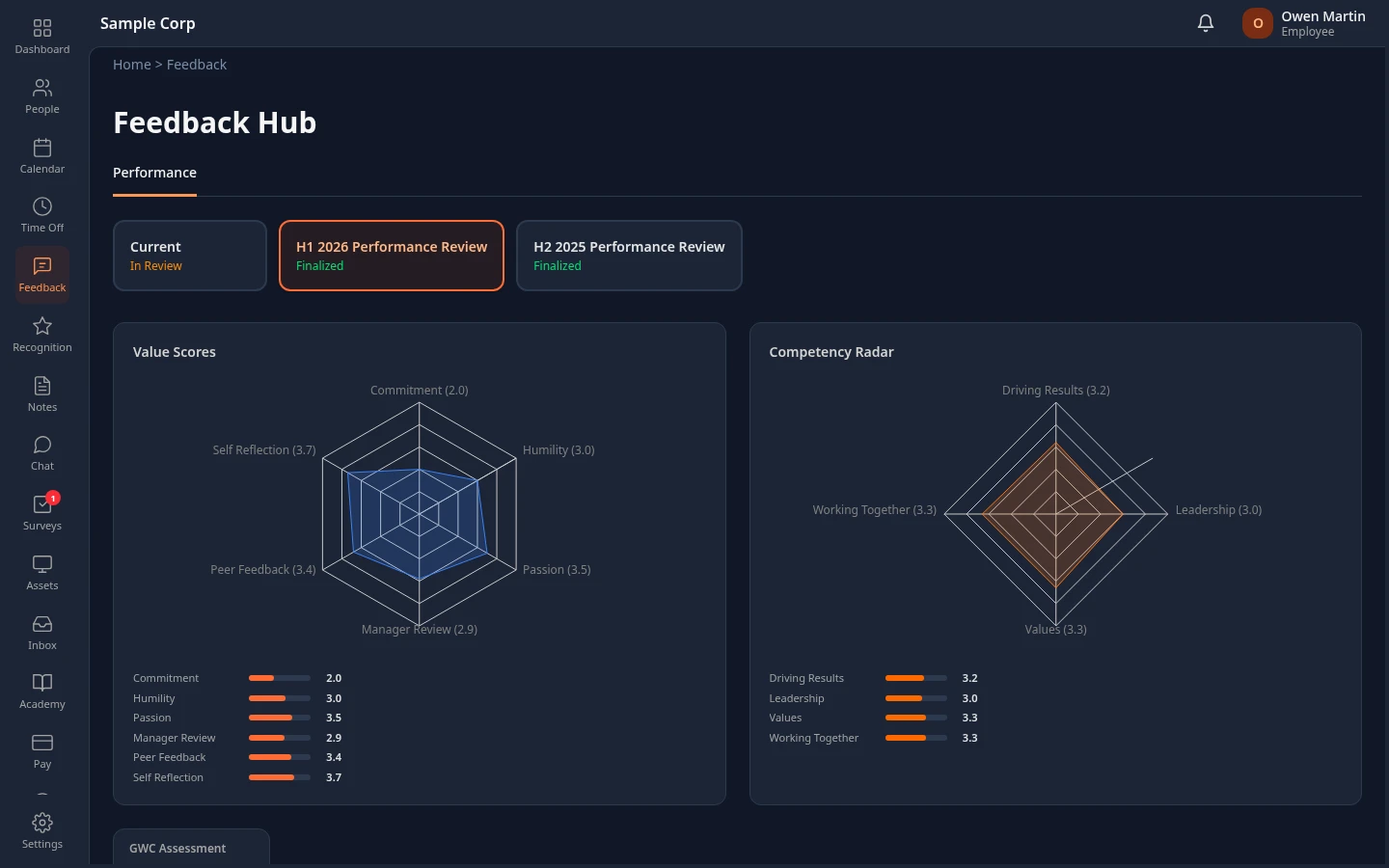
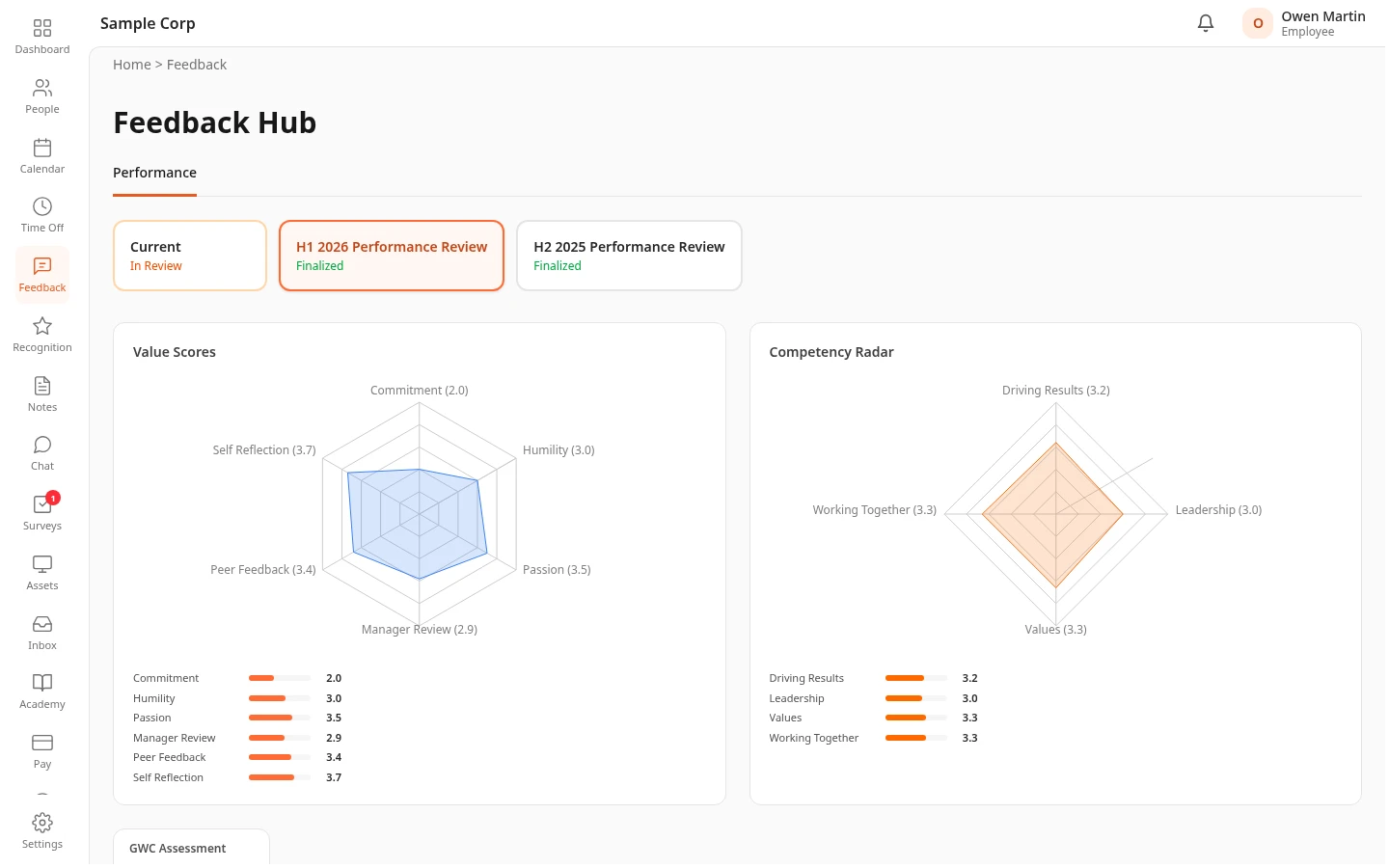
Section titled “See your results”When HR closes a cycle that produces a rating, the cycle gets its own card next to Current on the Performance tab, marked Finalized. Select the card to see your results for that cycle.
| Section | What it shows |
|---|---|
| Value Scores | Your average rating for each company value, and the average from each group of reviewers, such as Peer Feedback and Manager Review. |
| Competency Radar | Your average rating for each competency the questions cover, such as Driving Results or Working Together. |
| GWC Assessment | Your Gets It, Wants It and Capacity results from People Analyzer, if your company uses it. |
| Peer Feedback, Manager Review, Self Reflection | A row for each reviewer, with how many answers they gave and their average rating. Select a row to see each question with its rating and comment. |
- The averages count every submitted rating, your own self-assessment included. Ratings that were only saved as a draft don’t count, and nobody else’s drafts are shown.
- Your manager’s review shows their name. Peers show as Peer 1, Peer 2 and so on when the cycle keeps them anonymous.
- Your manager and HR can open your results too.
Can’t see this?
Section titled “Can’t see this?”- There’s no Feedback in your menu bar. The Feedback module is turned off for your company, or your roles don’t include it. Ask your admin.
- The page says Performance reviews are turned off. Your company doesn’t use reviews at the moment. An admin can turn them on.
- It says No pending reviews right now. You have nothing left to write in the current cycle, or you aren’t in it, for example because you joined after it started.
- A review says You don’t have access to this review. You aren’t assigned to write it. Ask your HR team to check your assignment.
- A peer review you expected isn’t there. Peer reviewers are chosen for each person. Ask your HR team.
- A finished cycle has no Finalized card. HR hasn’t closed it yet: results only show once a cycle is closed, even if HR has already started sharing them. Cycles that don’t produce a rating, such as a quick check-in, never get a card, so their results don’t show in the app.