View your payslips
Este conteúdo não está disponível em sua língua ainda.
Your payslips are on the Payroll tab of the Pay page. Each one shows what you earned in a pay period, what was deducted and what you’re paid.
Open your payslips
Section titled “Open your payslips”-
Select Pay in the menu bar.
The Payroll tab opens first, with a card for each payslip. The newest month is at the top.
-
On the payslip you want, select View breakdown to see each earning and deduction.
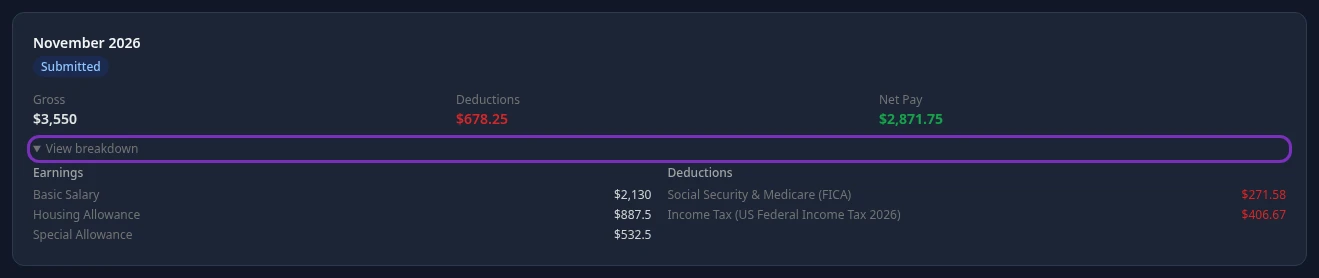
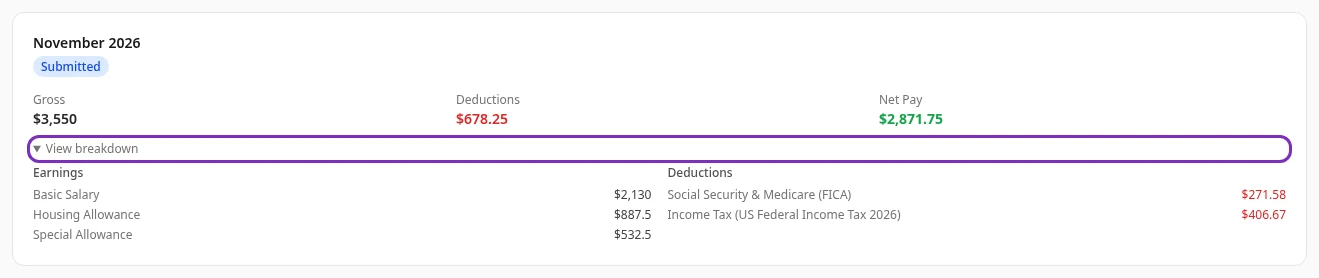
Your payslips are also on your profile: select your name in the top bar, then View Profile, Salary History and the Payslips tab. It’s the same list.
What a payslip shows
Section titled “What a payslip shows”| Item | What it is |
|---|---|
| The month | The pay period the payslip is for, such as November 2026. |
| Status | Submitted once payroll has worked out the payslip. See the note below. |
| Gross | Your pay for the period before deductions: the total of your earnings. |
| Deductions | The total taken off your pay, such as income tax and social security contributions. |
| Net Pay | What you’re paid: Gross minus Deductions. |
| View breakdown | Opens the Earnings and Deductions lists, one line per pay component with its amount, such as your basic salary, an allowance or a tax. |
- Your pay for a period is worked out from your annual salary divided by the number of pay periods in a year: 12 if you’re paid monthly. Your company decides how it’s split into earnings, such as a basic salary and allowances, and which deductions apply.
- If you joined or left during the period, the payslip only covers the days you were employed.
- Amounts are shown with a $ sign, whatever currency your company pays in.
When a payslip appears
Section titled “When a payslip appears”Your payslip for a period appears as soon as your payroll team runs payroll for that period. If they cancel the run, for example to correct a mistake, its payslips are removed from your list until they run payroll again.
Download or print a payslip
Section titled “Download or print a payslip”Anima HR doesn’t have a download or print option for payslips. If you need a copy, for example for a rental application, ask your payroll team.
Other tabs on the Pay page
Section titled “Other tabs on the Pay page”Depending on what your company uses, the Pay page can have two more tabs:
- Reimbursements: your expense reports. See Submit an expense report.
- Loans: your loans and salary advances. You can’t request a loan or a salary advance in Anima HR: ask your HR or finance team.
Can’t see this?
Section titled “Can’t see this?”- There’s no Pay in your menu bar, or no Payroll tab. Payroll is turned off for your company, or your role doesn’t include payslips. Ask your admin. Pay shows as soon as you can use one of its tabs, so you may see Pay with only Reimbursements or Loans.
- The tab says No payslips. No payroll run has included you yet. You’re only included once your salary is set up in payroll, so if you expected a payslip, ask your payroll team.