Set up scheduling and booking pages
Este conteúdo não está disponível em sua língua ainda.
Settings › Calendar & Scheduling › Scheduling holds the company-wide rules for booking pages: whether guests outside your company can book, reminder emails, team routing, and calendar sync with Google Calendar or Outlook. People set up their own hours and booking types on the Calendar page: see Set your availability and booking pages.
Open the scheduling settings
Section titled “Open the scheduling settings”-
Select Settings in the menu bar and turn on admin mode: select your name at the top right, then Elevate to Admin.
-
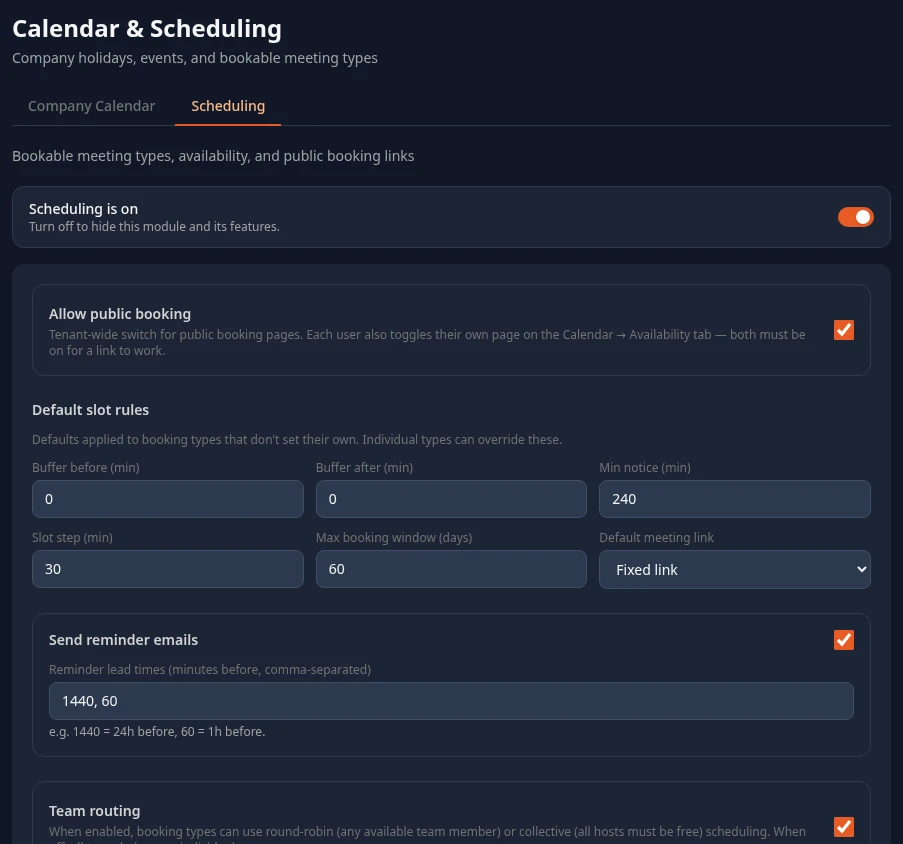
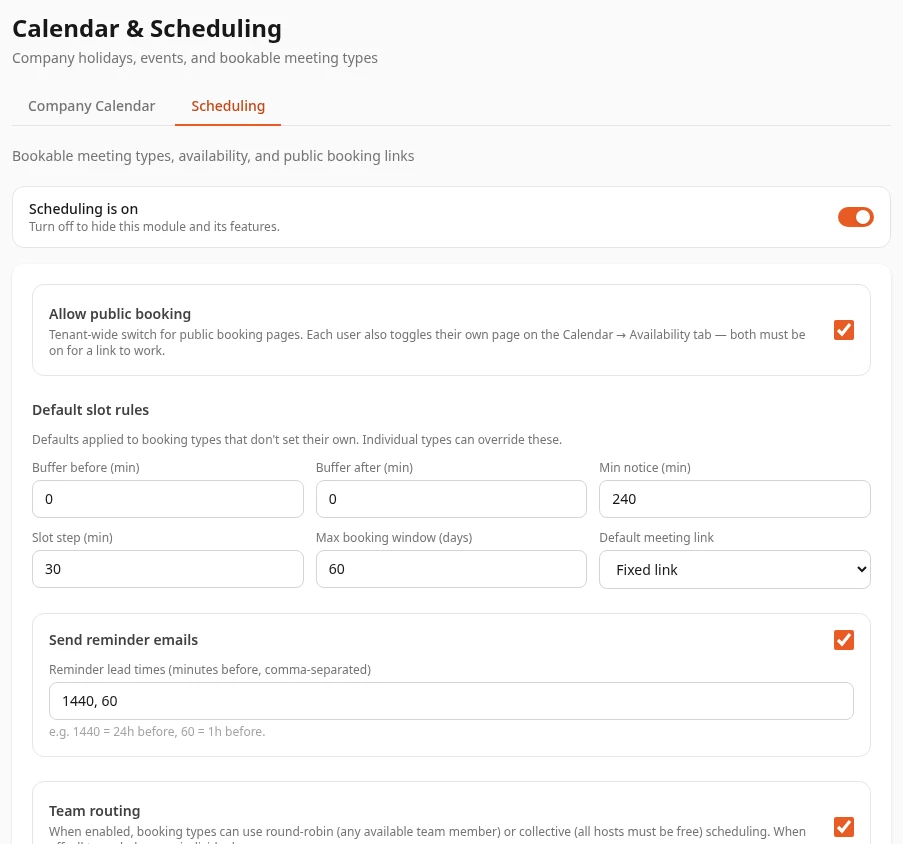
Open Calendar & Scheduling, then the Scheduling tab.
-
Change what you need, then select Save changes in the bar at the bottom of the page.
Scheduling is on, at the top of the tab, turns the Scheduling module on or off. With it off, the Calendar page has no Schedule, Booking Types or Availability tab, and every booking link stops working. See Turn modules on and off.
Public booking, reminders and routing
Section titled “Public booking, reminders and routing”| Setting | What it does | Default |
|---|---|---|
| Allow public booking | Lets people outside your company book through booking links. Each person also turns their own page on, on the Availability tab of the Calendar page: a link only works when both are on. Turned off, every link shows This booking page is not available. | On |
| Send reminder emails | Emails a reminder before each booked meeting. | On |
| Reminder lead times (minutes before, comma-separated) | When reminders go out, in minutes before the meeting: 1440, 60 sends one 24 hours before and one 1 hour before. A lead time that has already passed when someone books is skipped. Leave the field empty for no reminders. |
1440, 60 |
| Team routing | Lets booking types share bookings among colleagues: Round-robin (any team member) or Collective (all must be free). Turned off, every booking type works as Individual (just me). | On |
Changes to reminders apply to meetings booked after you save. Meetings already booked keep the reminders they were given.
Default slot rules
Section titled “Default slot rules”These are meant to be the company’s defaults for booking types that don’t set their own. Only the buffers work that way today.
| Setting | What it does | Default |
|---|---|---|
| Buffer before (min) and Buffer after (min) | Free time kept before and after each booking, so meetings aren’t back to back. Booking types can’t set their own buffers in the app, so these apply to every booking type. | 0 |
| Min notice (min) | Has no effect yet. Every booking type made in the app saves its own notice of 240 minutes (4 hours), which wins over this value. | 240 |
| Slot step (min) | Has no effect yet. Every booking type saves its own Slot step (min), which wins over this value. | 30 |
| Max booking window (days) | Has no effect yet. Booking pages always show the next 14 days. | 60 |
| Default meeting link | Has no effect yet. Bookings don’t get a meeting link, whatever you choose. | Fixed link |
Company booking types
Section titled “Company booking types”Anima HR can hold company booking types that everyone sees under Company templates on their Booking Types tab. There’s no screen to add them yet, in Settings or anywhere else, so in practice that section doesn’t show and each person creates their own booking types.
Connect Google Calendar or Outlook
Section titled “Connect Google Calendar or Outlook”When calendar sync is set up, people can connect their work calendar on the Availability tab: their busy times block booking slots, and confirmed bookings go into their calendar. Without it, guests and hosts get calendar invites by email.
Anima HR doesn’t provide a shared Google or Microsoft app. You register your own OAuth app with Google or Microsoft, once per workspace, and enter its details here.
-
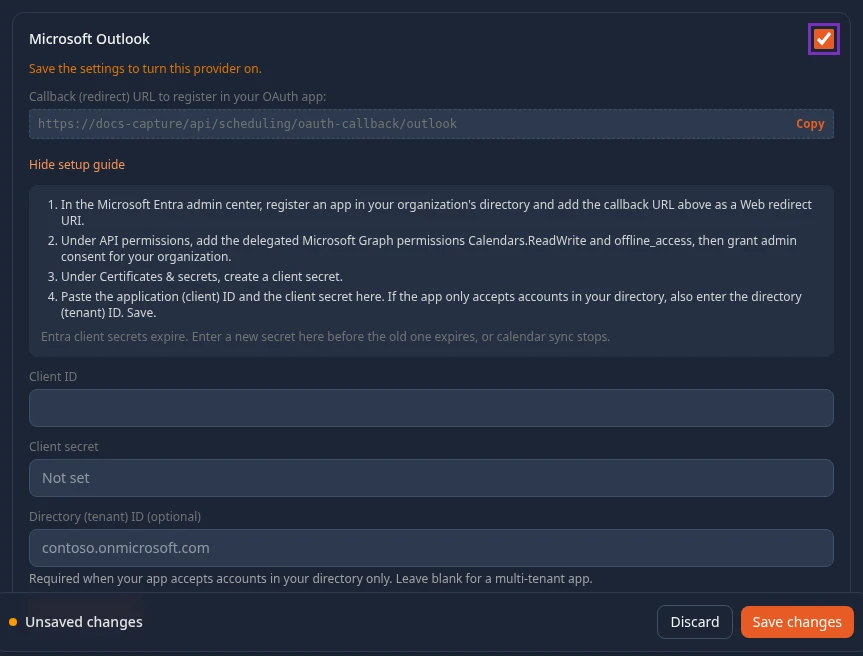
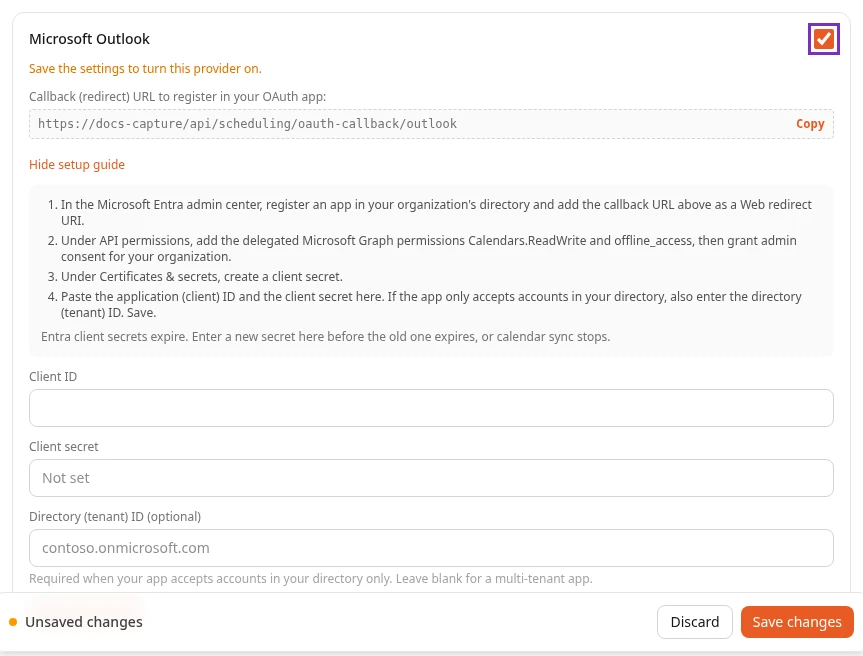
Under Calendar sync, tick Google Calendar or Microsoft Outlook. The row opens, and says Save the settings to turn this provider on.
-
Select Save changes in the bar at the bottom of the page.
-
Select Copy next to the Callback (redirect) URL to register in your OAuth app:. It’s your workspace’s address followed by
/api/scheduling/oauth-callback/googleor/api/scheduling/oauth-callback/outlook. -
Select Show setup guide and follow its steps in the Google Cloud console or the Microsoft Entra admin center. Register the callback URL exactly as you copied it.
-
Back in Anima HR, paste the app’s Client ID and Client secret. For Outlook, if your app only accepts accounts from your own directory, also enter the Directory (tenant) ID (optional), such as
contoso.onmicrosoft.com. Leave it empty for an app that accepts any Microsoft work account. -
Select Save OAuth app. OAuth app saved appears, and the row says Ready. Employees can connect.
Save OAuth app saves the app’s details straight away, separately from Save changes. The client secret is never shown again: the field then says Saved. Leave blank to keep it. To replace it, type the new secret and select Save OAuth app.
What the setup guide asks for:
| Microsoft | ||
|---|---|---|
| Where | A project in the Google Cloud console, under your Google Workspace organization, with the Google Calendar API turned on | An app registration in your directory in the Microsoft Entra admin center |
| Access | OAuth consent screen set to Internal, scopes calendar.events and calendar.freebusy |
Delegated Microsoft Graph permissions Calendars.ReadWrite and offline_access, with admin consent for your organization |
| Credentials | An OAuth client ID of type Web application | A client secret, from Certificates & secrets |
If the row says something else:
| Message | What to do |
|---|---|
| Not ready: add the client ID and client secret of your OAuth app. | Enter both and select Save OAuth app. |
| Not ready: add the client secret of your OAuth app. | Enter the secret and select Save OAuth app. |
| Not ready: the saved client secret can’t be read. Enter it again. | Enter the secret again and select Save OAuth app. |
| Couldn’t check the setup. Try again later. | Reload the page later. |
What doesn’t work well yet
Section titled “What doesn’t work well yet”- Two-way sync, which people turn on after connecting, stops after a few days (about 3 for Outlook, up to a week for Google), though its box stays ticked. People have to clear the box and tick it again.
- Changes people make to a booking in Google Calendar or Outlook may not reach Anima HR, because the address Anima HR registers for those updates may not be your workspace’s address.
- The time zone list on the Availability tab only offers the first 50 time zones, all in Africa, so most people’s hours show as Africa/Abidjan.
- The Auto-block switches on the Availability tab don’t change anything: company holidays are always blocked, and approved time off never is.
- The public booking page is always in English.
Who can change these settings
Section titled “Who can change these settings”Admins in admin mode. Saving this tab, and saving an OAuth app, needs Manage tenant types in Scheduling, which only the Admin role has.
HR Admins can open the tab, because they have Manage settings in System, but they don’t have Manage tenant types. Their changes, including Save OAuth app, are refused with a permission error. Give them a custom role with Manage tenant types if they should manage scheduling: see Create or change a custom role.
Can’t see this?
Section titled “Can’t see this?”- There’s no Calendar & Scheduling card in Settings. Turn on admin mode. Other people need a role with Manage settings in System.
- Saving says You don’t have permission to access this resource. Your roles don’t include Manage tenant types in Scheduling.
- People see Not set up yet. Ask an admin. next to a calendar. That provider is off, or its OAuth app isn’t saved yet.