Turn modules on and off
Este conteúdo não está disponível em sua língua ainda.
Each part of Anima HR, such as Time Off, Hiring or Payroll, is a module, and you switch modules on and off for your whole company in Settings. A module that’s off is hidden from everyone and can’t be used, but nothing in it is deleted.
Where each module’s switch is
Section titled “Where each module’s switch is”A module with a Settings card of its own has its switch on that card. A card that holds several modules, such as Time & Attendance, has a switch on each module’s tab instead.
| Module | Its switch | After setup |
|---|---|---|
| Dashboard | Dashboard card | On |
| People | People card | On |
| Time Off | Time & Attendance › Leave Policies | On |
| Attendance | Time & Attendance › Attendance | Off |
| Shifts | Time & Attendance › Shifts | Off |
| Calendar | Calendar & Scheduling › Company Calendar | On |
| Scheduling (booking pages) | Calendar & Scheduling › Scheduling | Off |
| Feedback | Feedback › Feedback Settings | On |
| Recognition | Feedback › Recognition | On |
| Performance (reviews) | Feedback › Review Settings, Review Templates or Review Cycles | On |
| People Analyzer | Feedback › People Analyzer | On |
| Notes (1:1 notes) | Notes card | On |
| Approvals | Approvals card | On |
| Chat (the AI assistant) | Chat card | On |
| Surveys | Surveys card | On |
| Assets | Asset card | On |
| CRM | CRM card | On |
| Hiring | Hiring card | On |
| Support | Support card | On |
| Academy | Academy & Training › Academy Settings, and the other Academy tabs | On |
| Training | Academy & Training › Training | Off |
| Payroll | Pay › Payroll Config | Off |
| Reimbursements | Pay › Reimbursements | On |
| Loans | Pay › Loans | Off |
| Onboarding Tasks | Employee Lifecycle › Onboarding | Off |
| Lifecycle (promotions and transfers) | Employee Lifecycle › Promotions & Transfers | Off |
| Separation | Employee Lifecycle › Separation | Off |
| AI connections (MCP) | AI connections (MCP) › Server Settings | Off |
| AI connectors | AI connections (MCP) › Connectors | Off |
After setup is what the setup wizard suggests on its Features step, and what your workspace has unless someone changed it there or since. Dashboard isn’t in the wizard and starts on. With sample data, every module is on except AI connections (MCP) and AI connectors. To see what your plan includes, see Plans and features.
Turn a module off
Section titled “Turn a module off”A module with its own card
Section titled “A module with its own card”-
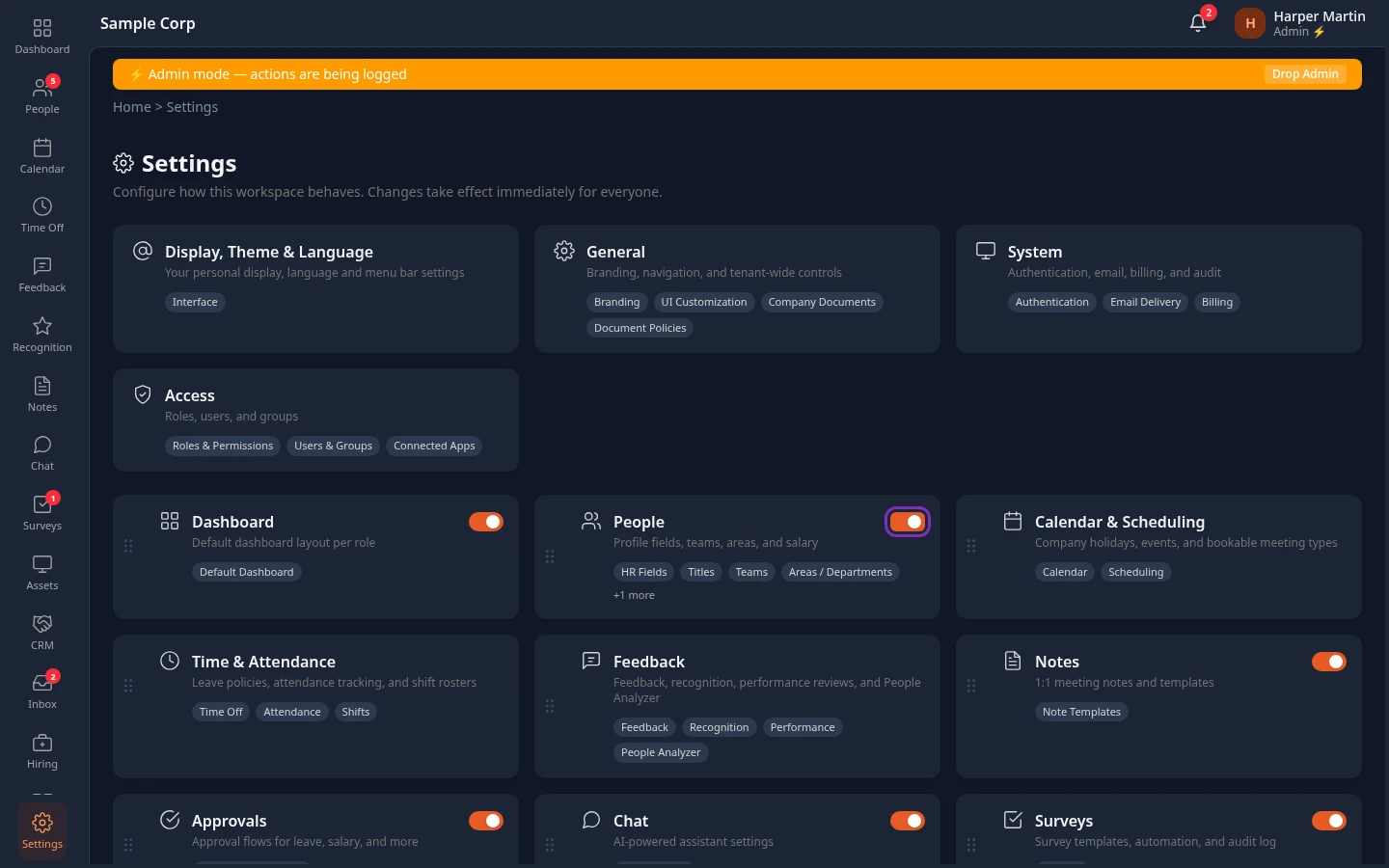
Select Settings in the menu bar. If you’re an Admin, turn on admin mode first: select your name at the top right, then Elevate to Admin.
-
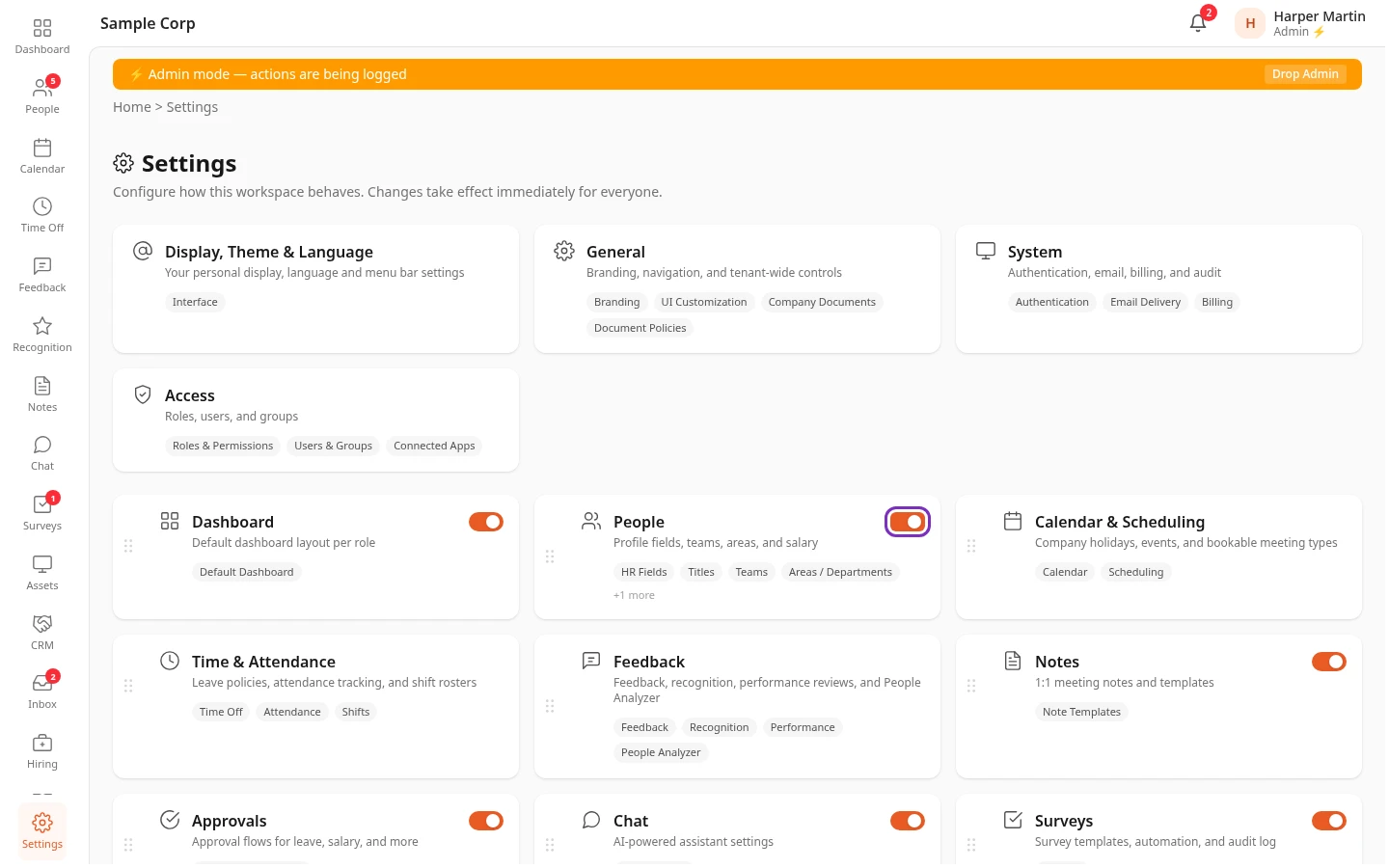
Select the switch at the top right of the module’s card.
-
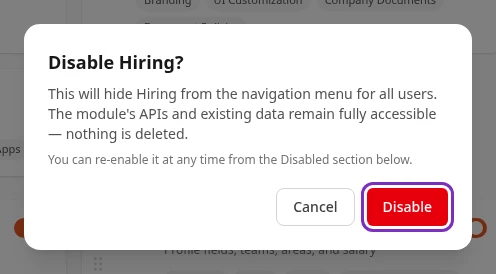
Select Disable to confirm.
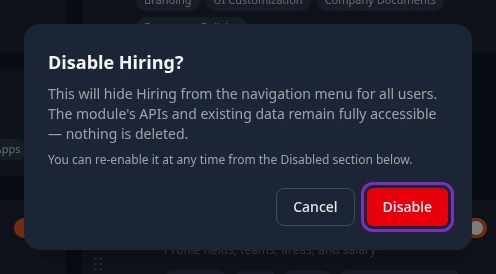
The card moves to Disabled at the bottom of the page. It can’t be opened until the module is on again.
A module on a shared card
Section titled “A module on a shared card”-
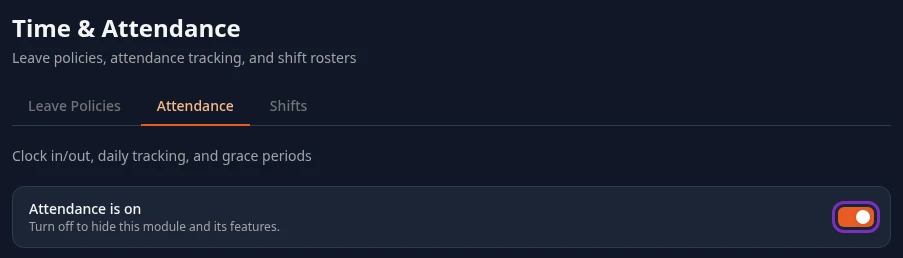
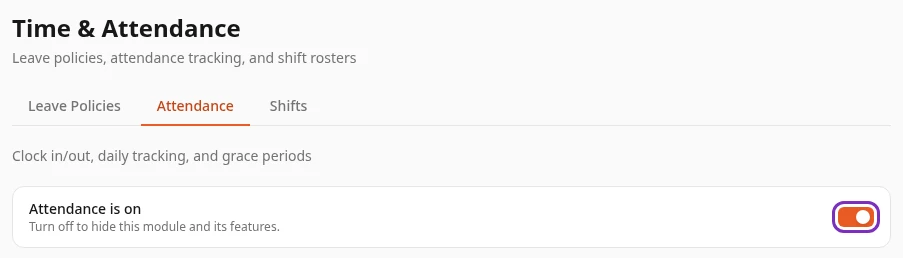
In Settings, open the card, then the module’s tab. For example, Time & Attendance, then Attendance.
-
Select the switch in the row that reads Attendance is on.
-
Select Disable to confirm.
Module disabled confirms the change. The tab now reads Attendance is turned off, and it’s marked Off in the tab bar. When every module on a card is off, the card moves to Disabled too, but it still opens, so that you can turn its modules back on.
Turn a module on
Section titled “Turn a module on”Cards whose modules are off wait under Disabled, at the bottom of the Settings page.
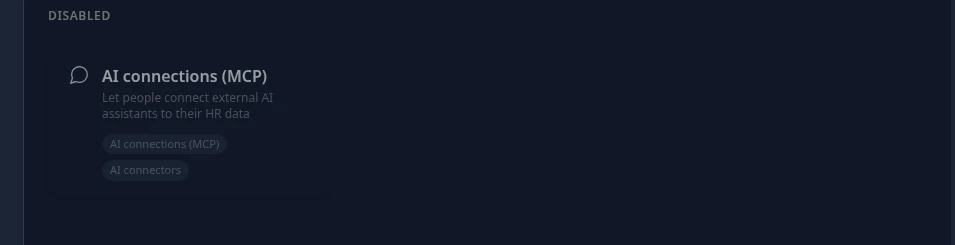
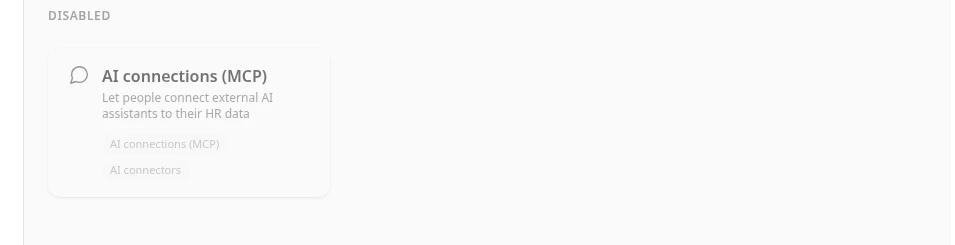
- A module with its own card: select the switch on its card under Disabled. The module is on straight away, without a confirmation, and its card moves back up.
- A module on a shared card: open the card, then the module’s tab, and select the button that turns it on, such as Enable Attendance. Module enabled confirms it.
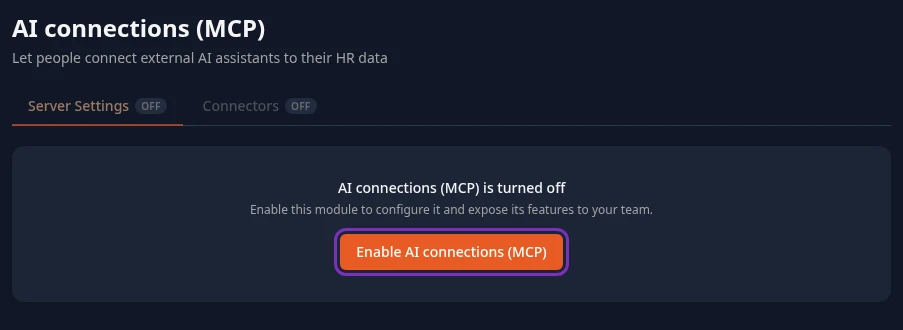
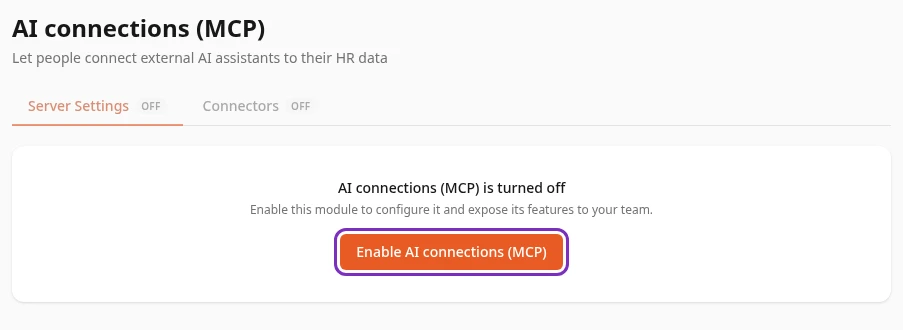
To change a module’s settings, turn it on first. While a module is off, its card doesn’t open, or its tab only offers to turn it on.
What turning a module off does
Section titled “What turning a module off does”For everyone in your company:
- It leaves the menu bar, and its widgets leave the dashboards. A menu item that holds several modules stays while one of them is on: Time Off (Time Off, Attendance and Shifts), Calendar (Calendar and Scheduling) and Pay (Payroll, Reimbursements and Loans).
- Nobody can use it. Its pages still open from an old link or bookmark, but they can’t load or change anything. Its public pages stop working too: booking pages for Scheduling, shared survey links for Surveys, the support portal for Support and the careers site for Hiring.
- Its settings can’t be changed until it’s on again.
- Nothing is deleted. Its records, files and settings are kept, and they’re all back when you turn it on.
A module you turn on can be used within seconds, and one you turn off stops within a minute. People who have Anima HR open see the change in their menu bar within a few minutes, or when they reload the page.
Modules that work differently
Section titled “Modules that work differently”- People: turning it off only takes People out of the menu bar. Profiles still open from links, and people can still be picked in forms across the app. The People card in Settings, with HR fields, titles, teams, areas and salary settings, can’t be opened while it’s off.
- Approvals: turning it off doesn’t stop approvals. Requests still go through the approval flows and wait in approvers’ Inbox, where they can still be approved. The Approvals card moves to Disabled, so the flows can’t be opened from Settings until it’s on again.
- Dashboard: with it off, people land on the first page of their menu bar after they sign in.
- Feedback: turning it off also takes the recognition widget off dashboards, even while Recognition stays on.
- AI connections (MCP): turning it off pauses the AI apps people have connected, without removing them. They work again when you turn it back on.
Areas / Departments
Section titled “Areas / Departments”Areas aren’t a module, but they have a switch of their own: on the Areas / Departments tab of Settings › People, next to Areas / Departments is on. Turning it off hides the Area field on profiles and the Areas filter on the People page. Your list of areas is kept.
Teams, feedback requests and upward feedback have no switch of their own: they’re on whenever their module is.
Can’t see this?
Section titled “Can’t see this?”- There are no module cards or switches. If you’re an Admin, turn on admin mode. Other people see a module’s card only when their roles can save one of its tabs, and need Manage features in System to use the switches. Finance, for example, gets the Pay card without switches.
- The switches are greyed out, and Couldn’t load module settings shows at the top. Anima HR couldn’t load which modules are on, so the switches are locked to keep your settings from being overwritten. Reload the page.
- A card under Disabled doesn’t open. Turn its module on with the card’s switch first.
- There’s no AI connections (MCP) card. It’s for Admins only: turn on admin mode.
- Someone still sees a module you turned off. It can take a few minutes. Ask them to reload the page.
Related
Section titled “Related”- Find your way around Settings and use admin mode
- Admin quick start, for the setup wizard’s Features step
- Plans and features
- Can’t see Time Off?