Choose the role a new person starts with
Este conteúdo não está disponível em sua língua ainda.
Everyone gets a role when their account is created, so they can use Anima HR from their first sign-in. Unless you choose another one, that role is Employee: their own records and the company directory. See How roles work.
The default role is Employee
Section titled “The default role is Employee”Every workspace gives new people Employee, and no screen changes that yet. Two settings look as if they do, but new people get Employee whatever they say:
- Default role for new employees, on the Onboarding step of the setup wizard, under Auto-Onboard.
- Default role for self-registered users, in Settings › System › Authentication, shown when User Self-Registration is on.
On Users & Groups, a role a person got this way shows via system:user-create, and it has no Remove link. See See a person’s roles.
How each new person gets their role
Section titled “How each new person gets their role”| How the person joins | The role they start with |
|---|---|
| You add them on People with + Add Employee and leave Access Policy as it is | Employee. |
| You add them and choose another role in Access Policy | Only the role you chose, not Employee as well. See Give a new person another role. |
| They sign in with single sign-on for the first time | Employee, from that first sign-in. They fill in a short form, then wait in Pending HR Review until someone activates them. |
| You activate them from Pending HR Review | The role they already have. Anyone without a role gets Employee. |
| You hire them in Hiring | Employee, from the moment you hire them. They get an invitation email to set their password, like people you add on People. |
Whichever way they join, Manager comes on its own once people report to them.
Choose the role when you add someone
Section titled “Choose the role when you add someone”When you add a person on People, the Access Policy list in Add Employee decides their first role. It starts on Employee (default).
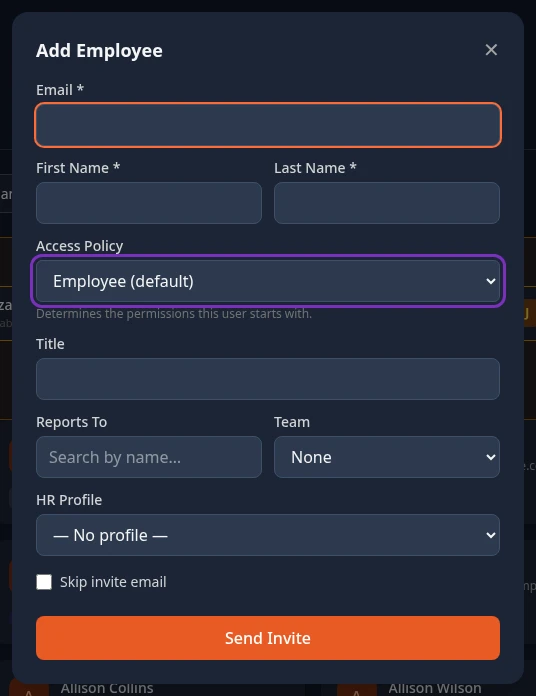
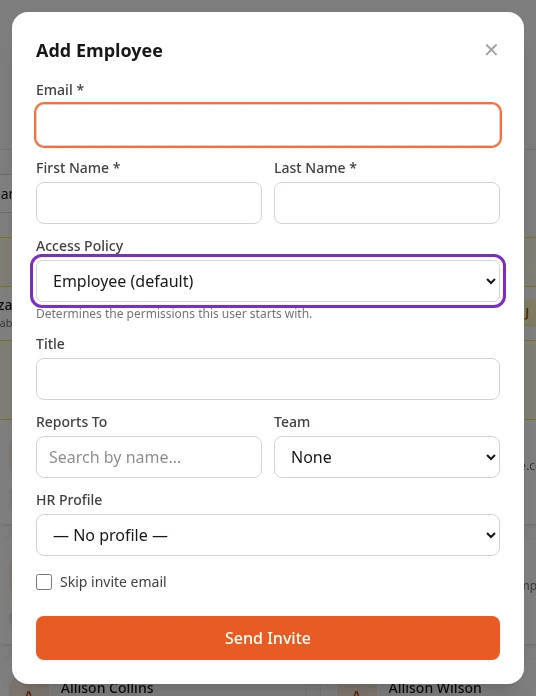
The list has every role in your workspace except Manager. Admin is only listed for Admins in admin mode. A custom role with a permission that, as shipped, only Admin has, such as Manage roles, is listed for everyone but only works in admin mode: anyone else gets Something went wrong. Please try again. when they select Send Invite. HR Admins can choose any other role. For the rest of the form, see Add your people.
Give a new person another role
Section titled “Give a new person another role”To give someone a role besides Employee, such as Recruiter or HR Admin, add them with Access Policy left at Employee (default), then give them the extra role:
-
Add the person on People with + Add Employee, leaving Access Policy as it is.
-
Turn on admin mode, then open Settings › Access › Users & Groups.
-
Open the person and assign the extra role. See Give someone a role.
Can’t see this?
Section titled “Can’t see this?”- There’s no + Add Employee on People. Adding people needs Manage users: HR Admins have it, and Admins in admin mode.
- Admin isn’t in Access Policy. Turn on admin mode.