Take a course
Este conteúdo não está disponível em sua língua ainda.
Your courses are in Academy. Courses your company requires are under Required, courses you chose yourself are under Optional, and the ones you’ve finished are under Completed.
Your courses
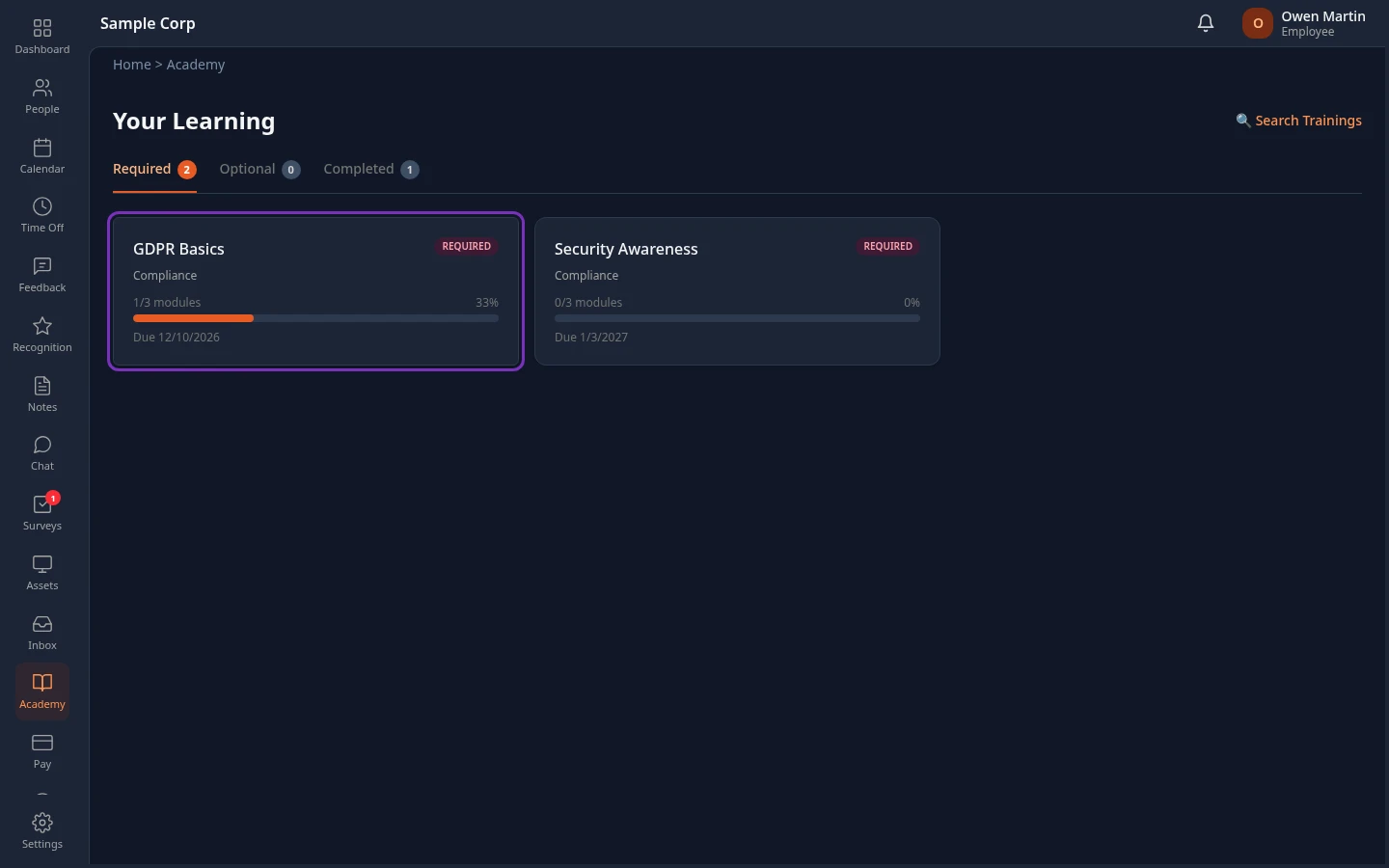
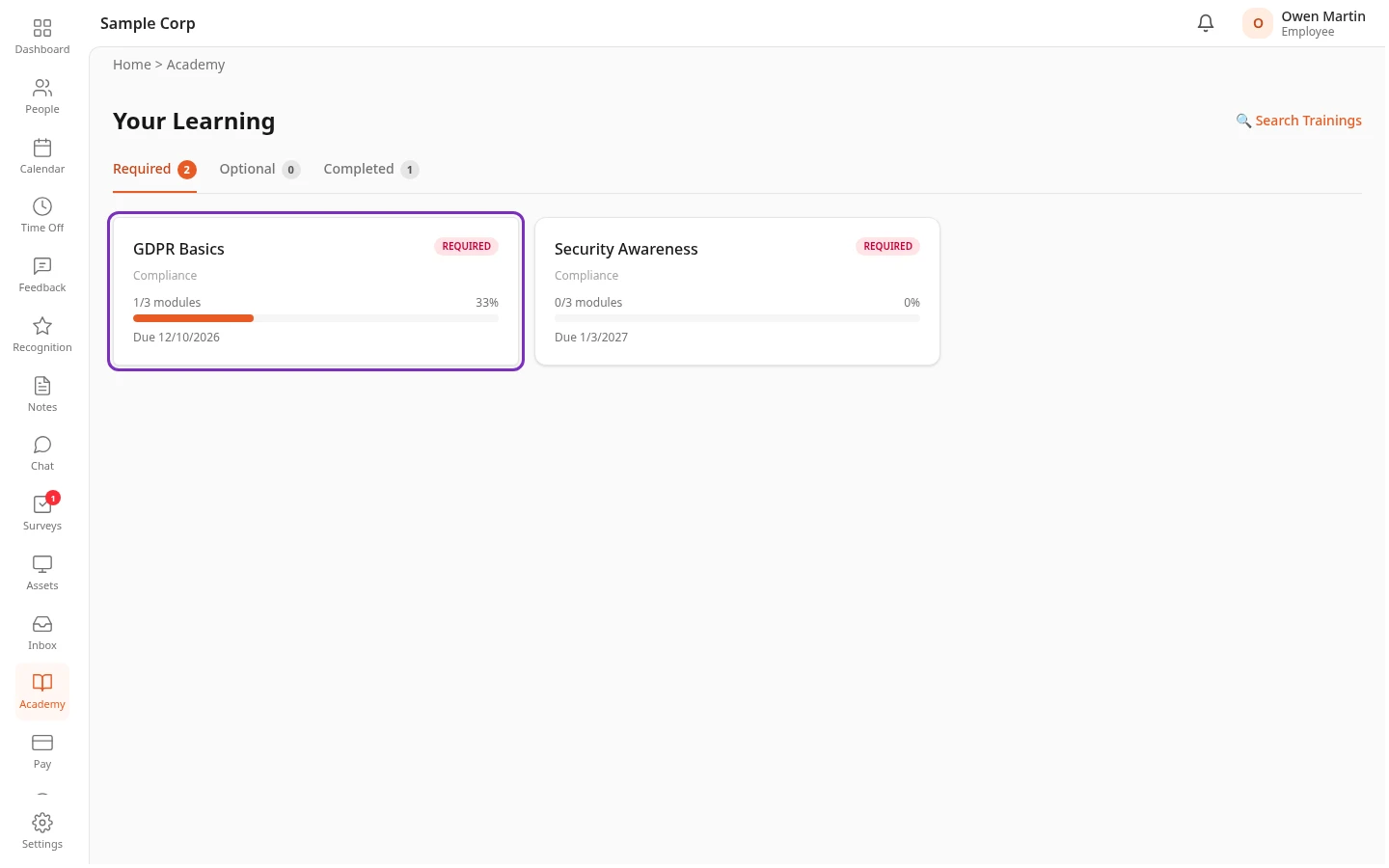
Section titled “Your courses”Select Academy in the menu bar. The Your Learning page opens on the Required tab. The number on each tab counts its courses.
| Tab | What’s on it |
|---|---|
| Required | Courses your company assigned to you that you haven’t finished yet. |
| Optional | Courses you enrolled in yourself, and courses recommended to you, that you haven’t finished yet. |
| Completed | Every course you’ve finished, with the date you finished it. |
Each course card shows the course’s category and your progress, for example 1/3 modules and 33%. Required courses have a Required label, and a course with a deadline shows Due and the date.
Enroll in a course
Section titled “Enroll in a course”-
On Your Learning, select Search Trainings.
-
Find a course. Type part of its title or description in the search box, or narrow the list with All categories and All tags.
-
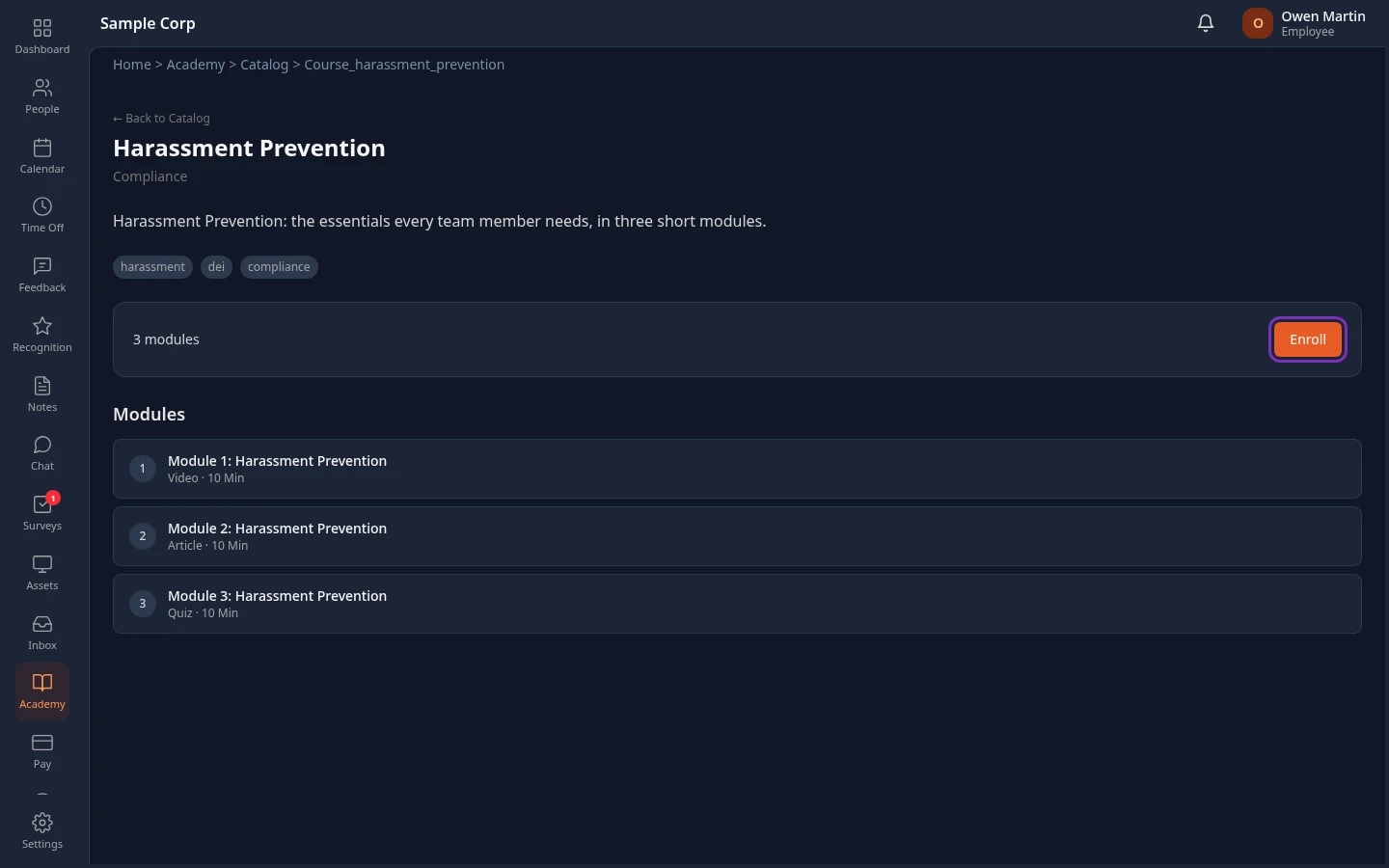
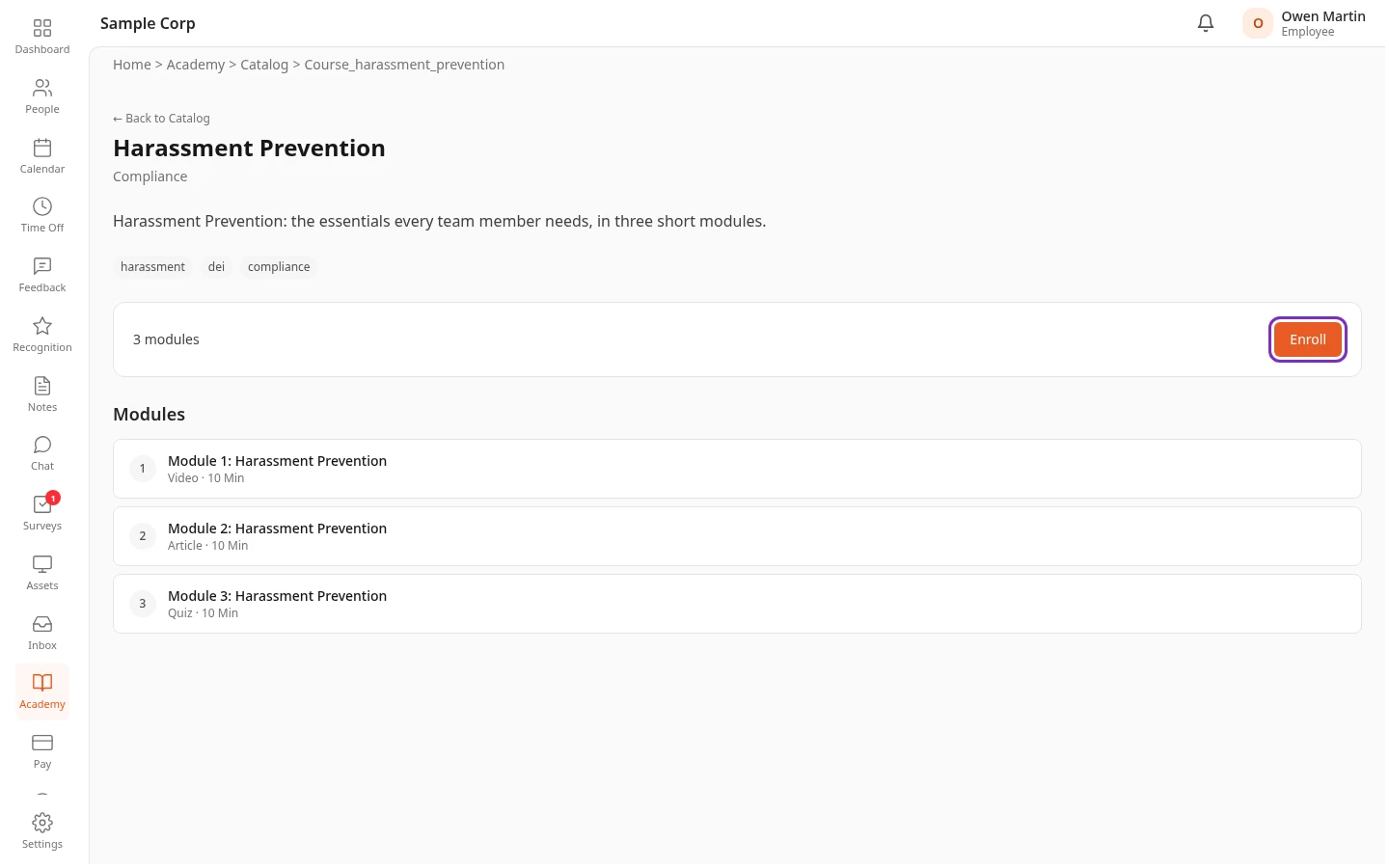
Select the course. Its page shows the description and the Modules, with the type and length of each.
-
Select Enroll.
Enrolled appears and the course opens on its first module. A course you enroll in yourself has no deadline and is listed under Optional.
If you’re already enrolled, the course page shows You’re enrolled in this course and a Continue button instead of Enroll. For a course you’ve finished, it shows Completed and a Review button.
Work through a course
Section titled “Work through a course”-
On Your Learning, select the course. The course player opens on the first module, with all the modules listed on the left.
-
Go to the module you want: select it in the list, or use ← Previous and Next →.
-
Go through the module. What you do depends on its type; see the table below.
-
Select Mark complete. Module completed appears and your progress goes up on Your Learning.
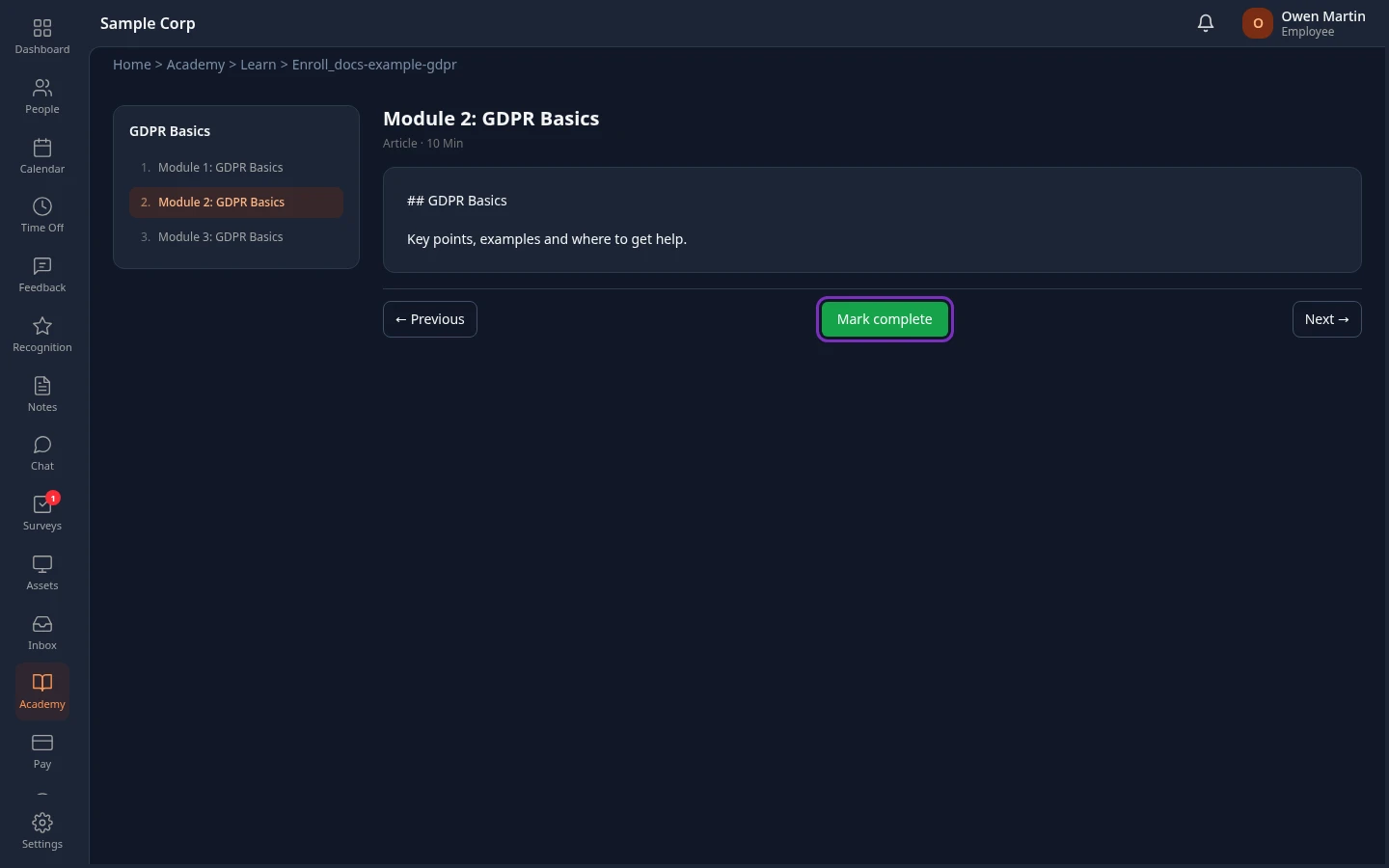
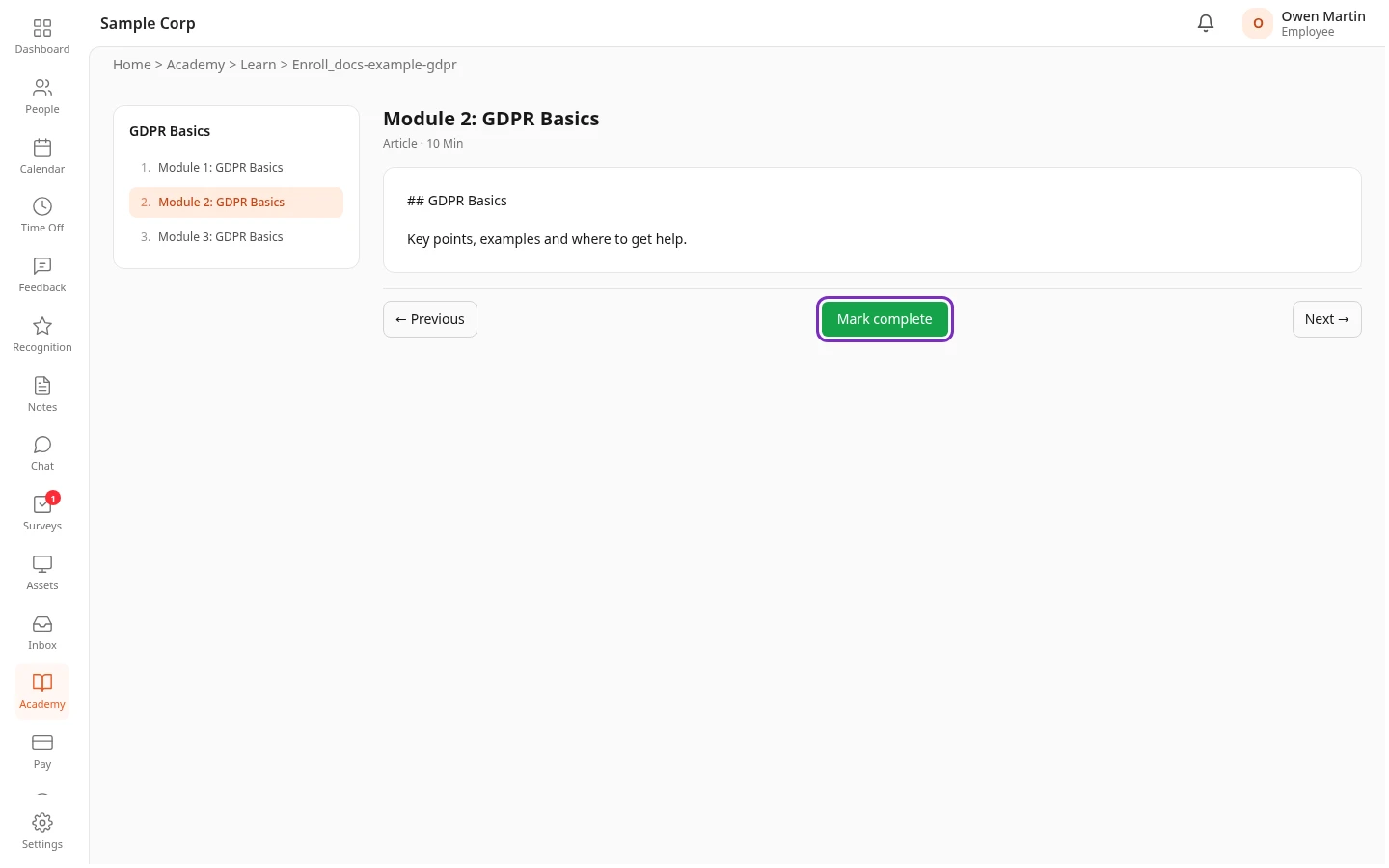
The player always opens on the first module, and its list doesn’t mark the modules you’ve done. Your progress is kept anyway: the course’s card on Your Learning shows how many modules you’ve completed.
| Module type | What you do |
|---|---|
| Video | Play the video in the page. If you leave and come back, it starts again close to where you stopped. Then select Mark complete. |
| Article | Read the text, then select Mark complete. |
| Document | Read it in the page, or select Open in new tab ↗. Then select Mark complete. |
| External link | Select Open link ↗ to open the page in a new tab. When you’re done, come back and select Mark complete. |
| SCORM | An interactive lesson that runs in the page. Many lessons mark the module complete when you finish them. If Your Learning doesn’t count it as done, select Mark complete. |
| Quiz | Quizzes don’t have questions yet: the module shows This quiz has no questions configured. Select Mark complete to move on. |
When every module is complete, the course moves to Completed, and the button in the player reads Course completed. You also earn a certificate: see Find your course certificates.
Deadlines
Section titled “Deadlines”A required course with a deadline shows Due and the date on its card. Finish it by then. After that date, the course stays under Required, with the same date, until you finish it, and it counts as overdue in your company’s training reports.
Anima HR doesn’t send you a notification when a course is assigned to you, so check Your Learning from time to time.
Can’t see this?
Section titled “Can’t see this?”- There’s no Academy in your menu bar. The Academy module is turned off for your company, or your roles don’t include Academy. Ask your admin.
- A course page has no Enroll button. Your roles don’t let you enroll in courses yourself. Ask your HR team to assign the course to you.
- A course isn’t in Search Trainings. Some courses are only shown to certain teams or roles. Ask your HR team.