Find your way around Settings and use admin mode
Este conteúdo não está disponível em sua língua ainda.
Settings, at the bottom of the menu bar, is where your workspace is set up: your branding, how people sign in, roles, and every module. This page explains how Settings is laid out, who sees what there, how changes are saved, and how Admins use admin mode to reach all of it.
The Settings page
Section titled “The Settings page”Select Settings at the bottom of the menu bar. On a phone, open the menu first. If you’re an Admin, turn on admin mode before you start: without it you usually only see your own display settings, and the Settings page says so.
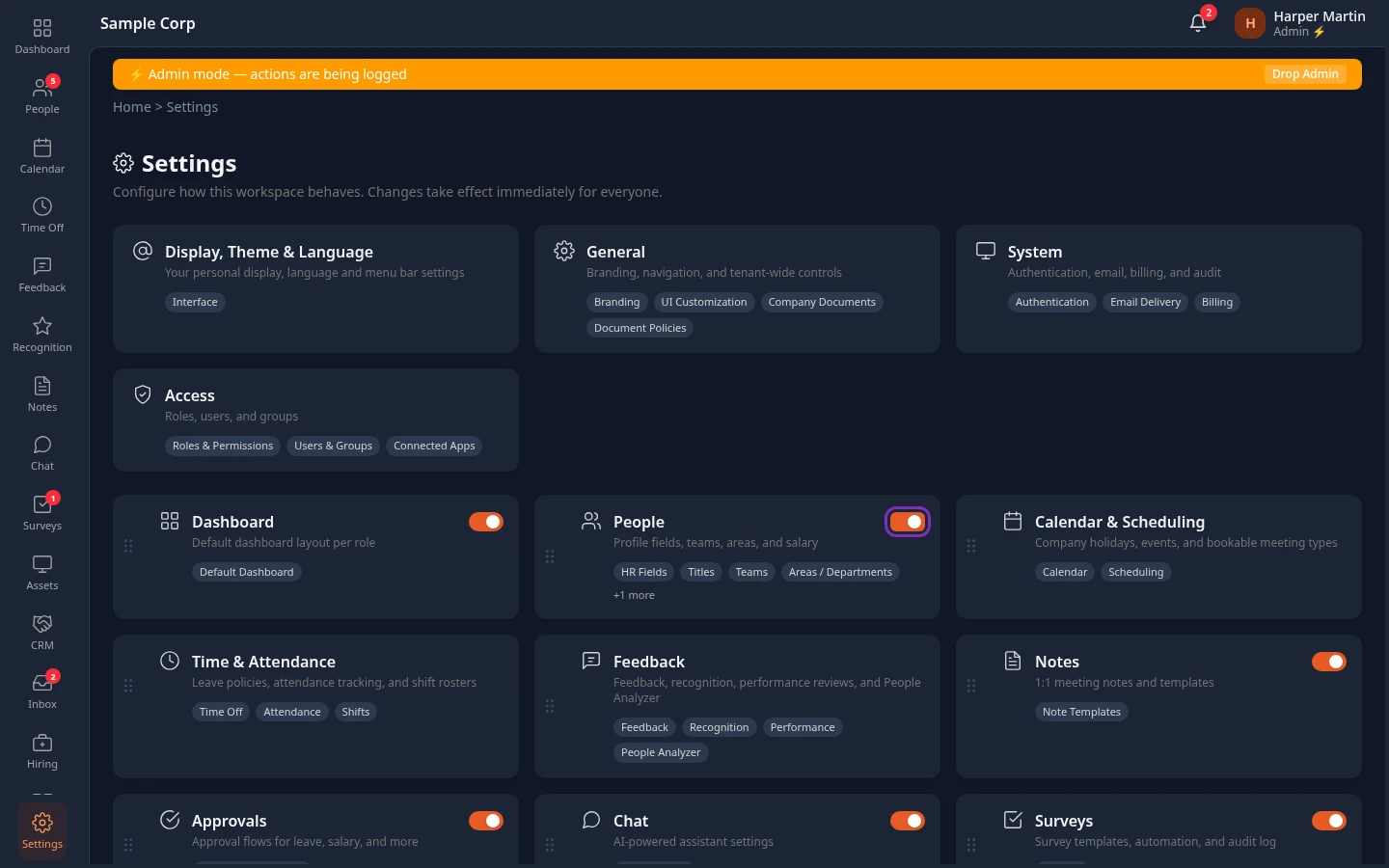
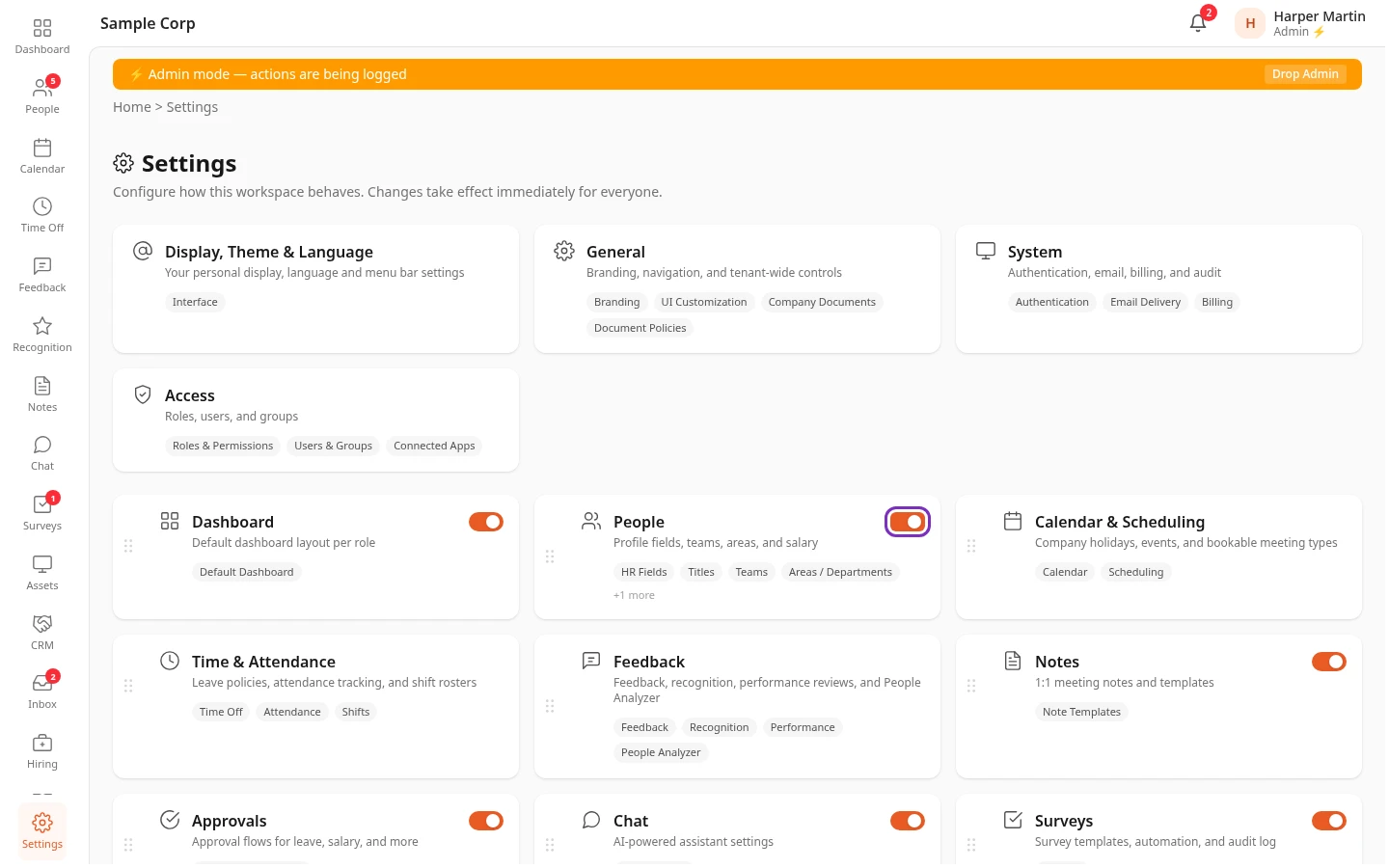
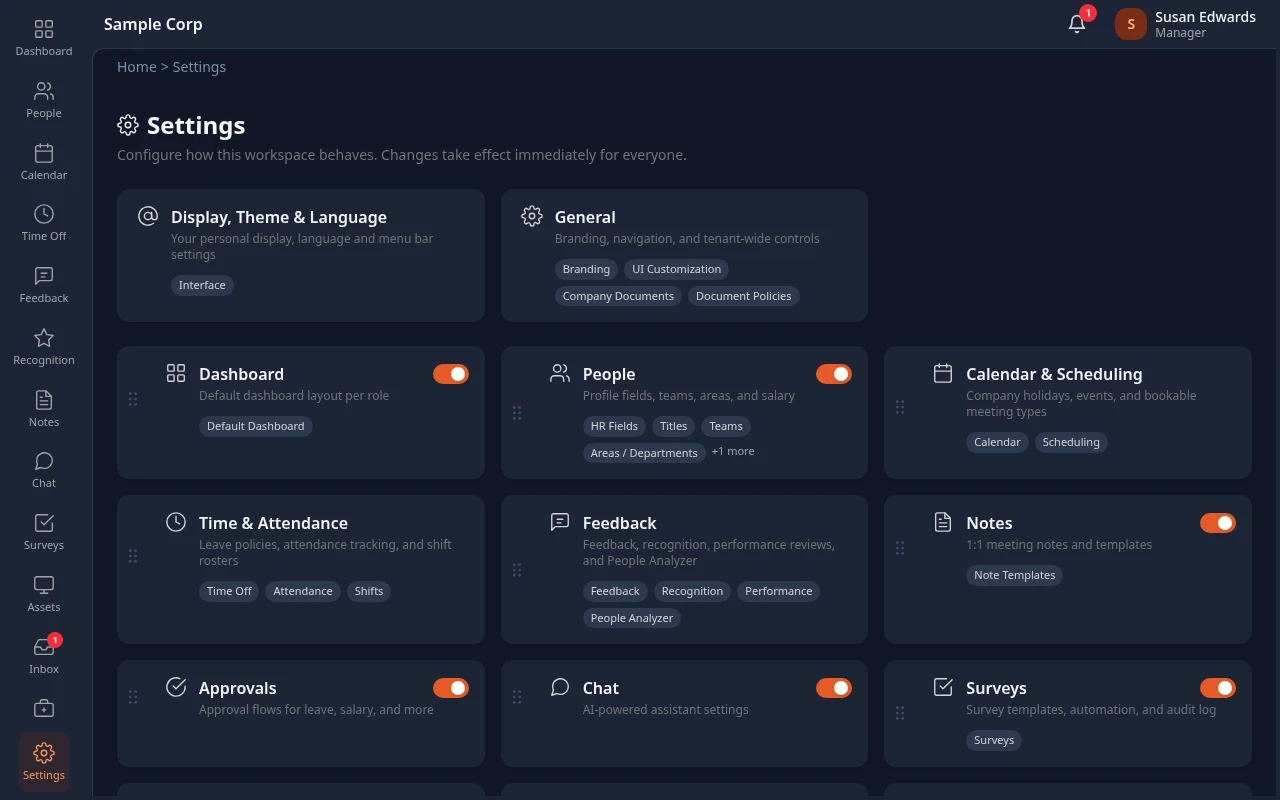
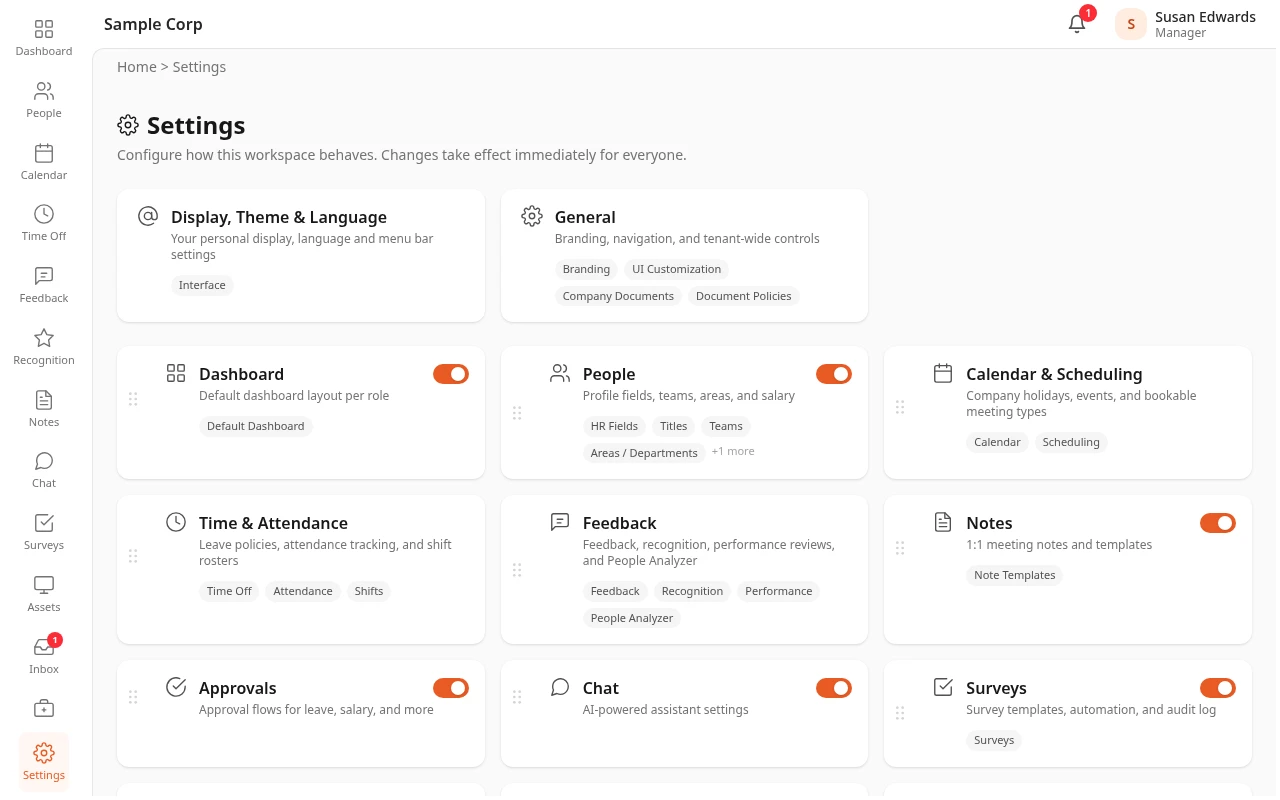
The page has a card for each part of the app you can change (see Who sees what), in three groups:
- At the top, the cards that are always there: Display, Theme & Language, General, System and Access. They have no switch.
- Below them, a card for each module that’s on. A card for one module, such as People or Hiring, has the module’s switch at its top right. A card that holds several modules, such as Time & Attendance or Pay, has no switch of its own: each of its tabs has one. See Turn modules on and off.
- Disabled, at the bottom, for cards whose modules are all off. These cards are faded.
Each card lists its first four tabs, then a count such as +1 more. A card that holds several modules lists its modules instead, dimmed while they’re off. The module cards are in the same order as the menu bar: see Change the menu bar’s order and names.
What’s on each card
Section titled “What’s on each card”| Card | Tabs |
|---|---|
| Display, Theme & Language | Interface: each person’s own language, theme and menu bar. See Set your language, theme and menu bar. |
| General | Branding, UI Customization, Company Documents, Document Policies |
| System | Authentication, Email Delivery, Billing |
| Access | Roles & Permissions, Users & Groups, Connected Apps |
| Dashboard | Default Dashboard |
| People | HR Fields, Titles, Teams, Areas / Departments, Salary Settings |
| Calendar & Scheduling | Company Calendar, Scheduling |
| Time & Attendance | Leave Policies, Attendance, Shifts |
| Feedback | Feedback Settings, Recognition, Review Settings, Review Templates, Review Cycles, People Analyzer |
| Notes | Note Templates |
| Approvals | Opens Workflows, the list of approval flows |
| Chat | Opens Chat Settings |
| Surveys | Surveys |
| Asset | Templates & Categories, General Settings |
| CRM | CRM Config |
| Hiring | Hiring Config |
| Support | Support Config |
| Academy & Training | Academy Settings, Courses, Global Catalog, Assignment Rules, Tags & Categories, Compliance, Audit Log, Training |
| Pay | Payroll Config, Reimbursements, Loans |
| Employee Lifecycle | Onboarding, Promotions & Transfers, Separation |
| AI connections (MCP) | Server Settings, Connectors |
In these docs, Settings › People › Teams means the People card, then its Teams tab.
Open a card
Section titled “Open a card”Select a card to open it on its first tab. The tabs run across the top of the page. A card with a single tab, such as Notes, has no tab bar.
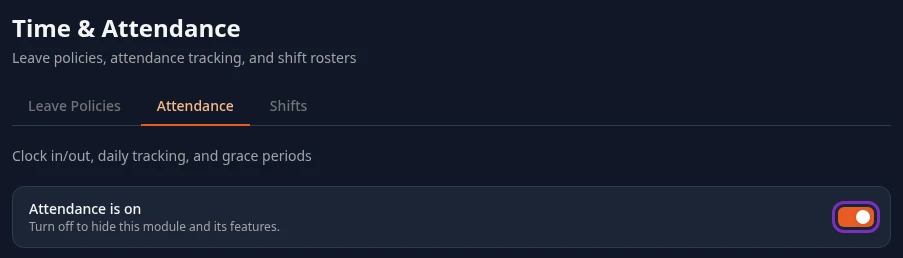
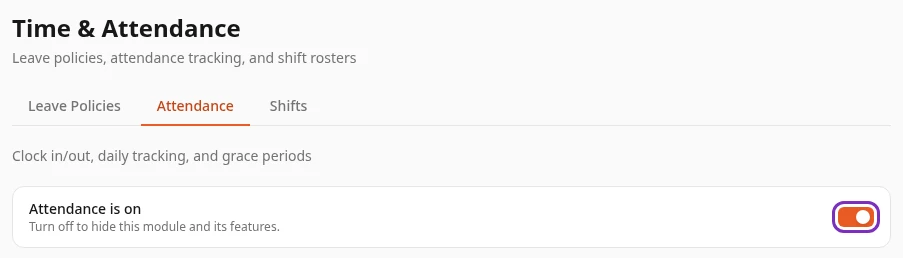
On a card that holds several modules, each tab starts with its module’s switch, such as Attendance is on, and the tab of a module that’s off is marked Off.
To go back, select Settings in the trail under the top bar. If you open a card or tab your roles can’t use, for example from an old bookmark, you’re sent back to the Settings page or to your dashboard.
Save your changes
Section titled “Save your changes”Most tabs keep what you change in the form until you save it. As soon as you change something, a bar appears at the bottom of the page.


- Save changes applies your changes, and Settings saved confirms it. Ctrl+S (⌘S on a Mac) does the same.
- Discard puts the form back the way it was saved.
- Reset to defaults, at the bottom of the tab, asks you to confirm, then fills the form with the built-in settings for what this tab shows. Other tabs, and data kept elsewhere such as help desks, academy tags or meeting types, stay as they are. Nothing changes until you save.
- If a value can’t be saved, Save rejected – fix these issues: at the top of the tab lists the fields to fix, and nothing is saved.
A few tabs, such as Company Documents and Hiring Config, don’t use this bar: they save each change straight away, or have save buttons of their own. Module switches also apply straight away.
Other people see your changes within a few minutes.
Who sees what
Section titled “Who sees what”Everyone can open Settings. A tab shows only to people whose roles can save it, and a card shows when at least one of its tabs does. So each person sees the cards they can change, and nothing else. With the built-in roles:
| Who | What their Settings page shows |
|---|---|
| Employees and managers, and people with the Sales role | Display, Theme & Language only |
| Finance | Display, Theme & Language and Pay, with all three tabs: Payroll Config, Reimbursements and Loans |
| Recruiters | Display, Theme & Language and Hiring, which opens on Hiring Config |
| HR Admins | Display, Theme & Language, General, and the module cards, with the exceptions below. No System, Access or AI connections (MCP) card. |
| Admins, out of admin mode | What their other roles give them: with Employee, Display, Theme & Language only. A bar at the top says Most settings need admin mode. Turn it on to see every card., with an Elevate to Admin button. |
| Admins in admin mode | Every card and every tab |
For HR Admins, a few cards are smaller or can’t be opened, because the HR Admin role doesn’t include the permission to save them:
- Calendar & Scheduling has Company Calendar only, without Scheduling.
- Pay has Loans only, without Payroll Config and Reimbursements.
- CRM, Chat and Approvals keep their module switch, but the card doesn’t open.
What decides it:
- Each tab needs the permission for what it saves. For example Branding needs Manage branding in System, Leave Policies needs Manage policies in Time Off, Hiring Config needs Configure pipeline in Hiring, and Payroll Config needs Manage settings in Payroll. Manage settings in System no longer opens every card on its own. A custom role with only Manage policies in Time Off gets the Time & Attendance card with just Leave Policies.
- Some cards need one permission for the whole card. Access needs Manage roles in System, and AI connections (MCP) needs Manage AI connections (MCP).
- Module switches need Manage features in System, and dragging and renaming cards needs Manage navigation in System. HR Admins have both. Without Manage features, a tab whose module is off says Your roles can’t turn modules on. Ask an admin to turn it on.
- If you open a card or tab your roles can’t save, for example from an old bookmark, you’re sent back to Settings.
Settings links on module pages
Section titled “Settings links on module pages”Some module pages, such as Hiring, Pay, Time Off, People and Surveys, have a ⚙ button next to their title that opens that module’s settings. It follows the same rule: you only get the ⚙ when you can open the tab it points to. A Recruiter, for example, gets the ⚙ on Hiring and lands on Hiring Config. On Pay, the ⚙ opens the settings for the tab you’re on.
Change the menu bar’s order and names
Section titled “Change the menu bar’s order and names”The module cards are in the same order as the menu bar, and the Settings page is where you change the order and some of the names. Both changes are saved straight away, for everyone. They need Manage navigation in System, which HR Admins have.
- To move a menu item, drag its module’s card by the handle on the card’s left edge, to where you want it.
- To rename a menu item, point at the name of its module’s card and select the pencil next to it. Type the new name, then press Enter, or Esc to cancel. The card and the menu item both get the new name.
A few limits apply:
- Dragging doesn’t stick for Hiring, Support, Academy & Training, Pay and Employee Lifecycle: their cards go back to the end the next time you open Settings, and the Hiring, Academy, Pay and Support menu items stay after the other items.
- Dragging any card also moves Recognition, which has no card of its own, down to the place above Inbox.
- Only Dashboard, People, Notes, Chat, Surveys, Asset and Hiring can be renamed. Approvals has the pencil too, but its menu item is replaced by Inbox, so the new name only shows on the card.
- A new name is saved for the language you’re using the app in. A name you give in English also shows in the other languages, unless you rename the item in that language too.
To hide menu items, for everyone or so that people can hide them themselves, use Settings › General › UI Customization: see the article on choosing what people see in the menu bar and on pages, in this section.
Use admin mode
Section titled “Use admin mode”Admins don’t have admin access all the time. The Admin role only takes effect while admin mode is on. The rest of the time, Admins have the access of their other roles: usually Employee, and Manager if people report to them.
Only people with the Admin role can turn admin mode on, whether the role was given to them directly or through a group. The person who signed your company up is the first Admin, and only an Admin in admin mode can make someone else an Admin. HR Admins and the other roles have no admin mode: their access is always on.
Turn admin mode on
Section titled “Turn admin mode on”-
Select your name in the top bar. On a phone, open the menu instead.
-
Select Elevate to Admin.
The page reloads in admin mode:
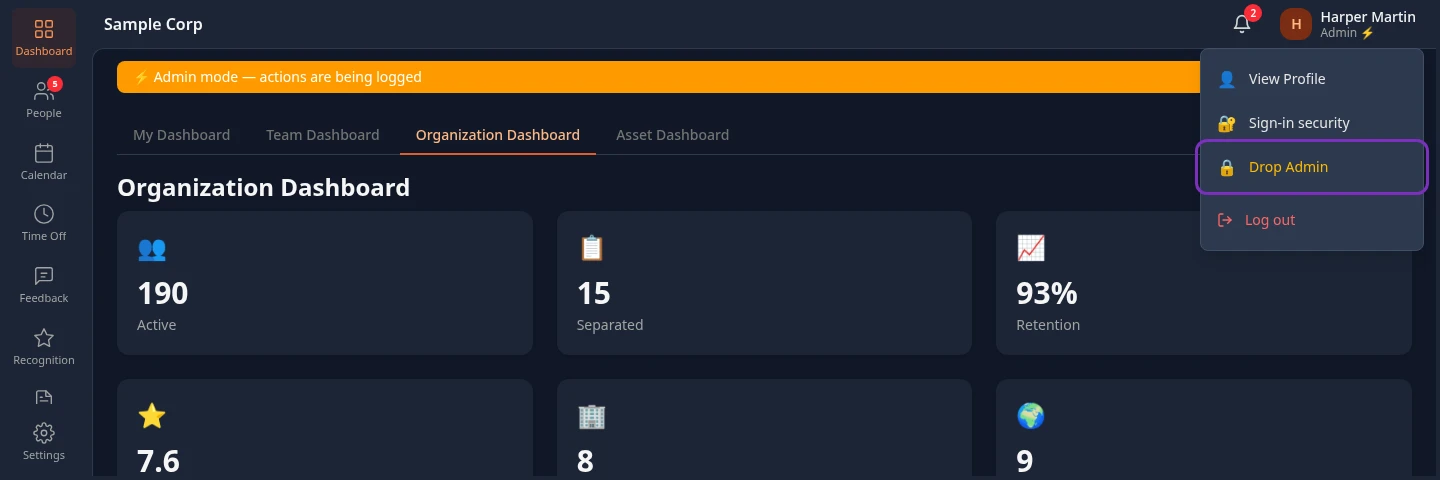
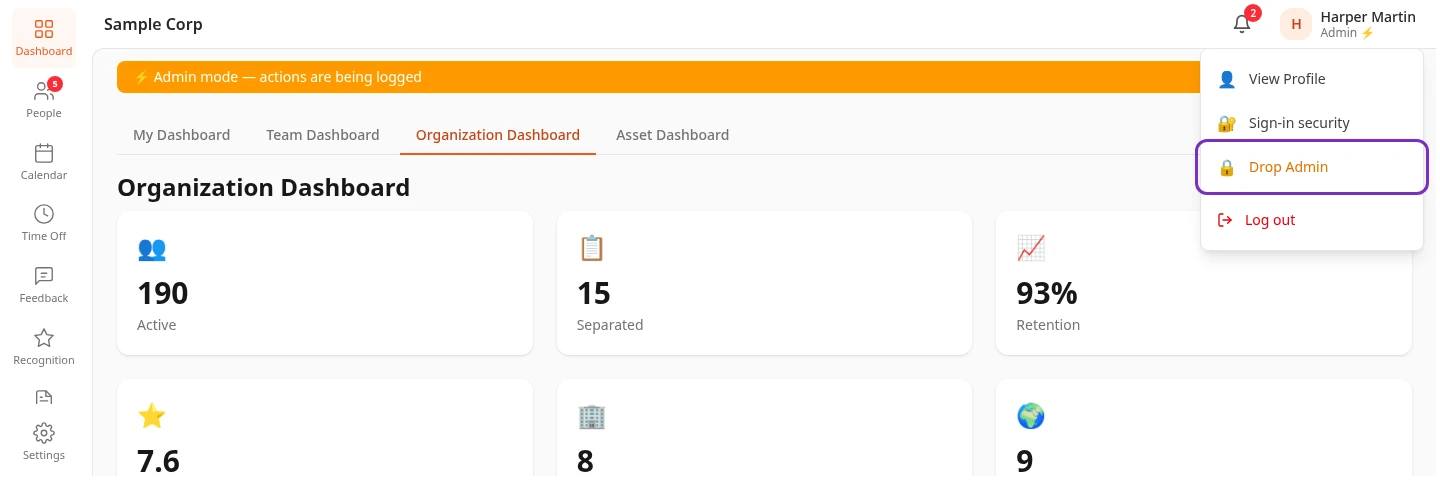
- An orange bar, ⚡ Admin mode — actions are being logged, stays at the top of every page.
- The label under your name in the top bar reads Admin ⚡. Out of admin mode it reads Manager if people report to you, otherwise Employee. It never shows your other roles, such as HR Admin.
The setup wizard turns admin mode on for you.
Turn admin mode off
Section titled “Turn admin mode off”Select Drop Admin in the orange bar or in the menu under your name. On a phone, it’s in the menu. The page reloads with your usual access.
How long it lasts
Section titled “How long it lasts”- There’s no time limit. Admin mode stays on until you select Drop Admin or close the browser tab.
- It only applies to the browser tab you turned it on in. A new tab, another browser or your phone starts without it.
- Logging out doesn’t end it.
What admin mode gives you
Section titled “What admin mode gives you”In admin mode you have every permission, for everyone’s records. That includes:
- every card and tab in Settings, including Access, System › Billing and AI connections (MCP);
- every field on every profile, such as pay and private details, and every module’s records and admin pages;
- giving the Admin role, and the other roles that only an Admin can give, or taking them away;
- loading sample data, going live and running the setup wizard: see the admin quick start;
- View as this user on people’s profiles, to see Anima HR the way they do: see the article on viewing the app as someone else, under Access & roles;
- resetting the two-step verification of another Admin or HR Admin;
- a count of the people waiting in Pending HR Review, on People in the menu bar.
The AI assistant answers with admin access too. In admin mode, the Chat page shows Elevated: answers can include admin data, and each answer given that way is marked Answered with admin access. Out of admin mode, Admins see Not elevated: employee-level answers. AI apps that people connect to Anima HR, and connectors, never use admin mode.
What’s recorded
Section titled “What’s recorded”Anima HR records every request anyone makes, with their name and the time, whether admin mode is on or not. These records don’t say whether admin mode was on, and there’s no screen in the app to look at them. Changes to roles, to who holds them and to two-step verification are recorded separately as well.
What other people see
Section titled “What other people see”Nobody is told when you turn admin mode on, and nothing changes for anyone else. What you do in admin mode carries your name as usual, for example on an approval.
Can’t see this?
Section titled “Can’t see this?”- Settings only shows Display, Theme & Language. If you’re an Admin, turn on admin mode. Otherwise, your roles can’t save any settings: ask an Admin.
- There’s no Elevate to Admin in the menu under your name. You don’t have the Admin role. HR Admins don’t need it.
- There’s no System, Access or AI connections (MCP) card. As shipped, only Admins have the permissions for them. Turn on admin mode.
- A card has a switch but doesn’t open. You can turn the module on and off, but your roles can’t save its settings, as with CRM, Chat and Approvals for HR Admins.
- A tab you expect isn’t on the card. Your roles can’t save it, as with Scheduling or Payroll Config for HR Admins.