Prepare for your 1:1s
Este conteúdo não está disponível em sua língua ainda.
The Notes page keeps notes about your one-on-one meetings, grouped by the person you meet. Use it to write down what you want to discuss before a 1:1 with your manager, and to read the notes they write about your meetings.
Who can read a note
Section titled “Who can read a note”Every note is between two people: the person who wrote it, and the person it’s with (Note with). Nobody else can open it: not your manager, unless the note is with them, and not HR or admins.
- 🔒 Private, the choice new notes start with, keeps a note to yourself. The person it’s with doesn’t see it on their Notes page and can’t open it.
- 👁 Shared lets the person it’s with read it too.
You can switch a note between the two at any time: see Change or delete a note. Your manager’s notes about you work the same way: you only see the ones they shared.
Write your talking points
Section titled “Write your talking points”-
Select Notes in the menu bar, then + New Note.
On a colleague’s profile, Notes opens the same form with their name already filled in.
-
In Note with, type your manager’s name and select it in the list.
You can add more than one person. Each of them gets their own copy of the note.
-
Choose how to write it:
- Freeform: write anything you like in the box.
- Structured: select a template, then answer its questions. At least one answer is required. Use Additional Notes at the end for anything else.
The template list has Your Templates, the ones you made, and Company Templates, set up by your admin or HR team. If you don’t manage anyone, templates marked Manager → Report aren’t offered, your own included.
-
Choose 🔒 Private to keep the note to yourself, or 👁 Shared to let the other person read it. See Who can read a note.
-
Select Save Note.
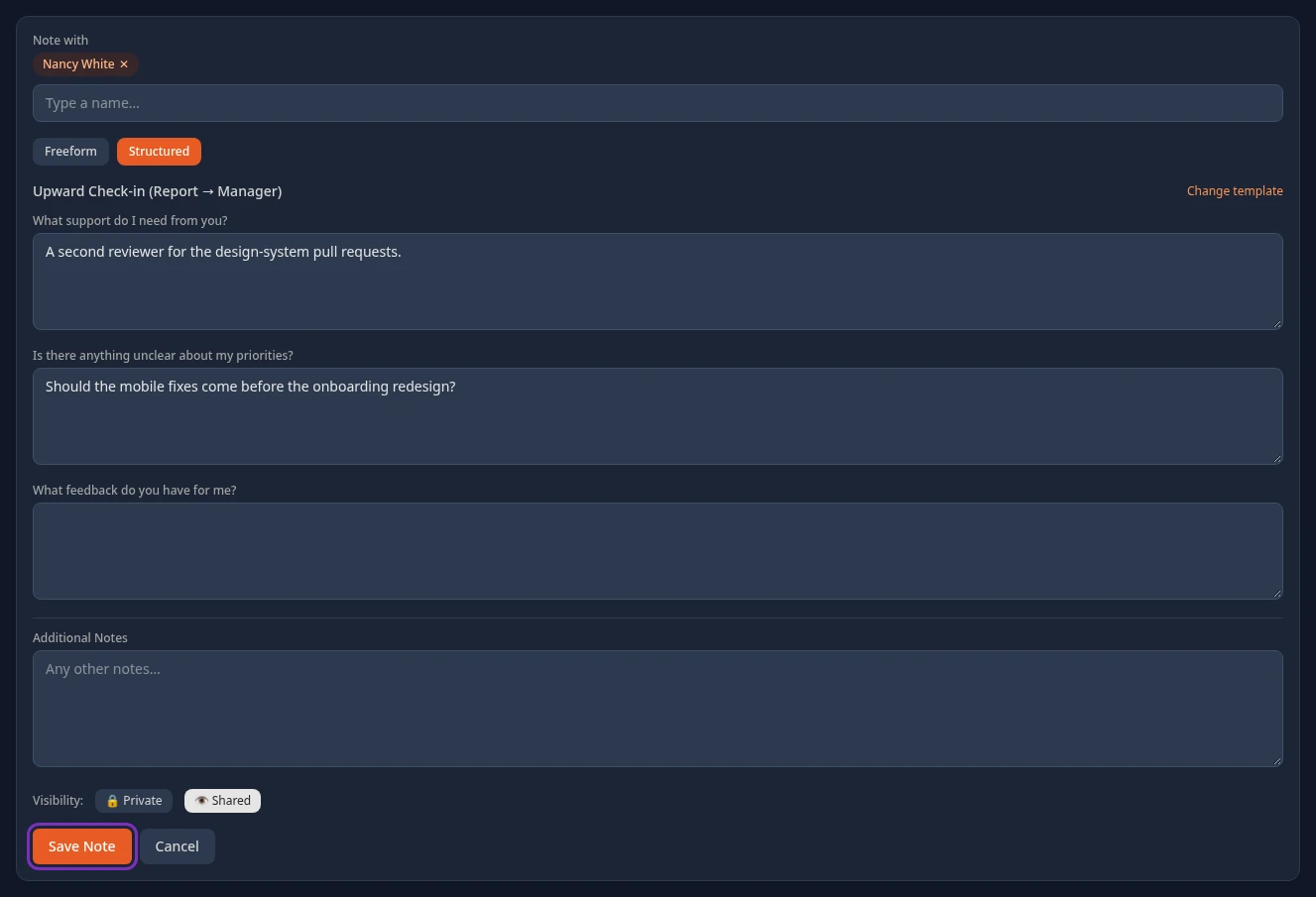
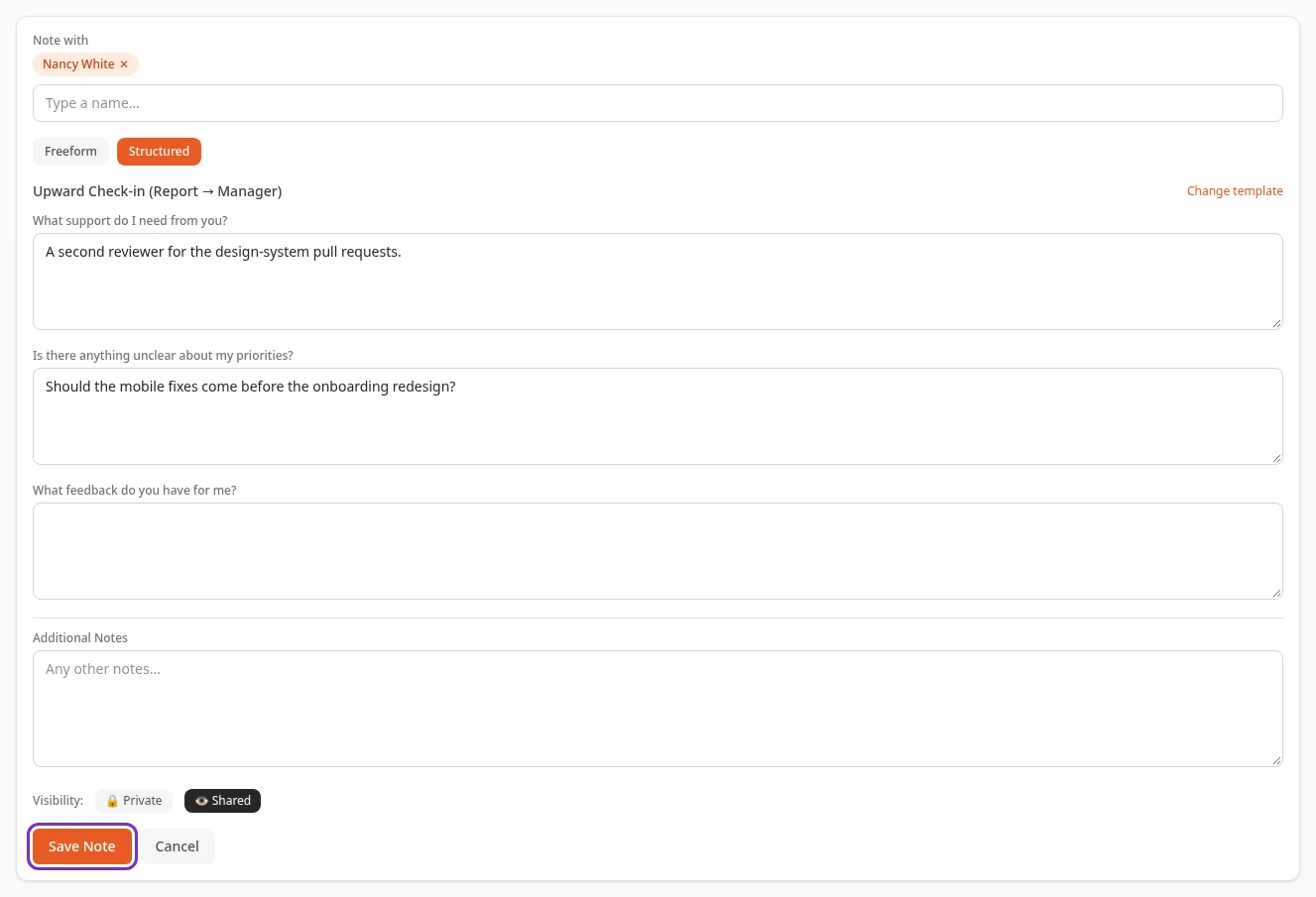
The note appears in your list under the person’s name. They aren’t notified, so if you’d like your manager to read your points before the meeting, tell them.
Read your notes
Section titled “Read your notes”Your notes are listed by person, with the most recent conversation first. Each row shows how many notes there are, how many each of you wrote when you both wrote some, and the date of the newest one after Last updated. A 🔒 means you’ve marked some of your notes with that person 🔒 Private.
Select a person to see your notes with them, ten at a time, then select a note to open it.
| Label on a note | What it means |
|---|---|
| By you | You wrote it. |
| By and a name | The other person wrote it, about you. |
| 👁 Shared with you | The other person marked it 👁 Shared. |
| 🔒 Private | You wrote it and kept it to yourself. Only you see notes marked 🔒 Private. |
| 📋 and a template name | It’s a structured note made from that template. |
To narrow the list:
- My Notes and Others’ Notes are both selected at first. Select one to turn it off: with only My Notes, you see the people you’ve written notes about; with only Others’ Notes, the people who’ve written notes about you.
- Type in Search by person…, or choose Last 7 days, Last 30 days, Last 90 days or Custom range instead of All time, to show only people with a recent note. Clear filters resets both.
The search and the date filter only look at the people on the page you’re viewing. If you have more than ten conversations, check the other pages with Next →.
Change or delete a note
Section titled “Change or delete a note”Open a note you wrote and select Edit, make your changes, then select Update Note. You can’t change who the note is with, or switch between Freeform and Structured.
In a freeform note, your changes are also saved automatically about five seconds after you stop typing, and ✓ Autosaved shows. Structured notes aren’t saved automatically yet: Failed to save note may show while you edit one, and only Update Note saves your changes.
To delete a note, open it, select Delete and confirm. You can only change or delete notes you wrote.
Make your own templates
Section titled “Make your own templates”-
On the Notes page, select Templates, then + New Template.
-
Enter a Template Name and, if you like, a Description (optional).
-
Choose a Direction: General, Manager → Report or Report → Manager. If you don’t manage anyone, choose General or Report → Manager, because templates marked Manager → Report aren’t offered to you when you write a note.
-
Type your first question in the Question 1 box. Select + Add question for each additional question.
-
Select Save Template.
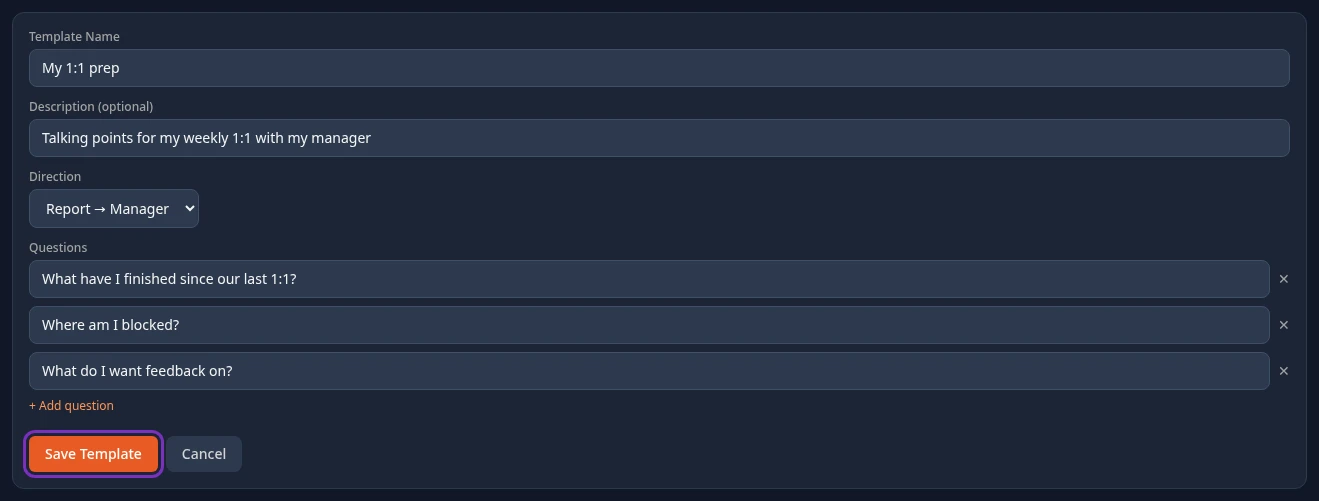
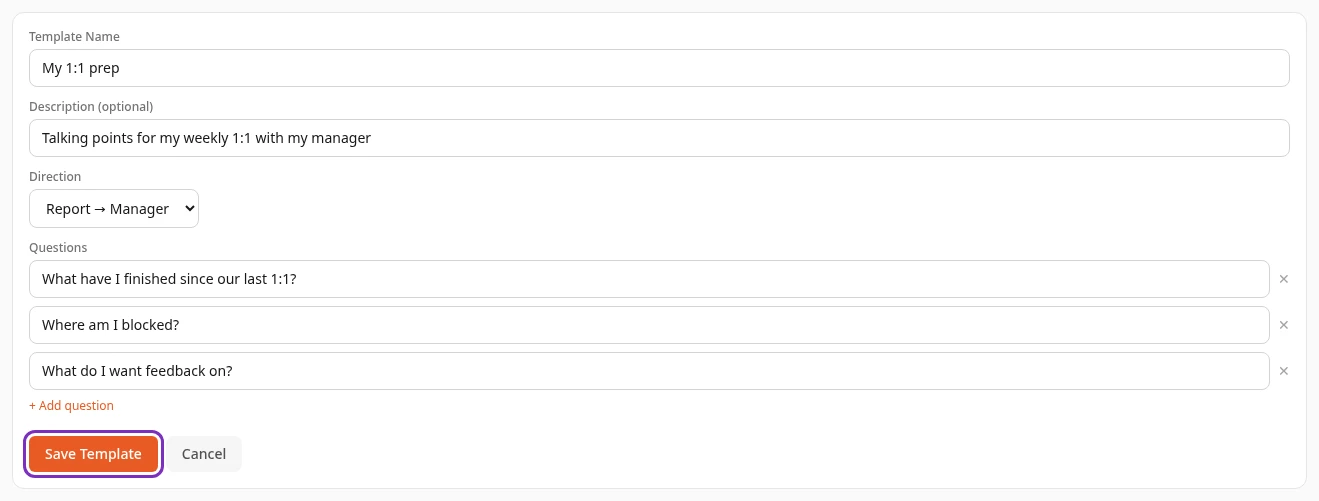
Saved successfully appears. Only you can see your templates. They’re under Your Templates when you write a structured note, and Edit and Delete next to each one change or remove it. Notes you’ve already written from a template keep their questions when you change it.
Can’t see this?
Section titled “Can’t see this?”- There’s no Notes in your menu bar. The Notes module is turned off for your company, or your roles don’t include it. Ask your admin.
- There’s no Templates tab. Your admin hid it, or you hid it in your display settings: see Hide sections on some pages. It’s also missing if your roles don’t let you make personal templates.
- Structured says No templates available. There’s no template you can use yet. Make one on the Templates tab, or ask your admin to set up company templates.
- Nobody is in the list. It says No notes yet until you or someone else writes a note with you.