Choose how people sign in
Este conteúdo não está disponível em sua língua ainda.
People sign in to your workspace with their email address and a password, with your company’s single sign-on (SSO), or with either. You choose which in Settings › System › Authentication. The same tab holds two-step verification and the lockout after wrong passwords: see Require two-step verification and set lockout rules.
Open the sign-in settings
Section titled “Open the sign-in settings”-
Turn on admin mode: select your name in the top bar, then Elevate to Admin.
-
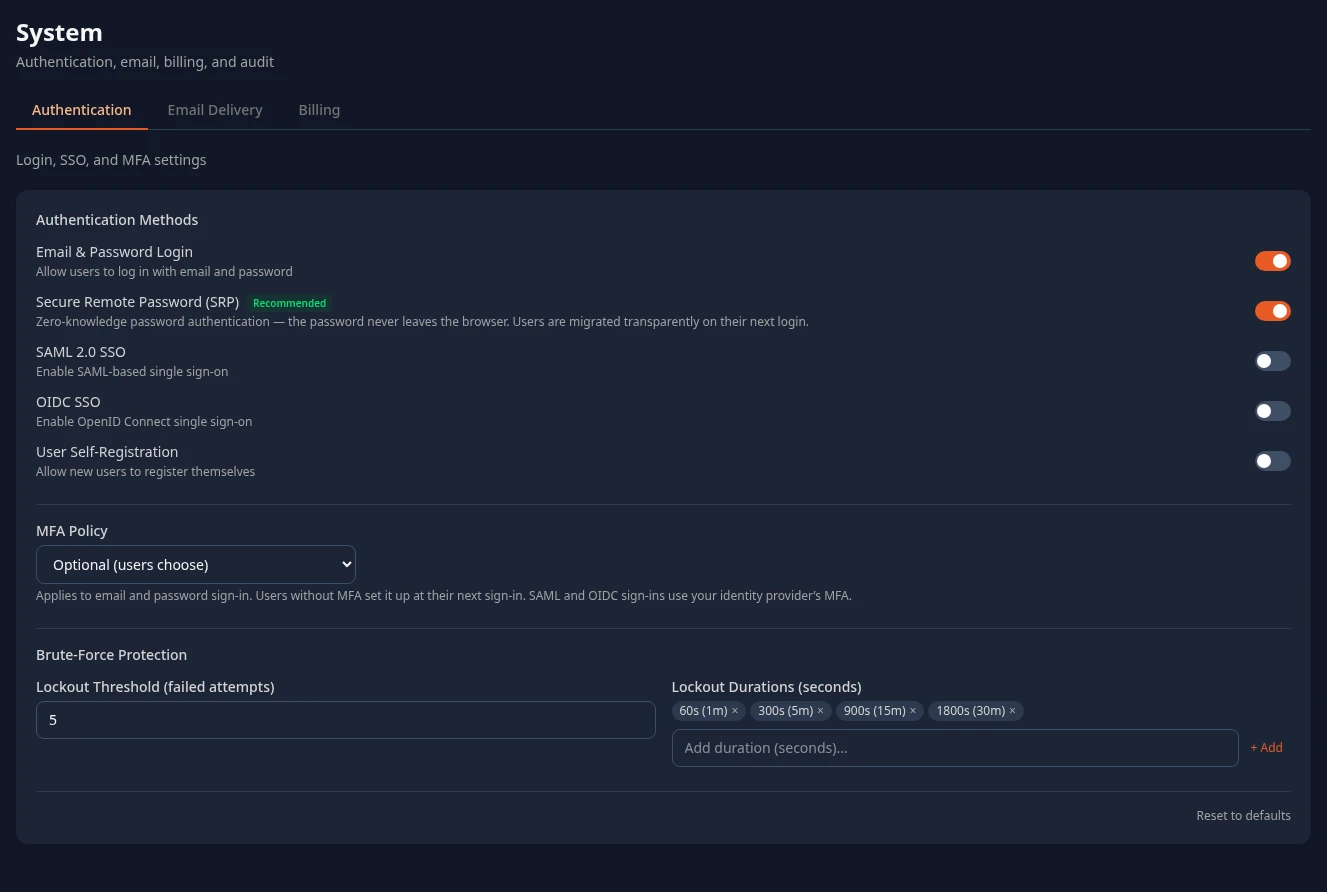
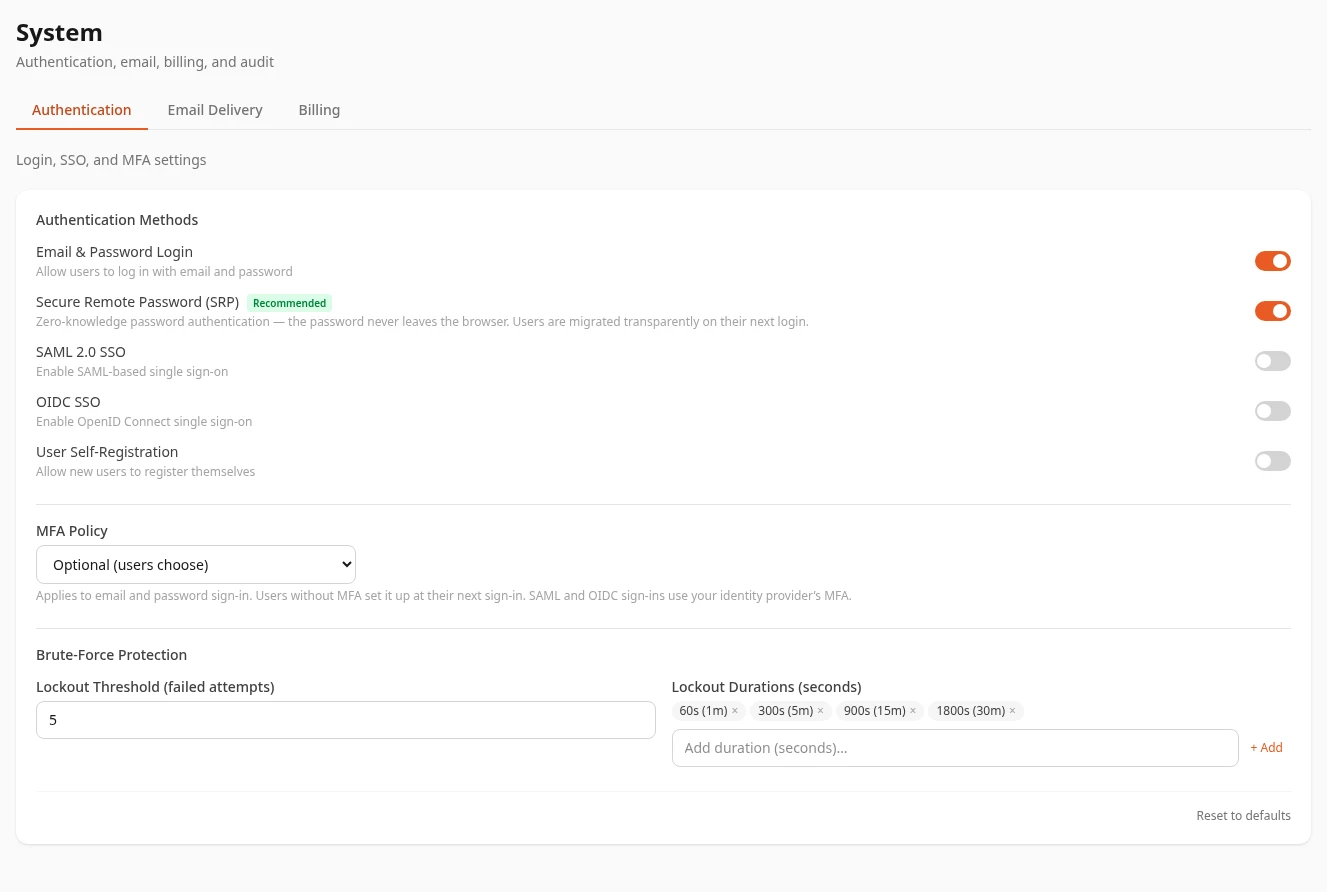
Select Settings in the menu bar, open System, then the Authentication tab.
Sign-in methods
Section titled “Sign-in methods”| Setting | What it does | Default |
|---|---|---|
| Email & Password Login | Lets people sign in with their email and password. Turned off, only Admins can still use a password: see Turn off password sign-in. | On |
| Secure Remote Password (SRP) | Checks passwords without the password itself being sent to Anima HR: the browser proves that it knows it. People see no difference. Each person moves to it the next time they sign in with their password. | On |
| SAML 2.0 SSO | Adds a Sign in with button for your identity provider, using SAML, and opens SAML 2.0 Configuration for its details. See Set up single sign-on. | Off |
| OIDC SSO | The same with OpenID Connect (OIDC). Opens OIDC Configuration. | Off |
| User Self-Registration | Has no effect yet. There’s no sign-up page, and single sign-on creates accounts for new people whether it’s on or off. Turning it on shows Default role for self-registered users, which isn’t used either: new people get the Employee role. | Off |
What the sign-in page shows
Section titled “What the sign-in page shows”| Email & Password Login | SAML or OIDC | The sign-in page |
|---|---|---|
| On | Off | The email and password form. |
| On | On | A Sign in with button for each single sign-on method, then or and the password form. |
| Off | On | No form. The page goes straight to your identity provider and shows Redirecting to your identity provider… on the way. If both SAML and OIDC are on, it always uses OIDC. |
| Off | Off | Not allowed: saving fails with Turn on SAML or OIDC single sign-on before turning off password sign-in. |
The button reads Sign in with followed by the Display Name you give your identity provider, or Sign in with SSO (SAML) and Sign in with SSO (OIDC) if you leave it empty. What people see from there is in Sign in with single sign-on.
Turn off password sign-in
Section titled “Turn off password sign-in”Turn off Email & Password Login only once single sign-on works for everyone, including you. Sign in with it yourself first, in a private browser window, while password sign-in is still on.
With password sign-in off:
- Everyone except Admins signs in through your identity provider. Passwords, password-reset links and invitation links no longer sign them in: they see Password sign-in is turned off for this workspace. Sign in with your identity provider.
- People who hold the Admin role keep their password, so an outage at your identity provider can’t lock everyone out. They sign in at your workspace’s address followed by
/login?password, for exampleacme.animahr.io/login?password. The page then shows the password form with Password sign-in is turned off for this workspace. Only Admins can sign in with a password here; everyone else signs in with single sign-on. Each of these sign-ins is recorded. - The tab shows the reminder Everyone except Admins must sign in with single sign-on. Admins can still use their password at /login?password, for example if the identity provider is down.
You can only turn password sign-in off while SAML or OIDC is on.
New and existing people
Section titled “New and existing people”When you turn on single sign-on:
- People already in Anima HR keep their account, roles and history. They can use the Sign in with button as long as your identity provider sends the same email address as their Email in Anima HR. While Email & Password Login is on, they can also go on using their password. People you invited who haven’t set a password yet can use single sign-on straight away.
- People who aren’t in Anima HR yet get an account the first time they sign in through your identity provider, whether or not User Self-Registration is on. They fill in a short form, then wait in Pending HR Review, with the Employee role, until someone activates them. They can’t see anything else until then. See People who sign in with single sign-on.
Because anyone your identity provider signs in gets an account, give the Anima HR app in your identity provider only to the people who should use it. With OIDC, Domain Restriction also limits sign-in to one email domain. How people are matched to their accounts: How accounts are matched.
Turning single sign-on off again doesn’t delete anyone. People sign in with their password again. Someone who never had one can set one with Forgot Password? on the sign-in page. People you invited can also use the link in their invitation: see From an invitation.
Save your changes
Section titled “Save your changes”When you change anything, a bar with Unsaved changes appears at the bottom of the page. Select Save changes to apply your changes, or Discard to go back. Saved changes reach the sign-in page within about a minute.
Can’t see this?
Section titled “Can’t see this?”- Settings has no System card. Turn on admin mode. Without it, an Admin has the same access as an employee.
- HR Admins don’t see the System card. Only an Admin in admin mode can change sign-in methods, so the tab is hidden from everyone else. A custom role can include Manage authentication only together with Manage settings, and only an Admin in admin mode can give it.