Set survey defaults and limits
Este conteúdo não está disponível em sua língua ainda.
Survey settings decide how new surveys start out, when the results of an anonymous survey appear, and whether surveys can be shared through a public link. Several settings on this screen are saved but don’t do anything yet: each section below says which ones.
Open survey settings
Section titled “Open survey settings”-
Select Settings in the menu bar. If you’re an Admin, turn on admin mode first: select your name at the top right, then Elevate to Admin.
-
Open the Surveys card.
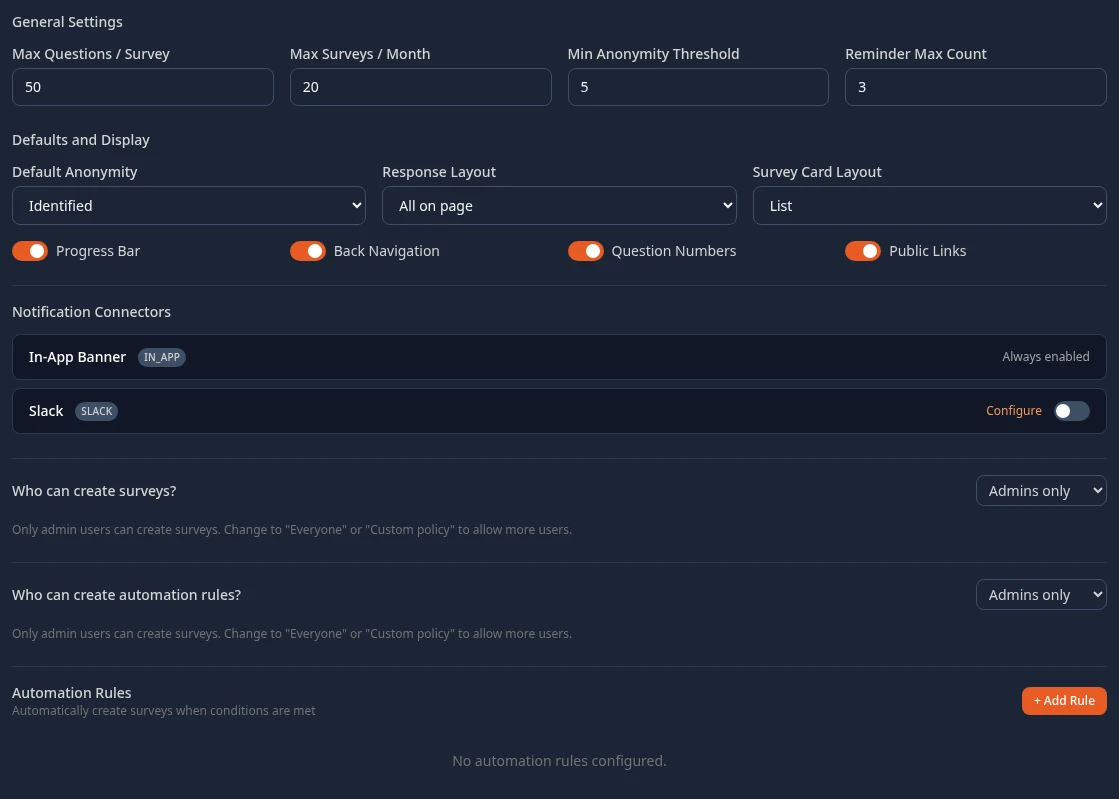
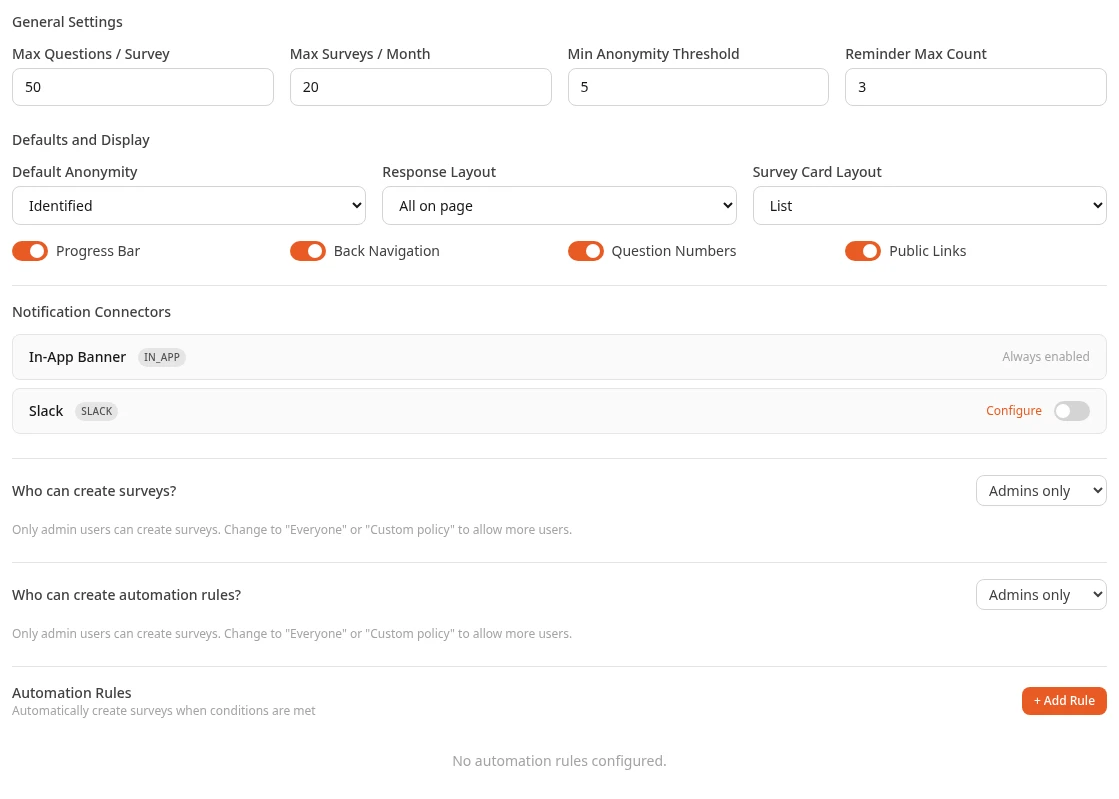
When you change anything, a bar with Unsaved changes appears at the bottom of the page. Select Save changes to apply them, or Discard. Reset to defaults puts the built-in settings back into the form; nothing changes until you save.
General settings
Section titled “General settings”| Setting | What it does | Default |
|---|---|---|
| Min Anonymity Threshold | An anonymous survey shows no results, to anyone, until at least this many people have answered. With fewer answers, an average would give away one person’s rating. It has no effect on identified surveys. | 5 |
| Reminder Max Count | How many reminders a survey creator can add in the survey builder. Reminders aren’t sent yet, and the ones a creator adds aren’t kept. | 3 |
| Max Questions / Survey | Saved, but surveys aren’t checked against it: this setting has no effect yet. | 50 |
| Max Surveys / Month | Saved, but nothing counts surveys against it: this setting has no effect yet. | 20 |
Defaults for new surveys
Section titled “Defaults for new surveys”These are what a new survey starts with in the survey builder. The creator can change each one for their survey, and changing a default here doesn’t change surveys that already exist.
| Setting | What it does | Default |
|---|---|---|
| Default Anonymity | Whether a new survey is Identified (results show who answered) or Anonymous. | Identified |
| Response Layout | All on page shows every question at once. Paginated shows one question per page. | All on page |
| Progress Bar | Shows how far through the survey the person is. | On |
| Back Navigation | Lets people go back to an earlier question in a paginated survey. | On |
| Question Numbers | Numbers the questions. | On |
Survey Card Layout (List or Grid) is the view the Surveys page starts in. People can switch views on the page.
Public links
Section titled “Public links”With Public Links on, the survey builder offers a public link for anonymous surveys that aren’t sent to specific people. Anyone with the link can answer, without signing in. With it off, the builder doesn’t offer public links, and existing public links stop working. Default: on.
Notification connectors
Section titled “Notification connectors”- In-App Banner is always on: people see the surveys sent to them in the app.
- Slack: turning it on makes the survey builder offer a Slack channel, and Configure opens the Slack app setup (Bot Token, Signing Secret, Default Channel ID, Save Credentials).
Who can create surveys
Section titled “Who can create surveys”People who hold the Surveys permission Create surveys can always create surveys: by default, Admins in admin mode and HR Admins. Who can create surveys? is meant to let more people in:
- Admins only: only holders of Create surveys.
- Everyone: shows the survey creation buttons and templates to everyone.
- Custom policy: shows them to the people you pick under Direct — specific employees, and to the people your org-chart rules match.
Automation rules
Section titled “Automation rules”Automation Rules (+ Add Rule) describe surveys to start automatically for people who match some conditions, such as a tenure. You can build a rule and Preview who it matches, but nothing runs the rules yet, so no survey is ever created from one. Who can create automation rules? has no effect either.
Can’t see this?
Section titled “Can’t see this?”- There’s no Surveys card. The Surveys module is off: it’s in the Disabled group at the bottom of Settings. See Turn modules on and off.
- Saving fails with Access denied. Your roles don’t include Manage distribution in the Surveys permissions. Admin (in admin mode) and HR Admin have it.