Manage connected AI apps
هذا المحتوى غير متوفر بلغتك بعد.
With AI connections (MCP), people can connect an AI app they use, such as an AI assistant on their computer, to their Anima HR account. The app can then read their HR data for them: only the kinds of data they approved, and only what their roles let them see. Settings › Access › Connected Apps lists every connection in the workspace, and you can revoke any of them.
Before people can connect
Section titled “Before people can connect”AI connections are off in a new workspace, and with the sample data. To turn them on:
-
Turn on admin mode, then select Settings in the menu bar.
-
Select the AI connections (MCP) card. While both AI connections and AI connectors are off, it’s under Disabled, at the bottom of the page.
-
On the Server Settings tab, select Enable AI connections (MCP).
Nobody can connect yet, Admins included: a person needs a role with the Connect an external AI client permission, and no built-in role has it. Add it to a role on the Roles & Permissions tab. Admin mode doesn’t count for AI apps, so Admins need such a role too. Server Settings shows the roles that have it under Who can connect, and also decides which kinds of data apps may read, how long a connection lasts and whether people may create personal access tokens.
Open Connected Apps
Section titled “Open Connected Apps”-
Turn on admin mode: select your name in the top bar, then Elevate to Admin.
-
Select Settings in the menu bar, then Access.
-
Select the Connected Apps tab.
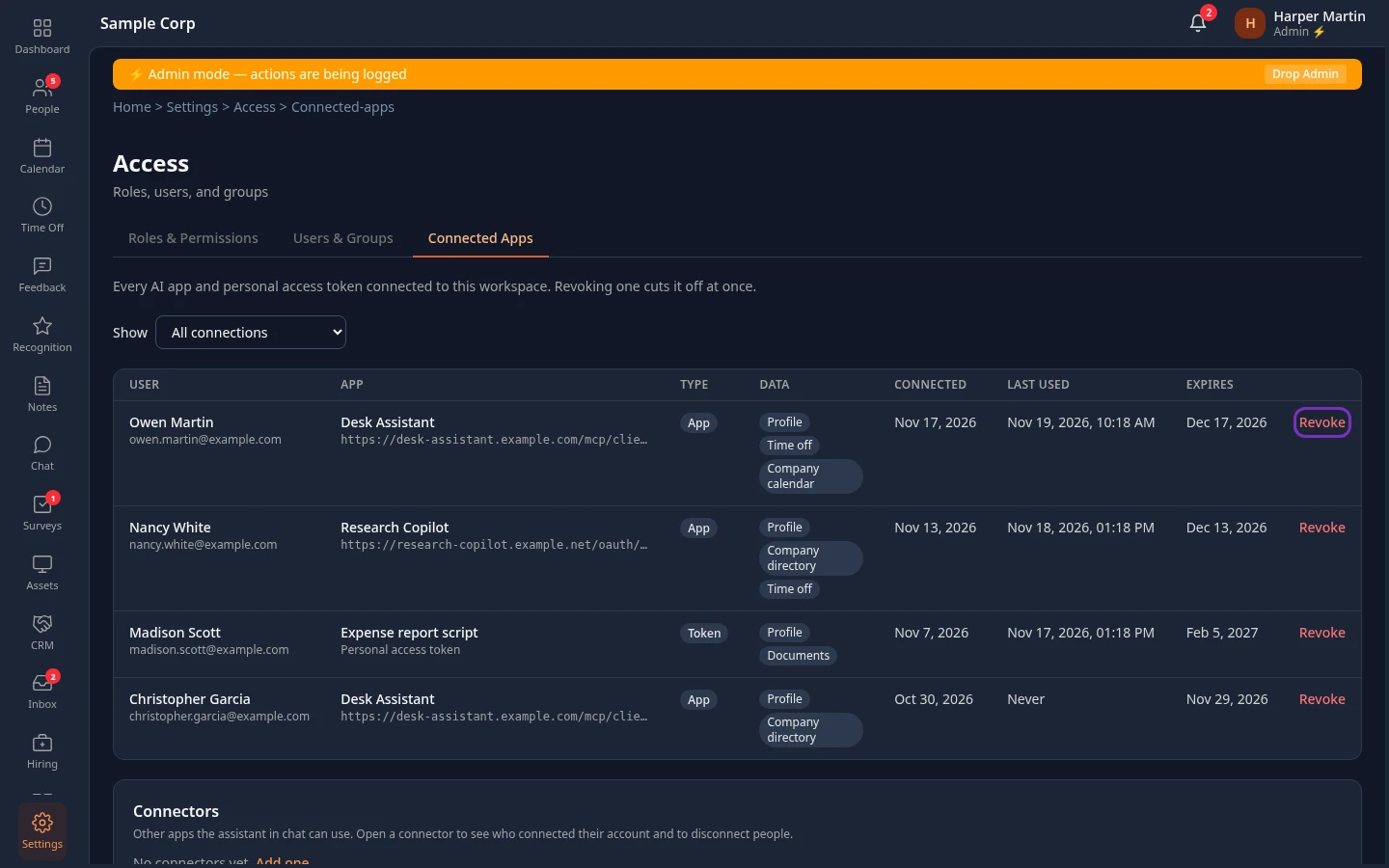
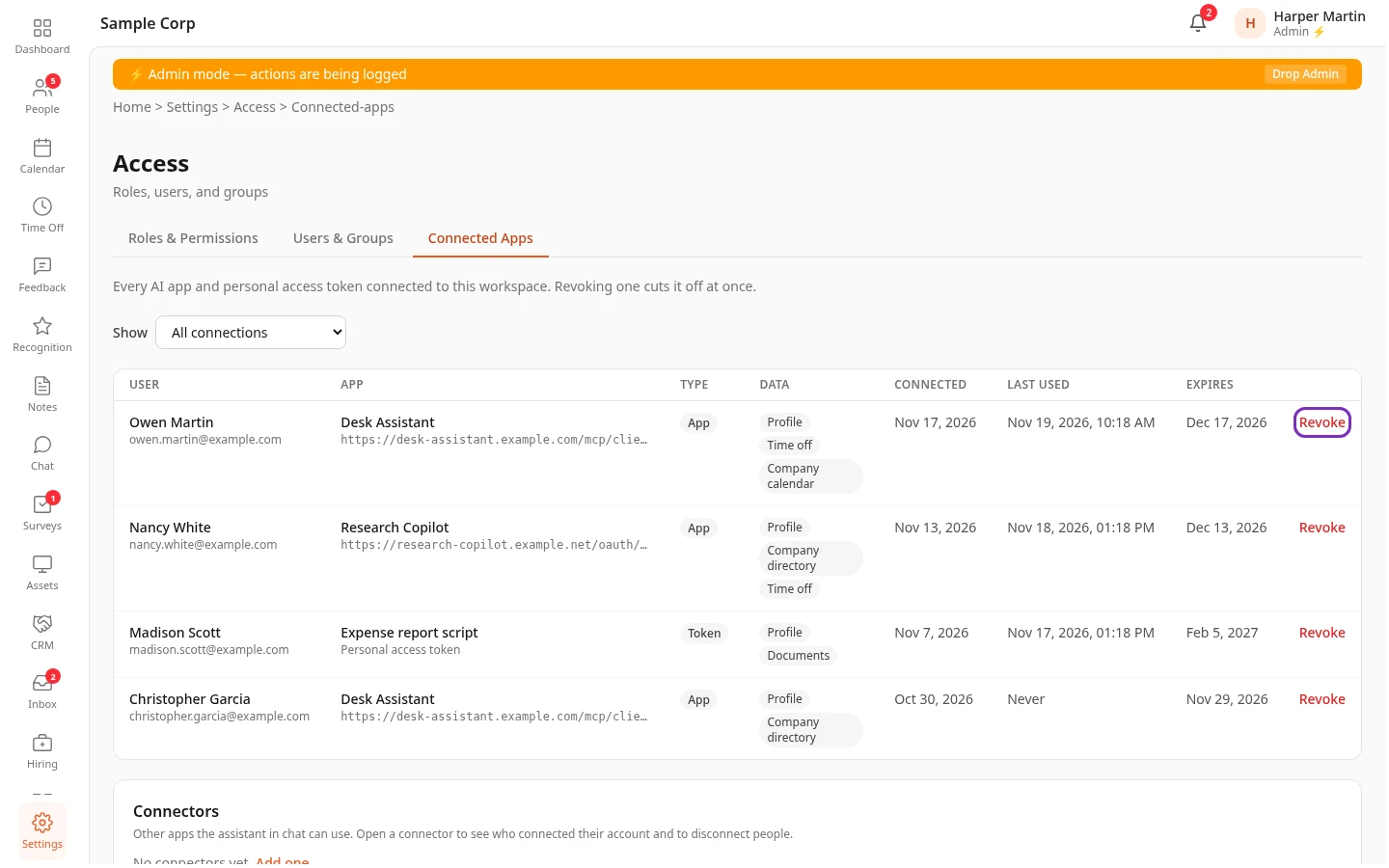
The list shows every connection that hasn’t been revoked and hasn’t expired, newest first. Load more shows the next 50. To see only one kind, choose Apps or Personal access tokens in Show.
| Column | What it shows |
|---|---|
| User | The person who made the connection, with their email address. |
| App | The AI app’s name, with the client ID it identifies itself with underneath. For a personal access token, the name the person gave it. |
| Type | App: an AI app the person signed in to and approved. Token: a personal access token, for an app that can’t sign in, which acts as the person. |
| Data | The kinds of data the person allowed, such as Profile, Company directory or Time off. Pay and review data are marked Pay data and Performance data. |
| Connected | When the person connected it. |
| Last used | When it last read data, or Never. |
| Expires | When it stops working on its own. |
Below the list, Connectors lists the other apps the assistant in Chat can use, if your company has set any up. Open one to see who connected their account to it and to disconnect people.
Revoke a connection
Section titled “Revoke a connection”-
Select Revoke on the connection’s row.
-
In Revoke this connection?, select Revoke.
Connection revoked appears, and the app or token loses access at once. To use the app again, the person has to connect it again. A revoked token never works again: they create a new one.
When AI connections are off
Section titled “When AI connections are off”Turning AI connections off pauses every connection without revoking it. Connected Apps stays available, with a note at the top: MCP is off, so these connections are paused. They are not revoked: they work again when MCP is turned back on, unless you revoke them here. Revoke the ones that shouldn’t come back before you turn AI connections on again.
When connections end on their own
Section titled “When connections end on their own”- They expire. An app’s connection lasts the number of days in Connection lifetime (days) on Server Settings, 30 unless you change it, and the person then approves the app again. A token lasts until the date its owner chose, at most the number of days in Longest token lifetime (days), 90 unless you change it.
- The person leaves. Suspending them, approving their termination or completing their separation revokes every app and token they had, and they disappear from this list.
- The person’s sign-in is reset. Resetting their password or resetting their two-step verification also stops their apps and tokens.
- Personal access tokens are turned off. Every existing token stops working for good, even if you turn tokens on again later.
In the last two cases, the tokens, and the apps nobody has used since, stay in this list and on the person’s own page until they expire, although they no longer work. Revoke them to clear them away.
Changing someone’s roles doesn’t end their connections. An app or token can only ever do what the person’s roles allow right now, within the kinds of data it was approved for, so taking a permission away narrows it at the next request. If none of their roles includes Connect an external AI client any more, the app is refused until a role gives it back.
Each person’s own Connected apps page
Section titled “Each person’s own Connected apps page”People manage their own connections from Connected apps, in the menu under their name in the top bar, or with Manage connected apps on their Sign-in security page. Both only show while AI connections are on, and the menu isn’t there on a phone-sized screen. Their page has:
- Connect an AI client: the MCP server URL to paste into their AI app, and the two steps to connect it. If their roles don’t allow it, the page says so and names the Connect an external AI client permission.
- Apps: the apps they approved, what each can see, and Disconnect.
- Personal access tokens, if you allow them: creating a token, which is shown only once, and Revoke.
- Your accounts in other apps: their own accounts in the apps the assistant in Chat can use.
Disconnecting an app or revoking a token there does the same as revoking it on Connected Apps. When AI connections are off, the page says AI connections aren’t turned on for your organization. and only keeps Your accounts in other apps.
Can’t see this?
Section titled “Can’t see this?”- There’s no Connected Apps tab. Turn on admin mode. The tab needs Manage AI connections (MCP), which only Admins have as shipped, and the Access card needs Manage roles.
- People can’t connect an app. Check that AI connections are on, and that one of their roles has Connect an external AI client.
Related
Section titled “Related”-
Let people connect their own AI apps: the server settings, such as which kinds of data apps can ask for