Run a review cycle
هذا المحتوى غير متوفر بلغتك بعد.
Performance reviews run in cycles. You build each cycle from a review template, which decides who reviews whom and which questions they answer. When you launch the cycle, everyone in the company gets their reviews to write on the Performance tab of the Feedback page. When you close it, everyone can read their results.
Both screens are on the Feedback card in Settings: Review Templates and Review Cycles.
Before you start
Section titled “Before you start”- Tell people yourself. Nobody gets a notification when a cycle starts, changes step or closes, and the app doesn’t send reminders. Announce each cycle with its dates.
- Run one cycle at a time. People’s Performance tab follows only one open cycle. If two are open, it lists the reviews of one of them.
- Check reporting lines first. Launch decides each person’s reviewers from the org chart on that day, and you can’t change them afterwards.
Open the review screens
Section titled “Open the review screens”-
Select Settings in the menu bar. If you’re an Admin, turn on admin mode first: select your name at the top right, then Elevate to Admin.
-
Open Feedback, then the Review Templates or Review Cycles tab.
Both tabs show the Performance is on switch at the top. It turns performance reviews on or off for everyone: see Turn modules on and off.
Set up a review template
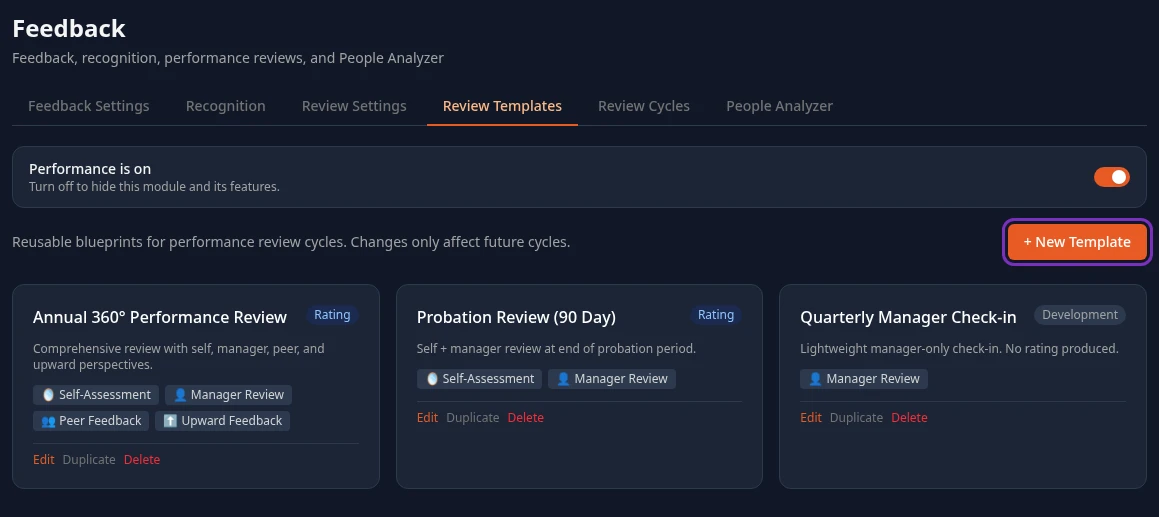
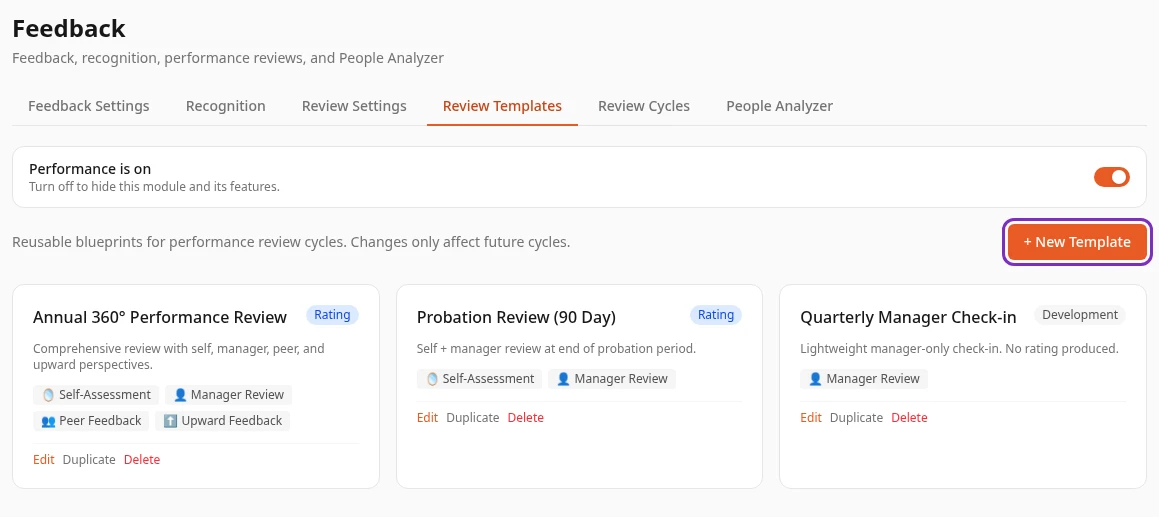
Section titled “Set up a review template”A template is a reusable blueprint. Each card on Review Templates shows the template’s name, Rating or Development, and the review groups it uses. A workspace with sample data starts with three: Annual 360° Performance Review, Probation Review (90 Day) and Quarterly Manager Check-in.
-
Select + New Template, or Duplicate on a template to start from a copy of it, or Edit to change one.
-
Enter a Name and, if you like, a Description.
-
Choose whether the template Produces a final rating and whether to keep Anonymous peers (see the table below).
-
Under Feedback Groups, tick each group the cycle should collect, and select its questions in the Questions list. Hold Ctrl (Cmd on a Mac) while you click to select several: a plain click selects only that question. The label above the list counts them, such as Questions (3 selected).
-
If the template produces a rating, give each ticked group a Weight. The Weight total under the groups has to be 1.0, and turns green with ✓ when it is.
-
Select Save Template. Template saved appears and you’re back at the list.
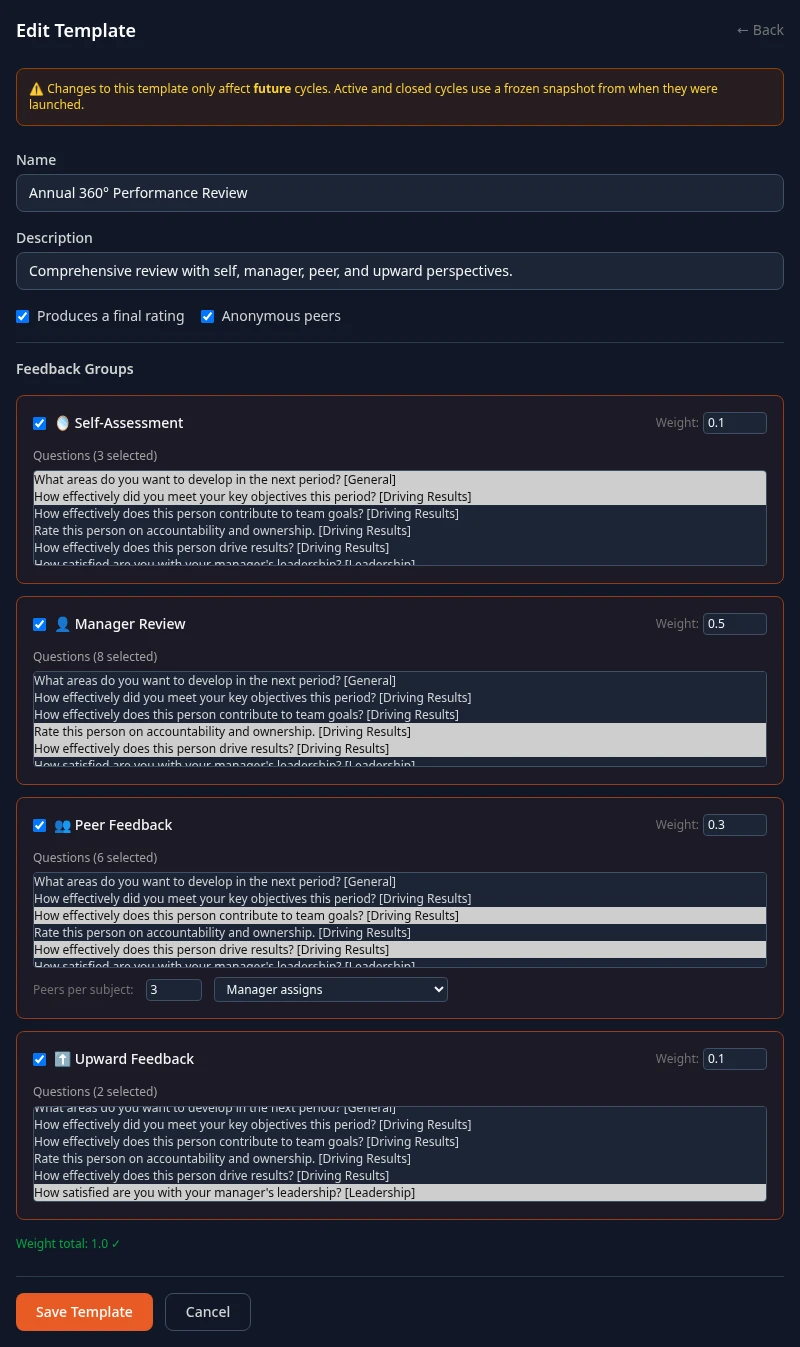
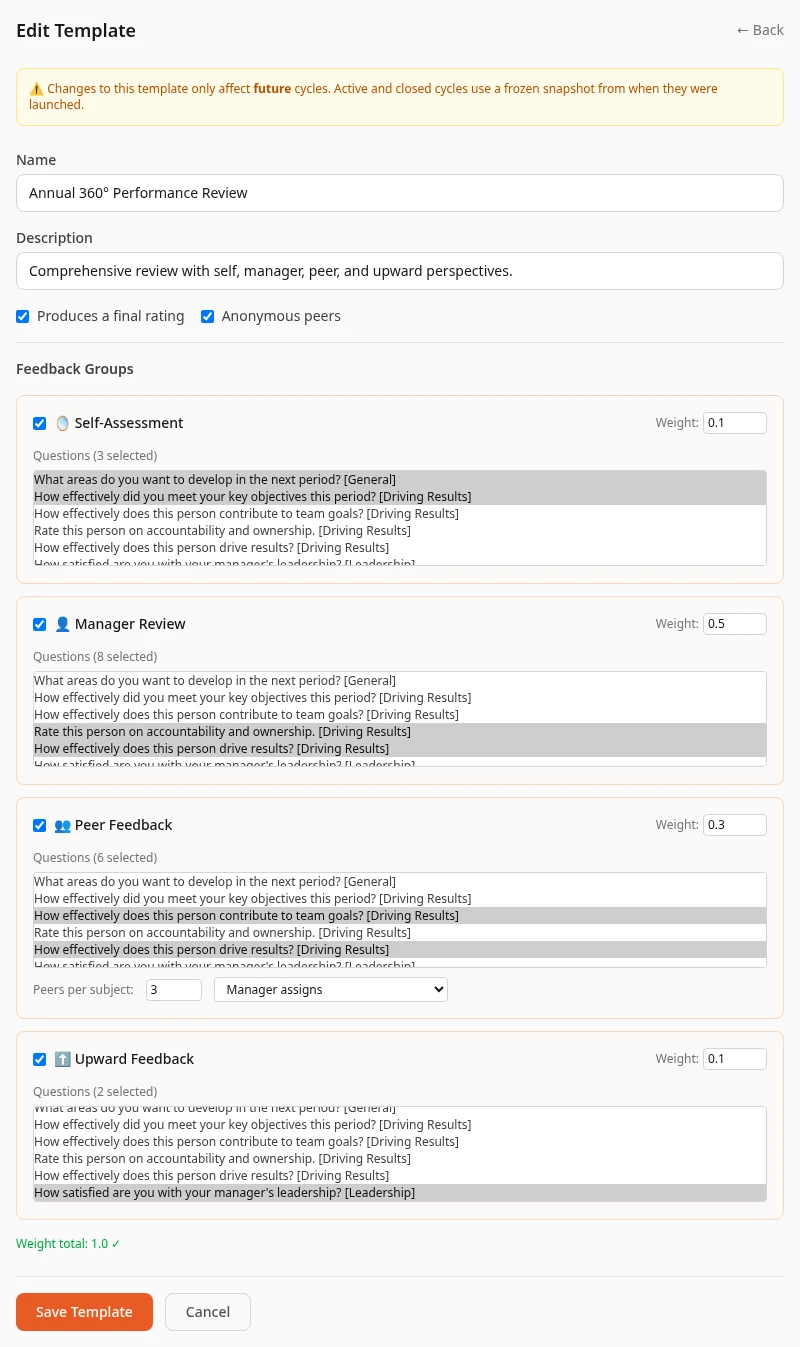
A cycle keeps a copy of its template from the moment you launch it. Editing a template changes future cycles only; the cycle that’s running and closed cycles stay as they were.
Review groups
Section titled “Review groups”| Group | Who writes it | About whom |
|---|---|---|
| Self-Assessment | Each person | Themselves |
| Manager Review | The person’s manager on the day of launch | The person. People with no manager get none. |
| Peer Feedback | Colleagues assigned as the person’s peers | The person. See Peer reviewers. |
| Upward Feedback | Each person who has a manager | Their manager. Their manager only sees the average of these ratings, never the answers or names. |
Template settings
Section titled “Template settings”| Setting | What it does | New template |
|---|---|---|
| Produces a final rating | A cycle that produces a rating gets a Finalized card on people’s Performance tab once you close it, with their scores and every review about them. Without it (Development), results never show in the app, so the reviews written in it can’t be read there. | On |
| Weight | How much each group counts in the person’s weighted overall rating. The overall rating only appears on a results page that can’t be opened from the app today, so weights don’t change anything people see. | Self 0.3, Manager 0.7 |
| Anonymous peers | People see Peer 1, Peer 2 and so on instead of their peers’ names in their results. Managers and HR always see the names. | On |
| Questions | The questions each group answers, from the question bank. A question tagged with a competency, such as Driving Results, feeds the person’s Competency Radar; one tagged with a company value feeds their Value Scores. | None |
| Peers per subject and the peer selection (Manager assigns, Self-nominate (manager approves), Auto-random) | Saved with the template, but nothing uses them yet. | 3, Manager assigns |
Every template rates questions from 1 to 5, labelled Needs Improvement, Below Expectations, Meets Expectations, Exceeds Expectations and Outstanding. You can’t change the scale or the labels. A new template starts with Self-Assessment and Manager Review ticked.
To delete a template, select Delete on its card. A template that any cycle was created from, closed cycles included, can’t be deleted: you get Template is used by one or more cycles. Delete or archive those cycles first., but cycles can’t be deleted or archived in the app.
Peer reviewers
Section titled “Peer reviewers”Nobody can assign peer reviewers in the app today: not you, not managers, and not employees, whatever the template’s peer selection says. Launch doesn’t pick peers either. In a cycle with Peer Feedback ticked, each person’s peer group is simply skipped: managers see a grey Peer label and results have no peer feedback. Until this is fixed, untick Peer Feedback in the templates you use, so nobody waits for peer reviews that won’t come.
Create a cycle
Section titled “Create a cycle”-
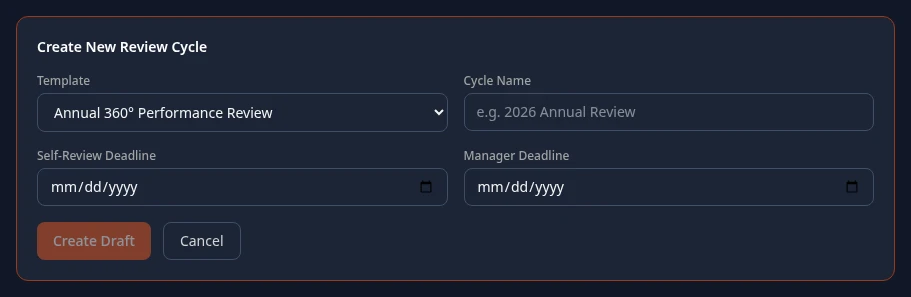
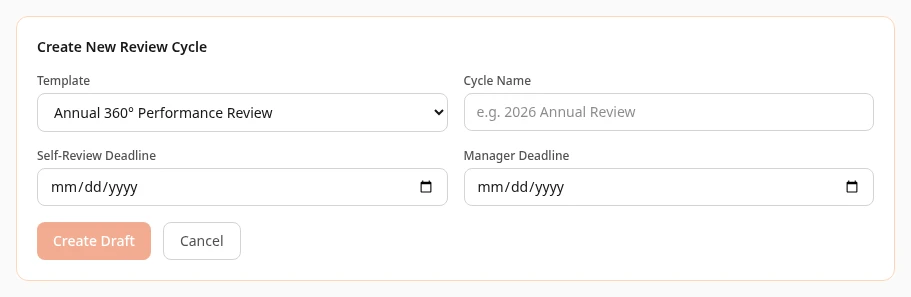
On Review Cycles, select + New Cycle.
-
Choose the Template and enter a Cycle Name, such as 2026 Annual Review.
-
If you like, set a Self-Review Deadline and a Manager Deadline.
-
Select Create Draft. Cycle created as a draft appears and the cycle shows under Drafts.
- Who takes part. Every cycle includes everyone in the company. You can’t pick a team, an area or a list of people.
- Deadlines are saved with the cycle, but the app doesn’t show them to anyone, doesn’t send reminders and doesn’t stop late reviews. Nothing happens on those dates: the cycle only moves when you move it.
- A draft can’t be changed or deleted. Check the template and name before you select Create Draft. A draft that you never launch stays under Drafts, and nobody but HR and admins can see it.
Launch, advance and close
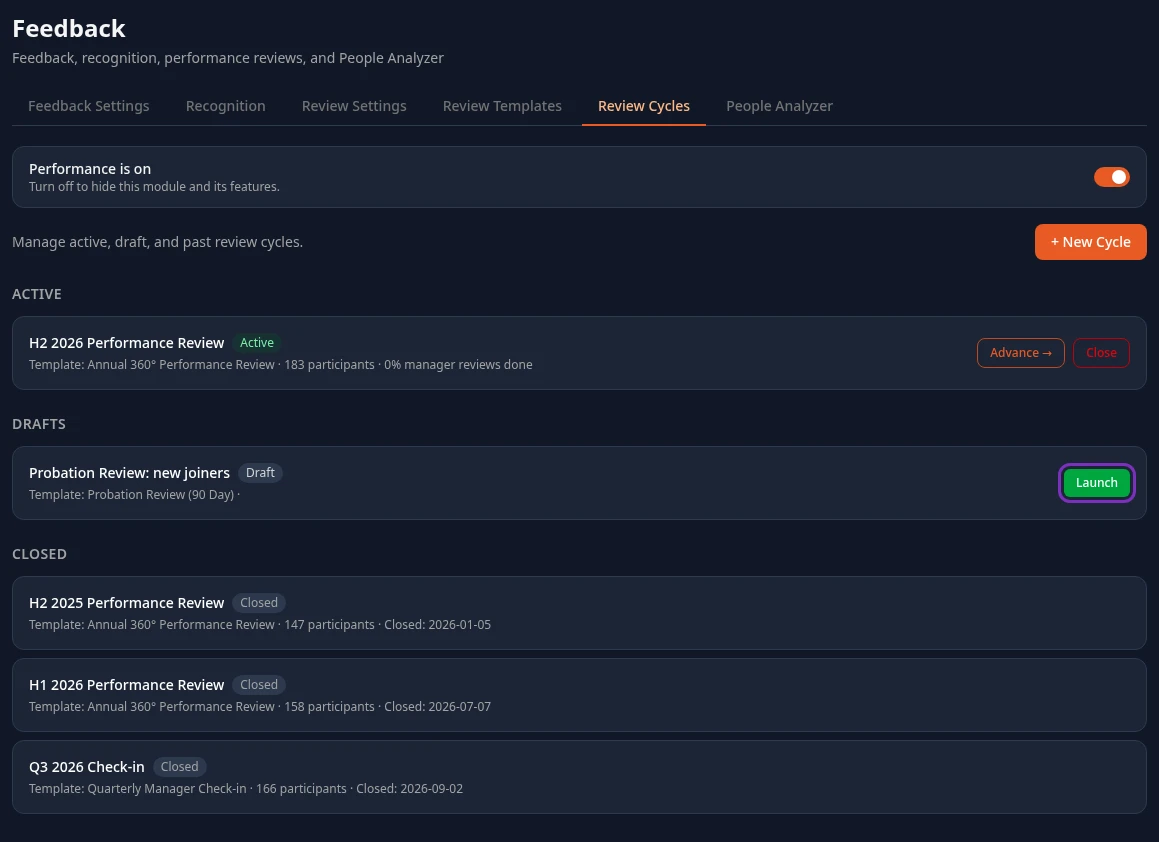
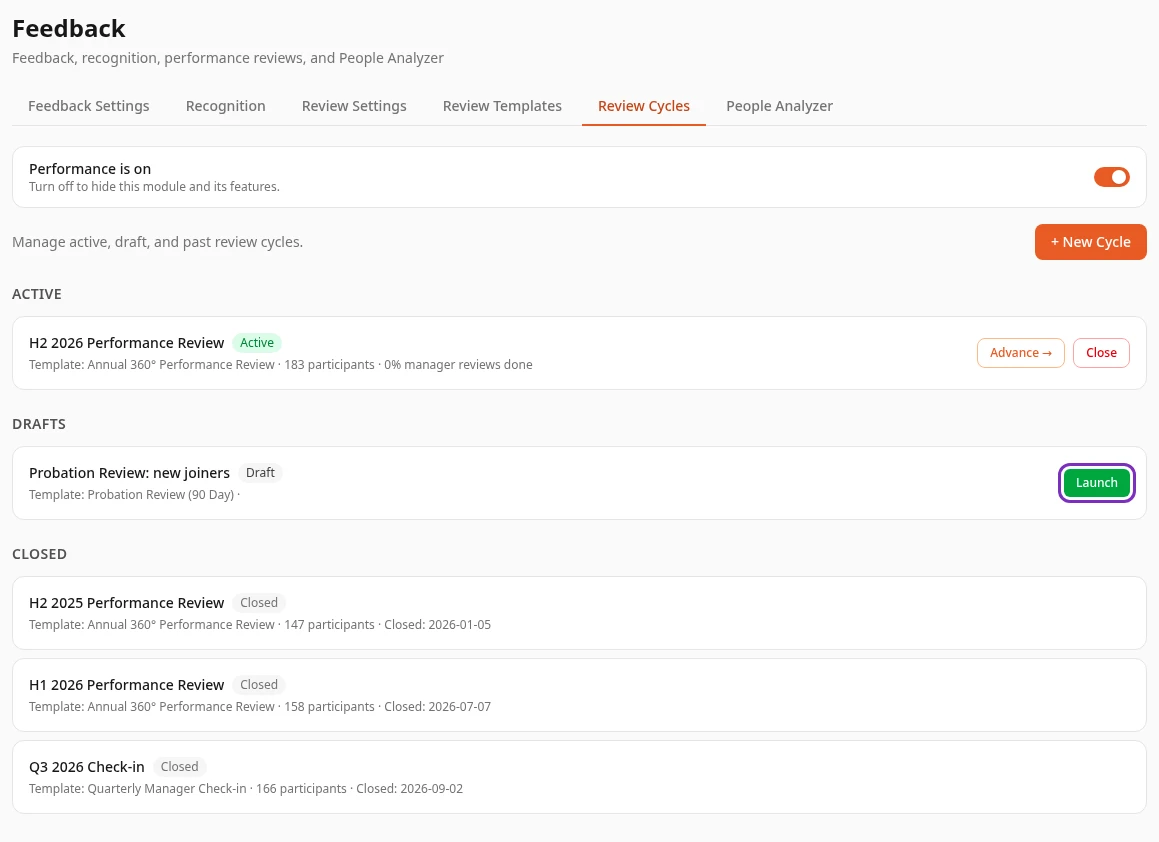
Section titled “Launch, advance and close”A cycle goes through these steps. Each button applies at once, without asking you to confirm, and no step can be undone.
| You select | The cycle becomes | What changes for people |
|---|---|---|
| Launch on a draft | Active | Everyone who works at the company that day, except suspended people, takes part. Each person gets their Self-Assessment and their Upward Feedback to write, and each manager a Manager Review for each direct report, under My Reviews to Write on their Performance tab. Managers can follow their team on the 👥 Team tab. Cycle launched. Participants created. appears. |
| Advance → on an active cycle | In Review | Nothing changes for writing: people can still submit. The 👥 Team tab now says No active review cycle, although managers can still write their reviews from the Performance tab. |
| Advance → again | Sharing | Meant for releasing results, but results still don’t show in the app at this step. People’s Performance tab stops following the cycle and lists their open reviews from every cycle, closed ones included. |
| Advance → again, or Close at any earlier step | Closed | People’s results show: a Finalized card for the cycle on their Performance tab, which their manager and HR can open too. Cycles that don’t produce a rating never get one. |
You can skip the middle steps: Close on an Active cycle closes it straight away. Closed cycles move to Closed with their closing date, and can’t be reopened.
Advance → and Close show on the cycles under Active, which lists every cycle that’s Active, In Review or Sharing; the badge on each card says which. The line under the name shows the template, the number of participants and how many manager reviews are in, such as 42% manager reviews done. There’s no screen with each person’s progress.
Who takes part
Section titled “Who takes part”- People who join or get a manager after launch aren’t added to the cycle, and nobody can add them.
- Manager reviews go to whoever was the person’s manager on the day of launch, even if they change teams afterwards.
- People with no manager, such as your CEO, get no Manager Review and write no Upward Feedback.
Things to know before you close
Section titled “Things to know before you close”- The 👥 Team tab offers Write Review for direct reports who aren’t in the cycle, such as new joiners. Submitting it fails with an error.
- When a manager opens a direct report’s results, the page doesn’t name the person, and draft answers show among the submitted ones.
See Write your team’s reviews and Read your team’s review results for what managers see, and Complete your self-review for employees.
Can’t see this?
Section titled “Can’t see this?”- The tab says Performance is turned off. The Performance module is off. Select Enable Performance to turn it on for everyone. See Turn modules on and off.
- Saving a template fails with “Scoring weights for enabled groups must sum to 1.0”. Change the Weight of the ticked groups until Weight total shows 1.0, or untick Produces a final rating.
- The Questions lists are empty. Your question bank is empty: see Before you start.
- There’s no Feedback card in Settings. You need admin mode, or a role that can save one of its tabs. See Settings and admin mode.